
Want to remove the background from your image using Canva? Learn how to remove background in Canva and make a transparent background.
Whether you are designing a custom T-shirt, crafting the perfect YouTube thumbnail, or trying to make your company logo look professional on a presentation, knowing how to remove backgrounds is an essential design skill. In today’s highly visual digital landscape, clunky white boxes around your images can make your brand look amateurish. Clean, isolated subjects are the secret to scroll-stopping social media posts, engaging presentations, and high-converting e-commerce product pages.
However, if you’ve ever tried to figure this out in Canva, you’ve likely hit a common frustration: Canva’s native Background Remover is locked behind Canva Pro. Because it relies on advanced artificial intelligence to process images, Canva reserves this powerful tool for its premium subscribers. This often leaves free users stuck, searching the internet for a workaround.
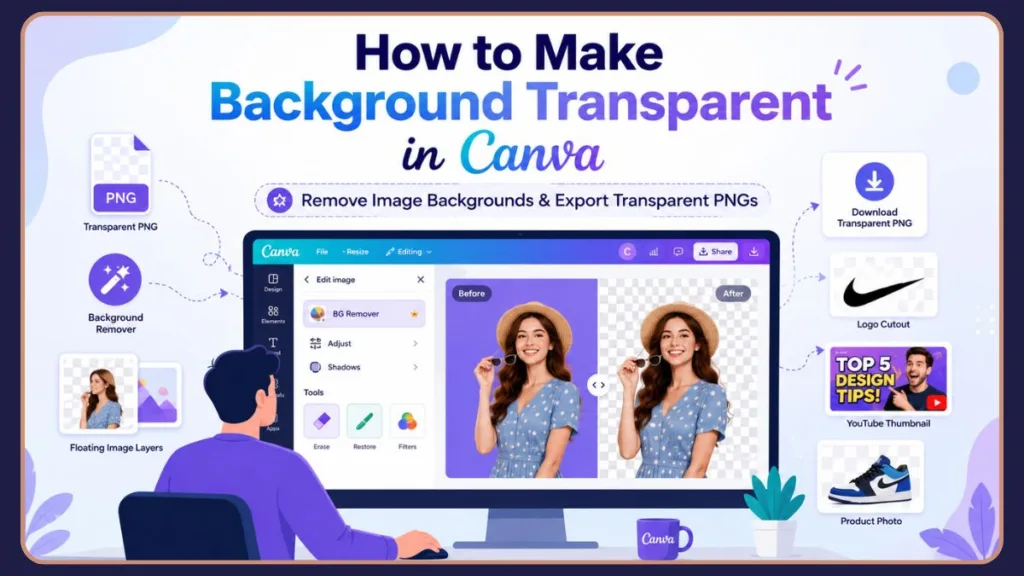
Don’t worry! This comprehensive guide covers everything you need to know. We’ll show you exactly how to use the premium tools in Canva Pro, clever workarounds for Canva Free users, how to edit on mobile devices, the correct way to export transparent PNGs, and how to troubleshoot common issues. At Izoate, we believe you shouldn’t have to be a professional graphic designer to create stunning visuals, so we’ve broken down every step for beginners and experts alike.
The Quick Answer: If you have Canva Pro, click your image, go to Edit Image (or Magic Studio), and select BG Remover. If you have Canva Free, download your image, run it through a free tool like Adobe Express Background Remover, and upload the transparent image back into Canva!
Do I Need Canva Pro to Remove Backgrounds? Pricing and Features Explained
Understanding the difference between what Canva offers for free and what is locked behind a paywall is the first step to optimizing your design workflow. Many users wonder if upgrading is truly necessary just for this one feature.
Is Canva Background Remover Free to Use?
No, the native, one-click Background Remover tool built into Canva is a premium feature. You must have an active Canva Pro, Canva for Teams, Canva for Education, or Canva for Nonprofits account to use it. If you try to click the tool on a standard free account, you will be prompted with a popup asking you to start a 30-day free trial. If you only need to remove a background for a single, one-off project, activating this free trial is often the easiest temporary solution.
Canva Free vs Canva Pro Background Removal: Which Tier is Right for You?
Understanding what you get with each tier will help you choose your workflow. The difference essentially comes down to speed, convenience, and advanced editing capabilities.
- Background Remover availability: Pro only. Free users cannot access the one-click tool inside the editor. Instead, they must rely on external software.
- Transparent PNG export: Pro only. Saving a design without a white canvas background requires a premium account. This is vital to understand: even if you import a transparent image into Canva Free, downloading your final Canva canvas will result in a solid white background unless you use a workaround.
- Editing tools: Pro users get access to the Erase and Restore brushes to fine-tune AI cutouts. Free users have to accept whatever result their third-party tool gives them.
- Video background removal: Pro only. This incredible feature allows you to strip the background from moving MP4 videos, which is currently impossible on the free tier.
Can I Remove Backgrounds in Canva Free? Best Workarounds Explained
Yes, absolutely! While you cannot use the native button, you can use free alternative workflows. You simply design in Canva, use a free third-party background remover tool on your browser, and bring the asset back into your Canva workspace. We cover the exact steps for this later in the guide. It takes a few extra clicks, but it is completely safe, legal, and a fantastic option for beginners on a budget.
How to Remove Background in Canva (Step-by-Step Desktop Method)
Editing on a desktop or laptop computer is usually the preferred method for graphic design because a mouse gives you much better precision than a touchscreen.
How Do I Remove the Background From a Photo in Canva With One Click?
If you are a Canva Pro user, the process is incredibly fast. The AI does all the heavy lifting for you in a matter of seconds.
- Step 1: Upload your image. Drag and drop your photo into your Canva workspace, or click the “Uploads” tab on the left sidebar to browse your computer’s files.
- Step 2: Select the image. Click on the image so the purple bounding box appears. (If you skip this, the edit menu won’t show!) This is the number one mistake beginners make.
- Step 3: Click Edit Image. Located in the top toolbar (this may also say “Edit Photo” or fall under “Magic Studio” depending on your layout). As Canva rolls out updates, this button sometimes shifts, but it is always directly above your canvas.
- Step 4: Choose Background Remover. Click the icon that looks like a beach ball with a checkered background (BG Remover).
- Step 5: Review and apply changes. Canva’s AI will automatically process the image and strip away the background in seconds. Wait for the loading circle to finish before clicking away, or the effect might not apply properly.
How to Remove Background in Canva and Make It Transparent for Any Design Project
Once you remove the background of your subject, you need to keep transparency intact to use it elsewhere. In digital design, this invisible background is called an “alpha channel.” Position your newly cut-out image on your canvas. To prepare for export, ensure there are no solid color blocks behind it. When downloading, you will need to select PNG and check the “Transparent background” box.
Why Can’t I Find Background Remover in Canva? Locating Missing Tools
If you are staring at your screen wondering where the tool is, it’s usually due to one of these reasons. Don’t worry, it hasn’t been deleted!
- Image not selected: The “Edit Image” button only appears when you actually click on a photo element. Check to make sure your image isn’t locked by clicking the padlock icon.
- Canva Free limitations: The tool might have a crown icon next to it, or it will prompt you to upgrade. If you see the crown, the tool is visible but inaccessible.
- Browser or interface changes: Canva frequently updates its UI (like introducing Magic Studio). Look for “Edit Photo” or “Effects” if you don’t see it immediately.
- Mobile vs desktop differences: On mobile, the tool is located at the bottom of the screen, not the top.
Why Does Canva Remove Parts of My Image? Troubleshooting AI Cutout Errors
Nothing is more frustrating than clicking the tool only to find your subject missing half their face or a vital piece of your product vanished.
How Canva’s AI Detects Backgrounds and Foreground Subjects
Canva uses artificial intelligence to identify the primary subject of a photo by looking for contrast, sharp edges, and depth of field. It then separates this foreground from what it deems to be the background by calculating where the focus of the lens was directed.
Common Problems With Hair, Shadows, and Logos During Background Removal
The AI isn’t perfect. If your subject has frizzy hair, if there are harsh drop shadows, or if a logo shares the exact same color hex code as the background, the AI gets confused and might accidentally delete parts of your subject. For example, a white coffee mug sitting on a white desk will often result in a messy cutout because the computer cannot tell where the mug ends and the table begins.
Why Background Removal Looks Incorrect on Complex Photos
Incorrect removal is usually caused by poor lighting, low-resolution images, or highly cluttered, “busy” backgrounds where the subject blends into the scenery. Compression artifacts in low-quality JPGs also confuse the AI, leading to jagged, pixelated edges instead of smooth lines.
How Do I Restore Parts Removed by Canva? Perfecting Your Edges
When the AI makes a mistake, you don’t have to throw the image away. Canva Pro provides manual refinement tools to rescue your design assets. We highly recommend using a computer mouse rather than a laptop trackpad for this step, as it requires steady precision.
Using the Restore Tool to Bring Back Missing Photo Details
If Canva chopped off someone’s ear or part of a product, don’t panic. Click on the Background Remover tool settings (the little sliders icon on the button). Select the Restore Tool (a brush with a plus sign). Click and drag over the missing areas to paint them back in. You will see the original background magically reappear wherever you paint.
Using the Erase Tool to Delete Stubborn Background Artifacts
If Canva left a stubborn piece of the background (like a chair leg or a plant), select the Erase Tool (a brush with a minus sign). Paint over the unwanted pixels to manually delete them. This is perfect for clearing out the empty space trapped between a person’s arm and their torso.
Expert Tips for More Accurate Background Removal and Cleaner Edges
- Use the zoom slider to get up close to the edges. Don’t try to edit from a zoomed-out view.
- Adjust the brush size for fine details (small brush for hair, large brush for big chunks of background).
- Toggle “Show original image” to see exactly what you are erasing or restoring. This lowers the opacity of the removed background so you can use it as a tracing guide.
How to Remove Background on Canva Mobile: iOS and Android Workflows
For creators on the go, the Canva mobile app for smartphones and tablets is a lifesaver. The interface is slightly optimized for touchscreens, but the core functionality remains exactly the same.
How to Remove Background on Canva for iPhone Users
- Tap the image on your canvas to select it. Ensure the purple border highlights the photo.
- In the menu at the bottom of the screen, tap Effects (or Edit Photo). You may have to swipe left on the bottom toolbar to find it.
- Tap BG Remover. Wait a few seconds for the app to process it. Do not lock your phone screen while it is loading.
How to Remove Background on Canva for Android Devices
The Android process is identical. Tap your image, scroll through the bottom toolbar to find Effects, and select BG Remover. The processing time will depend entirely on your phone’s processor and your internet connection.
Why Background Remover May Not Appear on Mobile and How to Fix It
If you can’t find it, you might not have the image selected, your app might need an update from the App Store or Google Play, or you might be logged into a Free account by mistake. Sometimes logging out and logging back into your Pro account on the mobile app triggers the premium tools to reappear.
Mobile Editing Tips for Better Results on Smaller Touchscreens
Using the Erase/Restore brushes with a finger can be clumsy. Use the “pinch to zoom” gesture to get as close to the image as possible, and if you have one, use a mobile stylus (like an Apple Pencil on an iPad) for precision edging. iPads and tablets actually offer the best of both worlds: the portability of mobile with the precision of a larger screen.
How to Remove Background in Canva Not Pro: Best Free Workarounds
If you are determined to keep your design process completely free, there are highly effective external methods available. Using these free alternative workflows ensures you don’t have to sacrifice quality just to stay within a budget.
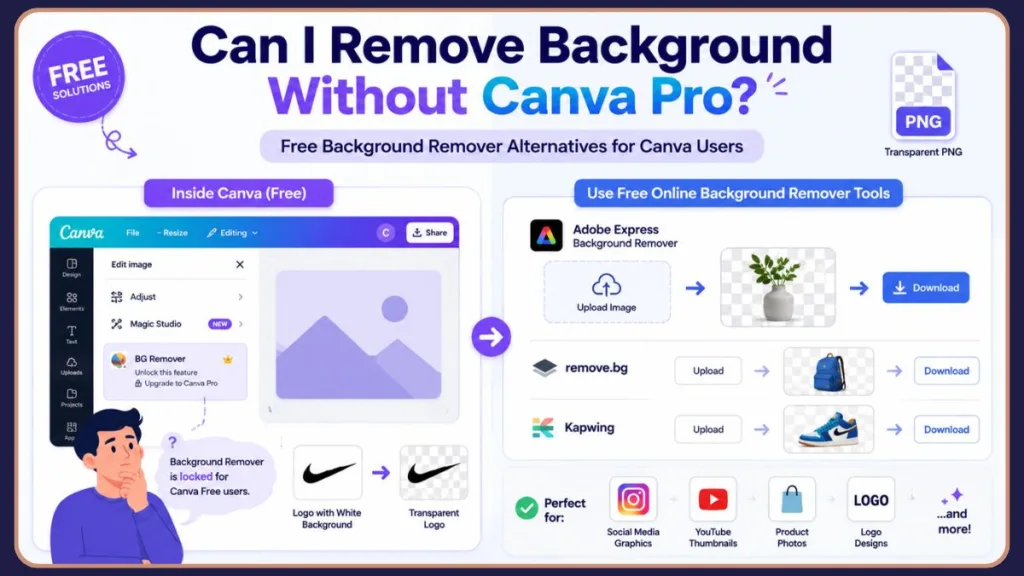
How to Remove the Background of a Picture in Canva for Free Using External Tools
If you don’t have Canva Pro, use this simple three-step workflow:
- Download image from Canva: Save the photo you want to use to your device.
- Use a free background remover: Open a free browser tool and process the image.
- Upload the transparent image back to Canva: Drag the new, transparent PNG back into your Canva uploads folder and drop it into your design! It will act just like a native premium cutout.
Method 1: Using the Free Adobe Express Background Remover
This is highly recommended. Adobe Express offers a completely free, highly accurate background removal tool online. You just drag your photo in, and download it. It handles complex edges beautifully and requires no credit card to use.
Method 2: Quick Cutouts with Remove.bg
Remove.bg is incredibly fast and famously accurate. It’s often considered the gold standard for AI background removal. However, on their free tier, they limit the resolution of your downloaded image, so it’s best for smaller graphics rather than high-res print designs.
Method 3: Precision Editing with Kapwing Background Remover
Kapwing features a “Magic Wand” tool that lets you click and remove pixels manually, making it a great free alternative if you need slightly more manual control. This mimics the feeling of traditional photo editing software.
Which Free Background Remover Works Best for Canva Integrations?
For most Canva Free users, Adobe Express is the winner because it does not heavily restrict the download resolution of your final transparent image. This means your graphics stay crisp and sharp when you import them back into Canva.
How to Remove Background in Canva Without BG Remover: Clever Design Hacks
Sometimes, you don’t actually need to completely erase a background. You can fake a transparent look using clever design tricks inside Canva’s free tier.
The Crop and Layer Technique for Simple Shapes
If your subject is perfectly rectangular or square, you don’t need a background remover. Just use the crop handles on the sides of the image to slice away the background, and layer it over your new design.
The Canva Draw Tool Workaround for Custom Masking
For abstract designs, you can use Canva’s new “Draw” app to manually paint over a background using a color that matches your new canvas, essentially hiding the old background. This requires patience but can yield fun, artistic results.
Manual Cutout Methods Using Canva Frames
You can place your image inside an element “Frame” (like a circle or a star) to hide the outside edges of the photo. Simply go to the “Elements” tab, search for “Frames,” drop one on your canvas, and drag your photo directly into it. The frame masks the background instantly.
When These Methods Are Worth Using over Automated Tools
These methods are only worth using if you have very simple, straight lines, or if you just need to crop out a massive amount of empty space quickly without leaving the app. For complex portraits, always use a dedicated background removal tool.
How to Remove a White Background From a Logo in Canva for Clean Branding
Business owners constantly struggle with logos trapped in white JPEG boxes. A transparent logo is essential for placing your branding on letterheads, business cards, and social media posts.
How to Remove White Backgrounds From PNG Logos Seamlessly
If a client sends you a logo with a solid white background, simply upload it, click it, and hit the BG Remover tool. It works just as well on graphics and logos as it does on photos.
How to Remove White Boxes Around Logos for Presentations
Nothing ruins a presentation like a logo stuck inside an ugly white box. Once you run the BG remover, you can place that logo cleanly over dark or colored backgrounds. This instantly elevates the professionalism of your slides and marketing materials.
Why Some White Backgrounds Are Harder to Remove Due to Low Contrast
If the logo itself features white text or white icons, Canva’s AI might delete the actual logo along with the background. Because it looks for contrast, white-on-white confuses the system. You will have to use the Restore tool to paint the white logo elements back in.
Best Export Settings for Transparent Logos to Ensure High Quality
Always export logos as PNGs. A JPG does not support transparency and will just add the white box right back! If you have Canva Pro, downloading as an SVG (Scalable Vector Graphic) with a transparent background is even better for printing, as it will never lose quality or become pixelated.
How to Make a Transparent Background in Canva and Export Files Correctly
The Difference Between Background Removal vs Transparent Backgrounds
Background Removal is the act of cutting a subject out of a photo. A Transparent Background is the act of saving your entire Canva canvas without a white background behind your elements. You must do both if you want to use your Canva creation as a standalone sticker or asset on another website.
How Do I Save a Transparent PNG in Canva? Step-by-Step Export Settings
To save a transparent file (Canva Pro required):
- Step 1: Click Share in the top right corner.
- Step 2: Select Download.
- Step 3: Choose PNG from the File Type dropdown.
- Step 4: Enable Transparent Background by checking the empty box.
- Step 5: Download your file.
Why Is My Background Still White After Removing It? Common Saving Errors
If your image still has a white background on your computer, check these culprits. It is a very common point of confusion for beginners.
- Downloaded as JPG: JPGs physically cannot hold transparency. If you force a transparent image into a JPG format, the computer will automatically fill the empty space with white.
- Transparent Background option disabled: You forgot to check the box!
- Incorrect export settings: You may have downloaded a PDF standard instead of a PNG.
- Browser preview confusion: Some image viewers on Mac/Windows use a white or black background to display transparent PNGs. Don’t panic. Drag the image into a new Canva document to test if it’s actually transparent.
Understanding Object Transparency vs Background Removal Workflows
Don’t confuse the tools! The Opacity tool (the checkerboard icon in the top right) uses a transparency slider to make an entire image see-through (like a ghost). It does not remove the background. Use the slider for creating subtle watermarks or background textures, and use the BG remover for sharp subject cutouts.
Canva Background Remover Video Guide: Editing MP4 Clips
The design world isn’t just about static images anymore. Short-form video content has taken over, and Canva has updated its tools to keep pace.
Can Canva Remove Video Backgrounds Like a Green Screen?
Yes! Canva Pro users can actually remove the background from MP4 video elements, not just static images. This acts like an instant, AI-powered green screen without needing actual studio equipment.
How to Use Canva Background Remover for Video Clips Step-by-Step
Select your video clip on the canvas, click Edit Video on the top toolbar, and click Background Remover. It may take a few minutes to process the frames. Be patient, as analyzing 30 frames per second is a massive task for your browser to handle.
Best Uses for Transparent Video Backgrounds in Social Media Marketing
This is an incredible feature for creating reaction TikToks, Instagram Reels with dynamic moving graphics, or highly engaging video presentations where the speaker is layered over text and animated charts. It helps creators stand out in a crowded social media feed.
How to Remove Background in Canva for YouTube Thumbnails That Get Clicks
If you look at the trending tab on YouTube, almost every single successful video uses the exact same thumbnail strategy: a large, expressive human face cut out from its original background.
Create Transparent Subject Cutouts for Eye-Catching Reaction Faces
The most common YouTube thumbnail features a shocked or excited face. Take a photo of yourself, upload it, and use the Background Remover to isolate yourself. Ensure your facial expression is clear and well-lit before applying the tool.
Remove Your Background for Gaming and Vlog Thumbnails to Add Depth
Once you are a transparent cutout, you can layer yourself over in-game screenshots, dramatic landscapes, or blurred vlog locations to create depth. Blurring the background layer while keeping your cutout sharp forces the viewer’s eye directly to you.
Layer Images Over Custom Thumbnail Backgrounds for 3D Effects
Position your cutout in the foreground, and drop a vibrant background image behind you on the canvas. Add large, bold text between the background layer and your cutout layer for a professional 3D effect.
Pro Tips for Higher Click-Through Thumbnails Using White Outlines
After removing your background, click “Edit Image,” go to “Shadows,” and add a “Glow” effect. Change the glow color to white to create that classic YouTube “white outline/sticker” effect around your cutout! This technique, famously popularized by creators like MrBeast, significantly increases Click-Through Rates (CTR).
Canva Background Remover Not Working? Common Causes and Easy Fixes
Technology isn’t perfect. If the tool is acting up, running through these quick troubleshooting steps will usually solve the problem.
What to Do When the Background Remover is Missing from Your Menu
Ensure you have actually clicked the image on the canvas. The contextual menu will remain hidden until an image layer is actively selected.
What to Do When Canva Says Upgrade to Pro
You are logged into a Canva Free account. You must upgrade, start a free trial, or use the Adobe Express workaround.
Fixing Edges When Background Removal Looks Wrong
The AI failed due to poor contrast. Use the manual Erase and Restore brushes to fix the edges, or try uploading a brighter, higher-resolution version of the photo.
Troubleshooting When the Transparent Background Option is Missing
This export feature is only available for Canva Pro users. If you are paying for Pro and still don’t see it, ensure you have selected PNG from the dropdown menu first.
Resolving Mobile App Issues and App Crashes
Force close the app, ensure your app is updated, and clear the app cache in your phone settings. A weak Wi-Fi or cellular connection will also cause the tool to time out and fail.
Browser and Cache Fixes for Freezing Background Removal Tools
If the tool is hanging or freezing on your computer, clear your browser cookies/cache, or try logging into Canva in an Incognito window. Occasionally, Canva’s servers experience downtime, so check their official status page if the tool is universally unresponsive.
Canva vs Photoshop for Background Removal: Which is Best for You?
Professionals often debate which tool is superior. While they both achieve a similar end goal, the user experience could not be more different.
A Brief Overview of How to Remove Background in Photoshop
In our guide on How to Remove Background in Photoshop, you use tools like the Magic Wand, the Object Selection Tool, or “Select Subject,” followed by applying layer masks. You can also use the Pen tool to draw manual vector paths around your subject for absolute precision.
Canva vs Photoshop: Key Differences in AI Speed vs Manual Control
Canva is a one-click, AI-driven process designed for speed and ease of use. It lives entirely in your web browser. Photoshop requires a steep learning curve, manual software knowledge, and a heavy desktop application, but offers pixel-perfect, non-destructive editing and granular control.
Which Tool Is Better for Beginners Without Design Experience?
Canva is undeniably better for beginners. It takes 3 seconds, requires zero graphic design training, and is significantly cheaper than an Adobe Creative Cloud subscription.
When Photoshop Is Worth Using for Complex Commercial Edits
If you are doing high-end commercial product photography, cutting out incredibly fine flyaway hairs on a fashion model, or working with complex transparencies (like glass bottles or smoke), Photoshop is required. For 95% of everyday social media and marketing tasks, Canva is more than enough.
Best Free Alternatives to Canva Background Remover for High-Quality Cutouts
If you are on Canva Free, bookmark these tools. They are essential companions to your design workflow.
Adobe Express: The Top Free AI Background Remover
The best overall free alternative with high-quality AI detection and minimal resolution loss. It leverages the exact same AI engine that powers modern Photoshop.
Remove.bg: Ultra-Fast Removals with Size Limits
The fastest tool available, perfect for quick social media posts, though it limits free download sizes to standard definition.
Kapwing: Manual Magic Wand Control
Great for users who want a bit more manual control over which pixels are removed, operating almost like a lightweight browser-based photo editor.
Pixlr: A Full Web-Based Photo Editor Alternative
A web-based photo editor with a solid background removal utility and plenty of filtering options. Check out Pixlr if you want more extensive image adjustments.
Fotor: One-Click Web Editor Background Erasing
Another robust web editor with a one-click background remover (though watch out for watermarks or premium prompts on some free tiers). Visit Fotor to test its capabilities.
Which Background Remover Should You Choose for Canva Integration?
If you want the easiest integration with your Canva Free workflow, use Adobe Express. It provides the best balance of high-quality edge detection and free high-resolution downloads.
Frequently Asked Questions About Canva Background Removal
Quick Recap: How Do I Remove the Background From a Photo in Canva?
Select the photo on your canvas, click “Edit Image” from the top menu bar, and click “BG Remover.” This feature requires a Canva Pro account and internet access to process the AI request.
Summary: Why Can’t I Find Background Remover in Canva?
You either haven’t clicked on the image to bring up the contextual menu, or you are currently logged into a free account. Ensure the image has a purple bounding box around it.
Bottom Line: Do I Need Canva Pro to Remove Backgrounds?
To use the automated one-click tool inside the Canva editor, yes, you must be a paying subscriber or on a free trial.
Can I Remove Backgrounds in Canva Free using External Tools?
Yes, by using external tools like Adobe Express to cut out the subject, and then importing that resulting transparent PNG back into your Canva uploads folder.
Best Practice: How to Remove Background in Canva Not Pro?
Download your standard image, use a free online background remover on your browser, and re-upload the newly generated transparent file back to Canva to continue designing.
Quick Steps: How Do I Save a Transparent PNG in Canva?
Click Share in the top right > click Download > select PNG as your file type > check the “Transparent background” box > click Download.
Troubleshooting: Why Is My Background Still White After Removing It?
You likely downloaded it as a JPG instead of a PNG, or you simply forgot to check the transparency box before hitting the download button.
How Do I Remove a White Background From a Logo Quickly?
Upload your logo, use the BG remover tool on the image to strip away the white box, and then export your entire canvas as a transparent PNG.
Understanding the AI: Why Does Canva Remove Parts of My Image?
The AI confused the colors of your subject with the colors of the background due to low contrast, poor lighting, or matching color palettes.
How Do I Restore Parts Removed by Canva Manually?
Click the settings icon located directly on the BG remover tool and use the “Restore” brush (the plus sign) to manually paint the missing parts of your photo back in.
How to Remove Background on Canva Mobile on the Go?
Tap the image to select it, tap “Effects” on the scrolling bottom menu, and select “BG Remover.” Wait for your phone to finish loading the effect.
Feature Update: Can Canva Remove Video Backgrounds?
Yes, Canva Pro features a video background remover that can automatically strip backgrounds from MP4 video elements, acting like a digital green screen.
What Is the Best Free Alternative to Canva Background Remover Online?
Adobe Express Background Remover is currently the best free alternative because it is highly accurate and doesn’t severely compress your image resolution upon download.
Conclusion
Removing backgrounds is one of the most powerful ways to elevate your designs, turning average photos into stunning, professional marketing assets. The quickest and most seamless way to remove backgrounds in Canva is undoubtedly by using the native BG Remover in Canva Pro. It allows you to click, edit, refine, and export all in one centralized place, saving you hours of workflow frustration.
However, if you are a Canva Free user, you are not out of luck! By utilizing free external tools like Adobe Express or Remove.bg, you can achieve the exact same premium results with just a few extra clicks. The barrier to entry for great design has never been lower.
Whatever method you choose to utilize, remember that the most crucial step is to always export your final design as a PNG with the “Transparent background” box checked. Without that final step, all your hard work will be hidden behind a white box. Choose the workflow that best fits your budget and design needs, keep this guide handy for troubleshooting, and start creating stunning, professional graphics today!
Visit Our Post Page: Blog Page
Discover more from Izoate
Subscribe to get the latest posts sent to your email.