
Accidentally sent the wrong emoji in 2026? Learn how to remove reaction from Outlook email using a simple 2-second solution. From undoing reactions to disabling Outlook features and fixing errors, fix it fast and stay professional.
Accidentally reacted to an Outlook email with the wrong emoji?
Or worse, did you send a “Heart” or “Laugh” emoji on a serious thread about budget cuts?
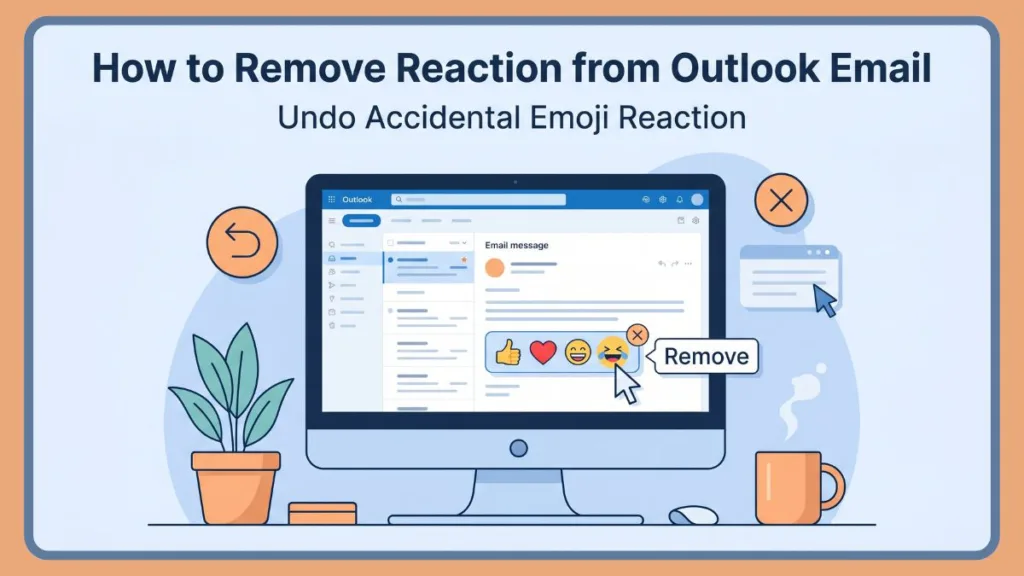
You’re not alone. In 2026, it’s a classic digital “oops” moment. Whether it’s a “fat-finger” mistake on your smartphone or a sudden change in professional context, knowing how to retract that emoji is a necessary skill for the modern office.
This guide is your deep dive into managing your digital presence. We’ll cover every method—from the 2-second UI fix to advanced PowerShell scripts for IT pros.
The Quick Rise of Emoji Reactions in Outlook
Email reactions are a relatively recent addition to Microsoft Outlook. They provide a lightweight way to acknowledge messages without a full reply.
In our fast-paced corporate world, “Reply-All” fatigue is real. Reactions help by using Unicode emoji characters for quick confirmations. Instead of twenty people typing “Got it!”, they can simply “Thumbs Up” the original message.
However, retracting a reaction is often necessary. Misclicks on touch screens, evolving conversations, or strict professional etiquette can make a previously sent emoji unsuitable.
The ability to “unreact” is now just as vital as the ability to react.
How to Remove Reaction from Outlook Email: The Quick Fix
Most users just need an immediate recovery plan. If you clicked the wrong emoji, here is how to fix it right now.
How to Undo Reaction from Outlook Email (Desktop & Web)
For Outlook Web (OWA) and the New Outlook for Windows, reaction data is stored as a metadata layer on the email.
- Locate the Target Email: Open the specific message within the thread where the reaction was placed.
- The Reaction Summary: Look at the bottom of the message body or the top-right header area. You will see a small aggregated summary of emojis used.
- The Toggle Method: To unreact on Outlook email, simply click the emoji icon you previously selected.
- One Click Off: The first click applies the reaction; the second click removes it.
- The Hover Method: Hover your mouse over the reaction icon. A small “x” or a highlighted border will typically appear. Click this to retract the reaction immediately.
How to Unlike an Email in Outlook
The “Like” (Thumbs Up) is the most common reaction.
If you need to unlike an email in Outlook, the process is identical. Because the “Like” is often in the message header for quick access, just click the blue-highlighted thumb icon to revert it to its original state.
How to Remove Reaction from Outlook Mobile (Android & iOS)
Mobile devices are the primary source of accidental reactions due to smaller screens.
- The Long-Press Technique: Open the email and find the reaction summary at the bottom. Tap and hold (long-press) your reaction. A popup menu will appear; select “Remove Reaction.”
- The Direct Tap: In the latest 2026 mobile updates, a single tap on your own reaction in the summary bar acts as an immediate unsend trigger.
Outlook Emoji Reactions Not Showing (Fix Guide)
Are you trying to remove a reaction, but the button is missing? Or maybe you can’t see the reactions your coworkers are using?
This usually points to a version or synchronization issue.
Where is the Reaction Button in Outlook?
If you are searching for the feature, look here:
- Top Header: Right next to the “Reply,” “Reply All,” and “Forward” icons.
- More Actions Menu: On smaller screens, look under the three dots (…) menu.
Why Reactions Disappear (Troubleshooting)
- Classic Outlook vs. New Outlook: Microsoft has transitioned away from “Classic” Outlook. Older 2019/2021 standalone versions don’t support the emoji UI.
- Legacy View: In older versions, reactions appear as separate emails saying “[Name] reacted to your message.” To fix this, toggle the “Try the New Outlook” switch in the top right.
- Client-Side Caching: The client may cache old message data. If a reaction was removed but the UI still shows it, restart the app or clear the
WebView2cache. - Synchronization Delays: There can be a 5-10 second delay between clicking “Remove” and the change reflecting for everyone else.
How to Disable Reactions in Outlook 365
If you find social-media-style emojis distracting, you can opt out or restrict how others interact with your mail.
How to Turn Off Reactions in Outlook (User Level)
To disable reactions in Outlook for your own view:
- Open Settings (the gear icon).
- Go to Mail > Message Handling.
- Scroll to the Reactions section.
- Uncheck “Show reactions in the message header.” This stops icons from cluttering your reading pane, allowing you to focus purely on text.
How to Disallow Reactions in Outlook (Sender Control)
As a sender, you can prevent others from reacting to a sensitive or formal email.
- Compose a new email.
- Before sending, click the Options tab in the top ribbon.
- Select Disallow Reactions.
This is vital for regulatory compliance. It ensures that the only way for a recipient to respond is through a written, auditable email, preventing casual emojis from being part of a legal or financial record.
Disable Reaction Daily Digest Emails
Microsoft sends a “Daily Digest” summarizing received reactions. To stop this:
- Click the Unsubscribe link at the bottom of any digest email.
- Alternatively, go to Settings > General > Notifications and toggle off the “Reactions” summary under the Email section.
Advanced (For IT/Admin Users Only)
For professionals who need to manage this at scale or investigate raw email data, we look under the hood.
Examining and Modifying Internet Headers
Every reaction in Outlook is technically stored in the email’s internet header under the field: X-Outlook-Reactions.
- The Data: It is a Base64 encoded JSON string.
- Example Header:
X-Outlook-Reactions: eyJyZWFjdGlvbnMiOlt7ImVtYmoiOiJcdTExMTAwIiwidXNlcklkIjoiYWJjZGVmMTIzNDU2Nzg5MCJ9XX0= - Decoded JSON Structure:JSON
{"reactions":[{"emoji":"👍","userId":"abcdef1234567890"}]}
Knowing this structure is vital for diagnosing “stuck” reactions. You can access headers via File > Info > Properties > Internet Headers.
Utilizing Exchange Server PowerShell
To disable reactions in Outlook 365 for an entire organization, administrators use PowerShell.
- Connect to Exchange Online:
Connect-ExchangeOnline -UserPrincipalName admin@yourdomain.com - The Global Disable Command:
Set-OrganizationConfig -OutlookReactionsEnabled $false - Custom Scripting (EWS API):Admins can use the Exchange Web Services (EWS) API to write custom scripts that interact with message content and purge reaction metadata from specific mailboxes when standard removal fails.
Best Practices: Maintaining Professional Integrity
While reactions are simple, removing them is often about damage control. Several scenarios make this necessary:
- Accidental Reactions: Misclicks on touch-enabled devices often result in inappropriate responses.
- Contextual Shifts: A reaction might become unsuitable as a conversation evolves.
- Professional Etiquette: In formal exchanges, reactions can be perceived as flippant. Removing them restores a serious tone.
- Regulatory Compliance: In law or finance, an auditable record is paramount. Reactions can be scrutinized during audits, so keeping them accurate is essential.
FAQ
How do I remove a reaction from an email?
Locate the reaction summary at the bottom of the email thread. Hover over your specific reaction and click the icon to toggle it off.
How do I unsend a reaction in Outlook?
Follow the same steps as removal. Once you click your emoji icon again, the “unsend” action is processed by the server and syncs to all recipients instantly.
How to remove emoji from Outlook email quickly?
On Desktop, the fastest way is to click the highlighted emoji in the reaction summary once. On mobile, a single tap on your own reaction in the summary bar is the quickest method.
How do I remove a reaction on Outlook mobile?
Long-press the reaction emoji at the bottom of the message and select “Remove Reaction” from the popup menu.
Why can’t I remove my reaction in Outlook?
This is often caused by a synchronization delay or a cached view. Try refreshing your browser (for Web) or restarting the app (for Desktop/Mobile). If the problem persists, check your internet connection.
Can I remove someone else’s reaction?
No. As a standard user, you can only manage and remove reactions that you personally placed.
Does removing a reaction send a notification?
No. Adding a reaction triggers a notification, but removing a reaction is a silent update.
Is it possible to remove an emoji reaction after it’s been read?
Yes. Removing it will update the message header. The emoji will disappear the next time the recipient’s client synchronizes with the server.
Conclusion: Take Control of Your Digital Footprint
Removing reactions in Outlook requires a blend of UI knowledge and an understanding of the software version you are using. Whether you need a 2-second fix or an organization-wide policy via PowerShell, you now have the tools to keep your professional communication error-free.
In 2026, where every click is a piece of data, mastering your digital footprint is essential. If the “Undo” button feels too slow, remember that the “Disallow Reactions” toggle is your best friend for high-stakes emails.
Summary of Removal Methods
| Method | Platform | Complexity | Reliability |
| Reaction Summary (Toggle) | Web, New Outlook, Mobile | Low | High |
| Message Recall | Internal Exchange Server | Medium | Low to Medium |
| Header Modification | Technical Diagnostics | High | Low |
| Admin PowerShell | Organization-wide | High | High |
Visit Our Post Page: Blog Page
Discover more from Izoate
Subscribe to get the latest posts sent to your email.