
Want to fix stuck print jobs fast in 2026? Learn how to restart the Print Spooler using CMD with simple commands. From stopping the service to clearing the spool folder and troubleshooting recurring printer errors. Get your Windows printer working again today.
Why You May Need to Restart the Print Spooler Using CMD
When your printer suddenly stops working, documents get stuck in the print queue, or Windows reports that the Print Spooler service isn’t running, it can quickly interrupt your work. While printer hardware or connection issues can sometimes be the cause, many printing problems are actually linked to the Windows Print Spooler service. If this service becomes unresponsive or crashes, your print jobs may never reach the printer.
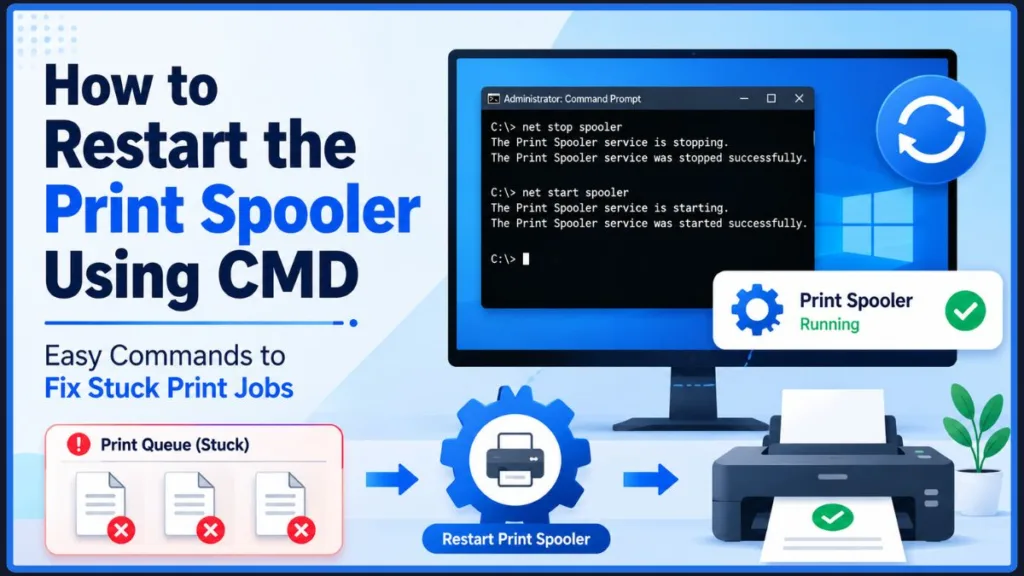
The good news is that you can often fix these issues in just a few minutes by restarting the Print Spooler using Command Prompt (CMD). Whether you’re using Windows 11 or Windows 10, a few simple commands can refresh the printing service, restore communication with your printer, and help clear common printing errors without restarting your computer.
In this guide, you’ll learn the quickest way to restart the printer spooler using CMD, understand when you should restart the service, and discover what to do if restarting alone doesn’t solve the problem. We’ll also cover how to clear stuck print jobs and troubleshoot persistent Print Spooler issues so you can get your printer working again.
Quick Answer: Restart Printer Spooler Using CMD
If you’re looking for the fastest way to restart the Print Spooler service, open Command Prompt as Administrator and run the following commands:
net stop spooler
net start spooler
Alternatively, you can restart the service in a single command:
net stop spooler && net start spoolerHere’s what these commands do:
net stop spoolerstops the Windows Print Spooler service, temporarily pausing all print jobs.net start spoolerstarts the service again, allowing Windows to resume processing print requests.&&tells Command Prompt to run the second command only if the first one completes successfully, making it a quick way to restart the service.
For many users, this simple restart is enough to fix issues like stuck print jobs, a printer that won’t print, or the Print Spooler not running error. However, if your printer still isn’t responding after restarting the service, the problem may be caused by a corrupted print queue or another Windows printing issue. In the following sections, you’ll learn how to restart the service step by step and troubleshoot more persistent printing problems.
Why Restarting the Print Spooler Fixes Printer Problems
What Is the Print Spooler Service?
The Print Spooler is a built-in Windows service that acts as a bridge between your applications and your printer. Whenever you print a document from programs like Microsoft Word, Excel, Chrome, or Adobe Reader, Windows doesn’t send the file directly to the printer. Instead, it hands the print job to the Print Spooler, which temporarily stores it, organizes it in the print queue, and sends it to the printer in the correct order.
This background service also manages communication between Windows, your printer driver, and the connected printer. It keeps track of every print job, reports the printer’s status, and lets you pause, resume, or cancel documents waiting to be printed.
Why the Print Spooler Stops Working
Sometimes, however, the Print Spooler can stop responding due to a corrupted print job, an outdated printer driver, or a temporary Windows service error. When that happens, new print jobs may become stuck in the queue, your printer may appear offline, or Windows may display messages indicating that the Print Spooler service is not running.
How Restarting the Print Spooler Resolves Printing Issues
Restarting the Print Spooler service refreshes this entire printing process. It stops the service, clears its current operating state, and starts it again with a fresh connection to your installed printers and printer drivers. In many cases, this simple action restores normal communication between Windows and your printer, allowing pending or new print jobs to process correctly.
If restarting the service alone doesn’t resolve the issue, it usually means a damaged print job is still stored in the print queue. In that case, clearing the spool folder before restarting the service is often the next step, which we’ll cover later in this guide.
How to Restart the Print Spooler Using CMD
Using Command Prompt (CMD) is one of the quickest and most reliable ways to restart the Print Spooler service in Windows. This method works on both Windows 11 and Windows 10 and is especially helpful when your printer is not printing, the print queue is stuck, or the Print Spooler service has stopped responding.
Before running any commands, make sure you open Command Prompt with administrator privileges. Without administrative access, Windows won’t allow you to start or stop system services.
Step 1: Open Command Prompt as Administrator
- Click the Start menu or press the Windows key.
- Type cmd or Command Prompt.
- Right-click Command Prompt and select Run as administrator.
- If prompted by User Account Control (UAC), click Yes.
You can now manage the Print Spooler directly from the command line.
Step 2: Stop the Print Spooler Service
To stop the service, enter the following command and press Enter:
net stop spoolerWindows should display a message indicating that the Print Spooler service has stopped successfully.
Stopping the service temporarily pauses all print processing and releases any active print jobs. This is an important first step before restarting the service or clearing a stuck print queue.
Step 3: Start the Print Spooler Service Again
Once the service has stopped, restart it by running:
net start spoolerAfter a few moments, Windows should confirm that the Print Spooler service was started successfully.
At this point, try printing a small document or test page to see whether your printer is working normally again.
Step 4: Restart the Print Spooler with a Single Command
If you simply want to restart the service without typing two separate commands, you can use:
net stop spooler && net start spoolerThe && operator tells Command Prompt to execute the second command only after the first one completes successfully. This provides a quick way to restart the printer spooler using CMD with a single line.
Tip: If Windows returns an “Access is denied” error, close Command Prompt and reopen it using Run as administrator before trying again.
How to Clear the Print Queue Using CMD After Restarting the Print Spooler
If restarting the Print Spooler service doesn’t resolve the problem, a corrupted or stalled print job may still be stored in the Windows print queue. In this situation, Windows can reload the same problematic job each time the service starts, causing printing issues to continue.
Clearing the spool folder removes all pending print jobs and gives the Print Spooler a clean start.
Important: This process deletes all documents currently waiting to print. If you still need those documents, you’ll have to send them to the printer again after clearing the queue.
Step 1: Stop the Print Spooler Service
Open Command Prompt as Administrator and stop the service by running:
net stop spoolerWait until Windows confirms that the service has stopped before continuing.
Step 2: Delete All Stuck Print Jobs
Next, remove the temporary spool files by entering:
del /Q /F /S "%systemroot%\system32\spool\printers\*.*"This command deletes all queued print jobs stored in the Windows PRINTERS spool folder.
If you prefer, you can also manually open:
C:\Windows\System32\spool\PRINTERSand delete every file inside the folder.
Note: Delete the files inside the PRINTERS folder only. Do not delete the PRINTERS folder itself, as Windows uses it to store future print jobs.
Step 3: Restart the Print Spooler
Finally, start the service again by running:
net start spoolerOnce the service is running, open your printer queue to confirm it’s empty, then resend your document or print a Windows test page to verify that the issue has been resolved.
If your printer still doesn’t print or the Print Spooler keeps stopping after clearing the queue, the problem is likely related to a printer driver, a Windows service dependency, or another system issue. In the next section, we’ll look at additional troubleshooting steps to help you identify and fix those problems.
How to Check if the Print Spooler Is Running Using CMD
If you’re unsure whether the Print Spooler service is currently active, you can check its status directly from Command Prompt. This is useful if your printer isn’t responding or if restarting the service didn’t produce the expected results.
Check the Print Spooler Service Status Using CMD
Open Command Prompt as Administrator and run the following command:
sc query spoolerAfter pressing Enter, Windows will display information about the Spooler service, including its current state.
Understanding the Command Output
Pay attention to the STATE field in the results.
- RUNNING – The Print Spooler service is active and Windows is ready to process print jobs.
- STOPPED – The service isn’t running, so your printer won’t receive or process any print requests until you start the service again.
- START_PENDING or STOP_PENDING – The service is in the process of starting or stopping. Wait a few moments before checking its status again.
If the status shows STOPPED, you can start the service immediately by running:
net start spoolerIf the service starts successfully but changes back to STOPPED shortly afterward, it usually indicates a deeper problem, such as a corrupted print job, a faulty printer driver, or another Windows service affecting the Print Spooler.
Tip: After restarting the service, print a small test page instead of a large document. This helps confirm whether the Print Spooler is functioning correctly before sending additional print jobs.
What to Do If the Print Spooler Keeps Stopping
If the Print Spooler starts successfully but crashes again after a few seconds or stops every time you try to print, restarting the service alone won’t permanently solve the issue. In most cases, the problem is caused by a damaged print job, an outdated printer driver, or another Windows component interfering with the printing service.
Work through the following troubleshooting steps in order.
Clear Any Remaining Stuck Print Jobs
Even after restarting the service, a corrupted print job can cause the Print Spooler to stop repeatedly.
Stop the service, clear the PRINTERS spool folder, and then start the service again using the commands covered in the previous section. This removes any pending print jobs that may be preventing Windows from processing new documents correctly.
Make Sure the Print Spooler Startup Type Is Automatic
If the Print Spooler isn’t configured to start automatically, printing may stop working after restarting your computer.
To verify the setting:
- Press Windows + R, type services.msc, and press Enter.
- Locate Print Spooler in the list of services.
- Double-click it to open Properties.
- Set Startup type to Automatic.
- If the service isn’t running, click Start, then select Apply and OK.
This ensures Windows starts the Print Spooler service automatically whenever your computer boots.
Update or Reinstall Your Printer Driver
A corrupted or outdated printer driver is one of the most common reasons the Print Spooler keeps crashing.
If the problem started after installing a new printer or after a Windows update:
- Remove the affected printer from Settings > Bluetooth & devices > Printers & scanners.
- Download the latest driver from your printer manufacturer’s support website.
- Reinstall the printer and try printing again.
If you have multiple printers installed, temporarily removing unused or old printer drivers can also help eliminate software conflicts.
Check Print Spooler Dependencies
The Print Spooler relies on other Windows services to function properly. If one of these services is disabled or stopped, the spooler may fail to start or continue running.
To check dependencies:
- Open Services (
services.msc). - Double-click Print Spooler.
- Open the Dependencies tab.
- Verify that the required services, such as Remote Procedure Call (RPC), are running.
If a required service is stopped, start it first, then try restarting the Print Spooler again.
Repair Corrupted Windows System Files
If the service continues to fail after clearing the print queue and updating your printer drivers, Windows system files may be corrupted.
Open Command Prompt as Administrator and run the following command:
sfc /scannowWait for the scan to complete and follow any repair instructions that Windows provides.
If the System File Checker can’t repair all corrupted files, run:
DISM /Online /Cleanup-Image /RestoreHealthAfter the DISM scan finishes, restart your computer and run sfc /scannow again to verify that all system files have been repaired.
Review Event Viewer for Print Spooler Errors
If the Print Spooler still stops unexpectedly, Windows may have logged the exact reason.
Open Event Viewer and check the Application and System logs for recent errors related to:
- spoolsv.exe
- Printer driver DLL files
- PrintService events
- Your printer’s name
These logs can help identify whether a specific printer driver, application, or Windows component is causing the service to crash.
Troubleshooting Tip: If none of these solutions resolve the problem, remove all installed printers, restart your PC, and add them back one at a time. This helps determine whether a particular printer, driver, or network connection is responsible for the recurring Print Spooler issue.
Alternative Ways to Restart the Print Spooler in Windows
While Command Prompt is the fastest method to restart the Print Spooler, Windows also provides graphical and PowerShell-based alternatives. These methods can be useful if you prefer not to use command-line tools or if you’re already working within another Windows utility.
Restart the Print Spooler Using Services
The Services console gives you direct control over Windows background services, including the Print Spooler.
To restart the service:
- Press Windows + R to open the Run dialog.
- Type
services.mscand press Enter. - Scroll down and locate Print Spooler.
- Right-click Print Spooler and select Restart.
If the service isn’t running, you’ll see a Start option instead. Likewise, if you need to temporarily stop printing, you can choose Stop.
For long-term reliability, double-click Print Spooler, set the Startup type to Automatic, and click Apply followed by OK. This ensures the service starts automatically whenever Windows boots.
Restart the Print Spooler Using Task Manager
Windows 11 and newer versions of Windows 10 allow you to manage services directly from Task Manager.
Here’s how:
- Right-click the Taskbar and select Task Manager.
- Open the Services tab.
- Locate Spooler in the list.
- Right-click it and choose Restart.
If the service has already stopped, select Start instead.
This method provides a quick graphical alternative without opening the Services console.
Restart the Print Spooler Using PowerShell
If you prefer Windows PowerShell or Windows Terminal, you can restart the service with a single command.
Open PowerShell as Administrator and run:
Restart-Service -Name SpoolerYou can also use these commands to manage the service individually:
Start the Print Spooler:
Start-Service -Name SpoolerStop the Print Spooler:
Stop-Service -Name SpoolerCheck whether the service is currently running:
Get-Service -Name SpoolerPowerShell is particularly useful if you automate system administration tasks or manage multiple Windows computers.
Frequently Asked Questions About Restarting the Print Spooler
How do I restart the Print Spooler using CMD?
Run net stop spooler followed by net start spooler in Command Prompt as Administrator.
What is the command to restart the Print Spooler?
Use net stop spooler && net start spooler to restart the Print Spooler in one command.
How do I check if the Print Spooler service is running?
Run sc query spooler in Command Prompt and check whether the STATE is RUNNING.
Will restarting the Print Spooler delete my print jobs?
No, restarting alone doesn’t delete print jobs, but clearing the spool folder removes all pending documents.
Why does the Print Spooler keep stopping?
The Print Spooler usually stops because of corrupted print jobs, faulty printer drivers, or Windows service issues.
Do I need administrator rights to restart the Print Spooler?
Yes, you must open Command Prompt, PowerShell, or Services with administrator privileges.
How do I clear a stuck print queue using CMD?
Stop the spooler, delete the files in the spool\PRINTERS folder, and start the spooler service again.
Is restarting the Print Spooler safe?
Yes, restarting the Print Spooler service is a safe and recommended way to fix common printing problems.
Can I restart the Print Spooler without restarting my computer?
Yes, you can restart only the Print Spooler using CMD, PowerShell, Services, or Task Manager without rebooting Windows.
Can I disable the Print Spooler service?
Yes, but you should only disable it if you never use printers, as doing so disables local and network printing features.
Restart the Print Spooler Using CMD to Get Your Printer Working Again
Restarting the Print Spooler using CMD is one of the quickest and most effective ways to resolve common Windows printing problems. Whether your printer isn’t printing, the print queue is stuck, or the Print Spooler service has stopped unexpectedly, using the net stop spooler and net start spooler commands can often restore normal printing within minutes.
If a simple restart doesn’t fix the issue, clearing the print queue, checking whether the service is running, updating your printer drivers, and verifying Windows service dependencies are the next logical troubleshooting steps. These solutions address the most common causes of recurring Print Spooler errors on both Windows 11 and Windows 10.
Once you’ve completed the appropriate steps, print a small test page to confirm everything is working correctly. If the problem persists even after following this guide, the issue may be related to your printer hardware, network connection, or manufacturer-specific drivers, in which case reinstalling the printer or contacting your printer manufacturer’s support team may be the best next step.
Additional Resources for Print Spooler Troubleshooting
Official Microsoft Support & Documentation
- Fix Printer Connection and Printing Problems in Windows: If restarting the Print Spooler doesn’t solve the issue, Microsoft’s official troubleshooting guide can help you diagnose printer offline errors, stuck print jobs, and other common Windows printing problems
- Deployment Image Servicing and Management (DISM): When SFC can’t repair your system, Microsoft’s DISM documentation walks you through restoring the Windows image before trying the Print Spooler again.
- Windows Event Viewer Documentation: If the Print Spooler keeps crashing, Event Viewer can help identify the underlying cause. This Microsoft Learn article explains how Windows logs service and application errors.
Visit Our Post Page: Blog Page
Discover more from Izoate
Subscribe to get the latest posts sent to your email.