
Want to avoid an unnecessary firefight, Raider? Learn how to say “Don’t Shoot” in ARC Raiders on PC, PS5, and Xbox, and fix a missing emote.
Fellow Raider, you’ve just filled your backpack with valuable loot when footsteps start closing in. You don’t want a firefight. You just want to make it to extraction with everything you’ve collected.
In ARC Raiders, you can signal peaceful intentions without speaking into your microphone. The game has a prerecorded “Don’t Shoot” voice-line emote that lets nearby Raiders know you’re asking for a non-aggressive encounter.
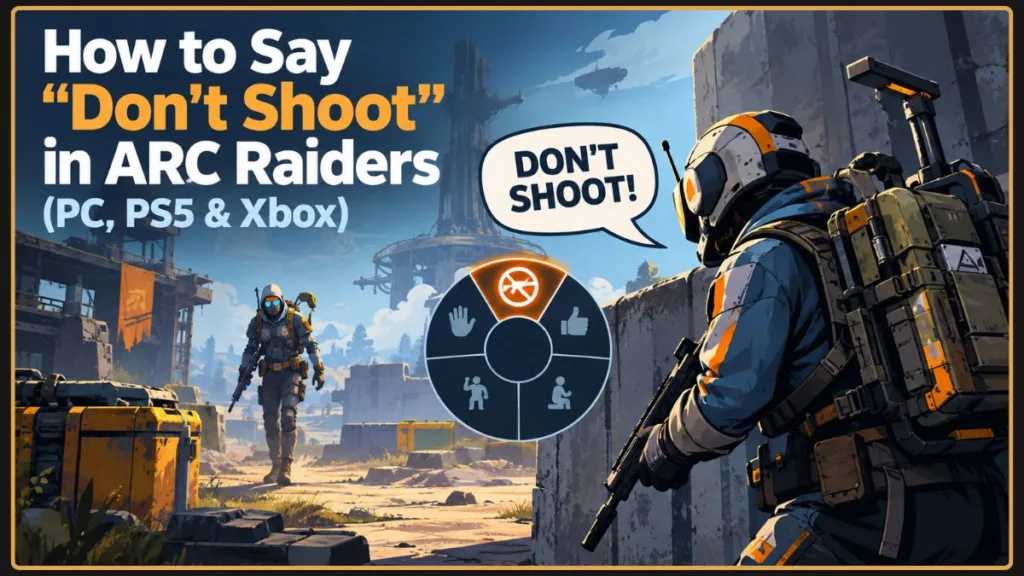
Here’s how to play the voice line on PC, PS5, and Xbox, what to do if you can’t find it, and how to approach another Raider without putting your loot at unnecessary risk.
How to Say “Don’t Shoot” in ARC Raiders
The fastest way to say “Don’t Shoot” is to open the Raider emote wheel and select the voice line.
ARC Raiders Don’t Shoot Controls
| Platform | Default control | How to select the voice line |
|---|---|---|
| PC | Hold G | Move your mouse over “Don’t Shoot,” then release G. |
| PS5 | Hold Up on the D-pad | Use the right stick to select the line, then release. |
| Xbox Series X|S | Hold Up on the D-pad | Use the right stick to select the line, then release. |
These are the default controls. If you’ve changed your bindings, check your in-game settings.
Quick tip: Hold the wheel button while selecting the voice line. Choose “Don’t Shoot” before releasing the input so you don’t accidentally close the wheel without playing the callout.
Step-by-Step Instructions
On PC
- Hold
Gto open the Raider emote wheel. - Move your mouse over “Don’t Shoot.”
- Release
Gto play the voice line.
On PS5 and Xbox
- Press and hold Up on the D-pad.
- Move the right analog stick toward “Don’t Shoot.”
- Release the D-pad input to activate the voice line.
Your Raider will play the prerecorded callout, allowing nearby players to hear your message. You don’t need to speak into your microphone.
Important fact: “Don’t Shoot” is a prerecorded voice-line emote, not a command that forces another Raider to cooperate. It communicates your intentions, but the other player decides how to respond.
Can’t Find the Don’t Shoot Emote in ARC Raiders?
If you’ve opened the wheel but can’t find “Don’t Shoot,” you may be looking at the wrong communication menu. This is one of the most common sources of confusion.
1. Check Which Wheel You’ve Opened
ARC Raiders has separate wheels for Raider voice lines and team communication.
- PC: Hold
Gfor the Raider emote wheel. - PS5: Hold Up on the D-pad for the Raider emote wheel.
- Xbox: Hold Up on the D-pad for the Raider emote wheel.
The team communication or ping function uses a different input. Its default controls include the mouse-wheel button on PC, R1 on PlayStation, and RB on Xbox.
If your wheel only shows team pings, such as location or combat callouts, switch to the correct emote wheel.
Important tip: If you see squad commands but can’t find “Don’t Shoot,” check that you’ve opened the Raider emote wheel rather than the team communication wheel. Changing the wheel you’re using may solve the problem without requiring you to change your controls.
2. Look for the Second Dialogue Wheel
Some console players report that the voice lines they want appear on a different dialogue wheel from the teammate-focused options.
If “Don’t Shoot” isn’t visible on the first wheel, keep the appropriate D-pad input held and check whether you can access the other dialogue wheel. Look for player-to-player voice lines rather than squad commands.
The precise behavior can depend on the current interface and control configuration, so check your active controls if the wheel doesn’t respond as expected.
3. Check Your Emote Configuration
You can inspect your equipped emotes from the lobby before starting another raid.
- Open the Raider menu.
- Select Customization.
- Open Emotes.
- Inspect your available emote slots and wheel configuration.
If the wheel has been customized, check whether “Don’t Shoot” is available among the options. Restore the default arrangement if the game offers that option and you want to return to the standard layout.
Changing your emote slots and changing the button used to open the wheel are separate things. If G or Up on the D-pad does nothing, inspect the relevant control binding as well.
4. Verify Your Current Control Bindings
If the wheel still won’t open, check the game’s Controls settings. A customized keyboard layout or controller configuration may use different inputs.
Once you’ve confirmed the binding, test the wheel again and make sure you’re selecting the voice line before releasing the input.
Troubleshooting tip: Test your emote controls somewhere safe before entering another raid. It’s easier to inspect your bindings in the lobby than to troubleshoot the wheel while another Raider is closing in.
Can You Say “Don’t Shoot” Without a Mic?
Yes. “Don’t Shoot” is a prerecorded voice-line emote. It plays your Raider’s in-game callout without requiring you to speak into a microphone.
If you want to negotiate directly with another player, you can also use proximity voice chat.
How to Use Proximity Chat
Proximity chat lets you speak to nearby Raiders, including players who aren’t on your squad.
The default push-to-talk controls are:
- PC: Hold
Bwhile speaking. - PS5: Hold Down on the D-pad while speaking.
- Xbox: Hold Down on the D-pad while speaking.
These controls may differ if you’ve changed your settings. Check the current in-game bindings if the microphone isn’t transmitting.
Make sure voice chat is enabled and that your microphone is configured correctly. Also, distinguish proximity chat from squad-only communication: the two functions serve different purposes.
Use the prerecorded “Don’t Shoot” line when you need a quick signal. Switch to proximity chat when you need to explain a plan, ask another Raider to cooperate, or clarify your intentions.
Quick fact: You don’t need proximity chat to play the “Don’t Shoot” voice line. Use the emote wheel for the prerecorded callout and your microphone for live conversations.
How to Signal That You’re Friendly to Other Raiders
Playing “Don’t Shoot” can open the door to a peaceful encounter, but it doesn’t guarantee that another player will cooperate.
Here are a few practical ways to reduce the chance of turning a brief encounter into a firefight.
Use the Voice Line Before They Get Too Close
If you hear footsteps approaching, you don’t have to wait until another Raider is standing directly in front of you.
Play “Don’t Shoot” while you still have room to react. This gives the other player an opportunity to hear your intentions before either of you commits to a fight.
Keep Some Distance
Avoid rushing toward another player immediately after using the voice line. Give them space and leave yourself a way to disengage if they don’t respond as expected.
Crowding a doorway or approaching someone who is already aiming at you can make the situation more dangerous.
Consider Holstering Your Weapon
Putting your weapon away can help communicate that you’re not preparing to shoot. However, it also means you’re less ready to defend yourself.
Use this signal only when the situation feels safe enough. You don’t need to holster your weapon simply because another Raider has used a friendly voice line.
Watch Their Actions, Not Just Their Words
A Raider might respond with “Don’t Shoot,” wave, or use proximity chat. Those signals can indicate a willingness to cooperate, but they aren’t a promise.
Pay attention to whether the player keeps their distance, gives you room to leave, or continues approaching aggressively. If they start firing, focus on finding cover and escaping the encounter.
Fellow Raider survival tip: Treat “Don’t Shoot” as an invitation to cooperate, not a binding truce. Keep near cover, leave yourself an escape route, and protect your loot if the encounter turns hostile.
ARC Raiders Don’t Shoot FAQ
What Button Says “Don’t Shoot” in ARC Raiders on PC?
Hold G to open the Raider emote wheel, move your mouse over “Don’t Shoot,” and release G to play the voice line.
How Do You Say “Don’t Shoot” on PS5 and Xbox?
Hold Up on the D-pad, select “Don’t Shoot” with the right analog stick, and release the input. Check your controls if your configuration differs.
Why Is “Don’t Shoot” Missing From My Emote Wheel?
You may have opened the team communication wheel instead of the Raider emote wheel. Check the correct input, inspect the second dialogue wheel if available, and review your emote configuration in the lobby.
Is “Don’t Shoot” the Same as Proximity Chat?
No. “Don’t Shoot” is a prerecorded voice-line emote. Proximity chat uses your microphone to transmit your own speech to nearby players.
Can Other Raiders Still Shoot You After You Say “Don’t Shoot”?
Yes. The callout doesn’t prevent another player from attacking you. Use cover, keep your distance, and be ready to disengage if the encounter turns hostile.
How Do You Use Emotes on Steam Deck?
Start by checking the active Steam Deck control layout for the game’s emote-wheel binding. The default PC keyboard input is G, but a Steam Deck’s controller layout may map that action differently. Use the binding shown in your active configuration rather than assuming the keyboard shortcut applies.
Steam Deck tip: Check your current controller layout before heading into a raid. The relevant action may be mapped to a controller button rather than the default PC keyboard key.
Final Thoughts
Learning how to say “Don’t Shoot” in ARC Raiders takes only a few seconds once you know which wheel to open.
Hold G on PC or Up on the D-pad on PS5 and Xbox, select the voice line, and release the input. If the option is missing, check the separate communication wheels, your emote configuration, and your active control bindings.
Use proximity chat when you need a proper conversation, and approach other Raiders carefully. A friendly signal can help you avoid an unnecessary firefight, but it won’t guarantee safe passage.
Final Raider reminder: Communicate clearly, keep your escape route open, and don’t risk a full backpack of valuable loot just because another player sounds friendly.
Keep your head down, protect your loot, and make it to extraction, Raider.
Visit Our Post Page: Blog Page
Discover more from Izoate
Subscribe to get the latest posts sent to your email.