
Struggling to scan McDonald’s Monopoly pieces? Find the scanner, enter codes manually, fix camera issues, and check whether your game code registered in 2026.
Have a McDonald’s Monopoly game piece, but the app won’t scan it? You might be dealing with a blurry camera, a missing scanner option, or a manual-entry button that takes you back to the previous screen.
These problems can make a simple task frustrating, especially when you’re trying to register a game piece before the promotion ends.
The good news is that you have a few ways to troubleshoot the problem. This guide explains how to scan McDonald’s Monopoly pieces in the app, where to find the code-entry option, how to try manual entry, and how to check whether your game piece registered successfully.
Quick fix: Place your game piece on a flat surface under good lighting. Move your phone back until the code looks sharp, then try pinch-to-zoom if the in-app scanner supports it. If scanning still fails, look for the manual-entry link in FAQ #18 of the US 2026 Monopoly game.
These instructions cover the 2026 US McDonald’s Monopoly promotion. App screens, game mechanics, and deadlines can differ by country and year.
For more information about game pieces, prizes, property combinations, and the rules, see our complete guide to McDonald’s Monopoly 2026.
How to Scan McDonald’s Monopoly Pieces in the App
Before scanning your first game piece, make sure you have the official McDonald’s app installed and have completed the required game registration.
If you need the app, download it from the Apple App Store for iPhone or Google Play for Android.
The basic process is simple: peel the game piece, reveal its code, open the Monopoly game, and scan the code through the app.
Step 1: Open the McDonald’s App
Launch the official McDonald’s app on your iPhone or Android phone.
Sign in to your account and make sure you have opted in to MyMcDonald’s Rewards. For the 2026 US promotion, you must also register for the Monopoly game before participating.
Check the official 2026 Monopoly rules if you need to confirm the registration requirements or eligibility rules.
Step 2: Find the Monopoly Game
Look for the Monopoly promotional banner on the app’s home screen.
If you can’t find it, check the available promotional tiles and game-related options. Some players have reported seeing an “Order to Play” entry point or a Register option before reaching the game.
The interface can change, so the exact navigation may differ between app versions. If the usual banner is missing, check the official McDonald’s Monopoly FAQ, which covers game registration and access to the promotion.
Step 3: Open Add Code
Once you reach the Monopoly game section, look for Add Code.
If you haven’t registered for the game, complete that step first. Then select Add Code to open the scanning interface.
Step 4: Peel the Game Piece
Carefully peel the sticker from your game piece to reveal the unique alphanumeric code.
Place the piece on a flat surface with the entire code visible. Good lighting makes it easier for your phone’s camera to distinguish the letters and numbers.
Step 5: Scan the Code
Allow the app to use your camera if it requests permission.
Position your phone so the complete code is visible inside the scanner. Hold the device steady and wait for the app to process the entry.
Depending on the game piece, you may receive a food prize, MyMcDonald’s Rewards points, a Collect to Win property, or a Chance Card Game play.
Tip: Don’t throw away the physical game piece after scanning it. McDonald’s may require the original piece to verify a prize claim, so keep it somewhere safe until you’re certain you no longer need it.
For the official scanning process and prize information, visit the 2026 McDonald’s Monopoly website.
Why Is the McDonald’s App Not Scanning Your Monopoly Piece?
If the McDonald’s app won’t scan your Monopoly piece, start by identifying where the process fails.
Does the camera struggle to focus? Does the scanner close when you tap manual entry? Or does the app appear to accept the code without showing a result?
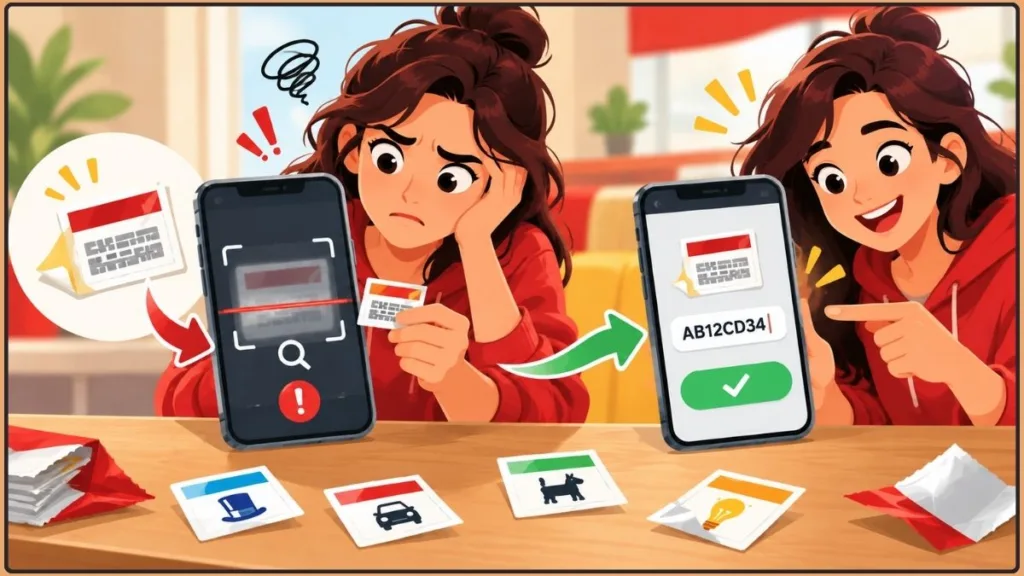
Each problem calls for a slightly different approach. Try the following fixes in order, starting with the simplest.
Fix 1: Improve Camera Focus With Pinch-to-Zoom
One problem reported by players during the 2026 promotion is that the in-app camera struggles to focus on the small printed code.
Moving your phone extremely close to the sticker may make the image blurrier rather than easier to read.
Try this instead:
- Place the game piece on a flat, clean surface.
- Move your phone back until the code looks sharp.
- Keep the entire code inside the scanner’s viewing area.
- If the scanner supports it, use two fingers to pinch outward and zoom in.
- Hold the phone steady while the app reads the code.
Some players reported that moving the phone farther away and then zooming in helped the scanner recognize the code. You can read their experiences in this McDonald’s Monopoly scanner troubleshooting discussion on Reddit.
Scanning tip: Don’t push your phone directly against the game piece. Give the camera enough distance to focus first, then use the scanner’s zoom control if available. A clear, readable code is more useful than a larger but blurry image.
This is a community-reported workaround, not a guaranteed fix. If the code remains blurry or the scanner still fails, try manual entry instead.
Fix 2: Update and Restart the McDonald’s App
If the scanner won’t open, the app freezes, or the screen keeps returning to the previous menu, check whether an update is available.
Work through these steps:
- Open the Google Play listing for the McDonald’s app or the Apple App Store listing and check for an update.
- Close the app completely and reopen it.
- Check that your phone has a working internet connection.
- Confirm that the McDonald’s app has permission to access your camera.
- Restart your phone if the scanner still won’t load.
If you need help checking camera access, follow Apple’s instructions for controlling camera access on iPhone or Google’s guide to changing app permissions on Android.
On Android, clearing the app cache may also help if the app is behaving unexpectedly. Reinstalling the app is another option, but make sure you know your sign-in details before doing so.
These steps can help with app-related problems, but they won’t necessarily resolve an issue with the Monopoly promotion itself. If scanning still fails, visit the official McDonald’s App Help Center or move on to manual code entry.
How to Enter McDonald’s Monopoly Codes Manually
What happens if scanning fails and the regular Enter Code Manually button doesn’t work either?
Some players reported that tapping the manual-entry button during the 2026 US promotion sent them back to the Monopoly screen instead of opening a code-entry form.
Other players found an alternative route through the game’s FAQ section. If you’re experiencing the same problem, this is worth trying.
Use the FAQ Manual-Entry Workaround
Follow these steps in the McDonald’s app:
- Open the Monopoly game section.
- Tap the menu icon in the top-right corner.
- Select FAQ.
- Find FAQ #18: “My code won’t scan, what should I do?”
- Scroll to the bottom of the answer.
- Look for a link that says something similar to “Still having trouble? Click here to manually enter your Game Piece code.”
- Tap the link, then enter the alphanumeric code printed on your game piece.
If the link is available, it may take you directly to the manual-entry screen without using the normal button.
This workaround was shared by players in the Reddit discussion about McDonald’s Monopoly codes not scanning. The official Monopoly FAQ, question 18, is the appropriate place to check the current instructions for scanning problems.
Workaround warning: The FAQ link is a user-reported solution, not a guaranteed or permanent fix. If FAQ #18 or the manual-entry link is missing, don’t waste time searching every menu. Check the official FAQ or contact McDonald’s support through its App Help Center.
Can You Copy the Code From a Photo?
If the printed code is readable but the in-app camera struggles to capture it, you can try taking a clear photo of the game piece.
Your phone may be able to use built-in text recognition to identify the letters and numbers. You can then copy the code into the official manual-entry field, if available.
This only helps you read the printed code. You still need to submit it through the official Monopoly game interface, and the code must be valid.
What to Do If Your Monopoly Code Scans but Nothing Happens
A scanner animation or vibration doesn’t necessarily confirm that your game code was successfully recorded.
Before scanning the same piece repeatedly, check your game account. This helps you avoid confusing a successful entry with an incomplete scan.
Check My Game Account
- Open the Monopoly game in the McDonald’s app.
- Navigate to My Game Account.
- Check your entered game codes, game pieces, and claimed prizes.
- Look for the code you just scanned.
If the code appears in your account, review the recorded outcome. If there is no record of the entry, try submitting the code again through the scanner or manual-entry option.
McDonald’s explains how to view previously entered codes and claimed prizes in FAQ #7. See the official Monopoly FAQ if you need help finding your game history.
Avoid unnecessary rescans: Check My Game Account before submitting the same code again. If the code is already recorded, review its result. If it is missing, follow the official instructions to try the entry again.
You can also review the official Monopoly game rules for details about entering codes and completing a game play.
Where Do Your Food Prizes Go?
After winning and claiming a food prize, check the Rewards & Deals section of the McDonald’s app and follow the displayed redemption instructions.
MyMcDonald’s Rewards points and other prizes may have different claiming processes, so check the result shown in your Monopoly game account rather than assuming every prize works like a food coupon.
If a prize doesn’t appear immediately, check the game account and Rewards & Deals before assuming the scan failed. The official Monopoly FAQ includes separate questions about claiming food prizes and Rewards points.
Collect to Win property pieces can be checked under My Properties in the game. You must complete the required property combination to become eligible for the associated prize. For the winning combinations and prize details, see our McDonald’s Monopoly 2026 guide.
McDonald’s Monopoly Scanning Rules You Should Know
Successfully scanning your pieces is only part of the process. You also need to follow the game’s entry limits, retain your physical pieces, and check the relevant deadlines.
You Can Enter Up to Eight Game Piece Codes Per Day
The 2026 US Monopoly rules allow up to eight game piece code entries per day in My Game Account.
The daily limit is based on Eastern Time (ET), so the reset may not match the local time on your phone.
The Chance Card Game has a separate limit of up to eight plays per day. Entering a game-piece code and playing a Chance Card are two different activities, each with its own limit.
These limits and the way a day is defined are explained in the official 2026 Monopoly rules.
Keep Your Physical Game Pieces
Don’t throw away your game pieces after entering their codes.
McDonald’s may require the original physical pieces to verify a potential winning claim. Collect to Win prizes can require the relevant pieces as part of the claim process.
Keep them somewhere safe until you’re certain you no longer need them. A code appearing in your account doesn’t mean you should automatically discard the original piece.
For details about verification and prize claims, consult the official rules.
Check the 2026 Promotion Deadlines
The main US McDonald’s Monopoly game runs from October 6 through November 1, 2026, while supplies last. The Chance Card Game remains available until November 8, 2026.
The general prize-claim deadline is November 22, 2026, although individual prizes may have additional redemption requirements and deadlines.
If you’re using a game piece received through a no-purchase method or trying to claim a particular prize, check the applicable terms rather than assuming every deadline is the same.
Deadline reminder: Game-piece distribution, code-entry, and prize-claim deadlines may be different. Check the official rules for the date that applies to your specific game piece or prize before relying on an older guide.
Review the official 2026 Monopoly rules before relying on a deadline or submitting a prize claim.
Frequently Asked Questions
Why Won’t My McDonald’s Monopoly Piece Scan?
The camera may be struggling to focus on the printed code, or the app may be experiencing a technical issue. Improve the lighting, move your phone back until the code looks sharp, and try pinch-to-zoom if the scanner supports it. If scanning still fails, try manual entry and check the official code-scanning FAQ.
Where Is the Scanner in the McDonald’s App?
Open the Monopoly promotion in the app and select Add Code. If you cannot find the game, look for the current promotional banner or game entry point. Some players reported seeing an Order to Play button before reaching the registration or game screen. Check the official Monopoly FAQ for current game instructions.
How Do I Enter a Monopoly Code Without Scanning It?
Open the Monopoly game and choose Add Code or the manual-entry option. If the normal button returns you to the previous screen, check FAQ #18 for a manual-entry link. Its availability may vary, so contact support through the McDonald’s App Help Center if you cannot find it.
What Happens If My Code Was Scanned but Didn’t Appear?
Open My Game Account and check your entered codes and results. If the code appears, review the recorded outcome. If it does not appear, follow the instructions in the official Monopoly FAQ before trying the entry again.
How Many Monopoly Game Pieces Can I Scan in One Day?
Under the 2026 US rules, you can enter up to eight game piece codes per day, based on Eastern Time. The Chance Card Game has a separate limit of up to eight plays per day. See the official rules for the complete daily-limit requirements.
Can I Get McDonald’s Monopoly Game Pieces Without Buying Food?
Yes. The 2026 US promotion includes a no-purchase method for requesting a game piece by mail. The request has specific envelope and postage requirements, and it must be received by the stated deadline.
For this year’s promotion, the mail-in request deadline is November 2, 2026. Check FAQ #14 in the official Monopoly FAQ for the full requirements rather than relying on instructions from an earlier promotion.
Final Tips for Scanning McDonald’s Monopoly Pieces
If your McDonald’s Monopoly piece won’t scan, start with the basics: find Add Code, improve the camera focus, and try pinch-to-zoom if it helps.
If the standard manual-entry button fails, look for the alternative link at the bottom of FAQ #18. Once you submit the code, check My Game Account to confirm that the entry was recorded.
Most importantly, keep your physical game pieces and follow the official rules for prize claims and deadlines. That way, you’ll know whether your code was accepted and what to do next if the app gives you trouble.
Visit Our Post Page: Blog Page
Discover more from Izoate
Subscribe to get the latest posts sent to your email.