
Lost a Facebook Reel mid-scroll? Here’s exactly how to find your watch history on iPhone, Android, and desktop, plus what to do if it’s not showing up.
You’re scrolling through your feed, watching a funny clip or a recipe that actually looks doable, and then — poof. Your feed refreshes, your thumb slips, or a call comes in, and the Reel is gone. Now you’re stuck trying to remember what it even showed.
Good news: you don’t have to scroll for another hour hoping the algorithm brings it back. Facebook keeps track of what you’ve watched, and once you know where to look, getting your Reel back takes less than a minute.
Here’s exactly where to find your Reel watch history, whether you’re on an iPhone, an Android phone, or browsing from a computer.
Quick Answer
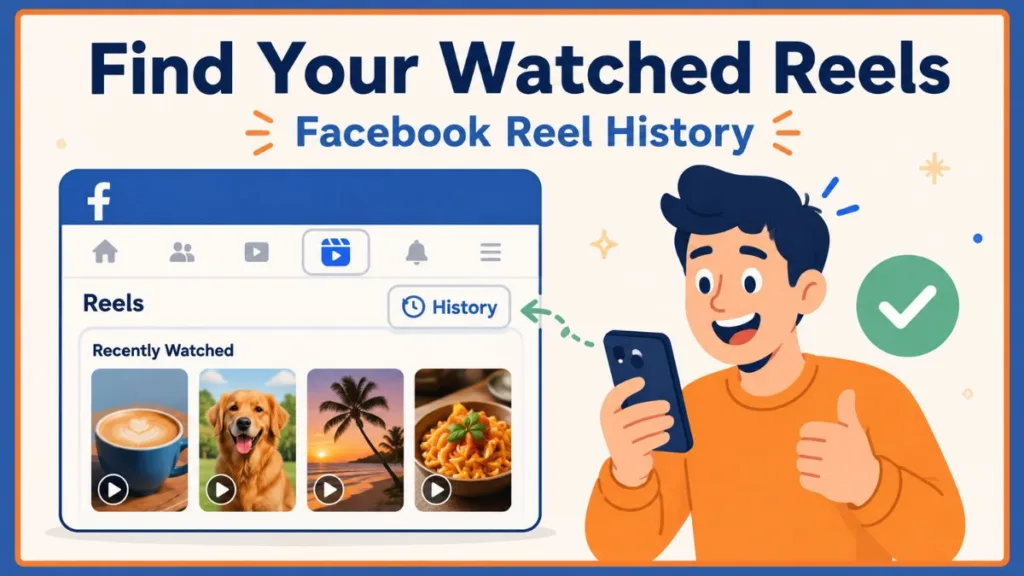
- On the app: Open Facebook > tap Reels > tap the three-dot menu or your profile icon in the top-right corner > select History (older versions call it Watched reels).
- On desktop: Go to Facebook.com > click your profile picture > Settings & privacy > Activity log > Videos you’ve watched.
That’s the short version. If you want the full walkthrough — plus what to do if none of this works — keep reading.
Finding Your Watched Reels in the Facebook App
Facebook quietly logs every Reel you scroll past, and you can pull that list up whenever you need it. The steps are nearly identical on iPhone and Android, with just a couple of small layout differences.
On iPhone
- Open the Facebook app.
- Tap the Reels tab — you’ll usually find it in the bottom navigation bar or tucked inside the Video/Watch section.
- Tap the three-dot menu (⋯) or your profile icon in the top-right corner.
- Select History.
- Scroll through your recently watched Reels and tap the one you’re looking for to rewatch it.
Tip: If you don’t see Reels in your bottom bar right away, check your shortcut bar — Facebook lets you customize which icons show up, so yours might be hiding under the More menu.
On Android
- Open the Facebook app on your Android phone.
- Tap the Reels or video camera icon, typically in the top navigation bar.
- Tap the profile icon or three dots in the corner.
- Select History.
- Scroll through the log until you spot the clip you lost.
“Watched Reels” vs. “History” — Same Thing, Different Label
If your app shows Watched reels instead of History, you haven’t done anything wrong. Facebook has renamed this feature over time, and depending on which version of the app you’re running, you might see either label. Both take you to the exact same place.
Why Your Watched Reels Show Up in a Specific Order
When you open your history, you’ll notice your most recently watched Reels appear first, with older views pushed further down the list. That’s simply how the feature is built — it’s a running log, not a search tool.
One thing worth knowing: Facebook doesn’t currently let you filter this list by creator, date, or topic. It’s just a straightforward chronological feed. So if you’re hunting for something you watched a few days ago, it’s worth checking your history sooner rather than later, before newer views bury it.
How to See Your Watched Reels on Facebook Desktop
The desktop version of Facebook doesn’t have a dedicated Reels tab for history the way the app does. Instead, everything you’ve watched — Reels included — lives inside your Activity Log.
- Log in to Facebook.com in your browser.
- Click your profile picture in the top-right corner.
- Select Settings & privacy, then click Activity log.
- In the sidebar on the left, click Videos you’ve watched.
- Scroll until you find the Reel by its thumbnail, then click to play it.
One nice thing about the desktop version: it shows timestamps next to each entry, so you can see exactly when you watched something — handy if you’re trying to trace back a Reel from a few days ago.
Can’t Find Your Watched Reels? Try These Fix
If your history seems empty, broken, or missing entirely, work through these before giving up:
- Check for “History” under a different name. Since Facebook has rebranded this feature more than once, look for either History or Watched reels under the profile icon inside the Reels tab.
- Update your app. An outdated version can cause missing tabs or glitchy menus. Head to the App Store or Google Play and check for updates.
- Confirm you’re on the right account. If you switch between personal profiles, a linked Instagram account, or manage a Facebook Page, make sure you’re logged into the profile you actually used to watch the Reel.
- Try the desktop Activity Log instead. It tends to be a more stable, server-side record than the mobile app, so it’s worth checking if the app version isn’t loading properly.
- The Reel might be gone for good. If the creator deleted it, changed their privacy settings, or Facebook removed it, it won’t play anymore — even if it still shows up in your history.
- Layouts vary by region and device. Feature rollouts aren’t universal, so if your screen doesn’t match what’s described here, try using the search bar to track things down instead.
Found It in Your Feed but Didn’t Like or Save It? Here’s Where Else to Look
If you watched something but scrolled past without tapping like or save, your watch history is still your best bet. Head to Reels > Profile icon/Three dots > History first.
If it’s not there, try these backup spots:
- Activity Log: Your broader account history may still have a record.
- Likes and Reactions: Go to Activity log > Interactions > Likes and reactions in case you tapped like without realizing.
- Saved Collections: Double-check whether you bookmarked it without remembering.
Other Ways to Track Down a Facebook Reel
If your watch history isn’t loading or coming up empty, a few backup routes can still get you there.
Check What You’ve Saved
- Tap the Menu icon in the app.
- Select Saved.
- Filter by Reels to browse anything you bookmarked.
Check What You’ve Liked
- Go to Settings & privacy > Activity log.
- Tap Interactions, then Likes and reactions.
- Scan for the video you interacted with.
Search by Creator or Topic
If you remember the creator’s name, a memorable sound, or a phrase from the caption:
- Tap the Search icon.
- Type in what you remember.
- Switch to the Reels filter at the top to narrow things down.
Can You Delete Your Watched Reels History?
Yes — and it’s fully under your control.
- Delete a single entry: Tap the three dots (⋯) next to any item in your history or Activity Log, then select Delete.
- Wipe your entire history: From the desktop Activity Log, under Videos you’ve watched, click Clear Video Watch History.
Clearing your history can be worth doing every so often, whether you’re being mindful of privacy or just want Facebook’s algorithm to serve up something fresh in your feed — the same way clearing watch history on YouTube or resetting your Explore page on Instagram can shake up your recommendations.
Frequently Asked Questions
Does Facebook keep a Reel watch history?
Yes. You’ll find it under History (or Watched reels) inside the Reels tab on mobile, and under Activity log > Videos you’ve watched on desktop.
How do I see Reels I’ve watched on Facebook?
Open the app, tap Reels, tap the three-dot menu or your profile icon, then select History.
Why can’t I find my watched Reels?
A few common culprits: your app needs updating, the feature is labeled differently in your version, or the Reel itself has been removed or made private.
How do I find a Reel I watched but didn’t save?
Check Reels > Profile icon/Three dots > History first — that’s usually where it’ll turn up.
How do I find a Reel I watched but didn’t like?
Start with your Reels History. If it’s not there, try searching for the creator, topic, or audio using the Reels filter in Facebook’s search bar.
Can I see my watched Reels on desktop?
Yes. Go to Profile > Settings & privacy > Activity log > Videos you’ve watched.
Can I delete my Reels watch history?
Yes. You can remove individual entries or clear your whole video watch history from the Activity Log.
Wrapping Up
Losing a great Reel to a mistimed refresh is annoying, but you don’t need to scroll blindly to get it back. Start with Reels > History on mobile, or Activity log > Videos you’ve watched if you’re on a computer. And if you want to avoid this altogether next time, a quick tap on save the moment you spot something good will save you the hunt later.
Visit Our Post Page: Blog Page
Discover more from Izoate
Subscribe to get the latest posts sent to your email.