
Wondering who’s been secretly checking out your Facebook profile? While Facebook doesn’t officially reveal profile visitors, there are 5 clever native methods to get real clues — no sketchy apps needed.
You update your profile picture. You post a new status. Maybe you share a throwback photo. And then the thought creeps in — “who’s actually looking at my Facebook profile right now?”
It is one of the most searched Facebook questions of all time, and honestly, the curiosity is completely understandable. Whether you suspect an ex is keeping tabs on you, a coworker is quietly watching your updates, or a neighbor somehow knows too much about your life — the question feels urgent.
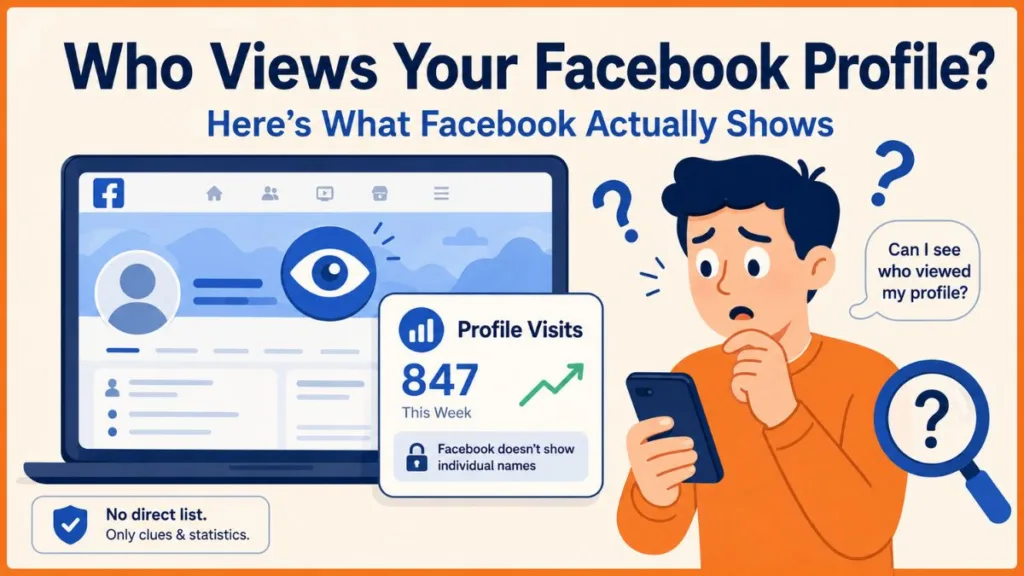
So before you download some shady app or paste your password into a random website promising answers, stop right there. This guide will give you the full honest truth about what is and is not possible, walk you through every legitimate method available in 2026, and show you exactly how to protect yourself going forward.
Quick Answer: Can You See Who Views Your Facebook Profile?
Let’s answer this immediately so you are not left guessing.
Facebook does not officially show you who viewed your profile. Meta, the company that owns Facebook, keeps all profile view data completely private. There is no built-in visitor list, no view history log, and no hidden setting that reveals exactly who has been browsing your page.
However — and this is important — you are not completely powerless.
There are 5 native Facebook methods that give you strong, reliable clues about who is regularly checking out your profile. These methods use features already built directly into Facebook. No third-party apps. No shady browser extensions. No risk to your account.
This guide covers all five, step by step, for both mobile and desktop.
The Official Truth: What Facebook Actually Shows You
Before diving into the methods, it helps to understand exactly what Facebook allows and what it does not. This way you know precisely what you are working with.
| What You CAN See | What You CANNOT See |
|---|---|
| Story viewers (by name, within 24 hours) | A profile visitor list |
| Who liked and commented on your posts | Who silently viewed your photos |
| Who is in the same Facebook Groups as you | Anonymous profile browsers |
| Professional Mode visit statistics (numbers only) | The identity of non-friend visitors |
| Activity on your old posts via notifications | Anyone who viewed your profile without interacting |
The pattern is clear. Facebook shows you interaction data freely. It hides passive browsing data completely.
Why? Because if Facebook suddenly revealed every profile visit, people would stop casually browsing. Nobody would click on an ex’s profile or scroll through a coworker’s photos if they knew they would be caught. Revealing visitor data would make the platform feel invasive, cause social friction between users, and ultimately reduce the time people spend on Facebook — which is the last thing Meta wants.
So Facebook keeps it private. But the interaction data it does share? That is where the clues live.
Critical Warning Before You Start: Any app, website, or browser extension claiming to show you the exact list of people who viewed your Facebook profile is completely fake. Meta’s API blocks all external access to profile view data. These tools show you randomized lists of your Facebook friends to appear legitimate — while quietly stealing your login credentials, installing malware on your device, or getting your account permanently banned. Never trust them. Never download them. If you see one, report it to Facebook immediately.
How to Get Clues About Who Is Viewing Your Facebook Profile
Even without a direct visitor list, Facebook gives you enough native data to make smart, well-informed deductions. Here are the five methods that actually work.
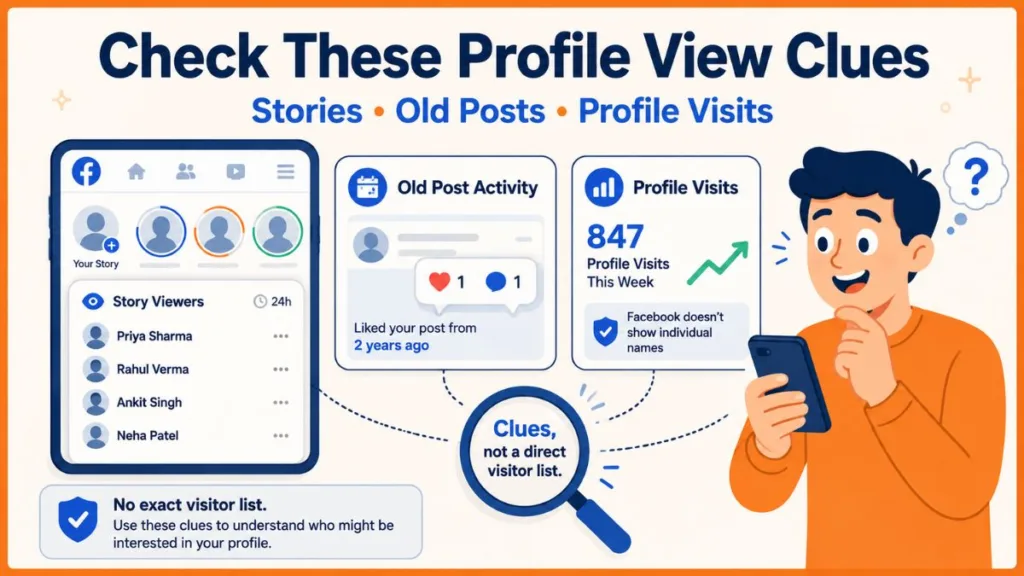
Method 1: Check Your Facebook Story Viewers (Most Reliable Method)
This is the single most accurate method available, and it is built directly into Facebook. When you post a Facebook Story — a photo, short video, or text update — Facebook shows you the exact name of every person who views it during its 24-hour lifespan.
Why this works as a profile clue:
Think about it this way. If someone is curious about your life, they are going to check your profile. And when they land on your profile page, your active Story is sitting right at the top. A curious visitor who is already on your profile page is very likely to tap that Story. This means your Story viewer list captures a significant portion of your most active profile visitors in real time.
The best part? You do not need to guess. The names are right there.
The Two-Week Experiment (Highly Recommended):
Post a new Facebook Story every single day for two weeks. It does not have to be anything elaborate — a photo, a quick thought, a short clip. At the end of two weeks, review your viewer lists and write down every name that appears consistently across multiple stories. The people who show up again and again, especially those who view your story within minutes of posting, are your most likely frequent profile visitors.
Step-by-Step on Mobile (iPhone & Android):
- Open the Facebook app on your phone
- Tap your profile picture circle at the top of the News Feed to view your active story
- Once your story is open, swipe up from the bottom of the screen
- Tap the eye icon or viewer count that appears
- Scroll through the full list of names of everyone who has viewed your story
Step-by-Step on Desktop:
- Go to Facebook.com and sign in to your account
- Click your Story thumbnail at the top of your News Feed
- Once your story opens, look for the viewer count displayed in the bottom left corner
- Click that number to expand the full list of viewers
- Review every name on the list
Tip: Pay close attention to people who watch every single story you post but never like or comment on your regular feed posts. This pattern — consistent story views combined with zero feed engagement — strongly suggests someone is visiting your profile deliberately to check for updates rather than simply seeing your content in their own News Feed.
Important Note: It is possible for someone to see your story directly from their own News Feed without ever visiting your profile page. However, a person who watches every story you post, day after day, without any other visible interaction is almost certainly keeping a very close eye on your Facebook activity.
Method 2: Monitor Likes and Comments on Your Old Posts
This method requires zero extra effort on your part. You simply pay attention to your notification activity — specifically, notifications involving posts you published months or even years ago.
Why this works as a profile clue:
Your most recent posts appear naturally in people’s News Feeds. There is no reason to go looking for them. But a post from two years ago? Nobody stumbles across that by accident. If someone is liking or commenting on your old content, they were actively scrolling back through your profile timeline — deep browsing that happens only when someone is genuinely curious about your history.
The accidental like is particularly telling. Someone scrolling through your old photos at 11pm suddenly taps the like button by mistake. They immediately unlike it. But the notification already reached you. That brief notification is a window into real behavior.
What to watch for:
- A notification about a post from more than three months ago
- The same person liking several old posts within a short time span
- Comments appearing on posts from a year or more ago
- A rapid series of likes on old photos in quick succession
How to Check on Mobile:
- Open the Facebook app
- Tap the bell icon (notification tab) at the bottom of the screen
- Scroll through your recent notifications
- Look specifically for activity on posts that are significantly older than your recent content
- Note the names of anyone triggering those old-post notifications
How to Check on Desktop:
- Go to Facebook.com
- Click the bell icon in the top navigation bar
- Review your notification feed for any activity on older posts
- Click each notification to confirm which post received the interaction and how old it is
Tip: If you receive a like notification and then immediately notice the like has disappeared, someone liked your old post accidentally while browsing your timeline and quickly removed it. The notification still reached you even if the like is gone. That is one of the clearest possible signs of active profile browsing.
Method 3: Look for Overlapping Facebook Group Memberships
This method takes a little more manual effort, but it can reveal patterns that are genuinely difficult to explain as coincidence.
Why this works as a profile clue:
When someone is closely monitoring another person on Facebook, they tend to follow that person’s activity beyond just their profile. If they notice you join a new group — a local community group, a hobby group, a professional network — they may join the same group shortly after. Why? Because being in the same group gives them access to your posts and comments within that space, even if your main profile is locked down.
If the same name keeps appearing in group after group that you join, that pattern is worth paying attention to.
How to Check:
- Open the Facebook app or go to Facebook.com
- Navigate to one of the Facebook Groups you are a member of
- Click or tap the Members tab at the top of the group page
- Scroll through the member list and note any names you recognize
- Repeat this process across several different groups you belong to
- Keep a simple list and look for names that appear in multiple groups
Additional signals to look for:
- Someone joins a group within days of you joining
- The same person appears in groups that have no obvious connection to each other except you
- Someone from a group starts sending friend requests to your existing Facebook friends
Tip: Create a quick note on your phone listing all the Facebook Groups you are currently in. Then spend ten minutes checking the Members section of each one. If the same name appears in four or five different groups — especially groups that cover different topics — that is a meaningful pattern, not a coincidence.
Method 4: Try the Profile Source Code Method (Use With Extreme Caution)
This method gets mentioned frequently online, so it is worth explaining clearly — including its very significant limitations. Approach this one with realistic expectations.
What it is:
Every webpage you visit has underlying source code that your browser reads to display the page. Facebook’s source code contains references to user IDs associated with your account activity. One of these references is labeled “buddy_id” — and some people claim that the IDs listed next to this label represent people who have viewed your profile.
The honest reality:
This method is not officially supported by Facebook. It is not accurate for identifying anonymous profile visitors. The IDs most likely reflect the people you interact with most frequently on Facebook — friends you message regularly, people whose posts you comment on, contacts you tag often. It does not pull data on people who silently browse your profile.
That said, it is a built-in browser feature that requires no downloads or account permissions, so there is no security risk in trying it. Just treat the results as highly unreliable.
Step-by-Step on Desktop (This method only works on a computer):
- Open your preferred web browser (Chrome, Firefox, Safari, or Edge) on a desktop or laptop computer
- Go to Facebook.com and sign in to your account
- Navigate directly to your own Profile page
- Right-click anywhere on the page background
- Select “View Page Source” from the right-click menu (this opens a new tab filled with code)
- Press Ctrl + F on Windows or Command + F on Mac to open the search bar
- Type “buddy_id” into the search box and press Enter
- Look at the numbers and names listed next to the buddy_id references in the code
Important Disclaimer: The results from this method are not a confirmed list of profile visitors. Facebook does not intend for users to use this method for this purpose, and the data it surfaces is inconsistent and unreliable. If a name appears here, it most likely means you interact with that person frequently on Facebook — not that they have been secretly viewing your profile. Use this method as a very last resort and treat every result with extreme skepticism.
Tip: If you are not comfortable reading source code, skip this method entirely. The Story viewer method and old post notification method will give you far more reliable and actionable information.
Method 5: Enable Professional Mode for Official Profile Visit Statistics
If you want real, confirmed data about how many people are visiting your profile — from a source you can actually trust — this is the method to use. Facebook’s Professional Mode gives you official analytics for your personal profile, including total profile visit counts.
The trade-off? You will see numbers, not names. Professional Mode tells you that 847 people visited your profile this week. It does not tell you who those 847 people are. But for many users, knowing the scale of profile visits is valuable information on its own.
What Professional Mode Shows You:
- Total number of profile page visits
- Total reach of your posts, Reels, and Stories
- Audience demographic breakdown (age ranges, gender, top locations)
- Engagement data including clicks, comments, shares, and watch time
- Follower growth over time
How to Enable Professional Mode on Mobile:
- Open the Facebook app and navigate to your Profile
- Tap the three-dot menu (…) located next to your “Edit Profile” button
- Scroll down and tap “Turn On Professional Mode”
- Confirm your choice when prompted
- Once enabled, tap “Professional Dashboard” at the top of your profile
- Select Insights and then tap “View Details”
- Explore your Profile Visits, Post Reach, and Audience Demographics
How to Enable Professional Mode on Desktop:
- Go to Facebook.com and click on your Profile
- Click the three-dot menu (…) beneath your cover photo
- Select “Turn On Professional Mode” from the dropdown
- Once active, click “Professional Dashboard” on your profile page
- Navigate to Insights in the left sidebar
- Review your full analytics dashboard
Tip: Professional Mode is completely free, 100% officially supported by Facebook, and carries zero security risks. If you are serious about understanding your Facebook audience — even without individual names — this is by far the most trustworthy tool available. It is especially useful for creators, small business owners, and anyone building a public presence on Facebook.
Key Signs Someone Is Regularly Looking at Your Facebook Profile
Now that you know the five methods, here is a quick reference guide to the behavioral patterns that most strongly suggest someone is actively visiting your profile. Remember — never draw conclusions from a single isolated event. Look for multiple overlapping signals.
| Observed Behavior | Likelihood of Profile Viewing | Why It Indicates Profile Browsing |
|---|---|---|
| Liked a post from 2+ years ago | Very High | Was actively scrolling your historical timeline |
| Watches every story but never likes feed posts | High | Passive, deliberate observation pattern |
| Keeps appearing in “People You May Know” | Moderate-High | May have recently searched or viewed your profile |
| Sent a message out of nowhere after years of silence | Moderate | Likely browsed your recent updates before reaching out |
| Joined multiple groups shortly after you | Moderate-High | Following your activity across the platform |
| Sudden series of likes on multiple old photos | Very High | Deep timeline scrolling session |
| Repeatedly sends friend requests you decline | High | Persistently trying to gain access to your profile |
Tip: The most telling combination is consistent story views + zero feed engagement + old post activity. When these three signals appear together from the same person, that is a very strong indication of deliberate, repeated profile visiting.
What NOT to Do When Trying to Find Out Who Viewed Your Profile
Curiosity about your profile visitors is completely natural. But the methods you should avoid are just as important as the ones you should use. Every year, thousands of Facebook users damage their accounts — or worse — by chasing unverified shortcuts.
Never Use Third-Party Profile Tracker Apps
The internet is full of mobile apps, websites, and Chrome extensions promising to show you a real-time list of your profile visitors. They have convincing names, professional-looking interfaces, and glowing fake reviews.
Every single one of them is a scam.
Here is why they cannot possibly work: Meta’s application programming interface — the system that controls what outside apps can access from Facebook — completely blocks all access to profile view data. It is technically impossible for any external tool to pull this information. So what do these apps actually show you? A randomized list of your active Facebook friends, designed to look convincing enough to keep you using the app.
Meanwhile, behind the scenes, these tools are doing real damage:
| Risk | What Actually Happens |
|---|---|
| Account Credential Theft | Phishing forms capture your Facebook password and two-factor authentication codes |
| Malware Installation | Injects adware onto your device, logs your keystrokes, or steals financial information |
| Permanent Account Ban | Violates Facebook’s Terms of Service, triggering automated security flags and account termination |
| Identity Theft | Harvests your personal contact data, photos, and private messages |
Rule to remember: If a tool asks for your Facebook login credentials or requests full account access permissions, close it immediately. Report it to Facebook. Tell your friends about it. These are not helpful tools — they are traps.
Do Not Misinterpret Normal Browsing Behavior
Not every instance of someone appearing in your story viewers or liking an old post means they are obsessively stalking your profile. People browse Facebook casually. Someone might watch your story because it appeared in their News Feed. Someone might like an old post because they were genuinely catching up on your updates after a long time away from the platform.
Before drawing any conclusions, look for consistent patterns over time rather than one-off events. And never confront someone based solely on an algorithm-generated friend suggestion or a single story view.
How to Control Who Can View Your Facebook Profile
Rather than spending energy trying to track who is visiting your profile, the most powerful move you can make is taking full control of your own privacy settings. This way, you decide exactly who can see your content — regardless of who is looking.
Option 1: Lock Your Profile
The Lock Profile feature is one of the most effective privacy tools Facebook offers. When you lock your profile, non-friends are severely restricted in what they can see when they visit your page.
What locking your profile does:
- Prevents non-friends from expanding or downloading your profile picture
- Hides all your posts, photos, and Stories from non-friends
- Restricts your full “About” section from public view
- Ensures future content is visible only to confirmed Facebook friends
How to Lock Your Profile on Mobile:
- Go to your Profile
- Tap the three-dot menu (…) next to Edit Profile
- Select “Lock Profile”
- Tap “Lock Your Profile” to confirm
How to Lock Your Profile on Desktop:
- Go to your Profile page
- Click the three-dot menu (…) below your cover photo
- Select “Lock Profile” from the dropdown menu
- Confirm by clicking “Lock Your Profile”
Tip: Locking your profile is especially effective if you are concerned about non-friends or strangers browsing your content. It essentially turns your profile into a friends-only space with a single tap.
Option 2: Use the Audience Selector for Every Post
You do not have to make your entire profile either fully public or completely locked. Facebook’s Audience Selector lets you control visibility on a post-by-post basis.
Every time you publish new content, look for the audience dropdown near the Post button and choose from:
- Public — Anyone on or off Facebook can see it
- Friends — Only your confirmed Facebook friends can see it
- Friends Except… — Share with all friends but hide from specific people
- Specific Friends — Only a hand-picked list of people can see it
- Only Me — Completely hidden from everyone except you
You can also go back and edit the audience on existing posts at any time.
Option 3: Add People to Your Restricted List
The Restricted List is a quiet but powerful tool. It lets you stay Facebook friends with someone — a boss, a distant relative, a coworker — without giving them full access to your casual updates.
How it works: People on your Restricted List remain on your friends list. They can still see your profile. But they can only view posts you explicitly set to Public. Any post set to Friends or a custom audience is automatically hidden from them.
How to Add Someone to Your Restricted List:
- Go to the person’s Facebook Profile
- Click the Friends button
- Select “Edit Friend Lists”
- Choose “Restricted” from the list
Option 4: Run Facebook’s Official Privacy Checkup
Facebook’s Privacy Checkup tool walks you through a complete audit of your account visibility settings in one guided session. It covers everything from who can see your posts to whether search engines outside Facebook can link to your profile.
How to Access Privacy Checkup:
- Go to Settings & Privacy in the Facebook menu
- Select “Privacy Checkup”
- Work through each section:
- Who can see what you share
- How people can find you on Facebook
- Your data settings on Facebook
- Your ad preferences
- Who can see your profile and posts
Tip: Run the Privacy Checkup at least once every few months. Facebook updates its settings and features regularly, and a periodic audit ensures your privacy preferences are current and working as intended.
What to Do If You Think Someone Is Seriously Stalking Your Profile
Most of the time, someone checking your Facebook profile is nothing more than harmless curiosity. But occasionally, repeated unwanted attention can cross a line and start to feel genuinely uncomfortable or threatening.
If you believe someone is seriously and persistently monitoring your Facebook activity, here is what to do:
Step 1: Restrict or Block Them Immediately
Go to their profile, click the three-dot menu, and select either Restrict (limits their access while keeping the friendship) or Block (makes you completely invisible to each other on Facebook). Blocking is the stronger option for serious situations.
Step 2: Tighten Your Privacy Settings
Lock your profile, audit your post audience settings, and remove any public information you do not want them to access. Run the Privacy Checkup to cover all bases.
Step 3: Report Their Profile to Facebook
If their behavior violates Facebook’s Community Standards — harassment, threats, or persistent unwanted contact — report their profile. Go to their profile, click the three-dot menu, and select “Find Support or Report Profile.” Explain the situation clearly.
Step 4: Contact Law Enforcement if Necessary
If the stalking behavior escalates beyond social media — if you feel genuinely unsafe, receive threats, or believe the person could harm you or someone you know in the real world — do not hesitate to contact your local police department. Online stalking can have serious real-world consequences, and law enforcement takes it seriously.
Frequently Asked Questions
1. Can I see who viewed my Facebook profile without using any third-party app?
No. Facebook does not offer any native tool, setting, or visitor log that reveals the specific names of people who visit your profile. The five methods in this guide use Facebook’s built-in features to give you indirect clues, but none of them provide a confirmed visitor list. Any third-party app promising to show you this information is fake and dangerous.
2. Does watching my Facebook Story mean someone visited my profile?
Not necessarily. Someone can see your story directly in their News Feed without ever visiting your profile page. However, if the same person watches every single story you post — especially within minutes of publishing — while never engaging with your regular feed posts, that behavioral pattern is a strong indicator of deliberate, repeated profile visiting.
3. What does the buddy_id source code method actually show?
Most likely, it shows the Facebook users you interact with most frequently — people you message, comment on, or tag regularly. It does not reliably reveal anonymous profile visitors. The method is not officially supported by Facebook, produces inconsistent results, and should be treated with extreme skepticism.
4. Can I see if a non-friend viewed my Facebook profile?
No. Facebook does not reveal this information for non-friends. If a non-friend repeatedly appears at the top of your “People You May Know” suggestions — especially without any mutual friends between you — there is a moderate likelihood they have recently searched for or viewed your profile. But this is a clue, not a confirmation.
5. Is Professional Mode safe to use for tracking profile visits?
Yes — completely. Professional Mode is 100% officially supported by Facebook, free to use, and carries zero security risks. It shows you total profile visit numbers and audience demographics but does not reveal individual visitor names. It is the most trustworthy analytics tool available for personal Facebook profiles.
6. What should I do if I think someone is stalking my Facebook profile?
Start by restricting or blocking them and tightening your privacy settings. If their behavior constitutes harassment or threats, report their profile to Facebook. If you feel physically unsafe or believe they could harm you or someone you know, contact your local law enforcement immediately. Do not wait for the situation to escalate.
Conclusion: What You Can Actually Do About Facebook Profile Viewers
Here is the bottom line: Facebook does not provide a direct, downloadable list of your profile visitors, and it almost certainly never will. Meta prioritizes user privacy and browsing freedom above your curiosity about who is watching — and honestly, that policy protects you as much as it protects everyone else.
But you are far from powerless.
By posting regular Stories and monitoring your viewer lists, you capture the most accurate real-time data available. By watching for notifications on old posts, you spot people who are actively scrolling through your profile history. By checking group member overlaps, you identify patterns that go beyond coincidence. By reviewing your source code with realistic expectations, you get one more data point to consider. And by enabling Professional Mode, you access official, trustworthy statistics about your overall profile reach.
Use these five methods together. Look for overlapping patterns rather than isolated incidents. And instead of obsessing over who might be viewing your profile, redirect that energy toward taking full control of your privacy settings — locking your profile, adjusting your audience selectors, managing your Restricted List, and running a regular Privacy Checkup.
That combination of smart observation and proactive privacy management gives you everything you need to understand your Facebook presence and stay in complete control of who sees your life online.
Final Tip: Check your Story viewers regularly, stay alert to old post notifications, and run Facebook’s Privacy Checkup at least once every few months. These three habits alone will keep you informed, protected, and completely in control of your Facebook experience — without ever needing a single third-party app.
Visit Our Post Page: Blog Page
Discover more from Izoate
Subscribe to get the latest posts sent to your email.