
Can’t find birthdays on Facebook or stopped getting alerts? Learn how to show your friends’ birthdays on Facebook and fix missing reminders.
Remembering birthdays is half the reason many of us still keep Facebook installed. That’s why nothing stings quite like scrolling your feed at 9 PM, seeing someone else’s “Happy Birthday!” post for a close friend, and realizing Facebook never sent you a single reminder.
You didn’t break your settings, and the feature hasn’t been deleted. Over the past few redesigns, Meta quietly moved the Birthdays page out of the main navigation bar to prioritize Reels and Marketplace—while app updates and phone notification filters started burying morning birthday alerts.
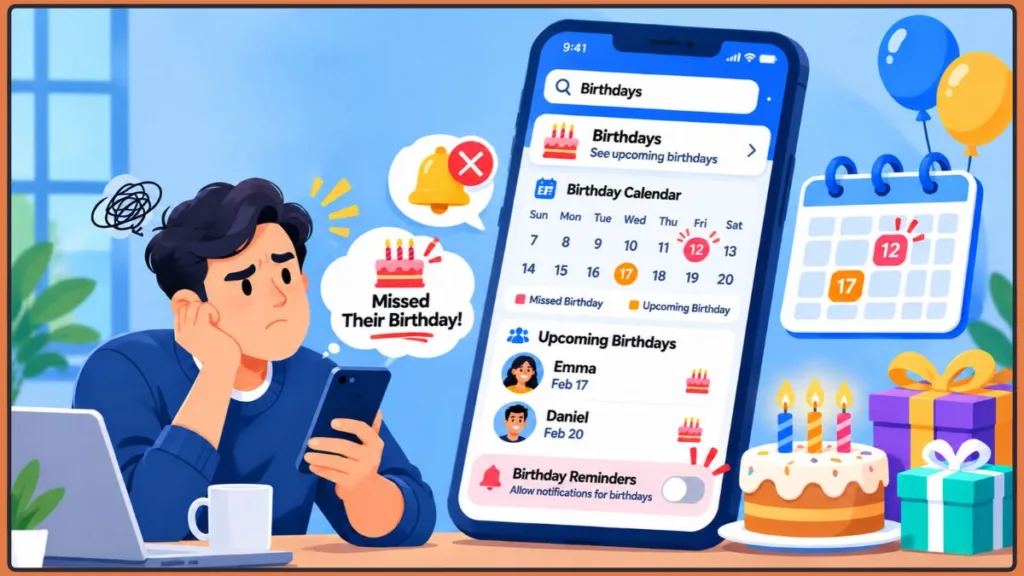
Whether you just want to see friends’ birthdays on Facebook right now or figure out why your alerts suddenly went silent, this guide walks through the fastest shortcuts on mobile and desktop along with step-by-step fixes for every common glitch.
Quick Answer
- Mobile App: Tap the Search (magnifying glass) icon, type Birthdays, and select the Birthdays shortcut with the cake icon.
- Desktop: Click Events in the left sidebar and select Birthdays—or head straight to theFacebook Birthdays page.
- Missing Alerts: Go to Settings & Privacy > Settings > Notifications > Birthdays and toggle Allow notifications on Facebook back on.
How to See Upcoming Birthdays on the Facebook App
If you’ve been tapping through your profile menu and notifications tray trying to track down the old Birthdays icon, save yourself the headache. Because Facebook removed that shortcut from the mobile navigation bar, using Search is now the fastest way to pull up your full birthday calendar.
Find Everyone’s Birthday Using the Search Shortcut
- Open the Facebook app on your iPhone or Android device.
- Tap the Search (magnifying glass) icon in the top-right corner.
- Type Birthdays into the search bar and tap Search (or wait for the instant shortcut dropdown).
- Tap the Birthdays option marked with a birthday cake icon—usually labeled “See upcoming birthdays.”
From there, Facebook lays out everything in chronological order. You’ll get Today’s Birthdays right at the top with a quick text box to send a wish on the spot, followed by Recent Birthdays (helpful when you need to send a belated message) and Upcoming Birthdays organized month by month for the rest of the year.
Using Facebook Lite or a Mobile Browser? Stripped-down versions like Facebook Lite and mobile web browsers often omit the interactive cake shortcut from search results. If it doesn’t appear, open your phone’s browser menu, enable Desktop site, and load the calendar from there instead.
Check a Specific Friend’s Birthday on Their Profile
Just need to verify one person’s date without scrolling through hundreds of contacts? Look it up straight from their profile:
- Tap the Search icon, type your friend’s name, and open their Profile.
- Tap See [Name]’s About Info right underneath their bio and intro details.
- Scroll down to Basic info to view their birth date.
Important Privacy Note: Keep in mind that Facebook splits birthdays into two separate audience fields—month and day and birth year. Many users hide their birth year for privacy while leaving the day and month visible, which is why you’ll often see a friend’s upcoming birthday without seeing their age. If both fields are missing entirely, they’ve set their birthday audience to Only me.
Where to Find Friends’ Birthdays on Facebook Desktop
Desktop still keeps birthdays tucked inside the Events menu, though Facebook often collapses the sidebar so it’s easy to miss at first glance.
- Sign in to Facebook on your computer.
- Look at the left-hand menu on your home feed and click Events. If you don’t see it immediately, click See more to expand the hidden options.
- Click Birthdays in the left sidebar of the Events page.
Skip the Menus Next Time: Open the Facebook Birthdays page once and save it to your browser bookmarks bar. You’ll bypass the home feed distractions completely and jump straight to the full calendar in one click.
How to Get Facebook Birthday Notifications Again
Knowing where to look up dates helps when you remember to check, but most of us count on that morning reminder banner so important days don’t slip past. Major app updates occasionally reset notification preferences or downgrade push alerts to silent in-app dots.
Follow these steps on mobile or desktop to make sure your Facebook birthday notifications are switched on:
- Tap or click your Menu / Profile picture icon (bottom-right on iPhone, top-right on Android and desktop).
- Select Settings & Privacy, then open Settings.
- Open Notifications (listed under Preferences on mobile, or in the left sidebar on desktop).
- Scroll down and select Birthdays.
- Switch Allow notifications on Facebook ON.
- Under Where you receive these notifications, toggle on Push (and turn on Email or SMS if you want a reliable backup).
- Scroll down and confirm that both Upcoming birthdays and Belated birthdays are enabled.
Multi-Device Tip: Facebook’s Push, Email, and SMS channels operate independently. If you frequently switch phones or keep Facebook logged in on a tablet, enabling Email gives you a device-proof backup trail in your inbox—while SMS alerts require a verified mobile number under Accounts Center > Personal details > Contact info.
Can’t See Friends’ Birthdays on Facebook?
Checked the in-app toggle and still getting burned by silent notifications or Facebook birthdays not showing? Most troubleshooting guides stop at Facebook’s settings menu, even though the real blocker is often hiding in your phone’s system permissions, Focus schedules, or corrupted cache. Follow the step-by-step fix that matches what you’re seeing.
6 Ways to Restore Missing Alerts
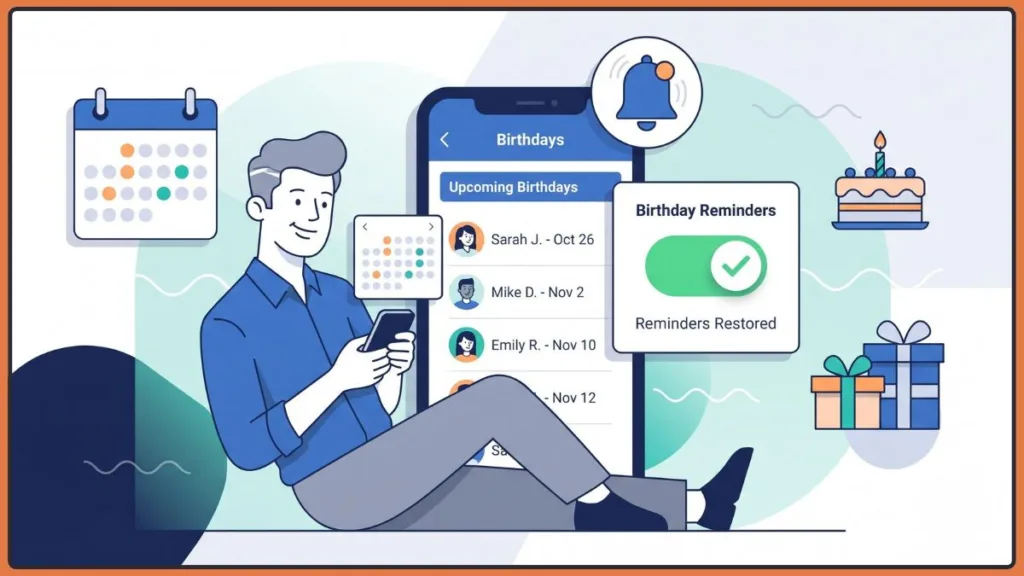
1. Refresh Stuck In-App Alerts and Turn Off Quiet Mode
Sometimes Facebook displays your birthday toggle as turned on, yet zero alerts come through because the background sync froze after an update—or an in-app mute feature is silently overriding your alerts.
Force-reset using the quick Notifications bell shortcut:
- Open Facebook, tap or click the Notifications (bell) icon, tap the three-dot menu, and select Notification settings.
- Open Birthdays and toggle Allow notifications on Facebook OFF.
- Force-close the Facebook app completely by swiping it away from your phone’s recent apps switcher.
- Wait 10 seconds, reopen Facebook, return to Birthdays via the bell shortcut, and switch Allow notifications on Facebook back ON (confirming Push is active).
Check Two Hidden Facebook Mute Switches:
- Mute Push Notifications: Inside Notification settings, verify that Mute push notifications isn’t toggled on (this timer can silence push alerts for anywhere from 15 minutes up to 8 hours).
- Scheduled Quiet Mode: Go to Settings & Privacy > Settings > Your Time on Facebook > Manage Your Time > Quiet Mode and make sure Quiet Mode or Scheduled Quiet Mode isn’t active during morning hours, as it suppresses push notifications and notification dots independently of your phone’s settings.
2. Check Device and Browser Permissions When Notifications Stop Working
If birthday reminders show up inside the Facebook app once you open it, yet your phone or browser never actually pings you, your device is blocking alerts at the system level.
On iPhone (iOS):
- Open the iPhone Settings app.
- Tap Notifications, then scroll down and select Facebook.
- Toggle Allow Notifications ON.
- Under Alerts, check Lock Screen, Notification Center, and Banners so morning reminders stay visible until you dismiss them.
On Android:
- Press and hold the Facebook app icon on your home screen or app drawer.
- Tap App info (the
iicon), then tap Notifications. - Turn Allow notifications (or Show notifications) ON.
- Scroll to Notification categories, tap Birthdays, and verify it is toggled ON and set to Default rather than Silent.
On Desktop Browsers (Chrome, Edge, Firefox, Safari):
- Open Facebook in your browser.
- Click the site settings / tune icon right next to the web address in the top bar.
- Find Notifications in the dropdown menu and switch it to Allow.
- Refresh the page so your browser applies the permission right away.
Watch Out for Battery Savers: Aggressive power-saving tools can delay or kill push notifications even when permissions are enabled. On iPhone, confirm Background App Refresh is enabled for Facebook (Settings > General > Background App Refresh). On Android, open App info > Battery and switch Facebook from Restricted to Unrestricted or Optimized so the OS stops putting it to sleep overnight.
3. Keep Focus Mode and Do Not Disturb From Hiding Morning Reminders
Facebook usually pushes birthday notifications early in the morning—right when most people still have an overnight Sleep schedule, Work Focus, or Do Not Disturb filter running. Your phone quietly hides those alerts before you even wake up.
Allow Facebook through on iPhone:
- Open Settings and tap Focus.
- Select the Focus profile active during your mornings (such as Sleep, Do Not Disturb, or Work).
- Tap Apps under Allow Notifications.
- Choose Allow Notifications From, tap Add Apps, select Facebook, and tap Done.
Allow Facebook through on Android:
- Open Settings and go to Notifications > Do Not Disturb (on Samsung phones, also check Modes and Routines).
- Tap Apps (or App notifications).
- Tap Add apps, choose Facebook, and save so morning reminders break through.
iPhone Users—Check Scheduled Summary Too: Even with Focus Mode disabled, iOS Scheduled Summary can hold all non-urgent Facebook pings until an evening digest (such as 6 PM or 8 PM). Go to Settings > Notifications > Scheduled Summary and toggle Facebook off if you want birthday alerts delivered immediately.
4. Why a Specific Friend’s Birthday Isn’t Showing Up
If birthdays load normally for almost everyone except one close friend or family member, the issue is tied directly to their profile status or your friend list controls.
Check their profile status and privacy:
- Search for your friend’s name and open their Profile.
- Confirm the Friends button appears under their name—if the profile doesn’t load, they deactivated or deleted their account. (Note that simply unfollowing a friend only hides their feed posts; you still receive their birthday notifications as long as you remain friends.)
- Look just above their name for the word Remembering—if an account has been memorialized, Facebook automatically removes it from birthday reminders and friend suggestions.
- Open See [Name]’s About Info (or click About on desktop) and scroll to Basic info. If no birthday appears there, they restricted their date to Only me or removed it, and no setting on your side can override their privacy choice.
Check if you accidentally restricted or blocked them:
- On their profile, tap or click the Friends button and choose Edit Friend List.
- Make sure Restricted is unchecked, then tap Done.
- If you can’t find their account at all, go to Settings & Privacy > Settings > Blocking, check your Blocked users list, and tap Unblock if they ended up there by accident.
Why Mutual Friends Can See It When You Can’t: A friend doesn’t have to set their birthday to Only me for it to vanish from your account. If they added you to a Custom exclusion list or their own Restricted list, Facebook hides their birthday from you—even while mutual friends can still see it and post wishes on their timeline.
5. What to Do When the Birthdays Page Won’t Load or Freezes
When the Birthdays page spins endlessly, shows a blank white screen, or gets stuck on yesterday’s dates, stale app cache or a browser extension conflict is usually choking the page.
Install any pending app update first:
- Open the Apple App Store or Google Play Store.
- Search for Facebook and tap Update if a newer build is waiting.
Clear corrupted cache without wiping your login:
- On Android: Press and hold the Facebook icon > tap App info > tap Storage & cache > tap Clear cache (skip Clear storage unless you want to sign in again). Reopen the app and test the Birthdays page.
- On iPhone: Go to Settings > General > iPhone Storage > Facebook > tap Offload App and confirm. Once it finishes, tap Reinstall App to fetch clean app files while keeping your login intact.
- On Desktop: Sign in to Facebook inside an Incognito or Private window. If birthdays load cleanly there, an ad blocker or privacy extension is blocking the Events script. Pause your extension on Facebook, then clear cached images and cookies for the site in your browser’s Privacy and security settings.
Switched Into a Facebook Page Profile? If you manage a business Facebook Page or secondary profile and accidentally switched into it, the Birthdays calendar will either disappear or load completely blank because Pages don’t have personal friends lists. Tap your profile icon and switch back to your main personal profile to restore it instantly.
6. Fixing Birthday Alerts That Show Up a Day Early or Late
To make sure your own device clock isn’t making the mismatch worse:
- On iPhone: Go to Settings > General > Date & Time and switch Set Automatically ON.
- On Android: Open Settings > System > Date & time (or General management > Date and time on Samsung), toggle Set time automatically and Set time zone automatically ON, and restart the Facebook app.
Why Alerts Arrive Off by a Day: Getting a birthday alert at 8 PM the night before—or realizing a friend’s birthday disappeared before your evening even ended—often comes down to time zones. Facebook triggers reminders using server cutoffs and your friend’s local time zone, which means friends living abroad naturally trigger early or late alerts.
Can You Still Export Facebook Birthdays to Google or Apple Calendar?
If you’re tired of relying on Facebook’s unreliable alerts and remember syncing birthdays directly to Google Calendar or Apple Calendar via an .ics link, don’t waste 20 minutes hunting for the button: Meta permanently removed the native birthday calendar export feature. Outdated tutorials telling you to copy an iCalendar export link from the bottom of the Events page no longer work.
Security Warning: Avoid third-party Chrome extensions or web scrapers promising automatic birthday exports as well. Handing unofficial tools access to your friends list exposes your private data and violates Facebook’s Terms of Service, which can trigger security locks on your account.
Instead, back up the birthdays that truly matter in five minutes so Facebook’s next layout change can never catch you off guard:
- Open the Facebook Birthdays page on desktop or through mobile Search.
- Scan the calendar and pick the 15–25 family members and close friends whose birthdays you never want to miss.
- Open your phone’s built-in Contacts app (or Google Contacts), select each person’s contact card, tap Edit > Add birthday, enter their date, and hit Save.
Both iPhone and Android automatically sync Contact birth dates into a native Birthdays calendar with reliable annual reminders—completely free of social media algorithms or silent app resets.
Your Facebook Birthday Questions Answered
Where did the Birthdays button go on Facebook?
Meta shifted Birthdays off the primary navigation bar, so the fastest path is typing Birthdays into the mobile Search bar or clicking Events > Birthdays on desktop. If a future app update renames any menu labels around birthday settings, open Settings & Privacy > Settings, tap the Settings search bar, and type “birthday” to jump straight to the right controls without digging through submenus.
Can I see all upcoming birthdays for the whole year?
Yes—as long as those friends share their birth date, the Birthdays calendar lets you scroll forward through upcoming days and months for the entire year. Keep in mind that Facebook doesn’t provide an alphabetical directory or printable yearly view, so if you want a searchable master list, adding close friends to your phone’s Contacts app is still the cleanest workaround.
Does Facebook notify someone if I check their birthday?
No. Facebook never sends profile-view alerts when you browse the Birthdays calendar or check someone’s About > Basic info section.
How do I hide my birthday on Facebook?
Go to Settings & Privacy > Settings > Accounts Center > Personal details > Birthday (or open your Profile > About > Contact and basic info), then change the audience selector for both your month/day and your birth year to Only me—hiding only the year still broadcasts birthday reminders to friends. You can’t permanently erase your birth date because Meta requires it for age verification, Facebook imposes a 14-to-30-day cooldown if you edit your date frequently, and changing visibility on Facebook won’t always update linked Instagram or WhatsApp privacy settings automatically.
To stay ahead of Meta’s next redesign, make a quick two-minute habit of scanning your bookmarked Facebook Birthdays page on the first of every month—giving you actual lead time to order gifts or send cards instead of scrambling on the day itself. Whenever a major iOS, Android, or Facebook update rolls out, take thirty seconds to verify your Notification settings, Quiet Mode schedule, and connected Apps and Websites permissions so neither a silent toggle nor an unexpected privacy slip catches you off guard.
Visit Our Post Page: Blog Page
Discover more from Izoate
Subscribe to get the latest posts sent to your email.