
Wondering how to see your ping in Fortnite? Let’s learn how to turn it on and monitor your connection while you play.
Can’t See Your Ping in Fortnite? Here’s Where to Find It
Want to see your ping in Fortnite while you play? You can display it using Fortnite’s built-in Net Debug Stats option. The setting can be easy to overlook because Fortnite doesn’t simply label it “Show Ping.”

To enable it, open Settings, go to Game UI, find Net Debug Stats, switch it On, and select Apply. Once the change is applied, enter a match and check the top-left corner of the screen for your network information.
Quick path: Settings > Game UI > Net Debug Stats > On > Apply
Seeing your ping is useful when you’re trying to understand lag, connection spikes, or packet loss. Instead of guessing whether a problem is coming from your network, you can check the information Fortnite is showing while the issue is happening.
How to Turn On the Fortnite Ping Display
Fortnite has a built-in network overlay, so you don’t need a third-party ping counter just to see your latency while playing. The setting you need is Net Debug Stats, and it is available from the Game UI tab.
Open the Fortnite Menu
Start from the Fortnite lobby and open the main menu in the top-right corner of the screen. From there, select Settings.
You can also access Settings while playing, but starting from the lobby keeps the process simple and makes it easier to change the option before entering a match.
Go to the Game UI Tab
Inside Settings, move to the Game UI tab.
This is the important part of the menu because Net Debug Stats is located here. You don’t need to search through Fortnite’s graphics, video, or performance settings for a separate “Show Ping” option.
Tip: Fortnite calls the network display Net Debug Stats, not “Show Ping.” Searching for the word ping alone can make the setting easy to miss.
Turn On Net Debug Stats
Find Net Debug Stats and change it to ON.
This enables Fortnite’s built-in network information display. Once active, the game can show your ping and other network-related information while you’re in a match.
Click Apply
After switching the setting on, click Apply at the bottom of the screen.
This step matters because the setting needs to be applied before you return to gameplay. Epic’s current instructions specifically tell players to turn Net Debug Stats ON and then select Apply.
Quick check: Before leaving Settings, make sure the option shows ON and that you’ve clicked Apply.
Enter a Fortnite Match
Return to the game and start a match. Once you’re connected to the Fortnite server, the network information should appear on your HUD.
Epic places this information in the top-left corner of the screen, where you can check it without opening Settings again.
Check Your Ping on the HUD
Look toward the top-left corner while you’re playing. The network display provides the information you need to monitor your connection, including your ping in milliseconds (ms) and packet-loss information.
You can leave the display enabled while playing and watch it when you notice lag, delayed actions, or sudden connection changes. This makes it easier to compare what you’re experiencing in-game with what your network is actually doing.
Useful troubleshooting tip: If the overlay isn’t visible after you enable it, go back to Game UI → Net Debug Stats, confirm it is still set to ON, and make sure you clicked Apply.
What If You See “Disabled”?
Epic notes that you may sometimes see “Disabled” repeatedly within the network details. This does not prevent you from playing Fortnite. If you simply don’t want that text displayed, Epic says you can turn Net Debug Stats OFF and click Apply again.
Complete path: Fortnite Lobby > Menu > Settings > Game UI > Net Debug Stats > ON > Apply > Start a Match
Once you’ve completed these steps, your Fortnite ping should be available on-screen, giving you a simple way to check your connection while you play.
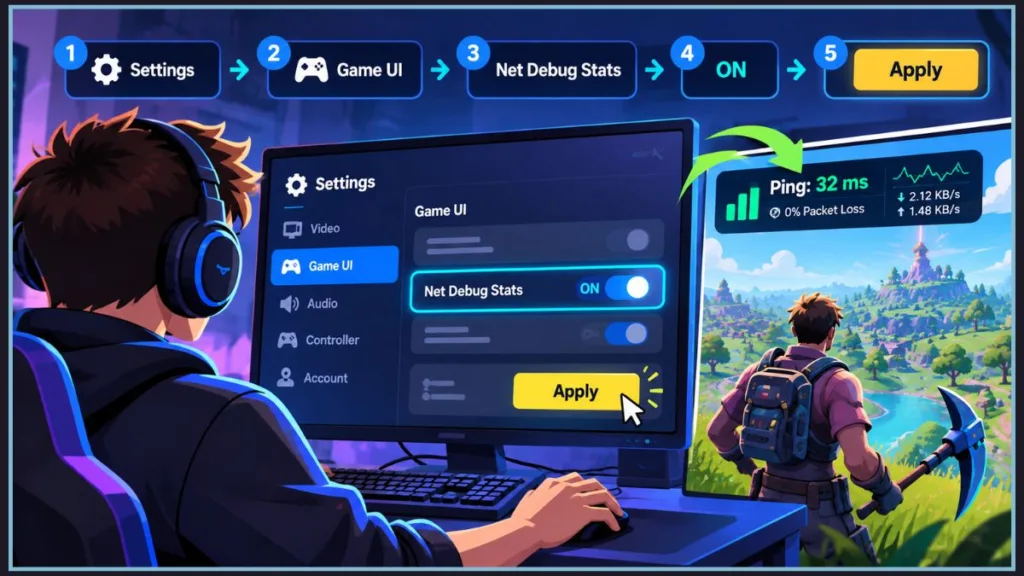
Where Does Your Fortnite Ping Appear?
Once Net Debug Stats is enabled and you’ve applied the change, enter a Fortnite match and look at the top-left corner of the screen. This is where Fortnite displays the network information, so you don’t need to open the Settings menu again to check your connection.
The overlay can include your ping in milliseconds (ms) along with packet-loss information. The values update during gameplay, which makes the display useful when you’re checking what happens to your connection during a lag spike or other sudden change.
What to expect: Start a match, look at the top-left of the HUD, and you should see the network statistics appear there.
How to Know the Ping Display Is Working
The easiest way to confirm that you’ve enabled the feature correctly is to check whether the network information appears once you’re connected to a match.
You should not need to launch a separate application, open another menu, or use a third-party overlay. Net Debug Stats is Fortnite’s built-in network display, and its purpose is to keep this information visible while you play.
If you enabled the setting but nothing appears, first return to Settings > Game UI > Net Debug Stats and make sure it is still set to ON. Also check that you selected Apply after changing the setting.
Quick check: ON + Apply + active match + top-left HUD should give you the network information you’re looking for.
Once the display is visible, the next step is understanding what the numbers and indicators actually mean so you can tell the difference between normal latency, ping spikes, and packet loss.
What Do the Fortnite Network Stats Mean?
Once the Net Debug Stats overlay is visible, the most useful information to watch is your ping and packet loss. Together, these numbers can help you understand whether Fortnite is experiencing network delay or whether the connection is becoming unstable.
What Your Fortnite Ping Number Tells You
Ping is the network delay between your device and the Fortnite server. It is measured in milliseconds (ms), so the number you see tells you how long that communication is taking.
A lower ping generally means less delay, but don’t judge your connection from one reading. What matters more is whether the number stays reasonably consistent during the match.
For example, a ping that stays around 30–40 ms is behaving more consistently than one that repeatedly jumps from 30 ms to 150 ms.
Watch the pattern, not just the number: A sudden ping spike that happens at the same time Fortnite starts feeling delayed is more useful than a single high reading that quickly disappears.
When Packet Loss Is More Important Than Ping
Packet loss means some of the data traveling between your device and the Fortnite server fails to reach its destination. Unlike ping, which measures delay, packet loss points to a problem with the reliability of the connection.
Ideally, you want to see 0% packet loss. Repeated packet loss while you’re experiencing stuttering, delayed actions, or inconsistent movement is a stronger sign of a connection problem than a slightly higher but stable ping.
Why Stable Ping Matters More Than the Lowest Ping
Your average ping doesn’t tell the whole story. A connection can have an acceptable average latency and still feel inconsistent when the response time keeps changing.
This variation is commonly described as jitter. A connection with small changes in latency is generally more stable than one that repeatedly swings between much lower and much higher values.
Example: A connection that stays near 40 ms is generally more consistent than one that moves between 20 ms and 120 ms throughout the match.
You don’t need a separate jitter reading on the Fortnite overlay to notice this behavior. Simply watch whether your ping remains within a relatively narrow range instead of repeatedly spiking.
How Low Should Your Fortnite Ping Be?
There isn’t one universal ping number that guarantees the same experience for every Fortnite player. Lower and more consistent latency is generally preferable, while a higher or highly variable connection introduces more delay.
Your result can also depend on server distance, routing, network congestion, and the matchmaking subregion you’re connected to. That means a player shouldn’t assume that every high ping reading is caused by a slow internet plan.
The same principle applies to packet loss: 0% is the target, and repeated packet loss is worth investigating even when your ping looks low.
Simple rule: Look for stable ping and little or no packet loss rather than chasing a single “perfect” ping number.
With these basics in mind, you can use the overlay for more than checking a number. The next step is to compare these network readings with what you actually experience when Fortnite starts to lag.
Is Your Fortnite Lag Caused by Ping?
Seeing your ping is useful, but the number alone won’t tell you exactly what’s causing Fortnite to lag. The better approach is to check the network stats at the same moment you notice the problem and compare them with what you’re seeing in-game.
If your ping suddenly jumps when your character feels delayed, builds respond slowly, or other actions take longer to register, network latency may be contributing to the problem. A temporary spike is more useful to investigate than a single high reading when the game is otherwise running normally.
Packet loss points to a different type of connection problem. If packet loss appears repeatedly while Fortnite is stuttering or behaving inconsistently, some of the data being exchanged with the server may not be reaching its destination.
Best time to check: Look at the network overlay while the lag is happening, not several minutes afterward. The pattern you see during the problem gives you a much better clue about its cause.
Ping Problem or FPS Problem?
Not every type of Fortnite lag is caused by your internet connection. Your ping can remain relatively steady while the game still feels choppy because of low FPS or other system-performance issues.
Use the two signals together:
Ping rises sharply > the problem may be related to network latency.
Packet loss appears > the connection may be losing data.
Ping stays stable but FPS drops > investigate PC or game performance instead.
This distinction can save you from changing the wrong settings. Lowering graphics settings won’t fix a connection that is consistently losing packets, while changing your network setup won’t solve a problem caused by a sudden drop in frame rate.
Simple check: Network stats tell you about the connection; FPS tells you about how your system is rendering the game. Looking at both helps narrow down the problem before you start troubleshooting.
Why Is Your Fortnite Ping High?
So, you’ve turned on the ping display and noticed that the number is higher than you expected. That doesn’t always mean your internet is slow. Fortnite ping can change for several reasons, including the server you’re connected to, the route your connection takes, and how busy your network is.
Check Your Fortnite Matchmaking Region
One of the first things worth checking is your matchmaking region. The farther your connection has to travel to reach a Fortnite server, the more likely you are to see higher latency.
If your ping stays high throughout a match, check the region Fortnite is using and make sure it makes sense for where you’re playing from. Epic also provides a Subregion Preference option that can help Fortnite connect you to a suitable subregion more often.
Quick tip: If your ping is always high rather than jumping around, your server region is a good place to start.
Check What’s Using Your Network
Sometimes Fortnite isn’t the only thing using your connection. A large download, upload, cloud backup, video stream, or another device on the same network can increase congestion and make your ping climb.
Try checking your ping when Fortnite is the main thing using the connection. Then compare it with what happens when other devices or apps are busy.
Simple test: If your ping gets noticeably worse whenever someone starts streaming or downloading, network congestion may be part of the problem.
A Faster Internet Plan Doesn’t Always Mean Lower Ping
It’s easy to assume that more download speed will automatically give you better Fortnite ping, but bandwidth and latency are different things.
Your internet speed affects how much data your connection can handle, while ping is about how long the data takes to travel between you and the game server. You can therefore have a fast connection and still see higher ping because of server distance, routing, congestion, or other connection conditions.
Watch When the Ping Changes
Your ping display becomes much more useful when you watch when the number changes, not just what the number is.
If it stays high for the entire match, look at your region and connection conditions. If it normally looks fine but suddenly jumps during gameplay, temporary congestion or other network activity may be involved.
The easiest way to read it: High all the time points you toward your connection or server path. Sudden spikes are more likely to point toward something changing on the network.
You don’t need to change everything at once. Start with the server region and network activity, then use the ping display to see whether anything changes.
Fortnite Ping FAQ
How do I show my ping in Fortnite?
Go to Settings → Game UI → Net Debug Stats, turn the option On, and select Apply. Then start a match and check the top-left corner of the screen for your network information.
Where is Net Debug Stats in Fortnite?
You can find Net Debug Stats in the Game UI settings. It’s the built-in option Fortnite uses to display network information during gameplay.
Why can’t I see my ping in Fortnite?
Make sure Net Debug Stats is turned on and that you selected Apply after changing it. Then enter a match and look at the top-left of the HUD, where the network statistics appear.
What is a good ping for Fortnite?
There isn’t a single number that works as a universal cutoff. In general, lower and stable ping is preferable. Pay attention to sudden spikes and whether packet loss appears alongside them.
Can high ping cause Fortnite lag?
Yes. Higher latency means more delay in communication between your device and the Fortnite server. Check your ping when the lag actually happens to see whether the number rises at the same time.
Does server region affect Fortnite ping?
Yes. Server distance and the network route to the server can affect latency. If your ping stays consistently high, checking your matchmaking region or subregion is a sensible place to start.
Final Takeaway
Once Net Debug Stats is enabled, Fortnite gives you a simple way to keep an eye on your connection while you play. You can check your ping and packet loss from the top-left of the screen instead of guessing whether a lag spike is coming from your network.
Remember: A useful ping check is about more than finding the lowest number. Look for stable latency and little or no packet loss when you’re actually experiencing problems.
If your ping stays consistently high, check your matchmaking region and network activity. If the ping looks stable but Fortnite still feels choppy, your issue may be related to FPS or system performance instead.
That makes the ping overlay useful beyond simply displaying a number: it helps you see what your connection is doing and narrow down the cause of Fortnite lag.
Visit Our Post Page: Blog Page
Discover more from Izoate
Subscribe to get the latest posts sent to your email.