
Is WARDOGS not launching because of the WD-L020 error? Find out what causes this launcher issue and how to fix it on Windows 11.
WARDOGS launched into Steam Early Access on September 10, 2026, and its launch was much bigger than expected. The tactical shooter from Derby-based developer Bulkhead sold more than a million copies on its first day while also passing 350,000 concurrent players. With that level of launch-day traffic, technical problems have followed closely behind, and one of the most disruptive is the WD-L020 error.
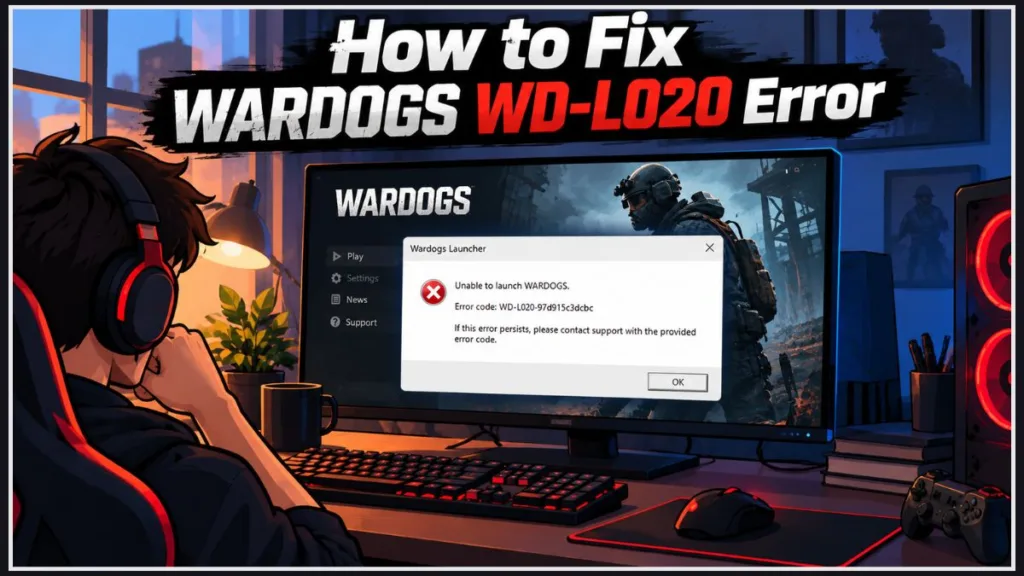
If WARDOGS stops you at the launcher with a message referencing WD-L020, the problem isn’t your game files, internet connection, or installation. This guide explains what’s actually causing the launcher error, which fixes the community has confirmed work, and the mistake that can make the “fix” undo itself a few hours later. You can also check the WARDOGS Steam store page for the game’s own news feed, where Bulkhead posts official updates on issues like this one.
What WD-L020 Means and Why WARDOGS Won’t Launch
The WD-L020 error appears at the launcher stage, before you reach the main menu, and stops WARDOGS from opening completely. Unlike many other reasons WARDOGS may not launch, this issue isn’t caused by missing textures, a bad Steam download, or a misconfigured graphics setting.
The standard “verify integrity of game files” fix that solves many launcher problems doesn’t help here.
The problem is a conflict between WARDOGS’s Elytra anti-cheat software and a Windows 11 update. Elytra runs at a low level to check that your operating system hasn’t been tampered with. When it encounters a Windows build it doesn’t recognize as legitimate, it refuses to let the game start rather than risk allowing a compromised system through.
Key takeaway: WD-L020 is an OS-level compatibility problem, not a game-file problem. Recognizing that early can save you from wasting time on the wrong troubleshooting steps.
When the WD-L020 Error Usually Shows Up
Players have reported the WD-L020 error under a fairly consistent set of circumstances:
- Right after a Windows Update: The error frequently starts appearing on the same day a new Windows 11 preview or security update finishes installing in the background.
- On first launch after a reboot: Some players only see the error after their PC restarts and finishes applying a pending update they didn’t realize was queued.
- While enrolled in the Windows Insider Program: Players testing experimental Windows builds, such as 26H2, run into WD-L020 far more consistently than those on the stable public release.
- After reinstalling or repairing the game: A standard reinstall doesn’t resolve the crash because the update, not the game, is the source of the conflict.
- Returning after a successful fix: Some players who rolled back the offending update find that the error comes back within a day or two without changing anything else on their system.
What’s Actually Causing the WD-L020 Error?
The Windows Compatibility Issues Behind the Launcher Error
Before trying the fixes, it helps to understand what is actually happening. WD-L020 isn’t one single, isolated bug. Several related Windows compatibility issues can surface through the same error code.
Here’s what’s behind it.
Windows 11 Updates That Can Trigger the Conflict
The primary cause of WD-L020 is a specific batch of Windows 11 updates rolled out in late September 2026.
The update most often named by affected players is KB5124010 with OS build 26200.9550, although the exact package varies by system. Some players instead find KB5124115 or KB5124008 listed as the update causing the conflict.
Elytra’s anti-cheat driver appears to flag something introduced by these updates as suspicious. Rather than risk a false pass, it blocks WARDOGS from launching.
What to Do: Check your Windows Update history for KB5124010, KB5124115, and KB5124008. Prioritize whichever one was installed most recently. If one of them is present, that’s very likely why WARDOGS won’t launch on your PC.
Why Insider Builds Can Trigger the Same Error
Players enrolled in the Windows Insider Program are hit hardest by this issue.
Insider builds such as 26H2 aren’t part of the public release channel, and Elytra’s anti-cheat isn’t designed to validate them in the same way it validates a standard, publicly released Windows version. From the anti-cheat’s perspective, an unrecognized build looks the same as a tampered one.
What to Do: If you’re on an Insider build, check whether you’re still enrolled in the program before assuming a simple update rollback will fix your WARDOGS launcher error. It usually won’t be enough on its own.
When the Elytra Installation Is the Problem
Separate from the Windows update conflict, a stale or partially corrupted Elytra installation can trigger the same WD-L020 message.
This is less common than the update-related cause, but it’s worth ruling out, especially if you were never on an affected Windows build in the first place.
What to Do: Locate the Elytra folder inside your WARDOGS installation directory and run its setup tool with the Repair option before assuming you need to touch Windows Update at all.
When a Windows Update Hasn’t Finished Installing
In some cases, WD-L020 isn’t caused by an update that’s already fully installed. Instead, an update may still be finishing its installation in the background.
Windows sometimes needs an additional reboot or two to fully apply an update. Until that process finishes, Elytra can see the system as being in an inconsistent state.
What to Do: Restart your PC once or twice in a row before assuming you need to take more drastic action to get WARDOGS running again.
How to Get WARDOGS Running Again
Before you start: Make sure you’re signed in with an administrator account and that WARDOGS is installed through the Steam client. Windows won’t let you uninstall updates, pause updates, or change Insider Program settings without admin rights, and Steam’s file-repair tools are what the Elytra fix below relies on.
If You’re Using the Standard Windows 11 Release
Remove the Windows Update Causing the Conflict
- Right-click the Start button (or press Windows key + I) and open Settings.
- Click Windows Update in the left-hand menu.
- Click Update history.
- Scroll down to the Related settings section and click Uninstall updates.
- You’ll see a list of installed updates sorted by date. Scroll all the way to the bottom of the list. Several players report that the relevant update doesn’t show up near the top where you’d expect it.
- Find KB5124010, KB5124115, or KB5124008, whichever is present, click it, and select Uninstall.
- Follow the on-screen prompts, then restart your PC when asked.
Microsoft’s own support documentation on how to uninstall a Windows update covers this same process in more detail, including what to do if the update won’t uninstall from Settings.
What to expect: After the restart, launch WARDOGS again. If the update was causing the problem, the launcher should now open normally and take you to the main menu.
Warning: Removing this update also removes whatever security fixes it shipped with. Treat this as a temporary workaround, not a permanent setting.
Why It Helps: This directly removes the specific change Elytra is reacting to, and it’s the fix with the highest success rate reported by the community so far.
Repair the Elytra Anti-Cheat Installation
- Open Steam and go to your Library.
- Right-click WARDOGS, select Manage, then Browse local files.
- Open the Elytra folder inside the WARDOGS installation directory.
- Right-click the Elytra setup file and select Run as administrator.
- When the tool opens, select the Repair option and let it finish.
- Restart your PC once the repair completes.
What to expect: Elytra will reinstall its service files and drivers from scratch. This won’t undo a Windows update conflict on its own, but it rules out a corrupted anti-cheat installation as the cause. If WD-L020 persists after this step, the Windows update is almost certainly the real culprit.
Why It Helps: This resolves cases where the anti-cheat installation itself is the problem, and it’s a much smaller intervention than touching your Windows installation.
Finish Any Pending Windows Updates
If you haven’t found any of the named updates in your history yet, try rebooting your PC once or twice before doing anything else.
Why It Helps: Some players found that the error cleared up entirely once the update that was still finishing in the background completed its installation.
If You’re Enrolled in the Windows Insider Program
Return to the Stable Windows Release
- Open Settings and go to System > Recovery.
- Under Recovery options, check whether Go back is available.
- Click Go back, choose any reason from the list, and click Next.
- Click No, thanks when asked about checking for solutions, then click Next twice more.
- Click Go back to earlier build to confirm. Your PC will restart and revert to your previous, more stable Windows version.
- Once you’re back on a stable build, or if Go back wasn’t available, open Settings > Windows Update > Windows Insider Program.
- Click Stop getting preview builds, then turn on Unenroll this device when the next version of Windows releases.
Time-sensitive: The Go back option only appears for about 10 days after an Insider build installs. If it’s no longer available, skip straight to step 6.
Note: If the toggle in step 7 is greyed out, your device is likely enrolled in the Dev or Canary channel, which only supports leaving the program through a clean installation of Windows rather than a graceful unenroll.
What to expect: If Go back was available, WARDOGS should launch normally as soon as the rollback finishes.
Why It Helps: This is currently the only reliable fix for players on Insider builds, since Elytra isn’t validating non-public Windows versions at all right now.
Check Your Windows Build Before Downgrading
- Open Settings > System > About and note your exact OS build number.
- Search for Feedback Hub from the Start menu and open it.
- Use the search bar to look for reports mentioning WARDOGS, Elytra, or anti-cheat launch failures tied to your build number.
Microsoft’s own guide on using the Feedback Hub walks through how to search existing reports before filing a new one.
What to expect: If other Insiders on the same build have already reported the conflict, that’s a strong sign that your build, rather than one of the KB updates above, is the real cause, and downgrading is worth the effort.
Why It Helps: Knowing exactly which build you’re on helps confirm that an Insider conflict is actually the cause, so you’re not downgrading your whole operating system unnecessarily.
How to Keep WD-L020 From Coming Back
Pause Windows Updates After Rolling One Back
Uninstalling the problem update isn’t a permanent fix on its own. Windows will often silently reinstall it during your next reboot or idle period, bringing WD-L020 right back with it.
- Open Settings and click Windows Update.
- Look for the Pause updates section and click Pause for 1 week, or use the dropdown menu to select a longer pause.
- When you’re ready to let updates resume, come back to this same screen and click Resume updates.
Good to know: Standard Windows 11 releases can be paused for up to 5 weeks at a time; Insider builds are limited to 1 week per pause. Security components like Microsoft Defender definitions will still install even while paused.
Microsoft’s support page on how to pause updates in Windows has the full breakdown of what does and doesn’t get delayed while paused.
Why It Helps: Actively pausing Windows Updates keeps the problem update from reinstalling itself until Bulkhead ships an official fix, so you don’t have to repeat the rollback every few days.
Stick With the Stable Windows Release
If you rely on WARDOGS regularly, staying on the stable Windows release rather than an Insider build will save you from a class of problems that currently has no fix besides downgrading.
Why It Helps: Insider builds are, by design, less predictable for anti-cheat software, and that’s unlikely to change quickly.
Turn Off Hardware Acceleration in Discord
- Open Discord and click the gear icon to open User Settings.
- Go to Voice & Video in the left-hand menu.
- Scroll down and toggle off Hardware Acceleration.
- Restart Discord for the change to take effect.
What to expect: Discord will render using software rendering instead, which is slightly heavier on your CPU but removes a common source of launcher freezes for games running alongside it.
Why It Helps: It removes one more background process competing for the same system resources Elytra is trying to validate at launch. You’ll need the official Discord app installed to access this setting.
Can the WD-L020 Error Harm Your PC?
No. The WD-L020 error doesn’t damage your PC, corrupt your save data, or put your system at risk. It’s the anti-cheat doing exactly what it’s designed to do: refusing to run when it can’t confirm your Windows environment matches what it expects.
It’s disruptive and, for a lot of players, genuinely frustrating, but it isn’t harmful.
Answers to Common WD-L020 Questions
Why is WARDOGS showing the WD-L020 error?
It almost always comes down to a conflict between the Elytra anti-cheat and a recent Windows 11 update, most commonly KB5124010, KB5124115, or KB5124008, though a corrupted anti-cheat install or Insider Program enrollment can cause the same message.
Which Windows update is causing WARDOGS to crash?
The update named most often is KB5124010 with build 26200.9550, but not every affected player has that exact one installed. Some find KB5124115 or KB5124008 in their update history instead, depending on their system.
How do I stop Windows from reinstalling the update I removed?
Go to Windows Update settings and pause updates, choosing the longest available window, which is up to 5 weeks on a standard release. Simply uninstalling the update without pausing updates typically results in Windows reinstalling it automatically within a day or two.
Do I have to downgrade my whole operating system to fix this?
Only if you’re enrolled in the Windows Insider Program. Players on the standard public release of Windows 11 can generally fix WD-L020 by uninstalling the specific update or repairing Elytra, without a full OS downgrade.
What if it’s been longer than 10 days since my Insider build installed?
The Go back option in Recovery settings disappears after roughly 10 days. At that point, your only path back to a stable build is unenrolling from the Insider Program and waiting for the next stable release, or performing a clean installation.
Is Bulkhead going to release an official fix for WD-L020?
As of this writing, no official hotfix has been confirmed. The current fixes are community-sourced workarounds, and players have been vocal about wanting Bulkhead to address the anti-cheat conflict directly rather than relying on users to modify their Windows installations. Keep an eye on the WARDOGS Steam page for official patch announcements.
Final Takeaway
The WD-L020 error is frustrating because the fix lives outside the game itself — in Windows Update, not in WARDOGS’s own files or settings.
Start by checking your update history for KB5124010, KB5124115, or KB5124008. Don’t stop at uninstalling the update either: pause Windows Updates afterward, or you’ll likely be right back here within a day.
For Insider Program users, confirming your build and then unenrolling to return to the stable release is currently the most dependable path back into the game. Just move quickly, because the easiest rollback option disappears after about 10 days.
Until Bulkhead ships an official patch, treating this as a Windows-side conflict rather than a game-side one will save you the most time.
Visit Our Post Page: Blog Page
Discover more from Izoate
Subscribe to get the latest posts sent to your email.