
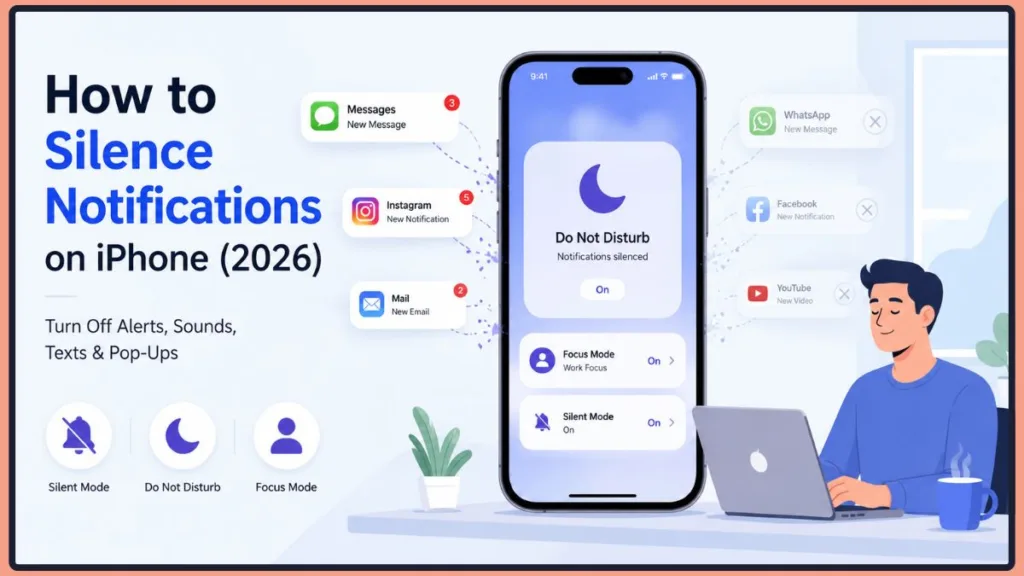
Want fewer distractions on your iPhone in 2026? Learn how to silence notifications, mute text messages, turn off notification sounds, and stop app alerts using Focus Mode, Do Not Disturb, and Silent Mode. Stay focused without missing what matters most.
Does your iPhone constantly buzz, ring, vibrate, and interrupt you when you’re trying to work, sleep, study, or relax?
If your iPhone won’t stop buzzing with texts, app alerts, and pop-ups, you’re not alone. Learning how to silence notifications on iPhone is one of the easiest ways to reduce distractions and take control of your device. Whether you want to stop notifications completely, mute text messages from one person, silence app alerts, or keep calls while turning off everything else, Apple gives you several built-in options within your iOS notification settings.
Let’s get started.
How to Silence Notifications on iPhone Quickly
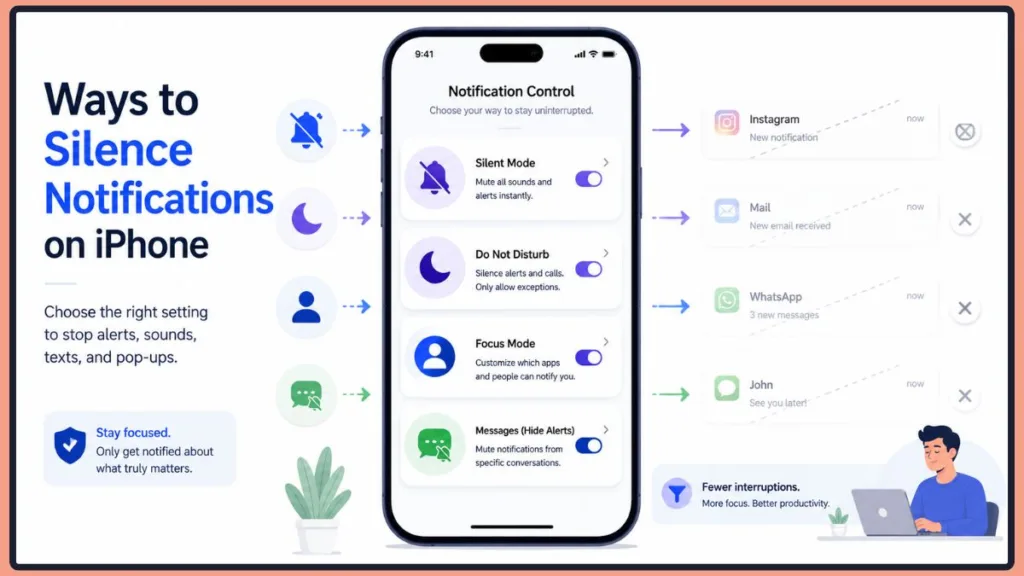
The fastest way to silence notifications on iPhone is to turn on Silent Mode using the Action Button or Ring/Silent switch. For more comprehensive control, open your Control Center and enable Do Not Disturb or a custom Focus Mode to silence alerts, texts, calls, and app notifications all at once. If you only want to stop alerts from specific apps or conversations, you can customize your iOS notification settings individually without muting your entire phone.
What Happens When You Silence Notifications on iPhone?
Before you start turning off notifications, it’s worth understanding that iPhone offers several different ways to silence alerts. Some methods mute everything, while others only affect specific apps, conversations, or times of day.
Depending on your daily routine, you can completely silence all notifications, mute specific text conversations, or simply silence specific apps that are distracting you. You also have the flexibility to stop notification sounds while keeping visual alerts, hide Lock Screen notifications for extra privacy, automatically silence notifications at certain times, or silence incoming alerts while still allowing phone calls from important contacts to ring through.
The best method depends entirely on what you’re trying to achieve at that moment. The goal isn’t necessarily to stop every notification—it’s to make sure only the important ones get your attention when you actually have the time for them.
Which Notification Silencing Method Should You Use?
Before choosing a setting, it helps to know that different methods are designed for different situations. Here is a quick breakdown to help you pick the right tool for the job:
| If You Want To… | Best Option |
| Silence everything instantly | Silent Mode |
| Silence notifications but allow calls | Do Not Disturb |
| Mute one person | Hide Alerts |
| Mute one app | Notification Settings |
| Silence notifications at night | Sleep Focus |
| Temporarily stop alerts | Mute for 1 Hour |
Method 1: Use Silent Mode to Silence Notifications Instantly
If you are stepping into a meeting or a movie theater, you probably need quiet immediately. Silent Mode is the fastest hardware method to silence alerts on your iPhone.
What Is iPhone Silent Mode?
Silent Mode is a hardware-level override that stops your phone from making noise, overriding most software settings instantly.
For iPhone 15 Pro, iPhone 16, and newer models:
- Press and hold the Action Button on the left side of your phone.
- Wait until you feel a vibration and see the Silent Mode icon appear on your screen.
For iPhone 15 (standard) and older models:
- Find the Ring/Silent switch on the upper-left side of your phone.
- Flip the switch down (toward the back of the phone).
- Look for the small orange indicator to confirm Silent Mode is active.
What Silent Mode Silences
When you activate Silent Mode, it immediately mutes all notification sounds, text message alerts, app alert chimes, and incoming call ringtones. This makes it perfect for situations where any sudden noise would be highly disruptive.
What Silent Mode Does NOT Silence
Despite its name, this feature does not silence everything. It will not stop your morning alarms, nor will it silence emergency alerts like weather or government warnings. Furthermore, visual notification banners will still pop up on your screen.
Important: Turning on Silent Mode does not stop alarms from ringing. Your scheduled morning alarms in the Clock app will always sound, even if the switch is flipped to silent.
Pro Tip: Want a completely quiet phone? Turn off Haptic feedback (vibrations) by going to Settings > Sounds & Haptics and toggling off Vibrate on Silent.
Method 2: How to Stop Notifications on iPhone for Specific Apps
Sometimes one app is causing the problem. If a shopping app keeps sending promotional alerts, or your social media is blowing up, you can turn off notifications for individual apps without muting your entire phone.
How to Turn Off Specific App Notifications
- Open the Settings app on your iPhone.
- Tap Notifications.
- Scroll down and select the app you want to quiet.
- Toggle off Allow Notifications.
Users frequently need to mute popular, high-traffic platforms like Instagram, Facebook, WhatsApp, Gmail, TikTok, and X (Twitter) because they tend to send constant push alerts. Managing these individually is a great way to clean up your digital life.
How to Turn Off Notification Sounds on iPhone Without Disabling Notifications
If you still want to see your alerts but don’t want to hear them, you can customize the app’s behavior so it remains completely silent.
- Go to Settings > Notifications and tap the app.
- Leave Allow Notifications turned on.
- Toggle off Sounds.
- You can also customize your visual alerts here by turning off Badges (the red number dots), Lock Screen notifications, Notification Center history, or Banners (the pop-ups at the top of your screen).
How to Silence Notifications on iPhone So Others Can Still See Them
Many users want to know how to silence notifications on iPhone so others can see they are arriving, or so they can still see the visual alerts themselves without the disruptive noise. If you want to know how to stop notification sounds on iPhone but keep the pop-ups active, you can easily tweak your settings.
To silence alerts on iPhone while keeping the visual notification previews enabled:
- Go to Settings > Notifications and select your app.
- Make sure Allow Notifications is toggled on.
- Turn off Sounds.
- Leave Lock Screen, Notification Center, and Banners checked.
This way, your phone won’t make a sound, but you (and anyone glancing at the screen) will still see the notification banners appear seamlessly.
Method 3: How to Mute Text Messages on iPhone
Many users don’t want to silence everything—they only want to stop text message alerts from a busy thread or a specific person.
How to Silence Notifications on Messages
- Open the Settings app.
- Tap Notifications, then tap Messages.
- Turn off Allow Notifications entirely, or tap Sounds and select None for your Text Tone to keep visual alerts without the noise.
How to Silence Text Notifications on iPhone for One Person
If you have a friend who sends a dozen rapid-fire texts in a row, you can mute their conversation specifically without blocking them.
- Open the Messages app.
- Swipe left on the conversation you want to mute.
- Tap the bell icon (crossed out) to silence notifications for that chat.
Using Hide Alerts
When you tap that bell icon, you are turning on Hide Alerts.
Good to Know: Hide Alerts stops your phone from buzzing or ringing when that specific person or group texts you. The messages still arrive silently in your inbox for you to read later. To turn it off, simply swipe left on the conversation again and tap the bell icon to unmute them.
How to Silence a Group Chat on iPhone
Group chats can drain your battery and your patience. The process is exactly the same as muting a single person. Swipe left on the group conversation in your Messages list and tap the bell icon to activate Hide Alerts for that specific group.
Method 4: Use Do Not Disturb to Silence Incoming Notifications
When you are taking a nap or studying, you want all visual and audio interruptions to stop. Do Not Disturb (DND) is a powerful tool that blocks alerts from waking up your screen or making noise.
How to Turn On Do Not Disturb on iPhone
The Control Center Method (Fastest):
- Swipe down from the top-right corner of your screen (on older iPhones with a Home button, swipe up from the bottom edge).
- Tap directly on the Do Not Disturb icon (the crescent moon) on the Focus button.
The Settings Method:
- Open Settings.
- Tap Focus.
- Tap Do Not Disturb to customize it or turn it on.
What Does Do Not Disturb Silence?
Once active, Do Not Disturb completely silences incoming calls, texts, and app alerts. It also hides your Lock Screen notifications, sending them straight to the Notification Center for you to safely view later when you have free time.
How to Silence Notifications on iPhone but Not Calls
You can easily set up Do Not Disturb so that emergencies can still reach you.
- Go to Settings > Focus > Do Not Disturb.
- Tap People under the Allow Notifications section.
- Tap Allow Calls From and choose Favorites or Contacts Only.
- You can also turn on Allow Repeated Calls, which lets a second call from the same person ring through if they call back within three minutes.
What Is the Difference Between Do Not Disturb and Silence Notifications?
| Feature | What it Does | Best For |
| Silent Mode (Switch) | Mutes sounds only; screen still lights up. | Quick meetings, movies, short-term quiet. |
| Do Not Disturb | Blocks sounds and screen wake-ups; sends alerts to history. | Deep work, napping, reducing all visual distractions. |
Silent Mode vs Do Not Disturb vs Focus Mode
If you are still wondering about Silent Mode vs Focus Mode or Do Not Disturb vs Focus Mode, here is a detailed breakdown answering exactly what is the difference between Do Not Disturb and Silence Notifications:
| Feature | Silent Mode | Do Not Disturb | Focus Mode |
| Mutes sounds | ✓ | ✓ | ✓ |
| Hides alerts | ✗ | ✓ | ✓ |
| Allows exceptions | ✗ | ✓ | ✓ |
| Scheduling | ✗ | ✓ | ✓ |
| Custom app rules | ✗ | ✗ | ✓ |
Summary: Use Silent Mode when you need quick, temporary quiet but still want to see your screen light up. Use Do Not Disturb for meetings or naps when you want no sounds and no visual distractions. Use Focus Mode when you want to build custom, scheduled routines (like a Work or Sleep mode) that filter exactly which apps and people can reach you.
Method 5: Set Up Focus Mode for Smarter Notification Control
If you want your iPhone to stay quiet automatically during work hours or while you’re at the gym, Focus Mode is your best option. It is a smarter, highly customizable version of Do Not Disturb.
What Is Focus Mode on iPhone?
Focus Mode lets you create different situational profiles for different parts of your day. For instance, a Work Focus silences social media but allows emails and calls from coworkers. A Personal Focus silences work apps but allows friends and family to text. You can also use a Sleep Focus that dims your screen and silences everything until morning, or a Driving Focus that automatically silences alerts when connected to your car’s Bluetooth.
How to Set Up iPhone Focus Mode
- Open Settings and tap Focus.
- Choose an existing mode (like Work or Personal) or tap the + icon to create a new one.
- Under the Allow Notifications section, tap Choose People to add family, emergency contacts, or coworkers who can bypass the silence.
- Tap Choose Apps to allow important tools like Phone, Messages, or Slack to notify you.
- Scroll down to Set a Schedule and add a time or location (like your office address) for this Focus to turn on automatically.
How to Silence Notifications on iPhone at Night
Sleep interruptions are one of the most common complaints among smartphone users. The good news is that you can automate your phone to ensure a peaceful night.
Use Sleep Focus
Pro Tip: Use Sleep Focus instead of Silent Mode if you want your iPhone to automatically silence notifications at bedtime. It turns on and off automatically based on your schedule, and naturally dims your Lock Screen for a better sleep environment.
- Go to Settings > Focus > Sleep.
- Customize which contacts (if any) can reach you in an emergency.
- Set your sleep schedule so it activates automatically.
Schedule Do Not Disturb
If you prefer traditional Do Not Disturb, you can schedule it nightly:
- Go to Settings > Focus > Do Not Disturb.
- Scroll down to Set a Schedule and tap Add Schedule.
- Choose Time and enter your normal sleeping hours.
How to Temporarily Silence Notifications on iPhone
Sometimes you only need a short break from a specific app that is pinging you repeatedly.
Temporarily Silence Notifications From One App
- When a notification pops up, pull down your screen from the top-left to open the Notification Center.
- Swipe left on the annoying notification.
- Tap Options.
- Choose either Mute for 1 Hour or Mute for Today.
This is perfect for when a group chat or news app is hyperactive, but you want to check the alerts later without completely disabling them in your iOS settings.
How to Silence Unknown Callers on iPhone
If spam calls are your main source of distraction, you can use the Silence Unknown Callers feature to manage them automatically.
- Open Settings.
- Scroll down and tap Phone.
- Tap Silence Unknown Callers and toggle it on.
What Happens When Silence Unknown Callers Is Enabled?
Calls from unknown numbers won’t ring. They will be sent directly to voicemail and safely displayed in your recent calls list. Calls from your saved contacts, recent outgoing calls, and Siri Suggestions will still ring normally.
How to Hide Notifications on Your Lock Screen
Some users want privacy rather than silence. If you leave your phone on a desk, you might not want coworkers reading your notification previews.
Hide Notification Previews
- Go to Settings > Notifications.
- Tap Show Previews.
- Change it to When Unlocked (requires FaceID/TouchID to read the text) or Never.
Disable Banner Notifications
- Go to Settings > Notifications and select the app.
- Under the “Alerts” section, uncheck Lock Screen and Banners.
What Does “Notifications Silenced” Mean on iPhone?
If you are texting a friend and see a small message at the bottom of the chat saying “[Name] has notifications silenced,” you might wonder what is going on.
Why Does iMessage Say Notifications Silenced?
This simply means the person you are texting currently has a Focus Mode turned on (such as Do Not Disturb, Work, or Sleep Focus). Their iPhone is telling you that their Share Focus Status is active and they won’t see your message immediately.
Why Does iMessage Say Notifications Silenced When It Isn’t?
Sometimes, friends might tell you that iMessage says notifications silenced, but you know you aren’t on Do Not Disturb. If you are dealing with notifications silenced when not on Do Not Disturb or notifications silenced but Focus is off, the culprit is usually Apple’s device syncing.
Common causes include focus syncing across Apple devices, where leaving your iPad or Mac on Do Not Disturb with Share Across Devices enabled tells people you are silenced. Additionally, Apple Watch notification synchronization can trigger the status if your watch is in a Sleep Focus or Theater Mode. It could also be caused by background Sleep Focus schedules running automatically from the Health app, or forgotten location-based Focus automations stuck in the background.
How to fix it: Go to Settings > Focus and turn off Share Across Devices to stop your other Apple products from overriding your iPhone’s status. Then, check your Control Center to ensure no hidden Focus Modes are active.
Does Notifications Silenced Mean Someone Blocked You?
Good to Know: The “Notifications Silenced” message in iMessage does not mean someone has blocked you. If someone blocks you, you will not see this message at all. It is simply an automated status letting you know they are currently busy or asleep.
How to Turn Off “Notifications Silenced” in iMessage
If your friends are complaining that your phone always says your notifications are silenced, here is how to fix it:
Turn Off Share Focus Status:
- Open the Messages app and tap the conversation with the person complaining.
- Tap their contact icon at the top of the screen.
- Toggle off Share Focus Status.
Turn Off Focus Mode:
If you didn’t realize you had a Focus active, simply swipe down to open your Control Center and tap the highlighted Focus icon to turn it off.
How to Turn Off Silence Notifications on iPhone
If you no longer want your phone to block alerts and need to turn off silence notifications iPhone features, you have a few places to check depending on what is active. Here is how to disable notifications silenced status and get your phone ringing again:
- Turn off Do Not Disturb / Disable Focus Mode: Swipe down from the top right to open the Control Center. If the Focus button (crescent moon or other icon) is highlighted white, tap it once to turn it off.
- Disable Sleep Focus: If your phone silences itself every night and you want to stop it, go to Settings > Focus > Sleep, scroll down to your schedule, and toggle it off.
- Turn off Share Focus Status: If you want to turn on notifications silenced iPhone status off for others (meaning they won’t see that you are busy), go to Settings > Focus > Focus Status and toggle off Share Focus Status.
- Remove automatic Focus schedules: Go to Settings > Focus, tap any active Focus, and delete or turn off any schedules listed under “Set a Schedule.”
How to Use Scheduled Summary to Reduce Notifications
If you want to reduce distractions but don’t want to mute apps completely, the Scheduled Summary iPhone feature is your best friend. Instead of letting apps interrupt you all day, a Notification Summary iPhone setup batches your non-urgent alerts into a single digest delivered at a time you choose.
What Scheduled Summary is and how it works:
This feature catches all incoming notifications from your chosen apps and holds them. Then, at specific times (like 8:00 AM and 6:00 PM), it delivers them all at once in a neat, scrollable bundle on your Lock Screen. It is the perfect way to delay notifications on iPhone without missing them entirely.
Which apps should be included:
Social media apps (Instagram, TikTok), news alerts, shopping promotions, and non-urgent email accounts are perfect for batching. Time-sensitive apps like Phone, Messages, or calendar reminders should be left out.
How to enable Scheduled Summary:
- Go to Settings > Notifications > Scheduled Summary.
- Toggle on Scheduled Summary.
- Select the apps you want to batch.
- Set your preferred delivery times.
When Scheduled Summary is better than Do Not Disturb:
Do Not Disturb is great for blocking everything when you need deep focus. Scheduled Summary is better for everyday use, allowing you to stay reachable for texts and calls while permanently organizing the annoying clutter of app alerts.
Advanced Notification Controls You Should Know About
Focus Filters
Inside your Focus settings, Focus Filters let you customize how apps behave. For example, during your “Work Focus,” you can set your Mail app to only show your work inbox, hiding your personal emails completely.
Emergency Bypass
If you have a child, elderly parent, or boss who must be able to reach you no matter what, you can utilize the Emergency Bypass feature to override all silent settings for them. Go to their Contact card > Edit > Text Tone (or Ringtone) > toggle on Emergency Bypass.
Intelligent Breakthrough & Silencing Explained
If you have an iPhone 15 Pro, iPhone 16, or newer model running iOS 18.2 or later, you can take advantage of Apple Intelligence notifications. This feature fundamentally changes how alerts work by actively reading and sorting them.
How Apple Intelligence analyzes notifications:
When you enable Intelligent Breakthrough & Silencing (often used alongside the new Reduce Interruptions Focus), your iPhone uses on-device AI to understand the context of your alerts. It silences the digital noise but allows truly important notifications to break through.
What notifications can break through:
If your boss emails you about an urgent meeting, your babysitter texts, or a flight delay alert pops up, the AI recognizes the urgency and pushes it to your screen. Meanwhile, promotional emails, group chat memes, and social media likes are kept silent.
Benefits compared to traditional Focus Mode:
Traditional Focus Modes are rigid—you either allow a specific app/contact or you don’t. Intelligent Breakthrough & Silencing is dynamic. It judges the content of the message, not just who sent it.
How to use it:
Go to Settings > Focus > Do Not Disturb (or the Reduce Interruptions Focus) and toggle on Intelligent Breakthrough & Silencing.
Limitations and requirements:
Keep in mind that Apple Intelligence requires your device language to match Siri’s supported languages, needs at least 7 GB of available storage, and is only available on supported A17 Pro or M-series chips and newer.
Why Is My iPhone Still Making Notification Sounds?
If you flipped the silent switch or turned on Do Not Disturb, but your phone is still making noise, there are a few common settings that might be overriding your choices.
First, keep in mind that Silent Mode doesn’t stop alarms from ringing; your morning clock alarms will always sound. Similarly, government weather and AMBER alerts bypass standard silent settings. If a standard app is ringing, you may have accidentally allowed specific apps or people to bypass your active Focus Mode. Finally, check your contact list to ensure you don’t have Emergency Bypass turned on for a specific person, which forces their notifications to sound regardless of your settings.
Frequently Asked Questions
How do I silence notifications on iPhone for one person?
Open your Messages app, swipe left on their conversation, and tap the bell icon to turn on Hide Alerts. This will hide their alerts from popping up or making sounds.
How do I fully silence notifications on iPhone?
Turn on Do Not Disturb from your Control Center and ensure you have no exceptions allowed under “People” or “Apps” in your Focus settings.
Is it better to silence or turn off notifications?
It depends! Silence (Do Not Disturb) is best for temporary quiet. Turning off notifications in Settings > Notifications is best if an app permanently annoys you.
Can I mute my notifications but keep my morning alarm on?
Yes. Both the physical Silent Mode switch and Do Not Disturb / Sleep Focus allow your morning Clock alarms to ring normally.
How do I silence all notifications except calls on iPhone?
Turn on Do Not Disturb, then go to Settings > Focus > Do Not Disturb > People > Allow Calls From, and select “All Contacts” or “Favorites.”
What does “Hide Alerts” do on iPhone?
Hide Alerts mutes the Text Tone and banners for a specific text message conversation, delivering the messages silently to your inbox.
Why does my iPhone say notifications silenced?
Your iPhone says “Notifications Silenced” because you currently have a Focus Mode turned on, such as Do Not Disturb, Sleep Focus, or Work Focus.
How do I turn off the notifications silenced message?
To stop sharing this status, go to Settings > Focus > Focus Status and toggle off Share Focus Status, or simply turn off your active Focus Mode in the Control Center.
How do I mute one conversation on iPhone?
Open the Messages app, swipe left on the conversation you want to mute, and tap the bell icon. You will no longer receive sounds or pop-ups from that chat.
How do I stop notification sounds but still receive messages?
Go to Settings > Notifications, select the app (like Messages), keep Allow Notifications turned on, but toggle off Sounds. The messages will still appear silently in your Notification Center.
How do I silence notifications on iPhone but not calls?
Turn on Do Not Disturb from your Control Center, then navigate to Settings > Focus > Do Not Disturb > People > Allow Calls From, and select the contacts you want to ring through.
Can I silence notifications without turning on Do Not Disturb?
Yes. You can flip the physical Ring/Silent switch on the side of your iPhone to instantly mute all notification sounds while keeping your screen active.
Final Thoughts
Whether you need complete silence during meetings, fewer distractions while working, or simply want to stop annoying app alerts, your iPhone gives you several ways to control notifications.
Not sure which option is right for you? Use Silent Mode for instant, temporary quiet when you step into a meeting. If you need scheduled silence and deep focus, use a Focus Mode or Do Not Disturb. For that one noisy person or group chat, simply use Hide Alerts in the Messages app. Finally, if only one specific application is bothering you, adjusting your App Notification Settings is the most effective solution.
By tweaking a few settings, you can easily prioritize your peace of mind and ensure you only look at your screen when you actually want to.
Useful Official Resources for Managing iPhone Notifications
If you want reliable, Apple-backed information about setting up your iPhone’s alerts and managing your daily distractions, the following official resources are worth reviewing. They cover how to use built-in management tools, how to configure Focus modes, and how to customize your app alerts safely.
Change Notification Settings on iPhone – Official Overview: Apple explains the full logic behind adjusting your iOS notification settings, including how to change alert styles, selectively turn off notifications for specific apps, and prevent notification previews from appearing on your Lock Screen.
Set up and Schedule a Focus on iPhone – Official Support Guide: A user-friendly guide covering how Focus Mode is natively integrated into your Control Center and Settings app, allowing you to quickly silence distractions, filter app notifications, and set up automatic schedules for Work, Sleep, or Personal time.
Stop, Mute, and Change Message Notifications – Advanced Messaging Control: Technical documentation outlining how to navigate your text message settings. This is perfect for learning how to hide alerts from specific contacts, mute group conversations, and completely disable text message sounds or haptic vibrations without missing the messages.
View and Respond to Notifications – Managing the Notification Center: An official explanation of how to use your iPhone’s Notification Center to organize your daily alerts. This is highly useful for managing grouped notifications, utilizing the swipe-to-mute gestures, and setting up a Scheduled Summary to batch your non-urgent alerts.
Visit Our Post Page: Blog Page
Discover more from Izoate
Subscribe to get the latest posts sent to your email.