
Want to stop YouTube videos from playing automatically in 2026? Learn how to stop autoplay on YouTube using simple, updated steps. From disabling app toggles to blocking feed previews and browser-level background fixes. Stay in control of your viewing experience today.
We’ve all been there: you sit down to watch a quick three-minute tutorial on how to fix a leaky faucet, and suddenly it’s 2 AM, and you’re halfway through a documentary about the social hierarchy of deep-sea squids. If you feel like your YouTube app has a mind of its own, you aren’t alone. In the hyper-competitive attention economy of 2026, YouTube’s Autoplay is the engine driving this infinite loop.
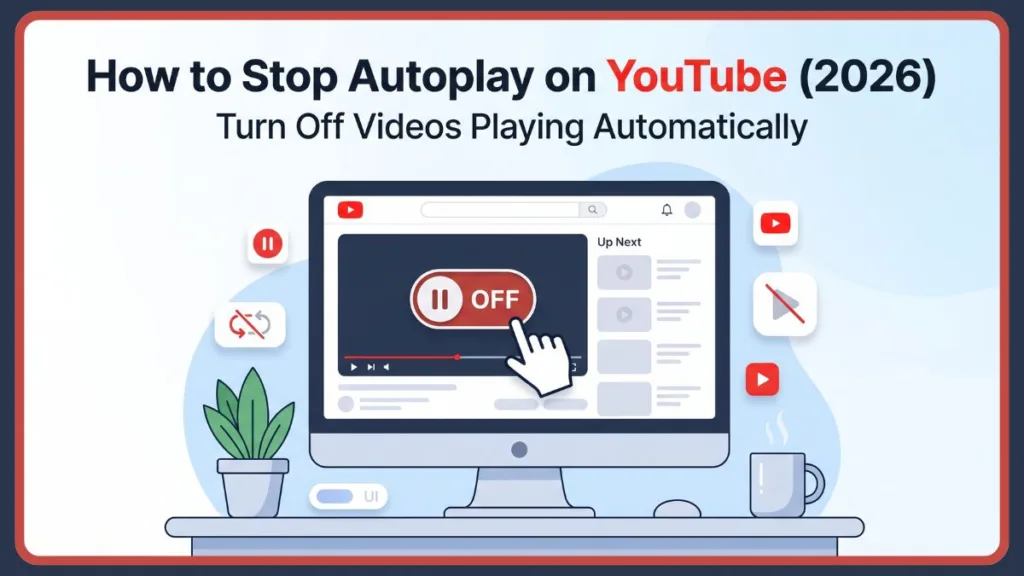
The frustration of videos auto-playing unexpectedly isn’t just about losing an hour of sleep; it’s a matter of wasted time and data. Whether you are on a limited mobile plan or trying to practice digital minimalism, the constant barrage of content can feel overwhelming. Beyond the standard Next Video, we now contend with Shorts that loop endlessly and muted feed previews that start playing before you even click.
This guide is your roadmap to regaining digital sovereignty. We will provide a deep dive into the settings you need to master, offering full control across devices and browsers. From the standard iPhone app to the specific technical hurdles found in privacy-focused browsers like Brave, we cover it all. By the end of this article, you’ll know exactly how to stop the noise and ensure your viewing experience is intentional, not involuntary.
What Is YouTube Autoplay and Why It Exists
To defeat the loop, you must first understand it. YouTube autoplay settings are not just a convenience feature; they are a core part of the platform’s engagement architecture.
The Mechanism
Autoplay is a built-in feature that automatically launches a new video immediately after your current one ends. On desktop and mobile, this is signaled by a countdown timer—a circular progress bar that appears over the video end-screen. If you don’t interact with it, the Up Next video begins.
The Algorithm and Engagement Reasoning
Why does YouTube want this? It’s about automatic video playback metrics. The platform’s recommendation system is powered by deep neural networks that analyze billions of data points:
- Your Watch History: What you’ve finished versus what you’ve skipped.
- Topic Clusters: If you watch a video on Tesla Repairs, the system queues EV Battery Tech.
- Time of Day: It knows if you want Lo-Fi Beats at night or News Headlines in the morning.
- Channel Loyalty: It prioritizes videos from creators you are subscribed to or interact with frequently.
By predicting your next move, YouTube keeps you on the site longer, which in turn increases ad inventory. While this helps with content discovery, it often ignores the user’s need for a definitive end to their viewing session.
Why You Might Want to Disable YouTube Autoplay
While the convenience of a hands-free experience is great for a workout or a cooking session, the downsides are significant.
1. Screen Time Control and Digital Health
Autoplay exploits a psychological phenomenon called the unit bias. When one task ends and another begins automatically, our brains often fail to register the transition, leading to binge-watching sessions. Disabling it forces a moment of conscious decision-making.
2. Massive Data Saving
In 2026, 4K and 8K streaming are common. If you fall asleep with Autoplay on, your phone could stream gigabytes of data over your cellular network in a single night.
Important Tip: At 1080p, YouTube consumes roughly 1.5GB to 3GB per hour. At 4K, that jumps to 7GB+ per hour. Turning off autoplay is the single most effective way to prevent massive data overages.
3. Distraction Reduction
If you use YouTube for work or study, an irrelevant Up Next video can completely derail your focus. Muted playback in feeds is particularly guilty of this, catching your eye with movement while you are simply trying to search for a specific video.
4. Avoiding Irrelevant Recommendations
Sometimes the algorithm misses the mark. If you watch one video out of curiosity—say, a trending celebrity drama—Autoplay might decide that is your new favorite genre, cluttering your history with content you don’t actually care about.
How to Stop Autoplay on YouTube: Mobile – Android & iPhone
The mobile experience is where most users struggle because the UI changes frequently. Here is the definitive 2026 process.
Method 1 – Turn Off Autoplay from Video Player
This is the fastest way to handle a single session.
- Open the YouTube app and start any video.
- Tap the video player once to bring up the interface overlay.
- Look at the top of the player. You will see a toggle switch (it looks like a play/pause button).
- If the toggle is to the right (showing a Play icon), it is ON.
- Tap the switch to move it to the left. A Pause icon will briefly appear, confirming that Autoplay is now OFF.
Method 2 – Disable Autoplay from Settings
If you want to disable youtube autoplay permanently across the app:
- Tap your Profile icon (labeled as the U tab in the 2026 layout) located in the bottom right corner.
- Tap the Gear icon in the top right to enter YouTube Settings.
- Scroll down and tap on Autoplay.
- You will see a toggle for Mobile phone/tablet. Flip this switch to the OFF position.
- (Optional) If you have multiple devices linked to your account, you may see them listed here; ensure each is toggled off.
Special Case – YouTube Kids
Protecting children from algorithmic rabbit holes is a priority for many parents. You can turn off autoplay for YouTube Kids to prevent kids from stumbling onto weird auto-generated content.
- Open the YouTube Kids app.
- Tap the Lock icon in the bottom corner of any page.
- Solve the multiplication problem or enter your custom parental passcode.
- Select Settings.
- Tap on your child’s profile and toggle Autoplay to OFF.
Important Tip: Always verify the “YouTube Kids” settings after an app update, as parental controls can sometimes revert to default “Discovery” modes.
How to Turn Off YouTube Autoplay on Desktop (Browser)
The desktop version of YouTube offers a more stable saved preference via browser cookies, but it is still prone to resets during browser updates.
- Navigate to YouTube.com and log into your account.
- Click on any video to begin playback.
- Hover your cursor over the video player. A control bar will appear at the bottom.
- To the left of the Subtitles/CC and Settings icons, you will find the Autoplay toggle.
- Click the switch. When it is disabled, a Pause symbol replaces the blue On state.
Important Tip: If you use a “cleaner” tool that wipes your cookies every time you close Chrome or Safari, YouTube will “forget” your choice. To prevent this, “whitelist” YouTube’s cookies in your browser settings.
The New Tab and Brave Browser Insight
A fascinating data point from a recent Brave Community thread reveals a common misunderstanding of how Site Permissions work versus Site Settings. Many users reported that even with the YouTube Autoplay toggle set to OFF, a video would still start playing the moment they opened it in a new tab.
The key takeaway is that the YouTube toggle only controls the transition from Video A to Video B. It does not control the Auto-start of a page when it first loads.
For browsers like Brave, which have a Shields feature, you must go to brave://settings/content/autoplay and set it to Block to truly stop a video from playing in a new tab. Most modern browsers have an Autoplay Policy that blocks sound but allows video; however, the moment you click into the tab (giving it focus), the browser gives the site permission to play. If you want absolute silence, you must manage this at the browser permission level.
How to Disable YouTube Autoplay on TV and Streaming Devices
The Leanback experience on Smart TVs is the most aggressive with autoplay because it assumes you want a traditional TV feel where the stream never stops.
Steps for Smart TVs, Fire TV, Roku, and Apple TV:
- Launch the YouTube app on your television.
- Using your remote, navigate to the far left to open the sidebar menu.
- Scroll down to the very bottom and select Settings (the gear icon).
- In the Settings sub-menu, find Autoplay.
- Click into it and select OFF.
Important Tip: This setting is account-wide for that device. If you have multiple profiles on your TV, you must repeat these steps for every individual profile to ensure total silence across the household.
Managing YouTube Shorts: Looping and Startup Behavior
How do I stop YouTube Shorts from looping? This is currently one of the most searched queries in 2026. Unlike standard videos, Shorts are designed to be sticky. By default, a Short will play over and over until you manually swipe to the next one. YouTube does this to boost view count metrics and ensure the user is constantly stimulated.
For those looking to exit the cycle entirely, learning how to disable YouTube Shorts 2026 is essential to stop endless scrolling.
The NEW 2026 “0-Minute” Shorts Feed Limit
In April 2026, YouTube introduced a massive update for digital well-being. Users can now effectively disable the Shorts shelf from appearing on their homepage.
- Tap your Profile (U) icon and select Time management.
- Tap on Shorts Feed limit.
- Select 0 minutes.This will hide the Shorts recommendations from your home feed, making it significantly easier to avoid the “Shorts Trap.
The Looping Limitation
As of now, there is no official off switch for Shorts looping in the native mobile app. It is a hard-coded feature of the Shorts player.
- The Workaround: On a desktop browser, you can use Shorts Blockers or scripts like Tampermonkey to force the video to pause after one play.
- Mobile Strategy: Use the Remind me to take a break feature in Settings > General. While it won’t stop the loop, it will interrupt your session after a set amount of time (e.g., 15 minutes), forcing you to acknowledge how long you’ve been watching.
Stopping Shorts on Startup
One of the most annoying app behaviors is when YouTube launches directly into the Shorts feed instead of your Home subscriptions. This happens because YouTube’s app remembers the last state it was in. If you were watching Shorts when you force-closed the app or locked your phone, it will often resume in that exact spot.
- Manual Exit: Always swipe out of the Shorts player to the Home tab before closing the app.
- Clear App State (Android): Long-press the YouTube icon > App Info > Force Stop. This resets the launch state.
- Shortcut Hack: On iPhone, you can create a Siri Shortcut that specifically opens
youtube.com/feed/subscriptionsinstead of just the app icon.
How to Disable Muted Playback in the YouTube Feed
Playback in feeds (also known as muted previews) is a feature where videos start playing without sound as you scroll through your Home or Subscriptions tab. This is a massive battery and data drain.
On Mobile (iPhone & Android):
- Tap your Profile (U) icon > Settings.
- Tap General.
- Tap Playback in feeds.
- You have three choices: Always on, Wi-Fi only, or Off. Select Off.
On Desktop:
- Click your Profile Picture > Settings.
- On the left-hand sidebar, click Playback and performance.
- Under the Browsing section, look for Video previews.
- Toggle the switch to OFF.
Troubleshooting: Why Autoplay Resets and How to Fix It
If your settings keep resetting, it’s usually due to one of these five culprits:
- App or Browser Glitches: Temporary session bugs can reset the toggle.
- Account Sync Issues: YouTube tries to sync settings across your phone, tablet, and PC. If you are logged into a library computer or a friend’s TV where Autoplay is ON, it can push that setting back to your phone.
- Cached Data Problems: Browsers store preferences in Local Storage. If this data becomes corrupted or is cleared by an antivirus, YouTube treats you like a New User and enables Autoplay.
- Extensions Interference: Ad blockers often clash with YouTube’s UI, force-resetting buttons.
- YouTube Updates: Large platform updates often reset settings to Default (which is always ON).
The Fix Checklist
If the videos are still rolling, follow this advanced troubleshooting checklist:
- The Toggle Refresh: Turn the Autoplay setting ON, wait 5 seconds, and then turn it OFF again. This forces the app to rewrite its preference file.
- Restart the App/Device: It sounds basic, but clearing the RAM often fixes sticky UI buttons.
- Clear YouTube Cache (Android): Go to Settings > Apps > YouTube > Storage > Clear Cache. (On iOS, you must uninstall and reinstall the app).
- Log Out and Sign In: This forces a fresh sync with YouTube’s help servers.
- Disable Browser Extensions: Turn off all ad blockers or YouTube Cinema Mode plugins to see if they are the cause.
- Check for Incognito Behavior: If the problem doesn’t happen in an Incognito window, the issue is definitely tied to your browser’s stored cookies or extensions.
Important Tip: To achieve a permanent fix, you need a multi-layered approach. Beyond the account-level toggle, you must go into your browser’s Site Settings and set Autoplay to Block. This provides a second layer of defense that the YouTube app cannot bypass.
Final Thoughts and Key Limitations
Even with all settings tuned, there are some un-fixable parts of the YouTube experience in 2026. Shorts looping remains unchangeable in the mobile app, and the algorithm will still show enticing Up Next thumbnails even if the video doesn’t play. Furthermore, settings don’t always travel perfectly between a PlayStation 5 app and a desktop browser. You should treat each device as a separate silo for settings.
YouTube Autoplay is a powerful tool for discovery, but without proper management, it can lead to digital fatigue and wasted resources. By taking the time to adjust your settings on mobile, desktop, and TV—and understanding the browser-level nuances—you can transform YouTube from an addictive loop into a tool for intentional watching. A few minutes of menu diving today can save you hundreds of hours of unwanted viewing this year.
FAQ
Why does YouTube keep turning autoplay back on?
This is usually caused by browser cookie deletion, account sync conflicts between different devices, or YouTube resetting defaults during a major app update.
How do I stop YouTube Shorts from looping?
There is no native setting for this in the app. You must manually swipe away or use a desktop browser extension to stop the loop.
How to disable muted playback in the YouTube feed?
Navigate to Settings > General > Playback in feeds and select Off.
Can I turn off autoplay for YouTube Kids?
Yes. Enter the Parental Settings via the lock icon, select the child’s profile, and toggle Autoplay to off.
How to stop YouTube from opening Shorts automatically on startup?
Ensure you are not on the Shorts tab when you close the app. On Android, you can also Force Stop the app to reset its launch state.
Does turning off autoplay save battery?
Yes, significantly. It prevents the phone from decoding video and using the Wi-Fi/Cellular radio for content you aren’t actually watching.
Is there a difference between Autoplay and Up Next?
Up Next is the suggestion; Autoplay is the mechanism that plays that suggestion without your permission. Turning off Autoplay allows you to see the Up Next suggestion without it starting automatically.
Visit Our Post Page: Blog Page
Discover more from Izoate
Subscribe to get the latest posts sent to your email.