
Is Amazon’s AI shopping assistant taking over your screen and interrupting your shopping? Learn how to disable Alexa for Shopping on Amazon and get your normal shopping experience back.
You aren’t trying to disable Alexa from everywhere. You just want Amazon to stop interrupting your shopping.
You’re not trying to unplug your Echo, delete your account, or swear off smart assistants forever. You just want to search for a pair of headphones without a chat panel suddenly taking over your screen. That’s really all you’re trying to do.
If you’ve been searching how to turn off Alexa for Shopping on Amazon, you’re in the right place. This guide stays focused on that exact problem and walks you through what you can actually do.
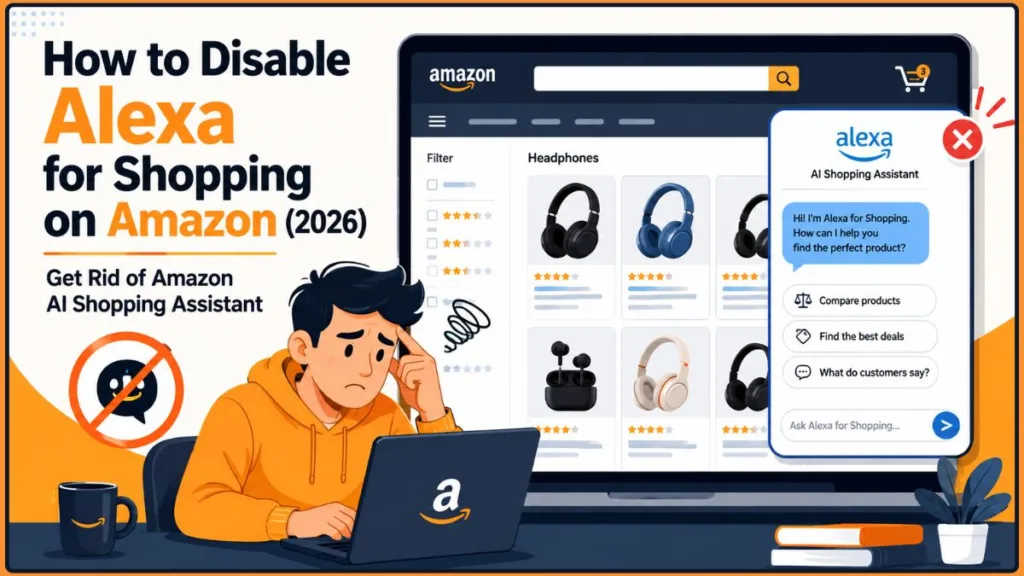
There’s one thing that can make this a little confusing at first: you may remember this feature under a different name. If you’ve used Amazon over the last couple of years, you’ve probably seen it referred to as Rufus. On May 13, 2026, Amazon renamed Rufus to Alexa for Shopping, bringing its AI shopping assistant under the Alexa brand. The assistant can appear across Amazon’s shopping experience, which is why older references to Rufus can still show up when you’re looking for ways to disable it.
Below, we’ll explain what Alexa for Shopping is, what Amazon does and doesn’t offer when it comes to turning it off, and the methods people are actually using to get their normal Amazon shopping experience back on both desktop and mobile.
Quick heads-up: If you’re actually trying to stop Alexa from buying things by voice through an Echo device, that’s a separate setting. Jump ahead to the Alexa Voice Purchasing section if that’s what you’re trying to fix.
What Is Alexa for Shopping (and What Happened to Rufus)?
Alexa for Shopping is Amazon’s AI-powered shopping assistant. It can answer questions about products, pull up side-by-side comparisons, keep an eye on prices for you, and in some cases even complete purchases on your behalf.
It didn’t always look like this. A couple of years ago, this same assistant existed as Rufus, a separate chatbot that lived in its own window inside the Amazon app. You had to actively open it to use it, so it was relatively easy to ignore.
That changed on May 13, 2026, when Amazon renamed Rufus to Alexa for Shopping and brought it under the Alexa brand, alongside Alexa+. The assistant can now show up across Amazon’s shopping experience, including in search, rather than staying confined to its own separate window the way Rufus did.
You may still come across older articles, browser extensions, or leftover code on Amazon’s own pages that reference “Rufus.” So, if you’re searching disable Rufus or turn off Rufus, you’re still looking at the same underlying assistant under its current name.
Can You Actually Turn Off Alexa for Shopping?
Here’s where things get a little less straightforward than a simple yes-or-no answer.
Amazon does not currently document a universal account setting that permanently disables Alexa for Shopping, and many users report being unable to find one.
Whether a setting exists for some accounts, regions, or app versions isn’t entirely consistent across user reports, so we won’t claim that no such setting exists anywhere. The more accurate takeaway is that it isn’t documented or reliably available.
The good news is that the thing you actually care about — stopping Alexa from interrupting your Amazon searches — is still possible to work around. Instead of changing something in your Amazon account settings, you’ll need to handle it from your browser or app.
How to Remove Alexa for Shopping on Desktop (Chrome, Brave, Firefox)
If you do most of your Amazon shopping on a laptop or desktop, you have the most control here.
Try the “Adios Alexa for Shopping” Extension
One of the simplest workarounds is Adios Alexa for Shopping, a third-party browser extension designed to hide Alexa for Shopping on Amazon pages. It’s also associated with earlier Rufus-removal tools that users discussed when the assistant was still commonly known as Rufus.
Before installing any browser extension, it’s worth taking a minute to check the developer, requested permissions, current ratings, and recent update history. That advice applies here just as it would with any other browser extension.
Here’s how to get started:
- Open your browser’s extension or add-on store. In Chrome or Brave, this is the Chrome Web Store. In Firefox, use the Firefox Add-ons site.
- Search for “Adios Alexa for Shopping” and review the listing. Check the developer information, requested permissions, and recent update history before you install it.
- Open the extension listing and click Add to Chrome (or Add to Firefox).
- Confirm the installation when your browser asks for permission.
- Refresh any Amazon tabs you already have open, then check whether Alexa for Shopping is hidden. Some versions may also include enable/disable controls in the extension’s menu, so check there if you don’t see an immediate change.
- Use the extension’s toolbar icon to check its status or toggle it if you ever want to temporarily bring the assistant back.
Tip: If you notice a blank or empty space where the assistant used to appear, that’s a known layout quirk some readers have reported. It doesn’t necessarily mean something is broken. Try a hard refresh with Ctrl+Shift+R on Windows or Cmd+Shift+R on Mac. If the space is still there, double-check that you’re using the latest version of the extension.
Use uBlock Origin’s Element Picker (Advanced Option)
Already using uBlock Origin to block ads? You can use its built-in Element Picker to handle Alexa for Shopping too.
- Click the uBlock Origin icon in your browser toolbar to open its panel.
- Find and click the Element Picker tool — the small icon that looks like a crosshair, usually near the bottom of the panel.
- Move your cursor over the Amazon page and click the Alexa for Shopping panel, button, or popup you want to remove.
- Review the selection uBlock shows you, then confirm it to create a custom filter rule.
- Repeat the process for related elements, such as a leftover sidebar or spacer, if extra empty space remains after the main panel disappears.
Important: We’d recommend avoiding copy-and-paste filter lists you find floating around forums. Amazon changes its page structure, so the exact element you need to block can change too. That’s one reason filters created for the older Rufus interface can stop working over time.
By picking the element yourself, you can keep the fix more current. Just keep in mind that you may need to repeat the process if Amazon changes the page again.
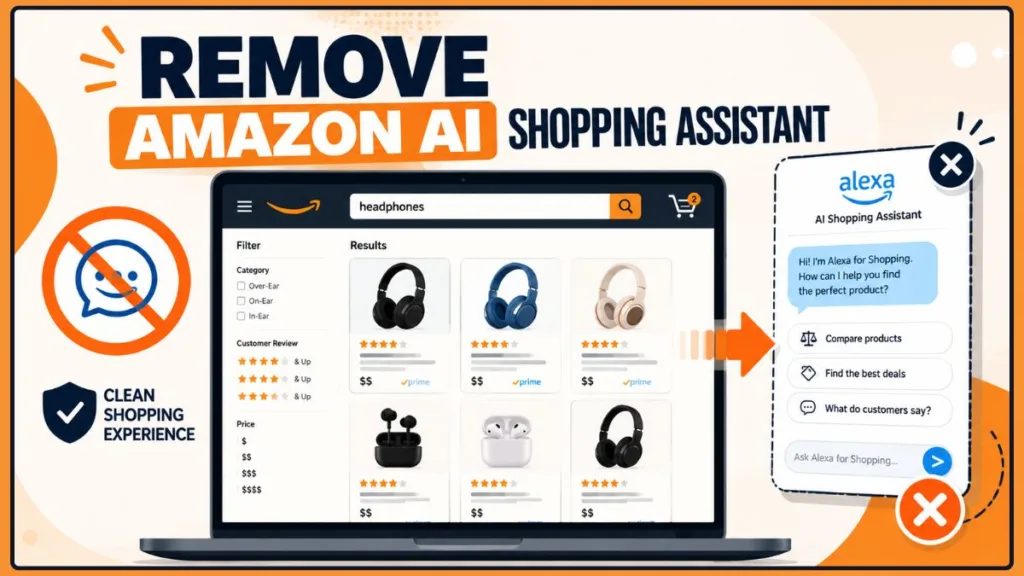
How to Disable Alexa for Shopping on the Amazon App (Mobile)
Mobile is a little more restrictive because you don’t get the same extension support you have with desktop browsers.
On some versions of the Amazon Shopping app, you may see a “Show search results” option when the assistant appears during a search. Tapping it lets you bypass the AI-generated response and return to the standard product results.
It isn’t a permanent fix, and it won’t necessarily appear on every version or device. But when it’s available, it’s a quick way past the popup without changing anything else about your app or Amazon account.
Another option is to use Amazon’s mobile website in a browser that supports appropriate content-blocking tools. Keep in mind that support varies by browser and device, so Android and iOS don’t necessarily behave the same way here.
How to Remove Alexa From Your Amazon Account Entirely
If you’ve been searching remove Alexa from Amazon account or disable Alexa on Amazon account, here’s what you should know.
Alexa for Shopping isn’t a separate standalone app that you can simply unlink from your Amazon account. It’s built into core Amazon experiences such as search and product pages, so there isn’t an account-level “delete Alexa” button that removes it system-wide.
What you can do is control the experience at the browser and device level using the desktop and mobile methods above.
For most people, combining the extension on desktop with the available mobile workarounds gets you as close to “removed” as things currently allow — without changing anything else about how your Amazon account works.
How to Turn Off Alexa Voice Purchasing (Different Feature)
Important distinction: Alexa Voice Purchasing is not the same feature as Alexa for Shopping. Voice purchasing is about Alexa placing an order when you speak a command to an Echo device. Unlike the shopping assistant, this feature has its own dedicated on/off control.
So, if what you’re really looking for is how do I stop Alexa from making purchases by voice, here’s how you can turn it off:
- Open the Alexa app on your phone or tablet.
- Tap “More” in the bottom navigation menu.
- Select “Settings.”
- Tap “Account Management,” then choose “Voice Purchasing.”
- Select “Purchase Controls.”
- Choose “No one” to fully disable voice purchasing.
For Amazon’s current official guidance, see the Alexa and Alexa Device FAQs.
Prefer to keep voice purchasing available but add a layer of protection? You can set up a PIN instead:
- Follow the same path to Voice Purchasing in the Alexa app.
- Tap “Purchase Confirmation,” then select “Manage.”
- Turn on the “Voice Code” toggle and choose a 4-digit PIN.
- You’ll need to say that PIN out loud to confirm a voice purchase before it goes through.
Important: Per Amazon’s own help documentation, digital purchases — Kindle Books, Audible titles, Prime Video, Alexa Skills, and Amazon Pay transactions — aren’t covered by this toggle. So, if you want to lock down every possible purchase avenue, those need to be managed separately as well.
Note: Menu wording can change over time. If these exact labels don’t match what you see in your Alexa app, look for “Voice Purchasing” under Account Settings and the options should be close by.
Alexa for Shopping vs. Voice Purchasing vs. Shopping Lists: Quick Comparison
All three use the Alexa name, which makes them easy to mix up. Here’s a quick way to tell them apart:
| Feature | What it does | How to control it |
|---|---|---|
| Alexa for Shopping | AI shopping assistant that can appear while you shop on Amazon | Browser workaround/extension; no universally documented off switch |
| Alexa Voice Purchasing | Lets Alexa place purchases by voice | Alexa app > Settings > Account Management > Voice Purchasing > Purchase Controls |
| Alexa Shopping List | A list of items you create and manage with Alexa | Alexa app or amazon.com/mystuff > Lists |
Frequently Asked Questions
Is Alexa for Shopping the same as Rufus?
Yes. Amazon renamed Rufus to Alexa for Shopping on May 13, 2026. The assistant and its product recommendations carried over — the name and where it appears in the shopping experience are what changed.
How do I turn off Alexa for Shopping on Amazon?
Amazon doesn’t document a universal setting for this. The most reliable approach is a browser extension like Adios Alexa for Shopping on desktop, or the “Show search results” option where it’s available on mobile.
How do I stop Alexa from recommending items?
There’s no dedicated recommendations toggle documented by Amazon. Dismissing suggestions as they appear can help in the moment, while the desktop extension method above hides the assistant that generates them.
How do I turn off Alexa completely?
If you mean the shopping assistant specifically, the methods above are your best option. If you’re trying to disable an Echo device or the Alexa app itself, that’s a different process handled through your device settings.
Does disabling voice purchasing also remove the Alexa for Shopping popup?
No. These are separate features. Turning off voice purchasing only stops Alexa from placing orders by voice. It won’t affect the shopping assistant that appears when you search.
Can I delete my Alexa shopping list?
Yes. Open the Alexa app or go to amazon.com/, select your Shopping List, and remove individual items or clear the whole thing at once.
Will Amazon add an official off switch?
There’s no way to know. Amazon could change the feature or its available controls in a future update.
The Bottom Line
Amazon hasn’t documented a simple, universal off switch for Alexa for Shopping — at least not as of this writing.
But between a browser extension on desktop and the workarounds available on mobile, you can get back to a calmer, less distracting way of shopping without too much hassle.
You were never trying to disable Alexa across your whole life. You just wanted Amazon to stop interrupting your shopping — and now you have a few practical ways to work toward that.
Visit Our Post Page: Blog Page
Discover more from Izoate
Subscribe to get the latest posts sent to your email.