
Want to turn off comments on Facebook? Learn how to disable or limit comments on personal posts, Pages, and Groups with simple step-by-step guides for mobile and desktop.
You’re monitoring your Facebook feed, a post sparks controversy, and the worst-case scenario happens: your comment section turns into a battlefield of spam and arguments. Now you’re frantically searching, “how do I turn off comments on Facebook?”
Can You Turn Off Comments on Facebook 2026?
Let’s answer that question immediately: if you are using a personal profile, you technically cannot turn off comments completely. Once you’ve published a public post, you can’t fully “close” the comment section. However, you can take action. The “disable” method everyone is looking for on personal accounts is actually the process of limiting comments to your Friends. On the other hand, if you manage a Facebook Page or Group, you absolutely can shut them off entirely.
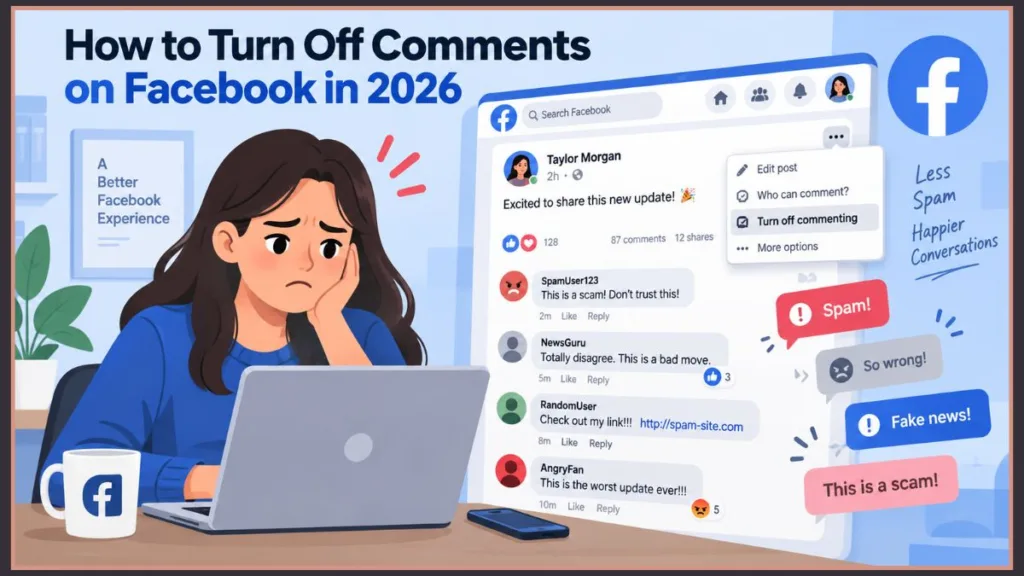
This guide will show you exactly how to do that, explain what happens to your post reach when you block comments, and provide strategies to manage spam gracefully. It covers both mobile and desktop, clearly separates personal profiles from business Pages, and includes tips for using moderation tools.
How to Turn Off Comments on Facebook Page & Group Posts
Getting overwhelmed by negative comments can feel stressful, but the most reliable way to regain control is by turning off commenting completely. This method removes the comment box entirely, though existing comments will remain visible.
Step-by-Step on Mobile (iPhone & Android)
- Open the Facebook app and navigate to your Page or Group post.
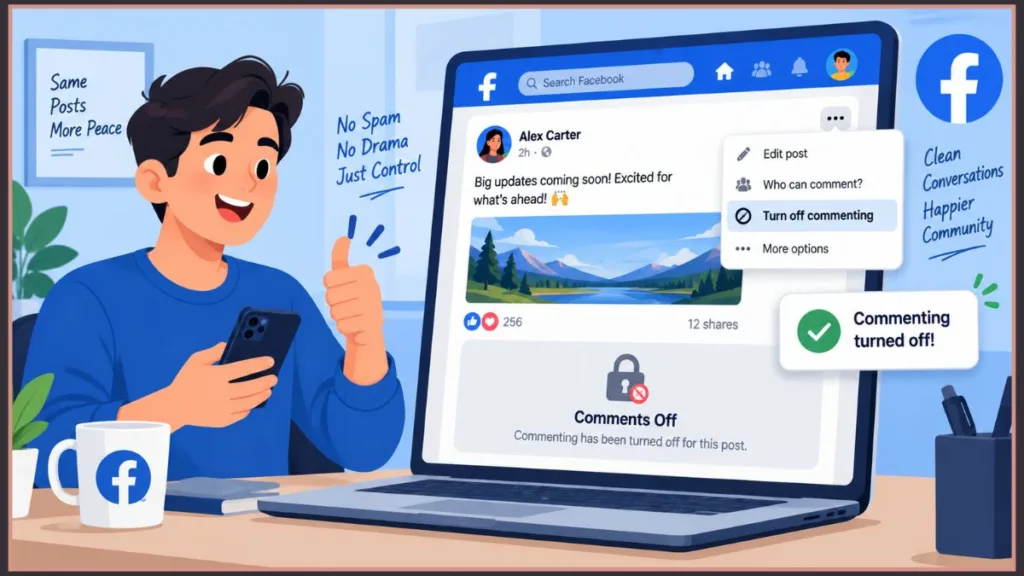
- Tap the three dots (…) in the top right corner of the post.
- Tap Turn off commenting.
- The setting applies immediately (no confirmation needed). Tip: Acting quickly on controversial posts prevents the algorithm from pushing heated arguments into more newsfeeds.
Step-by-Step on Desktop
- Go to facebook.com and find your published post.
- Click the three dots (…) in the top right of the post.
- Click Turn off commenting. Tip: This desktop method is perfect for community managers who need to quickly lock down legal announcements or crisis updates.
What to Do After You Disable Comments on a Post
Even after turning off comments, you still need to manage the aftermath, especially since Facebook reduces the reach of posts (by up to 45%) when comments are disabled. Here’s how to handle the situation with confidence:
- Communicate the “Why”: Edit the post text to say, “Comments are temporarily disabled while we review feedback. Please email support for questions.”
- Use Temporary Comment Breaks: When your moderation team is offline for the weekend, turn off comments Friday evening and re-enable them Monday morning to give yourself a break.
- Address Existing Spam: Remember that turning off new comments doesn’t delete the old ones. You will still need to manually hide or delete the bad comments that slipped through.
Tip: Transparency and honesty are usually the best tools when dealing with restricted social media interactions. Viewers appreciate knowing why a conversation was shut down.
How to Limit Comments on Personal Facebook Posts
Managing personal posts is different from Pages. Facebook allows you to restrict who can comment, giving you control over your privacy without needing admin tools.
Where to Find Your Comment Filters
- Mobile & Desktop: Navigate to your post, tap the three dots (…), and select Who can comment on your post?
- The Options: You can change it from Public to Friends or Profiles and Pages you mention.
Tip: Use the “Profiles you mention” option for highly sensitive personal updates. It’s a discreet way to share news publicly while ensuring absolutely zero unwanted interactions.
How to Manage Page Moderation & Spam Automatically
Facebook occasionally flags genuine discussion as spam, while missing actual trolls. Controlling your moderation settings prevents manual workload overload:
- Filter profanity and keywords: Go to Page Settings > Public Posts and add specific trigger words to automatically hide negative comments.
- Use Moderation Assist: If your Page has over 10K followers, let Facebook’s AI automatically hide comments with links or known spam patterns.
- Block or restrict persistent trolls: This prevents repeated unwanted comments from specific users.
Tip: Regularly updating your keyword blocklist keeps your Page’s comment section clean and stress-free without having to turn off comments entirely.
FAQs About Turning Off Comments on Facebook
1. How do I turn off comments on Facebook post on phone?
Tap the three dots on your Page or Group post and select Turn off commenting. If it’s a personal post, select Who can comment on your post and choose Friends.
2. Can I disable comments on all Facebook posts at once?
No—Facebook does not have a master switch for this. You have to turn off comments on Facebook page posts individually, or change your global account settings to restrict all future personal posts to “Friends only.”
3. Why can’t I turn off comments on Facebook?
If the option is missing, you either didn’t create the post, you aren’t a Group moderator, or you are trying to completely disable comments on a personal profile (which isn’t allowed).
4. How to turn off comments on Facebook post as a friend?
You cannot close comments on a Facebook post that belongs to someone else. You can only untag yourself or report the post.
5. What does hiding a comment do?
It removes the comment from public view, but keeps it visible to the person who wrote it and their friends, preventing them from realizing they were moderated.
Conclusion: Efficiently Managing Facebook Comments
Facebook comments are a great way to build community, but managing them effectively is key to a smooth social experience. The three-dot menu is the most reliable method for turning off comments on Pages and Groups, while restricting your audience works best for personal profiles.
By following this guide, you can stay in control of your posts, handle viral spam gracefully, hide unwanted negativity, and protect your peace of mind. Regularly utilizing keyword filters and Moderation Assist ensures your Facebook interactions remain fun, organized, and stress-free.
Tip: Check your Page Settings frequently to update your keyword blocklist and maintain a clean comment section like a pro.
Visit Our Post Page: Blog Page
Discover more from Izoate
Subscribe to get the latest posts sent to your email.