
Want to enable Out of Office in Outlook 2007? Learn how to turn on automatic replies using simple steps. From setting up the Out of Office Assistant to creating custom auto-reply rules with or without Exchange Server. Stay connected while you’re away.
You are packing your bags, wrapping up your final tasks, and getting ready to step away from your desk. The last thing you want is for clients or colleagues to wonder why you are ignoring their emails. Setting up a vacation responder in Outlook 2007 is exactly what you need to manage expectations while you are offline.
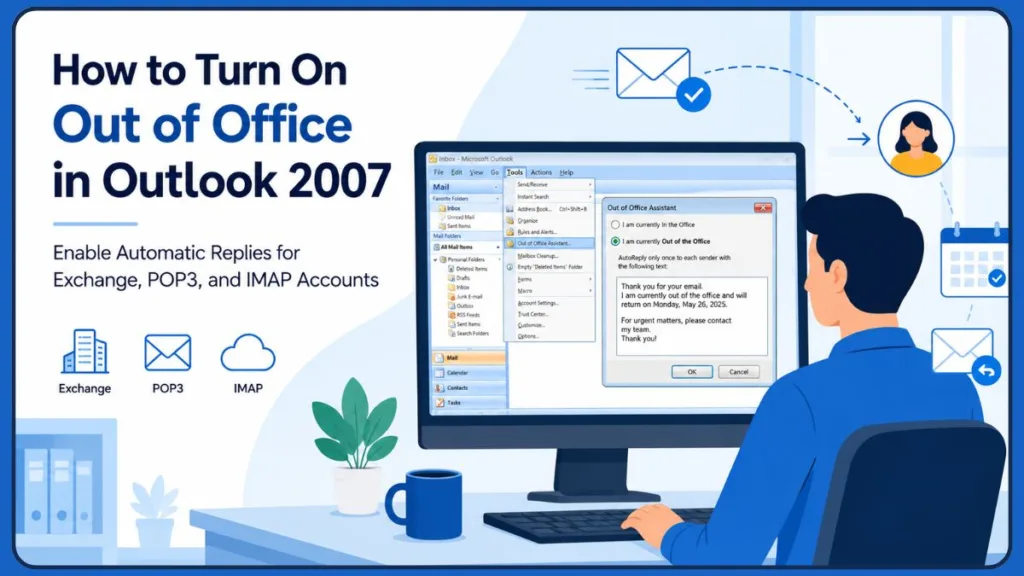
The good news is that Outlook 2007 fully supports automatic replies. However, the exact setup method depends entirely on whether your email is connected to a corporate Exchange Server account or a standard personal setup.
If you are digging through menus and find the Out of Office Assistant missing, do not worry—you can still create reliable automatic replies using a simple workaround.
Here is your complete guide to getting your out-of-office message up and running.
Can You Use Out of Office in Outlook 2007?
Yes, you absolutely can. But before clicking through menus, you need to know which of the two possible scenarios applies to you:
Exchange Server Account
If you work for a medium-to-large company, you are likely connected to a Microsoft Exchange Server. In this case, the Out of Office Assistant is readily available, and the setup is incredibly easy.
The server handles everything, meaning you can turn off your computer and go on vacation.
POP3 or IMAP Account
If you use a small business or personal email (like a standard POP3 / IMAP email account), the standard assistant will not appear. However, you can still create an offline auto-reply using a combination of Outlook rules and email templates.
Quick Comparison Table
| Feature | Exchange Account | POP3/IMAP Account |
| Out of Office Assistant | Yes | No |
| Automatic Replies | Yes | Yes |
| Setup Difficulty | Easy | Moderate |
| Uses Templates | No | Yes |
How Do I Put Out of Office on Outlook 2007?
Understanding the built-in out-of-office feature is straightforward. If your company uses an Exchange server, Outlook provides a dedicated assistant specifically designed to handle your away messages. This tool is available directly in your main menu and lets you set a unified message for anyone who tries to reach you. Let’s walk through the exact steps for Exchange users.
How to Check If You’re Using Exchange, POP3, or IMAP
Before setting up automatic replies, determine which type of email account Outlook 2007 is using. The available Out of Office options depend entirely on this setting.
- Go to Tools in the top menu bar.
- Click Account Settings.
- Look under the Type column next to your email address to see if it lists Microsoft Exchange, POP3, or IMAP.
How to Turn On Out of Office in Outlook 2007 Using Out of Office Assistant
If you are on an Exchange network, follow these simple steps:
- Open your Outlook 2007 desktop application.
- Click on Tools in the top menu bar.
- Select Out of Office Assistant from the drop-down menu.
- Click the radio button next to I am currently Out of the Office.
- Enter your automatic reply message in the provided text box.
- Click OK to enable your auto-replies.
What Happens Next?
Once you hit OK, Outlook displays a small Out of Office reminder in the bottom right corner of your screen. This is incredibly helpful so you do not forget to turn it off when you return.
Also, to prevent spamming your contacts, in most Exchange environments, Outlook sends only one automatic reply to each sender during your absence period.
How Do I Activate My Out of Office on Outlook?
If you are looking to activate “Vacation Mode,” you are in the right place—activating your out-of-office and enabling automatic replies mean the exact same thing in Outlook.
The terminology can sometimes be confusing because different email providers (like Google Workspace or modern Microsoft 365) use different names for the same feature.
Just remember that if you are an Exchange user, you activate it via the built-in assistant. If you are a non-Exchange user, you activate it by turning on a custom email rule.
How Do I Set Outlook to Show Out of Office?
You might be wondering how to verify that your auto-replies are actually active. Outlook handles this visually using an Out of Office status indicator.
Once your vacation responder is turned on via the Exchange method, you will see a persistent alert in the bottom-right corner of your Outlook window.
This status reminder stays visible the entire time the feature is active. It is your visual confirmation that anyone emailing you is receiving your away message.
How to Turn Off Out of Office in Outlook 2007
When you return rested and ready to work, turning off your auto-reply is just as easy as turning it on. You have two options:
Method 1: Open Out of Office Assistant Again
Click Tools, select Out of Office Assistant, and simply choose the option that says I am currently In the Office. Click OK.
Method 2: Use the Out of Office Reminder in Outlook
Look at the bottom-right corner of your screen where the status reminder lives. Click the down arrow next to the reminder and select Turn off Out of Office auto-replies.
Out of Office Assistant Missing in Outlook 2007? Here’s Why
If you are clicking through the “Tools” menu and cannot find the assistant, you are not alone. This is the most common hurdle people face. Here are the reasons why it might be missing:
- Common Reason #1: You’re Not Using Exchange Server. The button literally does not exist in the software unless an Exchange connection is detected.
- Common Reason #2: You’re Using a POP3 Account. Traditional email downloads directly to your computer without server-side syncing.
- Common Reason #3: You’re Using an IMAP Account. Similar to POP3, standard IMAP connections do not support the built-in assistant.
How to Check Your Outlook Account Type
To confirm your setup, navigate to Tools, then click Account Settings. Look under the “Type” column next to your email address. If it says POP/SMTP or IMAP, you will need to use the template method below.
Where Are Settings in Outlook 2007?
If you are used to newer software or web-based email, navigating an older client can feel like a maze. In Outlook 2007, almost everything you need is tucked away in the top menu bar.
- Tools: This is your main hub for the Out of Office Assistant and Account Settings.
- Rules and Alerts: Also found under the Tools menu, this is where you build custom email behaviors.
- Mail Setup: You can find deeper configuration options by going to Tools > Options and clicking the Mail Setup tab.
Where Do I Find Settings in the Old Outlook?
Understanding the Outlook 2007 menu layout requires a slight perspective shift. Unlike modern Microsoft 365 or Outlook 2019, which use the large, visual “File” ribbon interface, Outlook 2007 relies on classic drop-down menus.
If you are reading modern tutorials online, they will often tell you to click “File > Automatic Replies.” In the old Outlook 2007 interface, you must always look under the Tools drop-down to find your essential account and automation settings.
How to Create Automatic Replies in Outlook 2007 Without Exchange Server
If you are not on an Exchange server, you need to know how to set up an auto reply in Outlook 2007 without Exchange. You can achieve the exact same result by combining a saved email template with a custom rule.
Important Note: Because you do not have a server handling the emails for you, your computer must remain turned on and Outlook must remain running for this workaround to send replies.
Create an Automatic Reply Message Template
First, we need to design the message your contacts will receive.
- Open a New Mail Message just like you normally would.
- Leave the “To” field empty, but type your vacation message into the body.
“Thank you for your email. I am currently out of the office and will return on [Date]. For immediate assistance, please contact [Name] at [Email/Phone].”
- Click the Office Button in the top-left corner and select Save As. Change the “Save as type” to Outlook Template (.oft), name it “Vacation Responder,” and click Save. You can now close the draft window.
Create an Auto Reply Rule
Now, we will create an out of office rule in Outlook 2007 to trigger that template.
- Go to Tools and select Rules and Alerts.
- Click the New Rule button to open the Rules and Alerts wizard.
- Under “Start from a blank rule,” select Check messages when they arrive and click Next.
- Check the box for where my name is in the To box, then click Next.
- Check the box for reply using a specific template.
- In the bottom window panel, click the underlined text a specific template. Change the “Look In” drop-down to User Templates in File System, select the template you just saved, click Open, and then click Next.
- Check the box for except if it is an Out of Office message. This is crucial to prevent your email from bouncing back and forth endlessly with automated newsletters or other vacation responders.
- Name your rule (e.g., “Vacation Auto-Reply”), make sure “Turn on this rule” is checked, and click Finish.
How to Configure Outlook 2007 for Automatic Replies
Before you log off for your break, run through this configuration setup to ensure everything works smoothly based on your connection type:
- Exchange Configuration: The server handles everything natively. Simply use the Out of Office Assistant under the Tools menu, and your auto-replies will work perfectly.
- POP3 Configuration: Since emails download directly to your local machine, you must use the Template and Rules method. Your computer and Outlook must remain active for the rule to process incoming mail.
- IMAP Configuration: Similar to POP3, IMAP connections require the Template and Rules method. Ensure your folders are properly synced so the automated rule triggers the moment a new email arrives in your inbox.
- Rule Activation: If you are using the POP3/IMAP workaround, always verify that your vacation rule is checked and turned on inside the Rules and Alerts menu before leaving your desk.
Why Outlook 2007 Automatic Replies Are Not Working
If you set everything up but people are still not getting your messages, check these common culprits:
- Rule Is Disabled: You may have created the rule but forgot to check the box to turn it on.
- Outlook Is Not Running: If you use the POP3/IMAP template workaround, closing Outlook or letting your PC go to sleep will instantly stop your replies from sending.
- Wrong Template Selected: Double-check that your rule points to the correct Outlook 2007 automatic reply template, not an old draft.
- Out of Office Assistant Not Enabled: For Exchange users, verify you actually clicked “I am currently Out of the Office” and saved the changes.
- Multiple Rules Causing Conflicts: If you have aggressive spam filters or folder-sorting rules, they might be processing emails before your auto-reply rule gets a chance to trigger.
Best Practices for Outlook 2007 Out of Office Messages
A great away message is helpful and professional. Keep these tips in mind when drafting your response:
- Keep Your Message Short: Get straight to the point.
- Include Return Date: Let people know exactly when they can expect a real reply from you.
- Provide Alternative Contact Information: Give them an option if their request is urgent (e.g., a colleague’s email or a general support desk).
- Avoid Sharing Sensitive Details: Do not broadcast your exact travel location or personal phone numbers to strangers.
Frequently Asked Questions
Does Outlook 2007 need to stay open for automatic replies?
If you are using an Exchange Server, no. The server handles replies automatically. If you are using a POP3 or IMAP account, yes. Your computer must remain on and Outlook must remain open for the rule-based replies to send.
Can Outlook 2007 send automatic replies when my computer is off?
Only if your email is connected to a Microsoft Exchange Server. For all other account types (like personal email or small business setups), the software requires your computer to be turned on to send the vacation responder template.
How do I turn on Out of Office in Outlook 2007?
If you have an Exchange account, go to Tools > Out of Office Assistant and select “I am currently Out of the Office.”
Why can’t I find Out of Office Assistant in Outlook 2007?
The feature is completely hidden if you are using a standard POP3 or IMAP email account. It only appears for Microsoft Exchange Server users.
Can Outlook 2007 send automatic replies without Exchange Server?
Yes. You can achieve this by saving your away message as an Outlook Template (.oft file) and creating a new rule under Tools > Rules and Alerts to reply to incoming messages with that template.
Does Outlook 2007 support vacation messages?
Absolutely. It handles them either natively through the built-in assistant or manually through custom email rules.
How do I disable Out of Office in Outlook 2007?
Click the down arrow on the Out of Office reminder in the bottom-right corner of your screen and select “Turn off Out of Office auto-replies,” or simply turn it off from the Tools menu.
How do I put out of office on Outlook 2007?
Navigate to the Tools menu at the top of your screen. Select the Out of Office Assistant, draft your message, and click OK.
How do I activate my out of office on Outlook?
Activating it simply requires turning on the assistant (for Exchange users) or turning on your custom auto-reply rule (for non-Exchange users).
How do I set Outlook to show out of office?
Once the Out of Office Assistant is active, Outlook will automatically display a status reminder indicator in the bottom-right corner of your interface.
Where are settings in Outlook 2007?
Unlike newer software, most of your essential configuration options in Outlook 2007 are located under the “Tools” drop-down menu at the very top of the screen.
Where do I find settings in the old Outlook?
Look at the classic top menu bar. Click “Tools” to access Account Settings, Rules and Alerts, and the Out of Office Assistant.
How to configure Microsoft Outlook 2007 step by step?
First, check your account type (Tools > Account Settings). Then, choose your method (Assistant for Exchange, Rules for POP3/IMAP), draft your message, enable the setting, and ensure your computer stays on if required.
Conclusion
Managing your inbox while away doesn’t have to be stressful, even when working with legacy software. If you are an Exchange user, you can easily rely on the built-in Out of Office Assistant to handle everything seamlessly. And if you are a POP3 or IMAP user, taking a few extra minutes to set up an email template and rule ensures you can still step away with peace of mind.
Always check your account type first before you start troubleshooting missing options, and remember to leave your computer running if you rely on the rules-based method!
Have you ever run into a strange glitch with your vacation responder, or do you have a favorite professional sign-off you always use? Share your experiences, or drop any questions you have in the comments below!
Visit Our Post Page: Blog Page
Discover more from Izoate
Subscribe to get the latest posts sent to your email.