
Want to unfriend someone on Facebook without them knowing? Discover how to remove friends privately on iPhone, what they can see, and whether Facebook sends notifications.
Maybe you’re trying to remove an old coworker, an ex-friend, or someone you simply no longer interact with. Naturally, you may be wondering whether Facebook will notify them if you hit that button. Social media boundaries are essential, but the fear of causing unnecessary drama can make it stressful to curate your digital space.
Let’s answer your biggest concern right away: No, Facebook does not notify someone when you unfriend them.
If you are looking for how to unfriend someone on Facebook without them knowing iPhone, you are in the right place. In this guide, we will walk you through the exact steps to manage your friends list privately, handle tricky coworker situations, and explore alternatives that keep the peace without the stress.
Why Facebook Friends Might Eventually Notice When You Unfriend Them
When you decide to clean up your network, the first question on your mind is usually, does Facebook notify when you unfriend someone? The short answer is no. Facebook does not send a push notification, email, or alert to the other person when you remove them.
However, if you are wondering, can someone tell if you unfriend them? The answer is eventually, maybe. Here is how they might figure it out:
- Searching for your profile: If they search for your name and visit your page, they will see an “Add Friend” button instead of the usual “Friends” status.
- Friend count drops: If they closely monitor their own total friend count, they might notice the number went down.
- Disappearing from feeds: If you frequently post and suddenly vanish from their timeline, they might get curious and check your profile.
Fortunately, your mutual friends cannot see that a connection was severed, so there is no public broadcast of your decision.
Many users get caught in the “All or Nothing” trap, feeling like they must either share everything with people they don’t fully trust or brutally cut them off. It is completely normal to want to know how to secretly unfriend on Facebook iPhone to improve your profile management without making enemies.
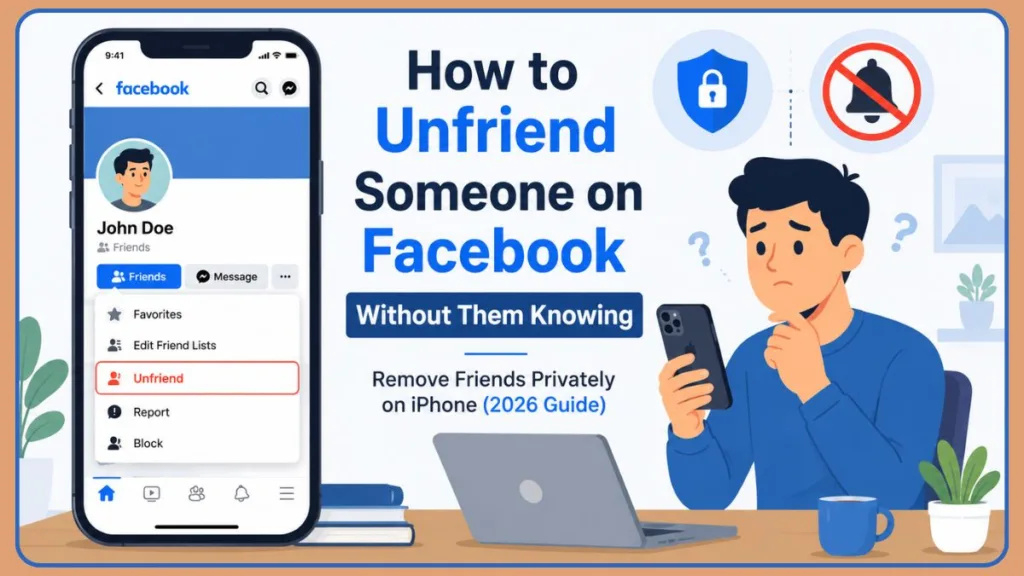
How to Unfriend Someone on Facebook Without Them Knowing on iPhone
If you are ready to remove a connection, doing it from your iOS device is incredibly quick. Here is exactly how to unfriend on Facebook iPhone:
- Open the Facebook app on your iPhone.
- Tap the search icon and type the name of the person you want to remove.
- Navigate to their profile page.
- Tap the Friends button located just below their profile picture.
- Select Unfriend from the pop-up menu.
- Tap OK to confirm your choice.
And that’s it! You have successfully managed to remove Facebook friend privately. It is a seamless Facebook unfriend without notification.
How to Remove Someone From a Facebook Group Without Unfriending Them
If you are an accidental group admin, a common point of confusion on the Facebook iOS app is trying to remove a friend from a private group. The interface can be tricky, making it look like the only option is a full unfriend, which causes unnecessary panic.
To solve this: Do not click the three dots directly on their profile from the news feed (this triggers a global unfriend). Instead, navigate to the Members link beneath the group cover photo, tap the menu next to their name there, and select “Remove from group.” This ensures you remove from facebook group without unfriending them globally.
Why Certain Information Remains Visible After You Unfriend Someone on Facebook
Understanding what happens next can give you peace of mind. Once you confirm the unfriend action:
- They are removed from your Facebook friend list. Your posts set to “Friends Only” will instantly become invisible to them.
- You disappear from their list. Their private posts will no longer show up on your timeline.
- Messenger remains active. Unfriending someone does not block them on Messenger. Your past conversation history remains intact, and they can still send you a message unless you specifically block them in the Messenger app.
- They can still see your public content. Any photos or posts you have set to “Public” will still be visible if they visit your profile.
Why Blocking and Unfriending on Facebook Serve Different Privacy Needs
Most Facebook users may not be able to distinguish between Unfriend and Block, as both sound like they perform a similar function. However, they have a lot of differences when it comes to enforcing your social media boundaries.
- Unfriend: When you unfriend someone on Facebook, they will still be able to view your public profile and can even send you a fresh friend request to add them to your friend list again.
- Block: When you block someone on Facebook, they won’t be able to view your profile at all and can’t send you a friend request either.
How to Block Someone on Facebook Using an iPhone or iPad
If unfriending isn’t enough and you need to permanently remove Facebook friends without them knowing iPhone, blocking is the ultimate Facebook block feature. There are two ways to permanently learn how to block someone on Facebook iPhone.
Method 1: From the User Profile
- Go to Facebook and visit the profile you want to block.
- Tap the ellipsis icon (three dots) and navigate to Block.
- Select Block from the pop-up to confirm.
Method 2: From the Menu
- Move to the Menu icon from your Facebook Home page.
- Tap Settings & Privacy, then select Settings.
- Scroll down to the Audience and Visibility section and hit Blocking.
- Tap Add to blocked list.
- Type the profile name in the Search bar you are willing to block.
- Tap Block next to the profile name. (Alternatively, you can tap on the profile name itself).
- Select Block again in the pop-up.
How to Block Messages and Calls on Facebook Messenger on iPhone
If you are bothered by someone’s spam texts or continuous calls but still want to see their updates on Facebook, you can mute Facebook friends directly in the chat app.
- Open Messenger and go to the chat you want to block.
- Tap the profile name at the top of the screen.
- Scroll down and select Block.
- Choose Block messages and calls, then tap Block.
How to Unblock Someone on Facebook Using an iPhone
If you change your mind later and want to reverse a block:
- Go to Blocking from your Facebook settings.
- A list of all the profiles blocked by you appears on the screen.
- Select Unblock against the profile you want to unblock.
- Tap Unblock again in the pop-up.
Note: Once you unblock someone on Facebook on your iPhone, you must wait for the next 48 hours to block them again. If blocking seems too much, you may simply take a break from someone on Facebook.
How to Remove Someone From Facebook Quietly to Protect Your Peace
Sometimes, Facebook makes it hard to cut ties and move on without feeling guilty. Many users struggle with how to remove someone from Facebook quietly because they fear the social fallout.
There are plenty of valid reasons to want a cleaner feed. You might want to unfriend ex friends on Facebook to protect your peace, or distance yourself from acquaintances who overshare.
Establishing solid social media boundaries is a normal, healthy part of modern life. If you want to avoid unnecessary drama, simply unfriend them using the steps above, and remember that you owe no one access to your private life.
Best Practices for Removing Coworkers From Facebook Without Workplace Drama
One of the biggest stress points for Facebook users is managing professional relationships online. If you are trying to figure out how to unfriend coworkers on Facebook—especially bosses or managers—the fear of an awkward Monday morning at the office is real.
To remove coworkers from Facebook without causing friction:
- Wait for the right time: If a coworker leaves the company, that is a natural transition period to quietly remove them.
- The “Social Media Cleanse” excuse: If you decide to do a mass purge of your list and someone brings it up, you can simply say, “I’m taking a break and deactivated a lot of my social media connections to focus on work.” Or casually mention, “My account has been acting weird lately.”
- Use the Restricted List instead: (More on this below!) It is the best way to maintain workplace social media privacy.
Tip: Before you start unfriending, take a moment to review your overall Facebook privacy settings to ensure your future posts are secure.
Best Practices for Choosing Between Unfriend, Unfollow, and Restrict on Facebook
You do not always have to use the nuclear option. Facebook offers several nuanced tools to curate your feed. Let’s look at the unfollow vs unfriend Facebook debate, along with other helpful features.
1. Unfriend
- Best for: People you no longer want in your life and do not want seeing your personal updates (like exes or former acquaintances).
- Advantage: Completely removes them from your private sphere.
- Disadvantage: They might notice if they try to visit your profile.
2. Unfollow
- Best for: Friends or family members who post too much, but whom you cannot remove without causing family drama.
- Advantage: You stay friends, but their posts disappear from your feed entirely. It is a brilliant way to learn how to unfollow on Facebook instead of unfriend iPhone.
- Disadvantage: They can still see all of your posts.
3. Restrict
- Best for: Bosses, nosy relatives, and current coworkers.
- Advantage: They remain on your friends list (avoiding the drama of unfriending), but they only see posts you make completely “Public.” It acts like a restricted friends list that mimics being unfriended without the notification. This is a highly recommended “Soft Unfriend.”
- Disadvantage: You still have to see their names on your list.
4. Block
- Best for: Toxic connections, harassment, or severe privacy concerns.
- Advantage: Complete invisibility. The Facebook block feature means they cannot search for you, message you, or see anything you do.
- Disadvantage: It is a permanent cut-off (though you can unblock them later).
How to Hide Posts Without Unfriending Someone Using Privacy Features
If you are looking to hide Facebook posts from someone without officially removing them, you have a few great options to restrict someone on Facebook iPhone:
How to Unfollow:
- Navigate to the person’s profile on your iPhone.
- Tap the Friends button.
- Select Unfollow. You will no longer see their updates.
How to use the Restricted List:
- Go to the person’s profile and tap the Friends button.
- Tap Edit Friend Lists.
- Select Restricted. Now, they will only see your public posts.
Take a Break Feature: If you want to quickly limit where you see an ex-partner or childhood friend you no longer click with, search for Facebook’s “Take a Break” tool in your settings. It automatically limits where you see their content, restricts what they can see of yours, and prevents them from showing up in your chat list—all completely in secret.
For further News Feed curation, you can also add users to your Acquaintances list, which naturally tells Facebook to show you less of their content without putting them on full restriction. This is a great way to figure out how to see less of someone on Facebook iPhone without them knowing.
Best Practices for Handling the Situation When Someone Notices You Unfriended Them
Even with the best precautions, someone might eventually notice. If a former coworker or acquaintance confronts you, remember these tips:
- Most people never notice: The vast majority of users have hundreds of friends and do not track their lists.
- Stay calm: You do not need to be defensive.
- Plausible deniability: It is perfectly fine to say, “I’ve been cleaning up my digital footprint and making my account super private lately!” or “My Facebook has been acting weird, I barely use it.”
Frequently Asked Questions About Facebook Privacy Settings
Does Facebook notify someone when you unfriend them?
No. Facebook does not send any notifications, emails, or alerts when you unfriend someone.
Can mutual friends see if I unfriended someone?
No, mutual friends are not notified and cannot see a public record of your friend list changes.
How do I unfriend someone on Facebook using an iPhone?
Go to their profile, tap the “Friends” button under their profile picture, and select “Unfriend” from the menu.
Can someone still message me after I unfriend them?
Yes. Unfriending someone does not block them on Facebook Messenger. To stop messages, you must block them directly within the Messenger app.
Should I unfriend coworkers on Facebook?
It depends on your workplace culture. If you want to keep your personal life private without causing offense, adding coworkers to your “Restricted” list is often a safer alternative than unfriending them.
What is the difference between unfollowing and unfriending?
Unfollowing keeps the person on your friends list but hides their posts from your news feed. Unfriending removes them completely, meaning they can no longer see your “Friends Only” posts.
Can I re-add someone after unfriending them?
Yes, but you will have to send them a brand new friend request, and they will receive a notification that you requested to connect.
How do I restrict someone instead of unfriending them?
Go to their profile, tap “Friends,” choose “Edit Friend Lists,” and check the box next to “Restricted.”
Best Practices for Curating Your Social Media Space
Facebook lets you make social interactions, share your personal experiences, and build connections with others. But sometimes, things don’t go well with your followers. Curating your social media space should feel empowering, not stressful.
The good news is that Facebook does not notify someone when you unfriend them, giving you the freedom to quietly remove an old friend, distance yourself from a toxic connection, or clean up your contacts.
Whether you choose to fully unfriend, utilize the Restrict feature for coworkers, or simply hit Unfollow, the power is entirely in your hands. Instead of bothering yourself, block or unfriend such people using the steps mentioned in this guide. Take a few minutes today to check your privacy settings and create a feed that genuinely brings you joy!
Visit Our Post Page: Blog Page
Discover more from Izoate
Subscribe to get the latest posts sent to your email.