
Want to upgrade an admin to full control on your Facebook page in 2026? Learn how to change admin permissions using simple steps. From editing access in Meta Business Suite to fixing missing full control issues. Stay in control of your Facebook page management today.
Managing a Facebook Page might seem simple at first—but as your business grows, it quickly becomes overwhelming to handle everything alone. From posting content and replying to messages to running ads and tracking performance, you eventually need a team. That’s where learning how to upgrade an existing admin to full control Facebook becomes essential.
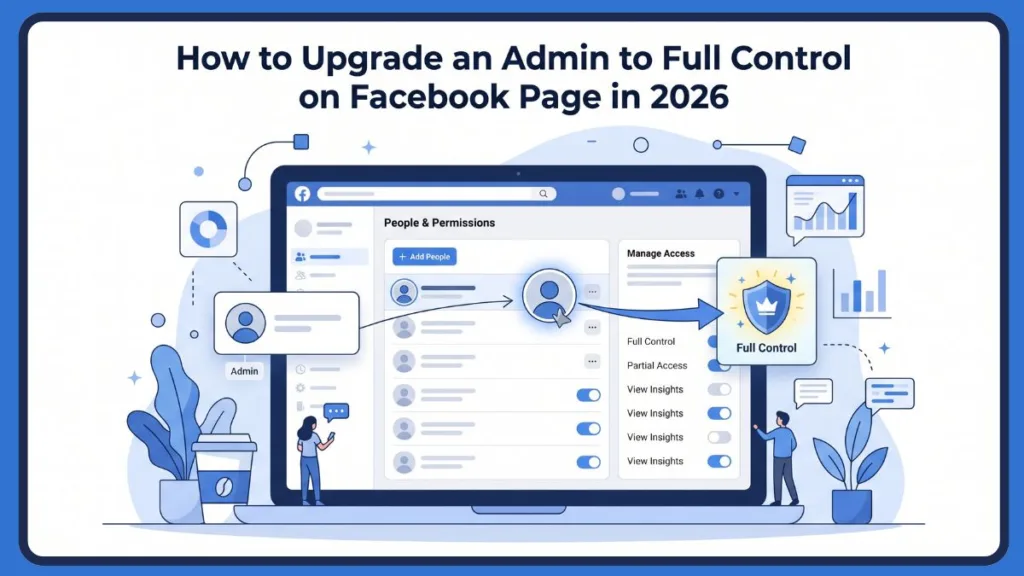
In the 2026 landscape, Facebook (Meta) has moved away from the traditional “Page Roles” to a more complex Business Portfolio system, making it vital to understand where these permissions live.
How to Change Facebook Admin to Full Control Instantly
If you’re trying to upgrade a Facebook admin to full control quickly, the process is straightforward once you know where to look:
- Open Meta Business Suite and go to Settings from the left menu.
- Open the Users section and click on People.
- Find the existing admin, click the three dots next to their name, and select Edit business portfolio permissions.
- In the box that appears, toggle everything to “Manage” or “On” and save.
How do I change my Facebook admin to full control? You can do this either through the Meta Business Suite Settings under “Business Portfolio Permissions” or directly on the Facebook Page Access menu by toggling the “Full Control” switch. Note that the recipient may need to re-verify their identity via two-factor authentication to activate these high-level rights.
What Does “Full Control” Actually Grant You?
In the New Pages Experience (NPE), full control access is the highest level of authority. When you give full control on a Facebook page, that user can manage Business account settings, control People and permissions, and handle all connected business assets like Facebook Pages, ad accounts, and Instagram profiles.
It is important to understand the difference between Meta Business Suite vs Business Manager during this process. Meta Business Suite is an all-in-one, user-friendly dashboard for creators and small businesses. Business Manager (now often accessed via Business Settings) offers advanced control for agencies. While you can upgrade Facebook admin to full control in the Suite, the Business Manager is where you configure the most technical asset hierarchies, such as pixel sharing and credit lines.
| Role | Access Level | Key Permissions |
| Admin | Full Control Access | Manage users, roles, settings, and all assets (including deletion) |
| Editor | Medium | Create content, manage messages, and view insights |
| Moderator | Limited | Handle comments, remove people from the Page, and send messages |
| Analyst | View Only | Purely data-driven; can only access insights and performance |
Full control also includes the ability to delete the business portfolio and change the page’s name or vanity URL—actions that users with “Partial Access” or “Task Access” are strictly barred from performing.
Step-by-Step Guide to Promoting Users to Full Admin
There are two primary ways to make someone full admin on a Facebook page in 2026: using the Meta Business Suite (for business portfolios) or using the Direct Page Access method (for individual pages).
Method 1: Using Meta Business Suite (Recommended for Businesses)
- Log into Meta Business Suite: Ensure you are in the correct business account via business.facebook.com.
- Open Settings: Click the gear icon in the left-hand menu.
- Navigate to Users > People: This shows everyone who has Meta Business Suite permissions.
- Edit Permissions: Find the person, click the three dots next to their name, and choose Edit business portfolio permissions.
- Enable Full Control: In the pop-up box, toggle the Manage options to On for all categories. If the “Business Account” toggle is available, switch it to Admin Access. This ensures they have Full Control access across the portfolio, including financial and legal settings.
Method 2: Direct Facebook Page Access (Switching Profiles)
- Switch Profile: Open Facebook on your desktop and switch to your Facebook Page profile using the account switcher in the top right.
- Go to Settings: Tap your profile picture, then go to Settings & Privacy > Settings.
- Page Setup: Navigate to Page Setup in the left sidebar and click on Page Access.
- Find the User: You will see a list of people with Facebook access.
- Toggle Permissions: Tap the three dots next to the person’s name and select Edit Access. A menu will open at the bottom; look for the toggle button next to “Give full permission” (or Full Control) and switch it On.
- Re-authenticate: Facebook will prompt you for your password to confirm this high-security change.
Essential Prerequisites for Granting Full Control Access
Before you attempt to upgrade Facebook page permissions, ensure these conditions are met to avoid the “Option Grayed Out” error:
- Your Own Role: You must already have Full Control access. You cannot promote someone to a level higher than your own.
- Profile Status: The recipient must have an active Facebook profile. If their account is currently restricted for ad violations, the “Full Control” toggle may not work.
- Invite Expiration: If you are adding a new person, remember that Meta Business Suite admin invites expire after 30 days.
- Security Protocol: Only assign full control to trusted individuals. It is a best practice to enable two-factor authentication (2FA) for all admins and limit the number of admins to a maximum of 2 or 3 to avoid security vulnerabilities.
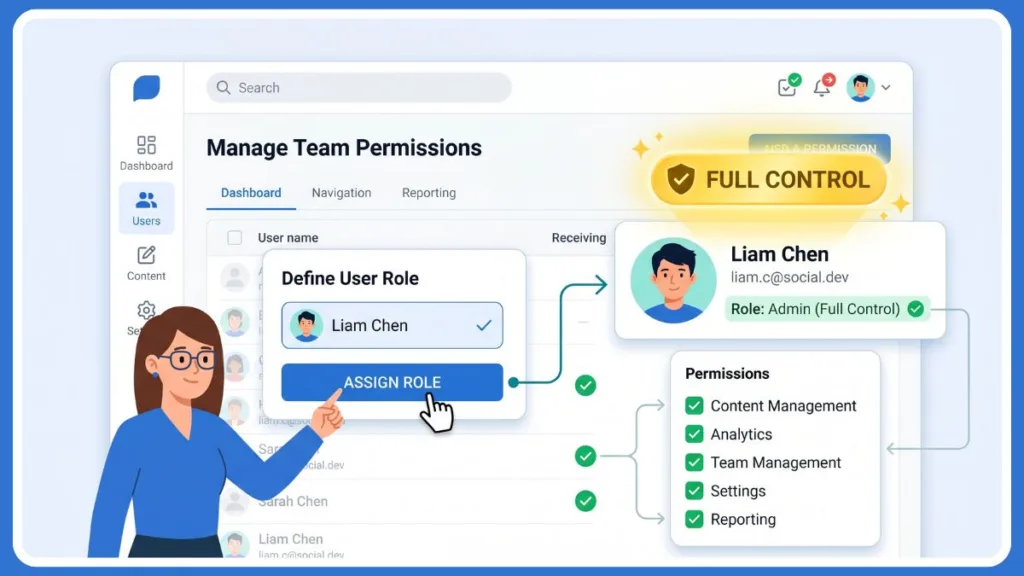
Why You Can’t Upgrade or Remove Admins
Troubleshooting the “Greyed Out” Button
If the feature to upgrade admin to full control is not working, or you are getting an error message, consider these roadblocks:
- Insufficient Permissions: If you are an Editor or have “Partial Access,” you won’t see the People option or the Edit business portfolio permissions button.
- Page Ownership Conflict: If the Page is owned by a different Business Account (e.g., an agency), you may not be able to change roles locally until the owner releases the asset.
- Account Review: If your Business Account is currently under review by Meta, all permission changes are typically locked until the review is complete.
- Technical Glitches: If Facebook business page roles are not showing, try clearing your browser cache or switching to a desktop device, as the mobile app often hides these advanced settings.
How to Safely Remove an Admin with Full Control
Knowing how to remove admin in Facebook page with full control is critical for security, especially when offboarding employees or contractors.
- Navigate to Page Access (via Facebook) or People and permissions (via Suite).
- Select the user and click the three dots.
- Click Remove or Revoke Access.
- Wait for the Sync: It may take up to 24 hours for the removal to propagate across all Meta assets (Instagram, WhatsApp, and Ad Manager).
Frequently Asked Questions on Facebook Page Access
How do I change my Facebook admin to full control? Go to Business Suite Settings > Users > People. Click the three dots next to the name, select “Edit business portfolio permissions,” and toggle the “Full Control” switches to the “On” position.
How to gain full control of a Facebook page? An existing admin must go to the Page Access settings, select your name, and toggle the “Give full permission” switch to on. You will receive a notification to accept the new access level.
Is full control the same as admin Facebook? Yes. In the New Pages Experience, “Full Control” is the specific setting that grants full administrative rights, including managing users and deleting the page.
Why won’t Facebook let me remove an admin? This usually happens if you lack Full Control yourself, if the admin is the primary owner, or if there is a 7-day security “cooling off” period after a recent password change.
How do I make someone full admin on my Facebook page? Use the “Invite People” button in Meta Business Suite and ensure you toggle the “Admin” or “Full Control” switch before sending the invite.
Final Thoughts on Secure Role Management
Properly upgrading an admin to full control Facebook allows your team to work smoothly. Whether you use the Meta Business Suite “Edit permissions” box or the direct Page Access toggle, ensuring the right people have the right business roles is the key to scaling your operations. Always remember to bold important words in your internal documentation and perform regular audits of your People and permissions list to keep your page secure.
Visit Our Post Page: Blog Page
Discover more from Izoate
Subscribe to get the latest posts sent to your email.