
Want to know how to upload MP3 on Facebook? Learn the best working methods to post audio on Facebook, convert MP3 files into Facebook-supported formats, and share music or podcasts easily.
If you are a podcaster, an independent musician, or just someone trying to share a funny voice memo with friends, you’ve likely bumped into a very common roadblock: Facebook simply doesn’t have a straightforward “upload audio” button.
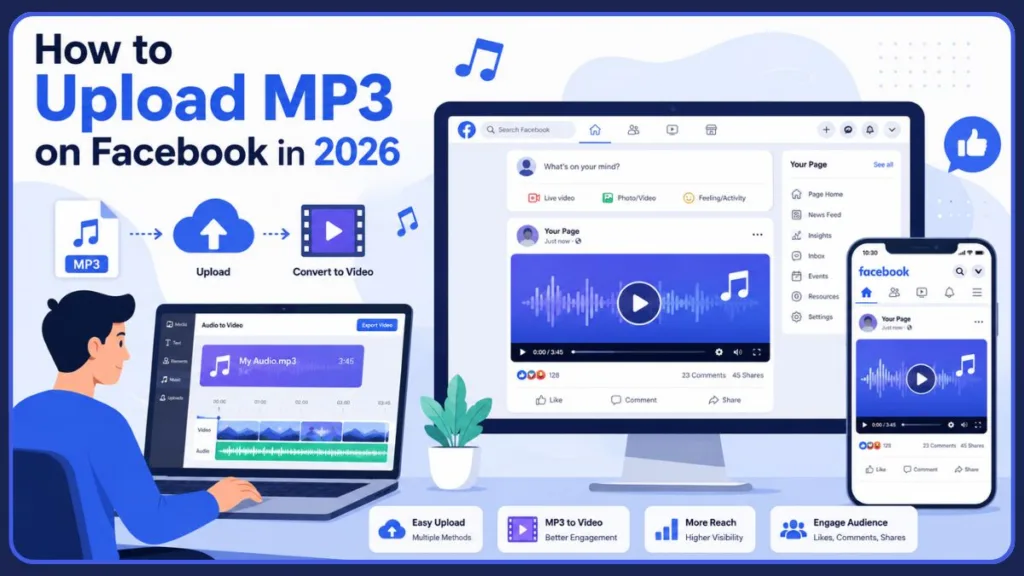
It can be a little frustrating to see how incredibly easy it is to post photos and videos, while trying to figure out how to post audio on Facebook feels like a puzzle. Because the platform lacks native support for standalone MP3 files, you might feel stuck. But don’t worry! You don’t have to give up on sharing your sound. We’ve put together a friendly, step-by-step guide filled with practical workarounds to help you get your audio onto your feed, Facebook Page, or Group effortlessly.
Can You Upload MP3s Directly to Facebook?
No, you cannot upload an MP3 or audio file directly to a standard Facebook post. Facebook’s native status uploader is built exclusively for visual media formats like images (JPG/PNG) and videos (MP4/MOV).
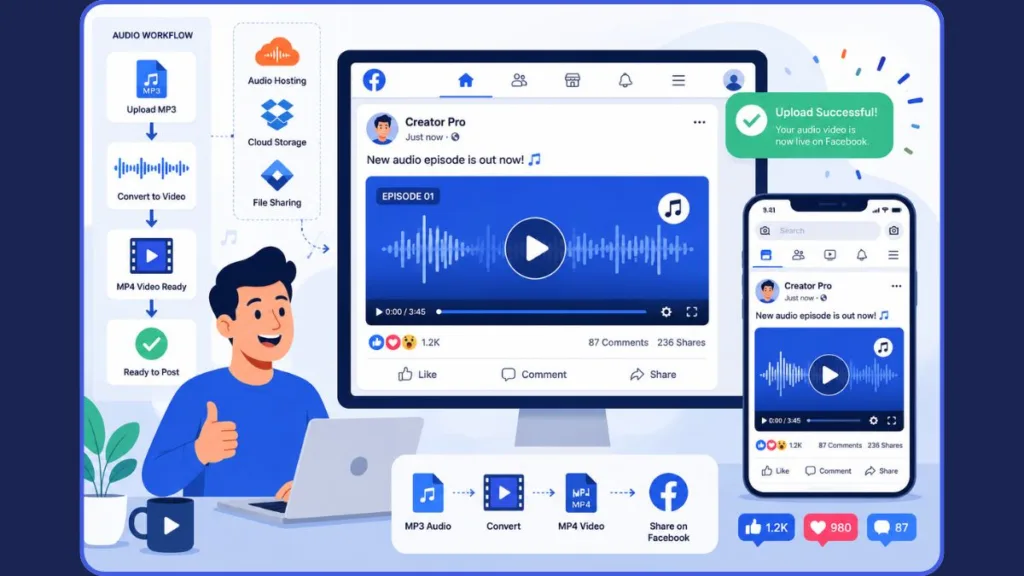
However, if you are wondering how to share an audio file on Facebook, you can absolutely do so using one of these three simple, real-world solutions:
- Convert MP3 to Video (Recommended): Use a free, beginner-friendly tool to combine your audio track with a static image or a moving waveform generator. Then, you simply upload the resulting MP4 as a standard Facebook video.
- Share a Hosted Audio Link: Upload your MP3 to an audio hosting platform like SoundCloud. When you paste the shareable link into your Facebook post, it generates a neat, playable preview card right in the feed.
- Use Cloud Storage: Upload your audio clip to Google Drive or Dropbox. Adjust the permissions to “Anyone with the link,” and share that URL directly with your audience.
Why doesn’t Facebook allow native audio uploads?
It all comes down to how people use the platform. Facebook’s feed algorithm prioritizes highly visual, auto-playing content that naturally stops users from scrolling. A plain audio file just doesn’t offer that same visual hook to drive engagement. By adapting your audio into a visual format, you are actually setting yourself up for much better reach!
Do You Just Want to Add a Song to a Post? (Use the Native Music Tool)
Let’s clarify one quick thing: if you aren’t trying to upload your own custom voice recording and just want to add a popular song to a photo or text post, you don’t need to use any outside workarounds at all!
Facebook has a wonderful, built-in music library that lets you attach licensed tracks directly to your content. When creating a standard post, Facebook Story, or Reel, just tap the Music sticker or icon, search for your favorite track, and attach it to your post. This is the absolute fastest method if you just want to add a little background music to your day.
Best Ways to Share Your Own MP3 on Facebook
If you have a custom MP3—like a great podcast clip, an original song, or an interview snippet—here are the most effective ways to share it with your community.
Method 1: Convert MP3 to an Audiogram Video (Best for Engagement)
This is the gold standard for creators who want people to actually stop and listen. An audiogram is simply a video file (MP4) that pairs a background image with a moving sound wave that reacts to your audio. Because it exports as a video, Facebook’s algorithm happily promotes it! Here is how to convert MP3 to video for Facebook.
How to convert on Desktop
- Open a browser-based tool like Headliner, Recast Studio, or Canva.
- Upload your MP3 file and select the exact snippet you want to highlight (we recommend keeping it under 60 seconds).
- Choose a background template that fits your style and add a waveform animation.
- Auto-generate captions (this is super helpful since most folks scroll Facebook on mute!).
- Export the file as an MP4 and upload it directly to your Facebook feed just like you would any normal video.
How to convert on Mobile
- Download a reliable app like Audiomack or Veed.io from your phone’s app store.
- Import your audio file directly from your device’s files.
- Apply a lovely background image from your camera roll.
- Export the final video to your gallery, open the Facebook app, and upload it!
Method 2: Use SoundCloud or Audio Hosting (Best for Musicians)
If video editing isn’t really your thing and you want a quicker solution, linking to a dedicated audio host is a fantastic alternative.
- Create a free account on SoundCloud (Mixcloud or Audioboom work beautifully, too).
- Upload your MP3 file to their platform and hit publish.
- Copy the URL of your new track.
- Paste that share SoundCloud link on Facebook into a new status update.
The best part? Facebook will automatically generate a rich preview card with a play button. Your friends and followers can listen to your track right there without having to leave their feed.
Method 3: Share via Google Drive or Dropbox (Fastest for Groups)
Sometimes, you just need to get a raw audio file to specific members of a private Facebook Group or share it with a friend. For this, cloud storage is your fastest, most practical route.
- Upload your MP3 file to Google Drive or Dropbox.
- Right-click the file and select Share.
- Crucial step: Make sure to change the privacy settings from “Restricted” to “Anyone with the link can view” so no one gets locked out.
- Copy the link and paste it into your Facebook post or comment.
Important Tip: Note that this cloud storage method won’t create a visual audio player on Facebook; your readers will simply click the link to listen in a new browser tab.
How to Upload MP3 to Facebook Story or Reel
Stories and Reels are incredible tools for reaching new people, but they strictly require video formats. To share your audio here, we just use a variation of the first method:
- Use the audiogram method (Method 1) to convert your MP3 into a vertical (9:16 aspect ratio) MP4 video.
- Open your Facebook app, and tap Create Reel or Add to Story.
- Select your newly exported video from your camera roll.
- Add any fun native Facebook stickers or text, and share it with the world!
Recommended Facebook Video Export Settings for MP3s
If you prefer using traditional video editing software (like Adobe Premiere Pro or Final Cut) to convert your audio, you’ll want to use these exact settings. This ensures your audio sounds crisp and plays smoothly without any compression hiccups when you upload it to Facebook:
| Setting | Recommended Format |
| Container | MP4 |
| Video Codec | H.264 |
| Audio Codec | AAC-LC |
| Resolution | 720p or 1080p |
| Audio Bitrate | 128–192 kbps |
| Frame Rate | 30 FPS |
Why Facebook Videos Perform Better Than Audio Links
It definitely takes a few extra minutes to turn an MP3 into an MP4, but the results are absolutely worth the effort. Facebook naturally prefers content that keeps users on their platform, so native video uploads generally receive much better visibility than external links.
| Feature | Audio Link (SoundCloud/Drive) | Video Upload (MP4) |
| Auto-play | No | Yes |
| Engagement | Lower | Higher |
| Feed Visibility | Small | Large |
| Shares & Comments | Limited | Better |
Common Problems When Uploading MP3 to Facebook
We know tech can sometimes be tricky! If things don’t go perfectly the first time, here are quick solutions to the most common bumps in the road:
Facebook Not Supporting MP3 Files
As we covered, the platform simply doesn’t accept the .mp3 format. Your best fix is to convert it to an MP4 video first.
Audio Not Playing Properly
If you exported a video and the sound feels distorted, double-check your audio bitrate in your editor. Ensure it is set to AAC-LC at 128 kbps for the clearest sound.
Broken Preview Links
If your SoundCloud or Google Drive link isn’t generating a nice preview image on your post, run your URL through the Facebook Sharing Debugger tool. This nudges Facebook to refresh and properly display your link!
Upload Failed Error
Your file size might be a bit too heavy. Try to keep your MP4 under 500MB for the fastest, most reliable uploading experience.
Legal and Copyright Considerations
We always want to make sure your account stays safe and your content remains visible. Facebook uses automated systems to detect copyrighted material.
- Using Popular Music: If you upload a video containing copyrighted music that you don’t own the rights to, Facebook may mute your video, restrict its visibility, or even issue a strike on your account.
- Podcasts: If you are sharing a podcast, just ensure your intro and outro music is either royalty-free or fully licensed to you.
- The Safe Route: The best practice is to only upload original audio (like your own voice) or music tracks you have explicit, documented permission to use.
Best Practices for Sharing Audio on Facebook
To get the absolute best response from your friends or followers, keep these helpful tips in mind:
- Keep it short: The sweet spot for social media audio is between 15 and 60 seconds. Tease the best, most interesting part of your podcast rather than uploading the whole hour!
- Always use captions: About 85% of Facebook videos are watched on mute. Adding text to your screen ensures people can follow along even if they can’t turn their volume up.
- Include a strong Call to Action (CTA): Tell your audience exactly how you’d like them to interact. A simple “Click the link in the comments to hear the full episode!” works wonders.
FAQs
Can you upload MP3 directly to Facebook?
No, Facebook only accepts video and image files for direct uploads to the feed. To share your audio, you will need to either convert your MP3 to a video format or share a hosted link.
What is the best MP3 to Facebook converter?
For beginners looking for a smooth experience, Headliner and Canva are fantastic, free tools for quickly turning an MP3 into a beautifully formatted, Facebook-ready video.
Why won’t Facebook accept my MP3 file?
Facebook is heavily focused on visual experiences. Because they don’t have a standalone audio player built into the standard newsfeed, they block audio-only file formats to maintain a visually engaging environment for users.
Can I upload podcasts to Facebook?
You cannot upload a full RSS feed or raw podcast MP3 file directly. The most effective approach is to cut short, engaging promotional clips, convert them into audiogram videos, and provide a link directing your listeners to Apple Podcasts or Spotify for the full show.
Can Facebook mute or flag my own original music?
Yes. Surprisingly, many independent musicians report that Facebook’s automated system flags their original music for copyright violations. This often happens if your music is distributed through platforms like DistroKid or TuneCore to Facebook/Instagram’s audio library, but Facebook hasn’t properly linked your artist profile to your personal or business page.
How do I dispute a copyright claim on my own music?
If Facebook mutes your Reel or flags your post, you will receive a notification. You can submit a dispute through that notification by stating that you are the original composer and own all the rights/licenses to the track. Some musicians have successfully resolved this by providing their copyright registration certificates (like from Soundreef or the copyright office) during the dispute process.
Can my music distributor whitelist my Facebook page?
While this seems like the most logical solution, many users report that their distributors (like DistroKid) are unable to manually whitelist individual Facebook pages to prevent automated copyright strikes. Your best bet is to apply directly for Meta’s Rights Manager, though approval can sometimes be difficult for smaller independent artists.
Will my video get muted if I post a cover song?
Yes. If you are posting covers of copyrighted songs and you do not have the proper mechanical and sync licenses, Facebook’s algorithm will likely detect the composition and either mute the audio, restrict the video’s reach, or take the post down entirely.
Does running Facebook Ads stop automated copyright flags?
Interestingly, a few users on Reddit noted that running paid advertisements on their Facebook page seemed to temporarily stop the constant, automated copyright flags on their original music. However, this is just a workaround and not an official solution from Meta—it shouldn’t be relied upon as a permanent fix.
Is there a way to connect my Facebook page directly to my distributed music?
Currently, Facebook does not have a simple, front-facing button to link your Facebook Page directly to your official artist discography to automatically prevent copyright strikes. The official route is to apply for Meta Rights Manager, which allows creators to protect and manage their matching audio across the platform.
Conclusion
While it might seem disappointing at first that Facebook doesn’t support native MP3 uploads, getting your audio in front of your audience is still very achievable with the right tools!
Important Tip: If your main goal is simply convenience—like getting a raw file to a private Group—dropping a Google Drive link is perfectly fine. However, if you are truly looking to boost your reach, engagement, and social media growth, we highly recommend taking those extra few minutes to convert your MP3 into a captioned MP4 audiogram.
The Facebook algorithm will reward your effort, and your audience will be far more likely to stop scrolling and listen to what you have to say.
Visit Our Post Page: Blog Page
Discover more from Izoate
Subscribe to get the latest posts sent to your email.