
Are you getting “An Error Occurred Playback ID” message while trying to play a YouTube video? Learn how to fix YouTube Playback ID error in 2026 with these simple and effective solutions.
If you are trying to watch a video and are suddenly greeted by a black screen with an error message, you are not alone. This specific error is one of the most frustrating roadblocks on the platform, halting your viewing experience completely.
“An error occurred. Please try again later. (Playback ID: [random alphanumeric string])”
Whether you are watching on Chrome, Firefox, Edge, Android, iOS, or even relaxing in front of a Smart TV or YouTube TV, this error can strike without warning. The alphanumeric string at the end of the message looks like a complex coding error, leaving most users confused about what actually went wrong.
Historically, this issue was heavily tied to ad blockers. However, in 2026, the root causes have expanded significantly. A deep dive into community forums like Reddit reveals that the problem is frequently caused by a combination of aggressive browser extensions, broken account sessions, stale DNS routing, corrupted browser cache, VPN conflicts, or even YouTube-side server outages that affect premium users.
If you are tired of refreshing your page only to see the same error, this guide is for you. Below, we break down exactly what this error means and provide 12 beginner-friendly, Reddit-tested solutions to fix the YouTube playback ID error on any device.
What Does “YouTube An Error Occurred Playback ID” Mean and What Causes It in 2026?
Before diving into the fixes, it helps to understand what is actually breaking behind the scenes. According to official troubleshooting advice from Google Support, generic playback loading bugs are frequently tied to localized data mismatches or browser script conflicts, which align directly with why these specialized session codes trigger.
What Is a Playback ID on YouTube?
Every time you click a video, Google’s servers generate a unique “session identifier” for that specific stream. This is the Playback ID.
The Playback ID is essentially a tracking code that helps YouTube’s engineers diagnose playback failures. While the string of letters and numbers is meaningless to the average user, it contains the exact diagnostics of why the connection between your device and their video servers failed.
Why YouTube Shows Playback ID Errors
When you see this error, it means the communication link for that specific session was interrupted or denied. The most common triggers include:
- A failed or timed-out playback session.
- Browser scripts being aggressively blocked.
- Corrupted cache data conflicting with new server requests.
- DNS routing issues sending your request to the wrong server node.
- Extension conflicts disrupting YouTube’s video player code.
Is the Playback ID Error a YouTube Problem or Device Problem?
It can be both. Sometimes, your local browser settings or network configuration are actively blocking the video stream. Other times, YouTube’s servers are experiencing an anomaly, or your specific Google account has been temporarily flagged by a server-side glitch.
Browser Extensions Blocking YouTube Playback
While ad blockers are the usual suspects, they aren’t the only culprits. Reddit users repeatedly report that privacy and customization extensions like Ghostery, Iridium, Enhancer for YouTube, autoplay modifiers, and built-in tracker blockers like Brave Shields often rewrite YouTube’s code in real-time, causing the playback session to crash and generate an error ID.
Corrupted Cache and Cookies
Your browser saves temporary files (cache) to load pages faster. If YouTube updates its backend architecture, but your browser is trying to load the video using outdated, cached instructions, a fatal mismatch occurs. This is why opening an Incognito window—which ignores saved cache—often fixes the issue instantly.
DNS and Network Problems
Your Domain Name System (DNS) is the internet’s phonebook. If your router or ISP’s local DNS cache is pointing your browser to a YouTube server node that is currently offline or overloaded, the playback session will fail.
VPN or Proxy Conflicts
VPNs mask your IP address and route your traffic through different geographic servers. YouTube’s anti-bot and regional licensing systems are highly sensitive to sudden IP changes or traffic coming from known proxy datacenters, often resulting in a blocked playback session.
YouTube Account Session Issues
One of the most fascinating discoveries from advanced users in 2026 is the “account-specific” glitch.
Crucial Discovery: Many users note that videos sometimes work perfectly while logged out, or when switching to an alternate Google account. This indicates a desynced session token or a temporary account flag on YouTube’s end.
Smart TV and YouTube App Glitches
Smart TVs and mobile apps manage memory differently than desktop browsers. If the YouTube app is held in your device’s background memory for too long, the session tokens expire. When you wake the app up to play a video, the expired token triggers the Playback ID error.
YouTube Server-Side Outages
Sometimes, the issue is entirely out of your hands. Widespread, temporary playback failures are frequently reported on outage tracking sites, usually resolving themselves within a few hours as Google engineers deploy server-side patches.
Quick Things to Check Before Trying Advanced Fixes
Before clearing out your browser data or altering your network settings, try these three rapid-fire troubleshooting steps:
Test Another YouTube Video
Is the error happening on every video, or just one? Sometimes, a specific video file on YouTube’s servers becomes corrupted. If other videos play fine, the issue is localized to that specific upload.
Check If YouTube Is Down
Head over to Downdetector or search Twitter/X for “YouTube playback error today.” If there is a massive spike in reports, YouTube is likely experiencing a server outage. In this case, you just have to wait.
Try Another Device or Browser
Open the same video on your smartphone (using mobile data instead of Wi-Fi) or load it in a completely different browser like Edge or Safari. If it plays normally, you have instantly confirmed the problem is isolated to your primary browser or local network.
12 Best Fix for “YouTube An Error Occurred Playback ID”
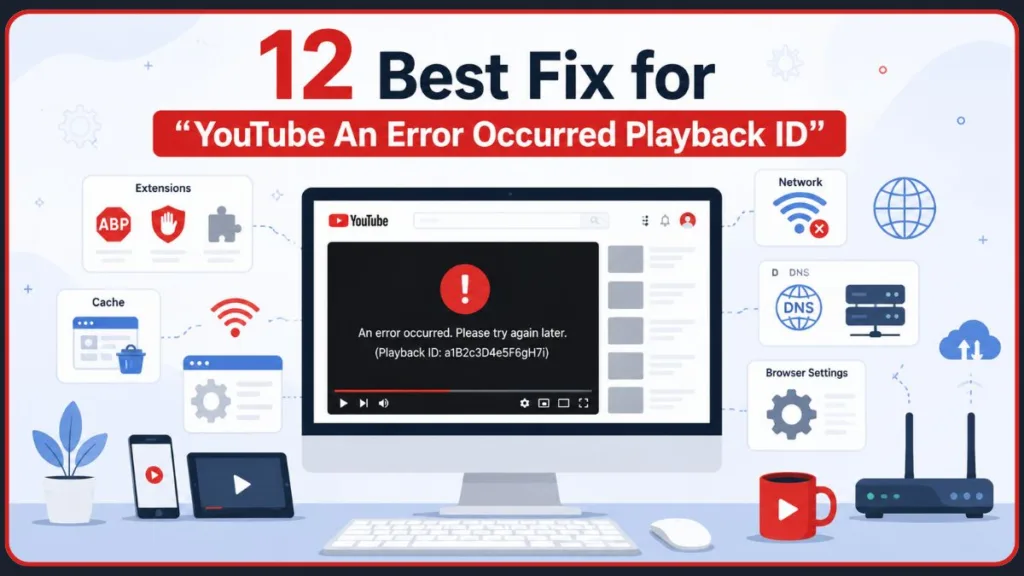
If the quick checks didn’t resolve the issue, follow these 12 proven solutions, ordered from the easiest to the most advanced.
Fix 1. Refresh the YouTube Page
It sounds overly simple, but a hard refresh forces your browser to request a brand new Playback ID from YouTube’s servers, bypassing the broken session.
- Windows: Press
Ctrl + F5to force a hard refresh. - Mac: Press
Command + Shift + R. - Alternative: Simply close the tab, open a new one, and navigate back to the video. Many Reddit users reported that a simple refresh temporarily restores playback.
Fix 2. Open YouTube in Incognito Mode
This is the ultimate diagnostic tool. Incognito (or Private) mode disables most extensions and ignores your existing cache and cookies.
- Chrome:
Ctrl + Shift + N - Firefox/Edge:
Ctrl + Shift + P
If the YouTube video works perfectly in Incognito mode, you have confirmed that the problem is either a corrupted cookie or a conflicting extension in your normal browser environment.
Fix 3. Disable Ad Blockers and YouTube Extensions
YouTube’s script environment is incredibly complex in 2026. Extensions that modify the site’s layout or block scripts are the leading cause of playback ID errors.
Extensions Known to Cause Playback ID Errors:
- uBlock Origin (especially if filters are outdated)
- Ghostery
- Iridium
- Enhancer for YouTube
- Third-party volume boosters or pip (picture-in-picture) enablers.
How to Disable Chrome Extensions:
- Click the three-dot menu in the top right of Chrome.
- Navigate to Extensions > Manage Extensions.
- Toggle off every extension related to YouTube, ad-blocking, or privacy.
- Refresh the YouTube video.
Note: Some YouTube Premium users also experienced this issue, proving that ad blockers are not always the only cause, but they remain the most common.
Fix 4. Sign Out and Back Into Your YouTube Account
An increasingly common cause of this error is a desynchronized account session, where YouTube’s servers fail to authenticate your specific login token for video playback.
Try Another Google Account: Click your profile picture in the top right corner, select Sign out, and then try watching the video as an anonymous guest. Alternatively, switch to a secondary Google account.
Reddit users discovered that playback often works flawlessly while logged out or on an alternate account. If this happens to you, log back into your main account; the fresh login token usually clears the error. If the problem persists on just one account, you may need to reach out to @TeamYouTube on X for a server-side refresh.
Fix 5. Clear YouTube Cache and Cookies
If Incognito mode fixed the issue, clearing your browser’s saved data is the permanent solution. You don’t have to delete your entire browsing history; you can target YouTube specifically.
How to Clear YouTube Cookies in Chrome:
- Open YouTube.
- Click the small “lock” or “tune” icon next to the URL in the address bar.
- Click Cookies and site data -> Manage on-device site data.
- Delete the data associated with
youtube.comandgoogle.com. - Hard refresh the page. Clearing YouTube-specific cookies is often enough to generate a clean playback session.
Fix 6. Disable Brave Shields (Brave Browser Users)
If you use the Brave browser, its built-in privacy protection (Brave Shields) aggressively blocks standard tracking scripts that YouTube relies on to initialize the video player.
Recommended Brave Setup for YouTube: Click the Lion icon in the address bar while on YouTube and toggle the Shields OFF. Many Reddit users restored playback instantly by disabling Shields on youtube.com, allowing the necessary background scripts to load.
Fix 7. Try Another Browser
Browser updates can sometimes break media playback engine compatibility.
Test YouTube on Chrome, Firefox, Edge, or Safari: If you normally use Chrome, open Edge. If it works on Edge, your Chrome installation might have a corrupted user profile. Reddit users reported the issue across multiple browsers, so switching helps isolate the problem to the software itself rather than your network.
Fix 8. Restart Your Router and Check Internet Connection
A micro-drop in your internet connection right as the video requests a session ID will trigger the error.
Switch Between Wi-Fi and Mobile Data: Turn off your PC’s Wi-Fi and connect via a mobile hotspot. If the video plays, your local network is the problem. Unplug your home router from the wall, wait 30 seconds, and plug it back in to assign a fresh connection to your ISP.
Fix 9. Change DNS Settings to Google or Cloudflare DNS
If your ISP’s default DNS servers are failing to resolve YouTube’s content delivery network (CDN), changing your DNS is the best fix.
Best DNS Servers for YouTube Playback:
- Google Public DNS:
8.8.8.8and8.8.4.4 - Cloudflare:
1.1.1.1and1.0.0.1
How to Flush DNS on Windows: Before changing your DNS, try clearing the existing network cache.
- Press
Win + R, typecmd, and hit Enter. - Type
ipconfig /flushdnsand press Enter. - Restart your browser. Advanced Reddit users highly recommended DNS flushes for persistent network-related playback errors.
Fix 10. Disable VPN or Proxy Services
YouTube actively monitors for traffic routing anomalies to enforce regional copyright blocks and prevent botting.
How VPNs Interfere With YouTube Playback: If a VPN server IP is flagged by YouTube, the server will deny the playback session, resulting in the Playback ID error. Turn off your VPN completely, clear your browser cache, and test the video on your default internet connection.
Fix 11. Disable QUIC Protocol in Chrome or Brave
This is an advanced fix for Chromium-based browsers. QUIC is an experimental network protocol designed to make the web faster, but it is known to cause severe connection instability with Google’s video servers.
How to Disable QUIC in Chromium Browsers:
- Type
chrome://flags(orbrave://flags) into your address bar and press Enter. - In the search bar, type
QUIC. - Find Experimental QUIC protocol and change the dropdown from Default to Disabled.
- Relaunch the browser. Several advanced tech communities noted that disabling QUIC fixed persistent, unexplainable playback instability.
Fix 12. Wait for a YouTube-Side Fix or Outage Resolution
If you have tried all 11 fixes above and nothing works, the issue is not on your end.
Signs the Problem Is on YouTube’s Side: If Reddit is suddenly flooded with new posts about the “Playback ID” error, or Downdetector shows a massive red spike, YouTube’s servers are struggling. Reddit threads often show these temporary, widespread outages resolving on their own within 1 to 4 hours as the engineering team rolls out a patch.
How to Fix Playback ID Error on Android and iPhone
If you are experiencing the YouTube app playback ID error on a mobile device, browser extensions aren’t the issue. It’s almost entirely related to app cache or session tokens.
Restart the YouTube App
Swipe up to open your recent apps menu and completely close the YouTube app (force close). Reopen it to generate a new session.
Clear YouTube App Cache on Android
- Go to Settings > Apps > YouTube.
- Tap on Storage & cache.
- Tap Clear Cache (Do not tap clear data unless you want to log out and delete offline videos).
Update or Reinstall the YouTube App
An outdated app version may not be able to communicate with YouTube’s updated servers. Check the Google Play Store or Apple App Store for an update.
If none is available, uninstall the app, restart your phone, and reinstall it. Mobile users frequently report that reinstalling clears deep-rooted account-session playback issues.
How to Fix YouTube Playback ID Error on Smart TVs and Fire TV
Smart TV operating systems hold onto memory caches for incredibly long periods, which frequently leads to playback ID failures.
Restart Your Smart TV or Fire Stick
Using the remote to turn the TV off usually just puts it to sleep. To fix the error, unplug the TV or streaming stick from the wall outlet entirely, wait 60 seconds, and plug it back in. This clears the RAM.
Clear YouTube TV Cache
If you are using an Android-based TV or Fire TV:
- Go to your TV’s Settings > Applications > Manage Installed Applications.
- Find YouTube, select it, and choose Clear Cache and Force Stop.
Update YouTube TV Playback Area
If you are using the premium YouTube TV service, ensure your current location matches your Home Area. If the app detects a location mismatch, it will throw a playback ID error to prevent account sharing or out-of-market viewing.
Update Smart TV Firmware
Check your TV’s main system settings for a software update. An outdated Smart TV OS can break compatibility with the latest version of the YouTube app.
Bottom Line
The “YouTube An Error Occurred Playback ID” message is incredibly annoying, but it is rarely a permanent issue. In most cases, the problem boils down to a few common culprits: aggressive browser extensions, broken account sessions, stale DNS routing, VPN conflicts, or corrupted browser cache.
If you are looking for the fastest way to get your videos playing again, remember the steps that Reddit users most commonly used to fix the issue:
- Open the video in an Incognito window to rule out extensions.
- Disable ad blockers or privacy extensions like Brave Shields.
- Sign out of your Google account and try watching as a guest.
- Clear your browser cookies specific to YouTube.
Most cases are easily fixable within a few minutes using the steps above. However, if multiple devices on different networks are all showing the same Playback ID error, YouTube is likely experiencing a server-side outage. In that scenario, the best fix is simply to take a break and let Google’s engineers resolve the issue.
Other Common YouTube Error and How to Fix Them
If you are running into other playback issues on the platform, check out these comprehensive troubleshooting guides for more solutions:
- How to Resolve YouTube Error 0: 8 effective ways to fix the “This video is unavailable” playback error.
- How to Fix YouTube Error 429: 6 easy ways to bypass the “Too Many Requests” roadblock.
- YouTube Error Code 15 Fix Tutorial: Step-by-step solutions to solve this error on Chrome, Windows, Mobile, and Firefox.
- How to Fix YouTube Error 153: A complete breakdown of the video player configuration error and how to easily solve it.
Pro Tip: YouTube frequently updates its backend architecture. Bookmark these guides so you always have reliable, up-to-date troubleshooting steps ready when the next error code pops up!
Visit Our Post Page: Blog Page
Discover more from Izoate
Subscribe to get the latest posts sent to your email.