
Want to know if you can use Afterpay on Amazon in 2026? Does Amazon accept Afterpay? Learn how to use Afterpay on Amazon and pay with its Single-Use Payment Card.
Want to shop on Amazon and pay in installments instead of covering the entire purchase cost upfront? You can use Afterpay on Amazon through its Single-Use Payment Card, a virtual payment card that allows eligible customers to purchase products and repay the amount according to an approved installment schedule.
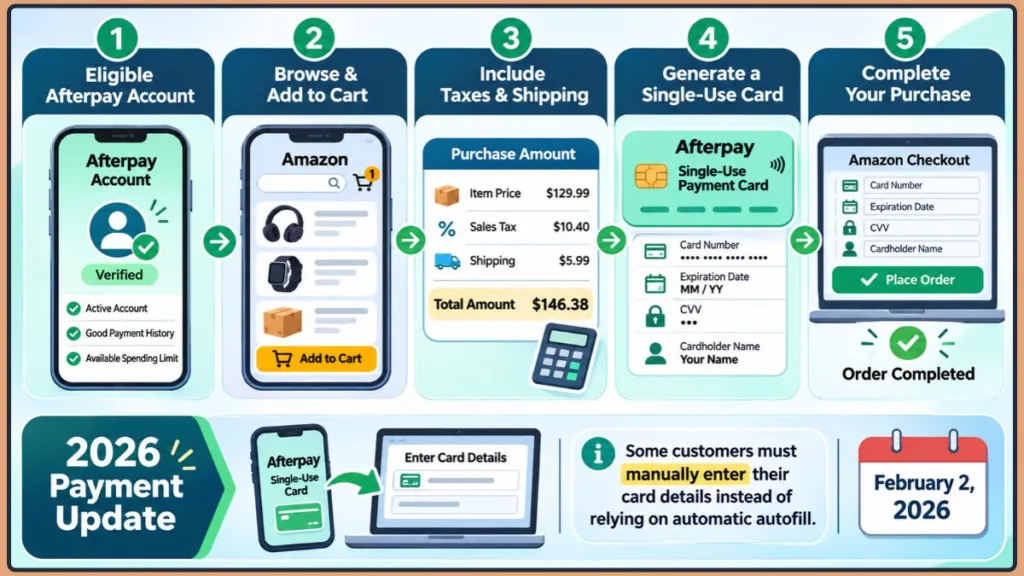
However, using Afterpay on Amazon isn’t as straightforward as selecting a payment option at checkout. Although Amazon doesn’t directly accept Afterpay payments, you can use the Afterpay app to create a single-use card and complete eligible Amazon purchases. Afterpay also updated its Amazon payment process on February 2, 2026, requiring some customers to manually enter their virtual card details during checkout.
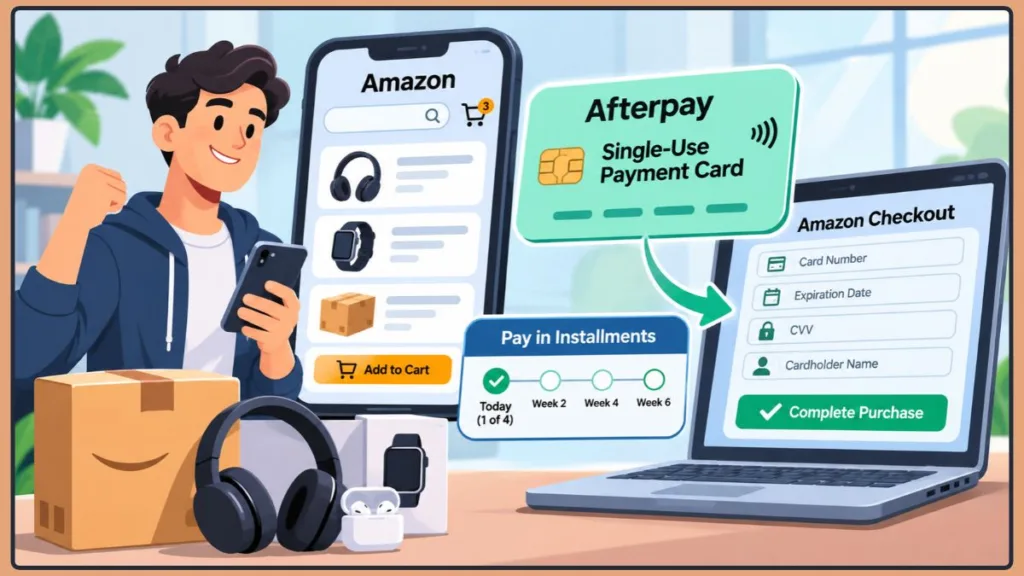
In this guide, you’ll learn how to use Afterpay on Amazon in 2026, set up your Afterpay account for Amazon purchases, create a virtual payment card, and complete your order. You’ll also find out how Afterpay installment payments work and how to resolve common problems, such as declined transactions and missing payment details.
Can You Use Afterpay on Amazon in 2026?
Amazon does not directly integrate Afterpay as a standard payment option at checkout. This means you won’t find an Afterpay button alongside the usual credit card, debit card, or other Amazon payment methods when placing an order.
However, that doesn’t mean you cannot use Afterpay for Amazon purchases. Eligible customers can shop through Afterpay’s Amazon shopping integration and pay using a Single-Use Payment Card generated through the Afterpay app. This provides a way to pay for Amazon using Afterpay without connecting your Afterpay account directly to Amazon.
Instead, you create a temporary virtual card through the Afterpay app and enter its details into Amazon’s credit or debit card payment section. Afterpay then manages your Buy Now, Pay Later (BNPL) payments according to the installment schedule you accept when creating the card.
Afterpay officially lists Amazon in its US shopping directory and provides instructions for completing purchases through this payment method. You can visit the official Afterpay Amazon shopping page to learn more about its Amazon shopping integration.
What You Need to Know About the 2026 Afterpay Update
Although the Single-Use Payment Card remains the primary way to pay for eligible Amazon purchases through Afterpay, the checkout process changed on February 2, 2026.
Previously, some customers could return to Amazon and have their Afterpay payment details automatically populated during checkout. Following the update, affected customers must manually copy and enter their single-use virtual card information instead.
According to Afterpay’s official instructions, this change does not apply to everyone. Some customers will continue to experience automatic payment-detail autofill, while others must complete the payment fields themselves.
Here’s what you need to know:
- Manual card entry: If your account is affected by the update, copy your Afterpay card information and paste it into the corresponding Amazon checkout payment fields.
- Automatic autofill: If your account still supports autofill, Afterpay may automatically populate the payment details when you return to Amazon.
- Single-use card details: Your virtual payment card includes a card number, expiration date, CVV, and cardholder name, which you’ll need to provide if manual entry is required.
- Afterpay card payments: You’ll need to generate a new Single-Use Payment Card for each new Amazon order rather than reusing a previously generated card.
Important: Don’t rely on automatic autofill when completing your purchase. Keep both apps accessible and be prepared to copy and enter all four payment details manually.
With these changes understood, you can prepare your Afterpay account and follow the updated Amazon Afterpay setup process to complete your purchase.
What Do You Need Before Using Afterpay on Amazon?
Before you use Afterpay on Amazon, make sure you have everything required to create and use an Afterpay Single-Use Payment Card.
You’ll need:
- An eligible Afterpay account.
- The Afterpay and Amazon apps installed on your device.
- An accepted payment method linked to your Afterpay account.
- Sufficient approved spending capacity to cover your complete Amazon order.
- Access to the Single-Use Payment Card feature in your Afterpay app.
What Do BNPL Statistics Tell You Before You Shop?
The popularity of Buy Now, Pay Later (BNPL) services continues to grow, but recent research also highlights the importance of managing installment payments responsibly.
According to the Federal Reserve’s Economic Well-Being of U.S. Households in 2025 report, published in May 2026:
- 16% of US adults used BNPL in the previous 12 months, compared with 10% in 2021.
- 26% of BNPL users reported making a late payment in 2025.
- 11% of BNPL users had a payment trigger an overdraft or non-sufficient funds (NSF) fee from their bank.
The Consumer Financial Protection Bureau (CFPB) also reported continued growth in the BNPL industry. Its December 2025 market report, based on data from six large providers, found that:
- The providers reported a combined 53.6 million consumers who took out at least one BNPL loan in 2023, a 12% increase from 2022.
- The number of loans increased by 23% between 2022 and 2023.
- Inflation-adjusted loan originations increased by 26% over the same period.
- Consumers averaged 6.3 BNPL loans per provider in 2023, compared with 5.7 in 2022.
These figures describe the wider BNPL industry, not Amazon purchases or Afterpay users alone. The CFPB also cautions that provider-reported consumer numbers may count the same person more than once when they borrow from different lenders.
Important Tip: Treat every Afterpay installment as a financial commitment. Check your upcoming payment dates and existing BNPL purchases before adding another Amazon order. A smaller installment does not necessarily mean a lower overall purchase cost.
An Active Afterpay Account
You need an Afterpay account to access Amazon through the Afterpay shopping directory and generate a Single-Use Payment Card.
For the US Afterpay service, you must generally meet these requirements:
- Be at least 18 years old.
- Reside in one of the 50 US states or the District of Columbia.
- Be legally capable of entering into a binding agreement.
- Have a valid, verifiable email address and mobile phone number.
- Provide a valid US delivery address.
- Be authorized to use an accepted payment method, such as a US-issued debit or credit card.
Additional identity and eligibility checks may apply to specific products. For example, Pay Monthly requires identity verification and a soft credit check when applying for the monthly payment option.
Your account status and payment history also influence whether Afterpay approves an Amazon purchase.
Before placing your order, check the following:
- Overdue payments: Afterpay states that you cannot place a new order while an existing payment is overdue.
- Outstanding orders: Having several active purchases may result in stricter approval criteria.
- Account age: Accounts less than six weeks old may have lower per-order approval thresholds.
- Available spending: Your current spending capacity may change according to your account activity and payment history.
Check your Available to Spend balance: Afterpay describes this amount as an estimate rather than a guaranteed approval limit. Each purchase is assessed individually, so your Amazon transaction may still be declined even when the displayed balance appears sufficient.
Afterpay’s US support documentation lists US-issued Visa and Mastercard credit or debit cards, Cash App Cards, and US checking accounts among its accepted payment methods. However, payment-method requirements vary by product. For Single-Use Payments with a finance fee or Pay Monthly, Afterpay states that only debit cards are accepted.
Important Tip: Before generating an Amazon payment card, open Afterpay and check for overdue installments, account restrictions, and payment-method problems. Consider reducing your cart total if your original purchase amount isn’t approved.
The Afterpay and Amazon Apps
Install and sign in to both applications before starting your Amazon Afterpay purchase.
| Application | What You Need It For |
|---|---|
| Afterpay app | Find Amazon in the Shop directory, enter your purchase amount, review your installment agreement, and generate your Single-Use Payment Card. |
| Amazon app | Browse products, manage your shopping cart, enter your Afterpay card details, and complete your order. |
You can start shopping in either application:
- Through Afterpay: Find Amazon in the Shop directory and open the Amazon app through its shopping integration.
- Directly through Amazon: Browse products in Amazon and switch to Afterpay when you need to generate your payment card.
Keep both applications accessible throughout checkout.
Important Tip: Following the February 2, 2026, Afterpay update, some customers must manually copy and paste their card number, expiration date, CVV, and cardholder name into Amazon’s payment fields. Other customers may continue to have their payment information populated automatically.
Regional Availability and Payment Eligibility
The Afterpay Amazon shopping instructions in this guide are based on Afterpay’s US support documentation.
Your ability to pay for Amazon purchases with Afterpay may depend on:
- Your country or region.
- Afterpay account eligibility.
- Available payment methods.
- Features supported by your account.
- Whether Amazon appears in your local Afterpay Shop directory.
Before placing an order, check whether Amazon appears in your local Afterpay Shop directory and whether the Single-Use Payment Card option is available to you.
There are also restrictions on some payment plans. For example, Afterpay’s Single-Use Payment guidance currently lists Nevada, West Virginia, Hawaii, and New Mexico as states where its Pay Monthly Single-Use Payment option is unavailable.
If you’re shopping through Amazon.com using the US Afterpay service, follow the US-specific instructions below rather than assuming the same payment process applies to international Amazon marketplaces.
How to Use Afterpay on Amazon
You can use Afterpay on Amazon by generating a Single-Use Payment Card through the Afterpay app and entering its details during Amazon checkout.
Follow these six steps to create your payment card, review the installment agreement, and complete your purchase.
Step 1: Open the Afterpay App and Find Amazon
- Open the Afterpay app on your phone.
- Sign in to your Afterpay account.
- Navigate to the Shop directory.
- Search for Amazon.
- Select the Amazon store to access its shopping integration.
- Allow Afterpay to direct you to the Amazon app.
Once Amazon opens, you can browse products and add items to your shopping cart.
Alternatively: You can start directly in the Amazon app and keep Afterpay accessible so you can switch between both applications when creating your payment card.
Afterpay officially documents both shopping approaches:
- Start through its Shop directory.
- Shop directly through Amazon while using Afterpay alongside it.
Regardless of your chosen approach, you’ll need to generate a new Single-Use Payment Card before completing the transaction.
Important Tip: If you cannot find Amazon in your Afterpay Shop directory, check whether the store is available to your account and region. Afterpay explains that the shopping experience and available merchants can differ between customers.
Step 2: Add Products to Your Amazon Cart
Once Amazon opens, browse the available products and select the items you want to purchase.
Follow these steps:
- Select the products you want to buy.
- Add them to your Amazon shopping cart.
- Review the selected products and quantities.
- Check product prices and delivery options.
- Open your cart and select Proceed to Checkout.
- At the payment stage, choose Add Payment Method.
- Select the credit card option.
This prepares Amazon to accept the Single-Use Payment Card you’ll generate through Afterpay.
You don’t need to connect your Afterpay account directly to Amazon. Instead, you’ll enter the temporary card details into Amazon’s regular card-payment fields.
Step 3: Enter Your Amazon Purchase Amount in Afterpay
Now, switch back to the Afterpay app to generate your payment card.
Your next action depends on how you started shopping:
- Shopping directly through Amazon: Open Afterpay, find Amazon in the Shop directory, select the store, and tap Enter Purchase Amount.
- Shopping through Afterpay: You should be directed to the Single-Use Payment Card creation screen, where you’ll be prompted to enter your purchase amount.
Enter the estimated total cost of your Amazon order.
Make sure you include:
- Product prices: The combined cost of all selected items.
- Sales taxes: Any applicable taxes added during checkout.
- Shipping charges: Delivery and shipping costs.
- Additional charges: Any other costs included in your final Amazon checkout total.
Afterpay specifically instructs customers to include taxes and shipping costs when entering their purchase amount.
Important Tip: Don’t enter only the product subtotal if Amazon will add taxes or shipping charges. Your Afterpay Single-Use Payment Card needs sufficient authorization to cover the complete purchase amount.
Afterpay also explains that:
- Your payment card is generated for the amount you enter.
- The card must have enough authorization to cover the complete Amazon order.
- Any unused amount will be returned after the purchase is processed.
This is important because Afterpay identifies an insufficient Single-Use Payment Card amount as a possible reason for an Amazon order decline. If your Amazon order exceeds the authorized card amount, you’ll need to generate a new card with sufficient coverage.
Step 4: Review Your Payment Schedule and Create a Single-Use Card
After entering your purchase amount, Afterpay will display your proposed installment payment schedule.
Review the following details before continuing:
- Installment amounts.
- Payment due dates.
- Authorization terms.
- Total repayment amount.
- Any applicable finance fees or interest.
Depending on your account eligibility and the options available for your purchase, you may see:
- Pay in 4: Four installments generally spread over six weeks.
- Pay Monthly: Eligible monthly payment options over 3, 6, 12, or 24 months.
However, you should not assume that every payment option will be available for Amazon. Afterpay explains that monthly Single-Use Payments are offered only when the option is available and the customer qualifies. Merchant, order value, state, and account eligibility can all affect the available plans.
Understand the fees before accepting:
- Pay in 4 Single-Use Payment: Afterpay states that a one-time finance fee is added to the total order amount for applicable Single-Use Payment transactions. Its general fee guidance also explains that a fee may apply when using Single-Use Payment at non-partnered merchants.
- Pay Monthly: This is an installment loan that can charge interest on the outstanding principal balance. Afterpay’s published US disclosure lists APRs from 0.00% to 35.99%, depending on eligibility and merchant.
- Late payments: Late fees may apply under the applicable terms. Afterpay’s US fee guidance states that an applicable late fee may be up to $8 per missed installment, subject to a total late-fee cap of 25% of the order value.
For context, Afterpay’s published Pay Monthly example shows a $1,000 loan over 12 months at 21% APR, with 11 monthly payments of $93.11 and a final payment of $93.19. The total repayment is $1,117.40. This is an illustration of Afterpay’s monthly financing, not a quote or guaranteed plan for an Amazon purchase.
Important Tip: Check the total amount you’ll repay, installment due dates, and any applicable finance fees before confirming. Don’t choose a payment plan based only on its first installment or monthly payment.
Once you’ve reviewed the schedule and are comfortable with the terms:
- Confirm the payment authorization.
- Allow Afterpay to generate your Single-Use Payment Card.
- Select Go to Amazon.
- Return to Amazon to continue checkout.
For more details, review Afterpay’s Single-Use Payment terms and fee guidance and its Pay Monthly disclosures.
Step 5: Enter Your Afterpay Single-Use Card Details on Amazon
After generating your payment card, Afterpay will display four important payment details:
| Card Detail | Description |
|---|---|
| Card Number | The temporary payment card number. |
| Expiration Date | The card’s expiration date. |
| CVV | The card verification code. |
| Name on Card | The cardholder name associated with the payment card. |
Following the February 2, 2026, Afterpay update, some customers must manually enter these details instead of relying on automatic autofill. Other customers may continue to have their payment information populated automatically.
If manual entry is required for your account, follow these instructions:
- Open the Afterpay Single-Use Payment Card screen.
- Tap the copy option beside the card number.
- Switch to the Amazon app.
- Paste the card number into the corresponding payment field.
- Return to Afterpay and copy the expiration date.
- Paste the expiration date into the appropriate Amazon field.
- Repeat the process for the CVV and cardholder name.
- Review all four payment fields to make sure the information is correct.
You may need to switch between the Afterpay and Amazon apps several times to enter the complete payment information.
Important Tip: After you leave the Afterpay card details screen, the payment information will be hidden. Copy all four details before leaving the screen so you don’t lose access to them midway through checkout.
If you accidentally lose the card details, Afterpay says you can generate a new Single-Use Payment Card. You’ll then need to enter the new card information into Amazon rather than attempting to reuse the hidden details.
Step 6: Complete Your Amazon Purchase
After entering your Afterpay card details, return to Amazon and review the selected payment method before submitting your order.
Follow these final checks:
- Review the payment method selected during checkout.
- If Amazon displays multiple saved cards, check the last four digits to identify your newly generated Single-Use Payment Card.
- Select the correct card.
- Complete your Amazon purchase.
- Open the Your Orders section to verify that Amazon has submitted your order successfully.
Don’t worry if your Amazon purchase doesn’t immediately appear in Afterpay.
According to Afterpay’s official instructions, the order will reflect in your Afterpay account once Amazon starts processing it.
After completing your purchase:
- Remove the used Single-Use Payment Card from Amazon’s saved payment methods to avoid confusion during future transactions.
- Generate a new payment card for each new Amazon order.
- Check your Afterpay account to monitor the order and upcoming installment payments.
What if Amazon declines your order?
Afterpay explains that Amazon may decline an order when its total exceeds the value authorized on your Single-Use Payment Card.
To resolve this issue:
- Check the complete Amazon order total.
- Generate a new Single-Use Payment Card with enough authorization to cover the purchase.
- Return to Amazon and enter the new card details.
- Complete checkout again.
Important Tip: If Amazon declines your order, make sure the order is properly cancelled before trying another payment method. Afterpay warns that if the declined order isn’t cancelled, Amazon may attempt to collect payment from a personal card saved to your account.
Keep your payment schedule in view: BNPL makes it easier to spread a purchase across several payments, but those installments remain a financial commitment. The Federal Reserve’s 2025 household survey found that 11% of BNPL users had a payment trigger an overdraft or NSF fee from their bank in the previous year.
Keep enough money available for scheduled payments and check your repayment dates after completing your Amazon order.
Why Is Afterpay Not Working on Amazon?
Are you experiencing an Afterpay card decline, missing payment details, an unexpected Amazon charge, or an order that isn’t appearing in your Afterpay account?
These problems can interrupt your Amazon checkout, but many can be resolved by checking your Single-Use Payment Card, purchase amount, account eligibility, and Amazon transaction history.
What Do BNPL Statistics Reveal About Payment Problems?
The growing popularity of Buy Now, Pay Later (BNPL) services makes it increasingly important to monitor installment payments and transaction activity.
According to the Federal Reserve’s Economic Well-Being of U.S. Households in 2025 report:
- 16% of US adults used BNPL in the previous 12 months, compared with 10% in 2021.
- 26% of BNPL users reported making at least one late payment in 2025.
- 17% of BNPL users said they were charged extra for paying late.
- 11% of BNPL users experienced an overdraft or non-sufficient funds (NSF) fee triggered by a BNPL payment.
These statistics cover the wider BNPL market, not Afterpay or Amazon transactions specifically. However, they highlight why you should monitor payment authorizations, upcoming installments, and refunds carefully.
Why Is My Afterpay Card Declined on Amazon?
Your Afterpay payment may be declined if the Amazon order total exceeds the authorized amount on your Single-Use Payment Card.
Example:
- Amount entered in Afterpay: $100.
- Final Amazon checkout total: $110.
- Additional charges: $10 in taxes and shipping.
- Result: Your payment card may not have enough authorization to complete the transaction.
Afterpay specifically identifies an incorrect purchase amount or removing its recommended checkout buffer as possible reasons for a declined Single-Use Payment transaction.
To fix an Afterpay card decline:
- Open Amazon and check your complete order total.
- Compare the total with the amount authorized on your Afterpay payment card.
- Check whether taxes, shipping, or additional charges increased the purchase amount.
- Cancel the declined or incomplete Amazon order if necessary.
- Open Afterpay and generate a new Single-Use Payment Card.
- Enter an amount sufficient to cover the complete order, including taxes and shipping.
- Return to Amazon, enter the new payment details, and try checkout again.
Also check your Afterpay account for:
- Overdue installments: Afterpay may prevent you from placing new orders while payments remain overdue.
- Insufficient spending capacity: Your available spending amount may not be enough to approve the transaction.
- Multiple active orders: Existing purchases can affect approval for another transaction.
- Incorrect payment details: An incorrect card number, expiration date, or CVV can interrupt checkout.
- Outdated app: An older Afterpay app version or technical problem can interfere with Single-Use Payment.
Check these details before generating another card:
- Your current Available to Spend balance.
- Any overdue Afterpay installments.
- Your existing active orders.
- The complete Amazon checkout total.
- Whether your payment method is accepted for the selected Afterpay payment option.
Important Tip: Afterpay adds a recommended amount buffer to account for additional taxes and shipping costs. Don’t remove this buffer when creating your payment card. Any unused balance is returned after the purchase is processed.
For further assistance, follow Afterpay’s official Single-Use Payment troubleshooting instructions and its guidance for declined orders.
Why Is Afterpay Autofill Not Working on Amazon?
If your Afterpay payment details aren’t automatically appearing at Amazon checkout, the February 2, 2026, Afterpay update may explain the problem.
Afterpay changed its Amazon payment process for some customers:
- Affected accounts: Must manually enter Single-Use Payment Card details instead of relying on automatic autofill.
- Unaffected accounts: May continue to have payment information populated automatically.
If your account requires manual card entry:
- Open Afterpay and locate your Amazon Single-Use Payment Card.
- Copy the card number.
- Copy the expiration date.
- Copy the CVV and cardholder name.
- Return to Amazon and paste each detail into its corresponding payment field.
- Review the information and complete checkout.
If your account still supports automatic autofill but the details aren’t appearing:
- Make sure your phone has the latest available software update.
- Update the Afterpay app to its latest version.
- Close and reopen the Afterpay app.
- Return to the Single-Use Payment screen.
- Tap the Afterpay button and select Retry card details, when that option is available.
- Generate a new card if the payment information still doesn’t populate.
Afterpay’s troubleshooting guidance recommends:
- Retrying card details when autofill is incomplete.
- Updating your device and Afterpay app.
- Force-closing the application.
- Creating a new card if technical problems continue.
Important Tip: Don’t keep relying on automatic autofill if your account is affected by the February 2026 update. Manually copy and enter all four payment details to complete your Amazon purchase.
Why Is My Amazon Order Not Showing in Afterpay?
Don’t worry if your recently placed Amazon order doesn’t immediately appear in the Afterpay app.
Afterpay explains that Amazon purchases appear in your account once Amazon starts processing the order. Therefore, a short delay between placing an order and seeing it in Afterpay doesn’t necessarily indicate a payment problem.
To check your Amazon order:
- Open the Amazon app.
- Navigate to Your Orders.
- Find your recent purchase.
- Check whether Amazon has received and started processing the order.
- Open Afterpay and check your Orders section again.
- Contact Afterpay support if Amazon confirms that the order is being processed but the transaction still doesn’t appear.
If Amazon has charged your Single-Use Payment Card but you cannot identify the transaction:
Afterpay provides a separate Amazon transaction-checking procedure. A Single-Use Payment Card may sometimes be charged for other purchases or payments through Amazon.
Follow these steps to investigate:
- Open the Afterpay app.
- Select the Orders tab.
- Open your Amazon order.
- Select View in Amazon.
- Review the Amazon charges associated with your Afterpay Single-Use Payment Card.
- Compare the card’s last four digits with the Visa card listed in Amazon’s payment information.
- Match the displayed transactions with your Amazon order and payment history.
You can also check your transactions directly through Amazon:
- Desktop: Open Your Account, select Your Payments, and navigate to the Transactions tab.
- Mobile: Open Your Account, select Your Payments, and choose Transactions.
If you still cannot identify an Amazon charge:
- Take a screenshot of your Amazon transaction history.
- Keep the relevant order details available.
- Submit the information to Afterpay support through the appropriate in-app claims process.
Important Tip: Don’t assume an unfamiliar Amazon charge is fraudulent before checking the transaction history. Match the last four digits of your Afterpay virtual card with the card shown in Amazon’s payment records.
What Should I Do If I Lose My Afterpay Single-Use Card Details?
If you accidentally close the Afterpay payment card screen before copying all four details, you may need to generate a new Single-Use Payment Card.
Afterpay explains that card details become hidden once you leave the payment information screen. However, you can create a new card if you lose access to the original details.
Follow these steps:
- Open the Afterpay app.
- Return to the Amazon shopping integration.
- Start the Single-Use Payment process again.
- Enter your Amazon purchase amount.
- Review your payment schedule and confirm the payment authorization.
- Generate a new Single-Use Payment Card.
- Copy the card number, expiration date, CVV, and cardholder name.
- Return to Amazon and enter the new payment information.
Before completing checkout:
- Check whether Amazon displays multiple saved payment cards.
- Compare their last four digits with your newly generated Afterpay card.
- Select the correct payment method.
- Remove the used Single-Use Payment Card from Amazon’s saved payment methods after completing your order.
Important Tip: Copy all four payment details before leaving the Afterpay card screen. You’ll need to generate a new card if you lose access to the original details.
How to Cancel or Get a Refund for an Amazon Order Paid With Afterpay
You can cancel an Amazon order paid with Afterpay through Amazon’s order management section. However, you should also check your Afterpay account to confirm that the payment schedule, outstanding installments, and refund status are updated after cancellation or return.
The process depends on whether Amazon has started shipping your order and whether Afterpay has already collected your first installment.
How to Cancel an Amazon Order Paid With Afterpay
If you no longer want an Amazon purchase, cancel it through the Amazon app before it moves further through the shipping process.
Follow these steps:
- Open the Amazon app.
- Navigate to Your Orders.
- Find the order you want to cancel.
- Open the order details.
- Select Cancel Items or the available cancellation option.
- Choose the items you want to cancel, if applicable.
- Follow the on-screen instructions to submit your cancellation request.
- Check the order status to confirm that Amazon has accepted the cancellation.
The cancellation option depends on the order’s processing and shipping status. If Amazon has already shipped the product, you may need to follow its return process instead.
Important Tip: Cancel the order through Amazon rather than assuming that closing the Afterpay app or removing the payment card will cancel your purchase. Always verify that Amazon has updated the order status.
What Happens to Your Afterpay Payments After Cancellation?
When Amazon confirms a cancellation and the refund is processed, Afterpay updates your installment schedule.
According to Afterpay’s official cancellation guidance:
- Future installments: Scheduled payments are automatically canceled.
- First installment already paid: If your first installment was charged, it is generally refunded to your original payment method within 3–5 business days.
- Available to Spend: Your spending amount is restored once the authorization hold is released, typically within 24–48 hours.
- Delayed authorization release: In some cases, the hold can take up to 5 business days to clear.
It’s important to understand the difference between an authorization hold and an actual payment.
| Payment Status | What It Means |
|---|---|
| Authorization hold | A temporary reserve placed during checkout. It doesn’t necessarily mean money has been transferred from your account. |
| Actual installment charge | A completed payment transferred from your account. If an actual charge was made, it must be refunded rather than simply released. |
For example:
- A pending transaction on your bank statement may represent an authorization hold.
- A posted or completed transaction generally represents an actual charge.
This distinction explains why your Afterpay Available to Spend balance may not return immediately after an Amazon cancellation.
Afterpay’s published cancellation timelines:
| Event | Typical Timeline |
|---|---|
| Available to Spend restored | 24–48 hours, up to 5 business days |
| First installment refunded, if charged | 3–5 business days |
| Future scheduled installments | Canceled automatically |
Important Tip: Don’t assume your spending limit is available again as soon as Amazon confirms the cancellation. The original authorization hold may need 24–48 hours, or up to 5 business days, to clear.
How to Check Your Amazon Refund in Afterpay
After Amazon approves and processes your cancellation or return, check the Afterpay app to confirm that the refund and payment schedule have been updated.
To check your Amazon refund:
- Open the Afterpay app.
- Navigate to the Orders section.
- Select your Amazon purchase.
- Review the order details and refund information.
- Check whether your remaining installments have been reduced or canceled.
- Look for an Afterpay refund confirmation.
Amazon and Afterpay have separate refund-processing stages, so don’t confuse the time required to process a return with the time required for the money to reach your card.
Understand the refund timelines:
- Amazon return processing: Amazon states that receiving and processing a return can take up to 30 days, depending on the order, return shipping speed, and processing requirements.
- Amazon credit-card refunds: Once issued, refunds generally take 3–5 business days.
- Amazon debit-card refunds: Once issued, refunds can take up to 10 business days.
- Afterpay refund processing: After the retailer processes a refund, Afterpay says the refund may take approximately 3–5 days to appear on your Afterpay order.
- Money returned to your card: If Afterpay owes you money, the refund can take up to 10 business days to reach your payment card, depending on your financial institution.
For an Amazon return paid with Afterpay, remember that Amazon must process the cancellation or return before Afterpay can adjust the installment schedule.
There are also differences between payment plans:
- Pay in 4: Afterpay may move your next payment date while the retailer processes your refund.
- Pay Monthly: The payment due date generally cannot be changed because it remains fixed for the life of the loan.
- Refund already processed: Afterpay adjusts or cancels the remaining installments and returns any money owed to the card or cards used to make the payments.
Afterpay also warns that if you submit a return within 24 hours of your next scheduled payment, it may not be able to move that installment before it is processed.
Important Tip: Contact Amazon first if your refund hasn’t appeared. Afterpay cannot complete the payment adjustment until the merchant processes the cancellation or return. Keep your Amazon refund confirmation or receipt as proof if you need to contact Afterpay.
What Are the Alternatives to Afterpay on Amazon?
If you cannot use Afterpay for an Amazon purchase, you can explore other installment payment options.
Amazon provides several financing arrangements through its own payment services, credit cards, and selected products. However, eligibility, payment schedules, purchase requirements, and financing costs vary.
What Do BNPL Industry Trends Reveal?
According to the CFPB’s December 2025 market report, six large BNPL providers reported:
- 53.6 million consumers who took out at least one BNPL loan in 2023, a 12% increase from 2022.
- A 23% increase in loan volume between 2022 and 2023.
- A 26% increase in inflation-adjusted loan originations over the same period.
- An increase in average loans per consumer per provider from 5.7 in 2022 to 6.3 in 2023.
The CFPB cautions that its provider-reported consumer numbers may count the same person across multiple providers.
The Federal Reserve’s 2026 analysis also found that:
- 32% of BNPL users purchased electronics using these services.
- 26% of BNPL users purchased furniture or appliances.
These figures cover all BNPL providers, not Amazon purchases specifically. However, they show how installment financing is used for product categories commonly found on Amazon.
Using Affirm for Amazon Business and Amazon Pay
Affirm provides Buy Now, Pay Later financing through participating merchants and selected Amazon-related services.
However, don’t assume Affirm is available as a standard payment method for every personal purchase on Amazon.com.
There are two relevant options.
1. Affirm Financing on Amazon Business
Amazon Business offers Affirm financing to eligible business customers. It is designed for business purchases rather than general personal Amazon shopping.
According to Amazon Business’s June 2026 financing information:
- Eligible shopping carts: Generally range from $50 to $30,000.
- Maximum loan amount: $17,500.
- Available payment plans: 3 to 48 months.
- Published APRs: 10% to 36%, depending on credit and eligibility.
- Excluded categories: Certain categories, including Amazon Fresh, digital goods, Kindle books, and gift cards.
- Shipping location: Purchases must ship within the United States.
- Verification: Applicants need a US mobile number.
Eligible businesses include sole proprietors and registered businesses.
Nonprofits, trusts, government organizations, educational institutions, and groups exclusively using shared payment methods are among the entities excluded from applying.
Important Tip: Affirm on Amazon Business is not the same as a general Affirm checkout option for individual Amazon.com customers. Check your business account’s payment options before relying on this financing method.
2. Using Amazon Pay with Affirm at Participating Retailers
You can also use Amazon Pay with Affirm at participating third-party online retailers that offer Amazon Pay at checkout.
This is different from using Affirm directly on Amazon.com.
According to Amazon Pay:
- Eligible purchases generally need to be $50 or more.
- Gift cards and digital items are excluded.
- Purchases shipped outside the United States are not eligible.
- Affirm displays available payment plans before you accept the financing.
- Interest may apply depending on the purchase amount and selected plan.
- Affirm does not charge hidden, late, or annual fees under this offering.
- Eligible repayment activity is reported to credit bureaus.
This option may help when shopping at an external online store that supports Amazon Pay, but it isn’t a universal payment option for Amazon.com orders.
Review Amazon Pay’s official Affirm payment guide to check eligible purchases and financing terms.
Amazon Store Card: Monthly Payment Plans and Eligibility
The Amazon Store Card, issued by Synchrony Bank, offers promotional financing on qualifying Amazon.com purchases for eligible cardholders.
According to Synchrony’s published Equal Monthly Payments terms, available offers include:
- 6 equal monthly payments: Purchases between $50 and $599.99.
- 12 equal monthly payments: Purchases of $600 or more.
- 24 equal monthly payments: Available on selected purchases.
These offers provide 0% APR during the promotional period when you make the required equal monthly payments on time and in full.
However, not every Amazon product qualifies for the same financing plan.
Before choosing the Amazon Store Card, review:
- The minimum purchase amount.
- The number of monthly installments.
- Whether the offer provides 0% APR.
- Your required monthly payment.
- Any applicable late-payment fees.
If you fail to make a required monthly payment on time, a late fee may apply and accrue interest at the standard variable purchase APR under the applicable terms.
Important Tip: Check the financing offer displayed during Amazon checkout. Don’t assume every Amazon Store Card purchase automatically qualifies for equal monthly payments.
Amazon Prime Visa: Rewards and Installment Financing Options
The Amazon Prime Visa, issued by Chase, is another payment option worth considering if you’re eligible. However, it is primarily a rewards credit card, not a direct replacement for Afterpay.
Eligible Prime members can earn 5% back on Amazon.com purchases, along with rewards on other qualifying purchases.
The card itself does not guarantee an installment payment option for every Amazon order.
There are two financing-related features worth understanding.
1. Amazon Pay Equal Pay
Eligible Prime Visa cardholders can use Amazon Pay at participating third-party retailers and select equal monthly payments on qualifying purchases of $50 or more.
The published offers include:
- 6 months at 0% APR.
- 12 months at 0% APR.
To use this option:
- Shop at a participating retailer that accepts Amazon Pay.
- Select Amazon Pay during checkout.
- Choose your eligible Prime Visa from your Amazon wallet.
- Select an available monthly payment plan.
- Review the financing terms before completing your purchase.
2. Chase Pay Over Time
Chase also offers installment financing to selected eligible cardholders.
However, its Amazon.com checkout feature is being rolled out in phases and excludes Amazon co-branded cards, including the Prime Visa.
Important Tip: Don’t assume the Prime Visa offers the same financing flexibility as Afterpay on Amazon.com. Its verified Amazon Pay Equal Pay offers apply at participating external retailers, while the card’s rewards are a separate benefit.
Before choosing this option, compare the applicable APR, promotional period, monthly payment, and total repayment obligation.
Amazon Monthly Payments: Eligibility, Schedule, and Costs
Amazon also offers its own Monthly Payments option on selected products.
Unlike Afterpay, this is an installment arrangement provided directly by Amazon for eligible customers and purchases. You don’t need to create an Afterpay account or generate a Single-Use Payment Card.
According to Amazon’s official terms:
- The offer applies only to qualifying products displaying the Monthly Payments option.
- Eligibility depends on information associated with your Amazon.com account, including your purchase history and the qualifying product’s price.
- Amazon states that it doesn’t use a credit report to determine eligibility for this offer.
- The offer is intended for personal, family, or household purchases rather than business purchases.
- Amazon may limit the number of Monthly Payments plans you can have open simultaneously.
- No interest or finance charges apply to Amazon’s Monthly Payments offer itself.
Amazon’s published example shows a five-payment schedule consisting of an initial down payment followed by four monthly installments:
| Payment | Due Date |
|---|---|
| Initial down payment | Shipment date |
| First installment | 30 days after shipment |
| Second installment | 60 days after shipment |
| Third installment | 90 days after shipment |
| Fourth installment | 120 days after shipment |
Amazon also explains that:
- Applicable taxes, shipping, and add-on charges are included in the initial down payment when your item ships.
- You can pay your next installment early or clear the remaining balance at any time.
- Your selected payment method is charged automatically on the scheduled dates.
- If your selected payment method cannot be charged, Amazon may use another payment method saved to your account.
The no-interest arrangement applies to Amazon’s Monthly Payments offer, but your card issuer may still assess separate fees or charges.
To check whether you qualify:
- Open Amazon.com.
- Browse for the product you want to purchase.
- Open the product details page.
- Look for the Monthly Payments option.
- Review the payment schedule and eligibility information.
- Select the offer if it is available and suitable for your budget.
Important Tip: Check the product page before adding an item to your cart. The Monthly Payments option isn’t available for every product or customer. Amazon also states that if you return a product purchased through this offer, the remaining installment balance is deducted from the applicable refund.
Frequently Asked Questions About Using Afterpay on Amazon
Can You Use Afterpay on Amazon Without a Credit Card?
Yes, you may be able to use Afterpay on Amazon without a traditional credit card issued by your bank. Instead of entering your personal credit card details into Amazon, you use the Single-Use Payment Card generated through the Afterpay app.
However, you still need an eligible payment method linked to your Afterpay account to cover your installments.
According to Afterpay’s US payment-method guidance, eligible customers can use:
- US-issued debit cards: Visa and Mastercard debit cards.
- US checking accounts: Available to eligible customers.
- Cash App Card: Accepted as a supported payment method.
- Credit cards: Accepted for eligible Pay in 4 orders, but not Pay Monthly orders.
There are additional restrictions for Single-Use Payments:
- Pay in 4 without a finance fee: Eligible debit cards, credit cards, and ACH payments may be accepted.
- Single-Use Payments with a finance fee: Only eligible debit cards are accepted.
- Pay Monthly: Only eligible debit cards are accepted.
Although Amazon asks you to select its credit card payment option during checkout, you are entering the virtual card details generated through Afterpay rather than necessarily using your own conventional credit card.
Important Tip: You may not need a traditional credit card for your Amazon purchase, but you must still have an eligible funding method linked to Afterpay. Check the payment requirements for your selected installment plan before generating a Single-Use Payment Card.
Does Afterpay Work With Amazon Gift Cards?
You may be able to purchase selected retailer gift cards through the Afterpay app, but this doesn’t guarantee that Amazon gift cards are available to every customer.
Afterpay allows eligible customers to purchase digital gift cards from participating retailers. However, availability depends on several factors:
- Account history: How long you’ve been an Afterpay customer.
- Repayment history: Whether you’ve made previous installment payments on time.
- Retailer availability: Which gift card brands are currently offered through the app.
- Purchase eligibility: Whether Afterpay approves the gift card transaction.
To check whether an Amazon gift card is available:
- Open the Afterpay app.
- Navigate to the Shop tab.
- Open the gift card section.
- Search for Amazon among the available retailers.
- Review the gift card amount, payment schedule, and retailer terms before purchasing.
Afterpay’s gift card purchases have some important restrictions:
- Gift cards are digital only.
- Purchases are generally non-refundable and cannot be canceled.
- A finance fee may apply to certain gift card transactions.
- Your available gift card options may change according to your eligibility and repayment history.
What if you already have an Amazon gift card?
You can redeem an eligible Amazon.com gift card through your Amazon account. Once redeemed, the funds are stored in your account and automatically applied to your next eligible order.
However, Amazon doesn’t allow you to use an existing gift card balance to purchase another gift card.
Important Tip: Don’t assume Amazon gift cards are available through Afterpay simply because the app supports other retailer gift cards. Check your current Shop tab and confirm the retailer’s terms before purchasing.
Can You Use Afterpay for Amazon Prime?
Afterpay’s official Amazon shopping instructions explain how to use a Single-Use Payment Card for Amazon purchases, but they do not specifically guarantee that Amazon Prime memberships or recurring subscription charges are eligible.
Amazon’s published payment-method guidance lists the following options for Amazon Prime memberships:
- Credit cards.
- Debit cards.
- Amazon Store Card.
- Amazon.com Gift Cards.
- Selected promotional codes.
Afterpay is not specifically named in Amazon’s published Prime membership payment-method list.
This distinction matters because Amazon Prime membership payments and regular product purchases have different billing requirements. A Single-Use Payment Card created for a regular Amazon order should not automatically be assumed to support recurring membership renewals.
Before attempting to use Afterpay for an Amazon Prime membership, check:
- Whether Amazon accepts the generated card for the membership payment.
- Whether the card supports the required billing arrangement.
- Whether the payment method can be used for recurring membership charges.
- Whether the available payment option appears in your Amazon membership settings.
Important Tip: Don’t rely on Afterpay for an Amazon Prime subscription or recurring renewal unless the payment method is accepted by Amazon and supported by Afterpay for that transaction.
Can You Use Afterpay for Multiple Amazon Orders?
Yes, you can create separate Single-Use Payment Cards for multiple eligible Amazon purchases. However, Afterpay requires you to generate a new card for each new Amazon order rather than reusing a previously generated card.
Follow these steps for each additional purchase:
- Open the Afterpay app.
- Start a new Single-Use Payment process for your next Amazon order.
- Enter the estimated purchase amount, including taxes and shipping.
- Review your available installment schedule and payment terms.
- Generate a new Single-Use Payment Card.
- Enter the new card details during Amazon checkout.
Remember that your existing Afterpay installments, active orders, and available spending capacity can affect approval for additional purchases.
Afterpay also assesses transactions individually, so generating another payment card does not guarantee that your next order will be approved.
Before placing another order, check:
- Your available spending capacity.
- Outstanding Afterpay installments.
- Any overdue payments.
- The total amount of your existing orders.
- The repayment schedule for your new purchase.
Important Tip: Generate a new Single-Use Payment Card for every Amazon order. After completing a purchase, remove its used card from Amazon’s saved payment methods to avoid selecting the wrong card during your next checkout.
Can You Use Afterpay on Amazon Internationally?
Afterpay availability varies by country, and the Amazon shopping instructions in this guide are based on its US support documentation.
You shouldn’t assume that the same Afterpay Single-Use Payment Card process works with Amazon Canada, Amazon UK, or other international marketplaces.
For the US Afterpay service, customers generally need to:
- Be at least 18 years old.
- Reside in the United States, including one of the 50 states or the District of Columbia.
- Have a valid US delivery address.
- Meet Afterpay’s account and payment eligibility requirements.
- Be authorized to use an accepted payment method.
Afterpay also explains that its accounts are not currently transferable between countries. If you move to another country where Afterpay or Clearpay operates, you cannot simply change your existing account’s location. You may need to create a new account for the new country.
Before placing an international Amazon order:
- Open your local Afterpay app.
- Navigate to the Shop directory.
- Search for Amazon.
- Check whether Amazon appears in your region.
- Verify that the Single-Use Payment Card option is available to your account.
- Review the applicable payment-method and regional requirements.
Important Tip: Don’t assume that the US Afterpay Amazon integration automatically supports Amazon Canada, Amazon UK, or other international marketplaces. Confirm the availability of the shopping integration in your local Afterpay app before attempting a purchase.
Final Thoughts
You can use Afterpay on Amazon in 2026 through its Single-Use Payment Card feature if your account and purchase are eligible. Although Amazon doesn’t offer Afterpay as a standard integrated checkout option, Afterpay’s shopping integration provides another way to complete qualifying Amazon purchases using installment payments.
The popularity of Buy Now, Pay Later (BNPL) services also explains why shoppers increasingly consider installment payment options.
According to the Federal Reserve’s Economic Well-Being of U.S. Households in 2025 report, published in May 2026:
- 16% of US adults used BNPL in the previous 12 months, compared with 10% in 2021.
- 31% of BNPL users said they used the service because they wanted to spread out payments.
- 29% of BNPL users said it was the only way they could afford their purchase.
- 26% of BNPL users reported making at least one late payment.
- 11% of BNPL users experienced an overdraft or NSF fee triggered by a BNPL payment.
These figures represent the wider BNPL market, not Amazon purchases or Afterpay customers specifically. However, they highlight why you should consider both the convenience and the financial commitment before choosing installment payments.
To complete an Amazon purchase successfully, follow these steps:
- Open the Afterpay app and find Amazon in the Shop directory.
- Add your selected products to your Amazon shopping cart.
- Enter your estimated purchase amount in Afterpay.
- Review your installment schedule, repayment amount, and applicable fees.
- Generate a Single-Use Payment Card.
- Return to Amazon and manually enter your card details when required.
- Verify your order and monitor your upcoming Afterpay installments.
Pay particular attention to the February 2, 2026, Afterpay payment update. Some customers must manually enter their virtual card number, expiration date, CVV, and cardholder name instead of relying on automatic autofill.
Before completing your purchase, remember to:
- Include taxes and shipping charges when entering your purchase amount.
- Generate a new Single-Use Payment Card for each Amazon order.
- Check your available spending capacity and existing installments.
- Review the total repayment amount, payment dates, and applicable finance fees.
- Verify the correct payment card before submitting your Amazon order.
Final Tip: Don’t focus only on getting your Amazon purchase approved. Check your complete order total, understand the repayment schedule, and make sure you can afford each installment before confirming your purchase.
Following these instructions will help you use Afterpay on Amazon more confidently, avoid common checkout issues, and make informed decisions when choosing installment payments.
Visit Our Post Page: Blog Page
Discover more from Izoate
Subscribe to get the latest posts sent to your email.