
Is your PS4 game crashing, showing an application error, or closing unexpectedly? Wondering how to fix PS4 Error CE-34878-0 or stop games from crashing on PS4? Let’s learn how to solve this error with quick and effective troubleshooting fixes so you can get back to gaming.
Are you playing a game on your PS4 when it suddenly crashes and displays Error CE-34878-0? This application error can interrupt your gameplay, prevent you from launching a particular title, or repeatedly crash games even after restarting your console.
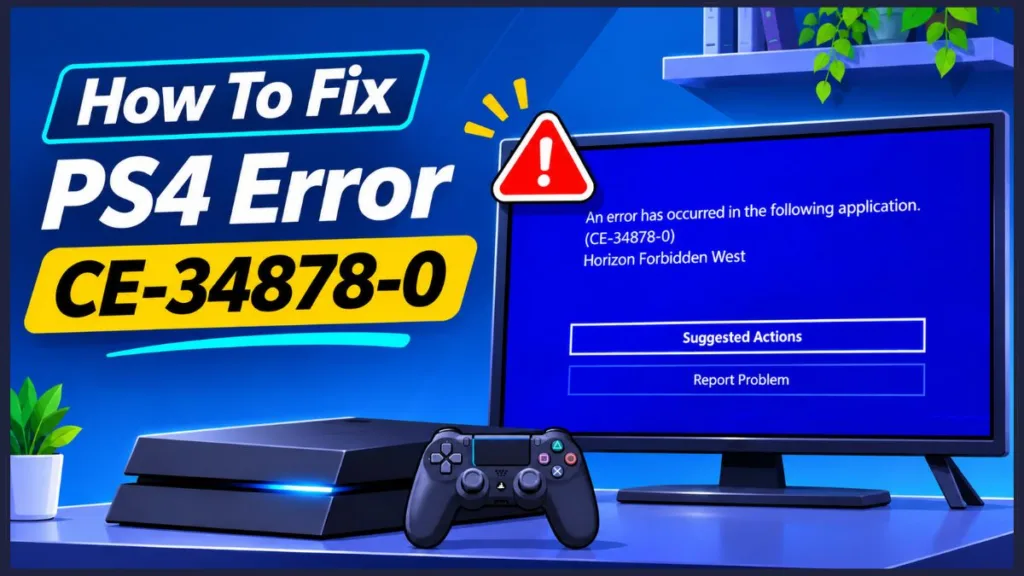
Although PS4 Error CE-34878-0 can be associated with corrupted game data, outdated software, or other system-related problems, it doesn’t automatically mean your console is permanently damaged. Start with the recommended troubleshooting methods below, then consider the additional database and cooling-related fixes if the problem persists.
What Is PS4 Error CE-34878-0?
PS4 Error CE-34878-0 is a general game or application crash error that occurs when a running game or application unexpectedly stops working on your PlayStation 4.
The error message indicates:
An error has occurred with the application.
When this error appears, your PS4 may close the affected game and display an error notification. You might encounter it while playing a game, launching an application, or returning to a game after leaving it suspended.
The error doesn’t automatically mean your PS4 hardware is damaged. It can be associated with corrupted game files, outdated software, or other system-related problems.
Why Does PS4 Error CE-34878-0 Keep Appearing?
PS4 Error CE-34878-0 can occur because of corrupted game data, outdated system software, or other software and hardware-related problems.
This problem can become particularly frustrating when restarting your console, reinstalling games, or updating system software doesn’t stop the crashes. You might even notice that some games work normally while others repeatedly crash with the same error code.
Although a temporary system glitch may disappear after restarting your console, recurring crashes can require additional troubleshooting. Depending on the symptoms, you may need to rebuild the PS4 database, check the hard drive, or investigate possible overheating and cooling problems.
Don’t immediately assume that your PS4 is permanently damaged. Start with the simpler troubleshooting methods before attempting advanced repairs or resetting your console.
Qucik Fix for PS4 Error CE-34878-0
If you’re experiencing recurring game crashes after trying the standard troubleshooting methods, consider these two additional fixes. Rebuilding the PS4 database addresses certain storage and content-organisation problems, while inspecting the thermal pads is an advanced hardware-maintenance option for consoles showing signs of cooling issues.
Rebuild the PS4 Database
Rebuilding the PS4 database can help resolve certain system and data-organisation problems that may affect console performance or game functionality.
This Safe Mode feature scans your PS4’s internal storage drive and creates a new database of the content stored on the system. It can be useful when you’re experiencing system feature problems or when deleted game icons continue appearing on the home screen.
To rebuild your PS4 database, follow these steps:
- Turn off your PS4: Press and hold the Power button on your console for approximately three seconds until the system powers down completely.
- Enter Safe Mode: Once your PS4 is off, press and hold the Power button again. Release it after hearing the second beep, which occurs approximately seven seconds after the first beep.
- Connect your controller: Use a USB cable to connect your DualShock 4 controller to the PS4.
- Access the Safe Mode menu: Press the PS button on your controller to display the available troubleshooting options.
- Select Rebuild Database: Navigate to Option 5 – Rebuild Database and select it.
- Start the process: Follow the on-screen instructions to begin scanning your console’s storage.
- Wait for completion: Allow your PS4 to finish rebuilding the database without interrupting the process.
- Restart your console: Once the operation finishes, let your PS4 restart normally and launch the affected game to check whether CE-34878-0 appears again.
Important: Make sure you select Rebuild Database, not Initialize PS4 or Initialize PS4 (Reinstall System Software). These initialization options erase your console data. Back up important information before using Safe Mode, particularly before attempting other recovery options.
Recommendation: Try rebuilding the database if you’re experiencing persistent game crashes, missing game icons, or other system-related problems. However, this process isn’t a guaranteed fix for CE-34878-0. If the error continues, investigate potential game installation, storage, or hardware problems instead of repeatedly rebuilding the database.
Inspect and Replace Degraded Thermal Pads on PS4 Pro
If your PS4 Pro experiences persistent game crashes alongside signs of overheating or cooling problems, consider having its internal thermal pads inspected.
Thermal pads help transfer heat away from internal components, including memory chips and other motherboard components. They maintain thermal contact between these components and the console’s cooling structure. When the pads become damaged, deteriorated, displaced, or lose proper contact, heat transfer may become less effective.
Replacing degraded thermal pads may help restore proper thermal contact when a cooling problem has been identified. However, this is an advanced hardware-maintenance procedure, not a guaranteed fix for PS4 Error CE-34878-0.
Signs Your PS4 Pro May Need Cooling Maintenance
- The cooling fan becomes unusually loud during gameplay.
- Your console displays overheating warnings.
- The PS4 shuts down unexpectedly during demanding games.
- The console has excessive dust buildup around its vents.
- Internal thermal pads appear damaged or displaced during a professional inspection.
Tools and Materials Required for Thermal Pad Replacement
- Compatible replacement thermal pads.
- T8 Torx security screwdriver.
- Phillips screwdrivers.
- Plastic opening tools or a spudger.
- ESD-safe tweezers.
- Isopropyl alcohol and a lint-free cleaning cloth.
- A screw organiser or magnetic parts tray.
Check Your PS4 Pro Model Before Choosing Thermal Pads
Important: Thermal pad thickness, placement, and dimensions can vary between PS4 Pro hardware revisions. Check your console’s model number, such as CUH-70xx, CUH-71xx, or CUH-72xx, before purchasing replacement materials. Don’t assume that one thickness or replacement specification is suitable for every PS4 Pro model.
To inspect and replace degraded thermal pads, follow these general repair steps:
- Turn off and disconnect your PS4: Shut down the console completely, disconnect the power cable, HDMI cable, and other accessories, and allow the system to cool before opening it.
- Remove the hard drive: Depending on your console revision and disassembly procedure, remove the hard drive cover, unscrew the drive caddy, and carefully slide out the HDD or SSD.
- Open the console enclosure: Use an appropriate T8 Torx security screwdriver to remove the required case screws. Carefully release the plastic covers using suitable opening tools without damaging the clips.
- Remove the protective shielding: Follow the disassembly instructions for your exact PS4 Pro revision to access the internal motherboard and cooling assembly. Take photographs of the cable connections and screw positions to make reassembly easier.
- Disconnect internal connectors: Carefully disconnect the required fan connector, antenna cables, ribbon cables, and other connections. Avoid pulling directly on wires or forcing connectors out of their sockets.
- Access the motherboard and thermal pads: Remove the required shielding and retaining hardware to access the motherboard. Inspect the existing thermal pads around the memory chips and other relevant components. Look for torn, displaced, contaminated, or deteriorated pads.
- Remove the damaged thermal pads: Carefully lift the old pads without scratching the motherboard or damaging nearby components. Clean the contact surfaces using an appropriate electronics-safe cleaning method.
- Install compatible replacement pads: Cut the replacement material to the correct dimensions and use the thickness specified for your exact hardware revision. Position each pad over its original contact area, ensuring proper coverage and contact.
- Check the cooling components: Before reassembly, inspect the fan, heatsink, and surrounding cooling structure for dust buildup or other visible problems. Clean them carefully using appropriate electronics-safe tools.
- Reassemble your PS4: Reinstall the motherboard, cooling assembly, protective shields, cables, and connectors in their original positions. Tighten the retaining screws evenly and reattach the console covers.
- Test your console: Reconnect the power cable, start your PS4, and check whether the cooling system operates normally. Launch the affected game and check whether the error continues.
Thermal Pads vs. Thermal Paste: Understand the Difference
Important: Thermal pads and thermal paste are different components. Thermal paste is applied between the processor and heatsink, while thermal pads provide thermal contact for other components. Don’t substitute one for the other or stack pads to compensate for an incorrect thickness.
Opening your PS4 requires careful handling of delicate motherboard components, connectors, and the power supply assembly. Never open the power supply unit itself. Unless you’re experienced with electronics repair, have a qualified console technician perform this procedure.
Recommendation: Consider replacing thermal pads only when an inspection identifies degraded pads or inadequate thermal contact. If your PS4 is overheating, also have the fan, heatsink, and internal dust buildup checked rather than assuming that thermal pads are the only problem.
7 Additional Ways to Fix PS4 Error CE-34878-0
If rebuilding the database and inspecting your PS4’s cooling components haven’t resolved the problem, try these seven troubleshooting methods. Start with the simpler solutions before moving to more advanced procedures to avoid unnecessary data loss or hardware replacements.
1. Restart Your PS4 and Clear the Temporary Cache
A temporary system glitch or suspended game session may cause an application to crash unexpectedly. Restarting your PS4 completely allows the console to shut down fully before starting a fresh session.
Follow these steps:
- Press and hold the PS button on your controller.
- Select Power and choose Turn Off PS4.
- Wait until the console completely powers down.
- Leave it turned off for approximately 10–20 seconds.
- Turn on your PS4 again.
- Launch the affected game and check whether the error returns.
If the error appears after leaving a game suspended for an extended period, close the application instead of repeatedly using Rest Mode.
To close a suspended game, press the PS button, highlight the affected game, press the Options button, and select Close Application.
Recommendation: Try this solution first because it doesn’t require deleting games, changing console settings, or opening the hardware.
2. Check for and Install Game Updates
An outdated game version may contain bugs, compatibility problems, or stability issues that contribute to CE-34878-0. Game developers periodically release updates to address known problems, so check for available updates before attempting more complicated troubleshooting.
Follow these steps:
- Navigate to the PS4 home screen.
- Highlight the game displaying CE-34878-0.
- Press the Options button on your controller.
- Select Check for Update.
- Allow your PS4 to search for available updates.
- Download and install any available update.
- Restart the game after the installation finishes.
If you’re using a game disc, keep it inserted while checking for and installing the required updates.
Recommendation: Prioritise this solution when CE-34878-0 appears with only one particular game. If several games are affected, continue with the system software update.
3. Install the Latest PS4 System Software Update
Outdated PS4 system software may contribute to application compatibility and stability problems. Installing the latest available system software is one of the recommended troubleshooting methods for CE-34878-0. Keeping your console updated also ensures that you have the latest supported system improvements.
Here’s how to check for system updates:
- Turn on your PS4 console.
- Open Settings from the home screen.
- Scroll down and select System Software Update.
- Allow your PS4 to check for available updates.
- Follow the on-screen instructions to download and install an update if one is available.
- Restart your console after the installation finishes.
Make sure your PS4 remains powered on throughout the update process. Avoid interrupting the installation or disconnecting the console from its power supply.
Recommendation: Use this method when your console’s software is outdated or when multiple games and applications are experiencing stability problems.
4. Disconnect Your PS Camera and Disable Face Recognition
If you’ve connected a PlayStation Camera to your PS4, disconnecting it is another recommended troubleshooting method. You should also disable the Enable Face Recognition setting after disconnecting the camera.
Follow these steps:
- Turn off your PS4 console.
- Disconnect the PlayStation Camera from the console.
- Restart your PS4.
- Open Settings from the home screen.
- Select User.
- Choose Login Settings.
- Find Enable Face Recognition.
- Uncheck or disable this option.
Recommendation: Try this solution when a PlayStation Camera is connected to your console. If your PS4 doesn’t have a camera connected, move to the next troubleshooting method.
5. Reinstall the Affected Game to Fix Corrupted Files
If CE-34878-0 continues appearing with one particular game, its installation files may be corrupted or damaged. In this situation, uninstalling and reinstalling the affected game can help replace problematic installation files with a fresh copy.
Before proceeding, make sure your important saved game data is backed up separately.
Follow these steps:
- Open the PS4 home screen.
- Highlight the affected game.
- Press the Options button.
- Select Delete.
- Confirm that you want to remove the game.
- Wait for the uninstallation to finish.
- Reinstall the game using your game disc or PlayStation Library.
- Download and install the latest available game update.
- Launch the game and check whether the error returns.
Removing the game application is different from deleting its saved data. Avoid selecting or deleting saved game files when removing the application.
Recommendation: Try reinstalling the affected game when other applications work normally but one particular title repeatedly crashes. If several games display the same error, investigate your console’s storage and system condition.
6. Reinstall the Original PS4 Hard Drive
Have you replaced your PS4’s original hard disk drive with another HDD or SSD? If so, the replacement storage device may be contributing to the problem.
If you’ve upgraded the console’s hard drive and continue experiencing CE-34878-0, reinstalling the original HDD is a recommended troubleshooting step.
Follow these steps:
- Turn off your PS4 completely.
- Disconnect the power cable and other connected cables.
- Locate the hard drive compartment.
- Carefully remove the installed HDD or SSD according to your PS4 model’s instructions.
- Reinstall the original PS4 hard drive.
- Secure the drive and reassemble the console.
- Reconnect the cables and turn on your PS4.
- Launch the affected game and check whether the error persists.
Handle the storage drive carefully and avoid forcing it into its connector.
If you no longer have the original HDD, have a technician inspect the replacement drive, its installation, and the console’s storage connection.
Recommendation: This solution is particularly relevant if the error started after you upgraded your PS4 storage. If the original HDD also produces crashes, further storage or hardware inspection may be necessary.
7. Initialize Your PS4 as a Last Resort
If you’ve tried the previous troubleshooting methods and CE-34878-0 continues appearing, initializing your PS4 is a final software troubleshooting option.
Initialization restores your console to its original state by deleting user data stored in its internal storage. This may help when persistent software or system-related problems continue affecting game applications.
Important: Back Up Your Data Before Initializing Your PS4
Initializing your PS4 erases all user and game data stored on the console’s internal storage. Before proceeding, back up your important information, including saved games, screenshots, video clips, and other files you want to preserve.
Follow these steps:
- Turn on your PS4 console.
- Open Settings from the home screen.
- Select Initialization.
- Choose Initialize PS4.
- Follow the on-screen instructions.
- Wait for your console to complete the initialization process.
- Set up your PS4 again and reinstall your games.
- Install the latest available system software and game updates.
- Launch the affected game and check whether the error has disappeared.
You can use a USB storage device or PlayStation Plus cloud storage, depending on your available backup options.
Recommendation: Use initialization only after trying less destructive troubleshooting methods. If CE-34878-0 continues affecting multiple games or appears immediately after launching an application, contact PlayStation Repairs instead of repeatedly resetting the console.
Visit Our Post Page: Blog Page
Discover more from Izoate
Subscribe to get the latest posts sent to your email.