
Amazon doesn’t support Apple Pay at checkout, but you can still use your Apple Card. Here’s exactly how to add it, pay with it, and fix it if something goes wrong.
You’ve got your Apple Card sitting in your Apple Wallet, you’re checking out on Amazon, and… there’s no Apple Pay button anywhere in sight. It’s one of the more confusing moments in online shopping, especially if you’re used to tapping to pay pretty much everywhere else.
Here’s the short version: you can pay for Amazon orders with your Apple Card. You just do it differently than you might expect. Instead of selecting Apple Pay at checkout, you add your Apple Card to your Amazon account the same way you’d add any other credit card. Once it’s saved, Amazon charges it like any other payment method on file.
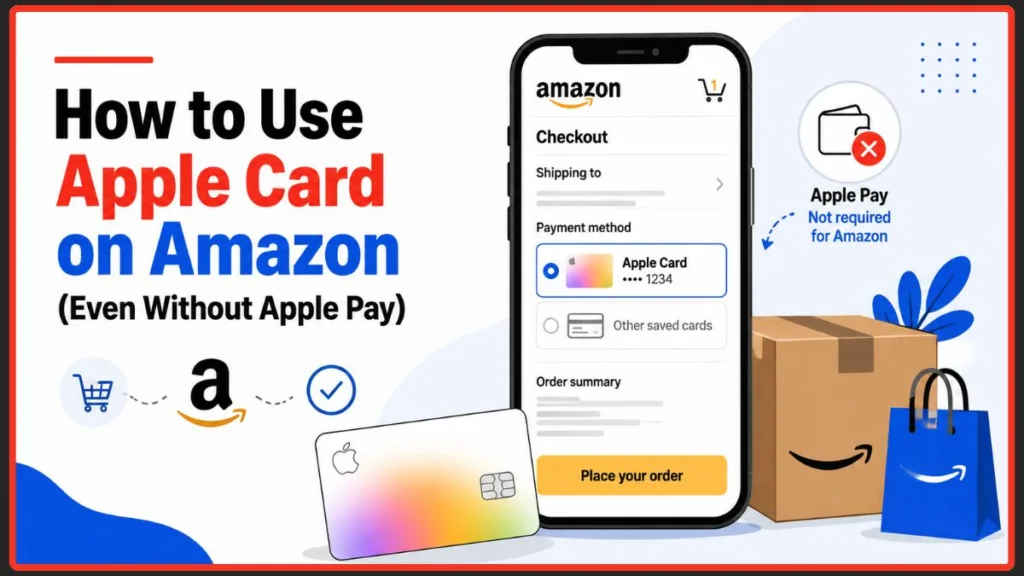
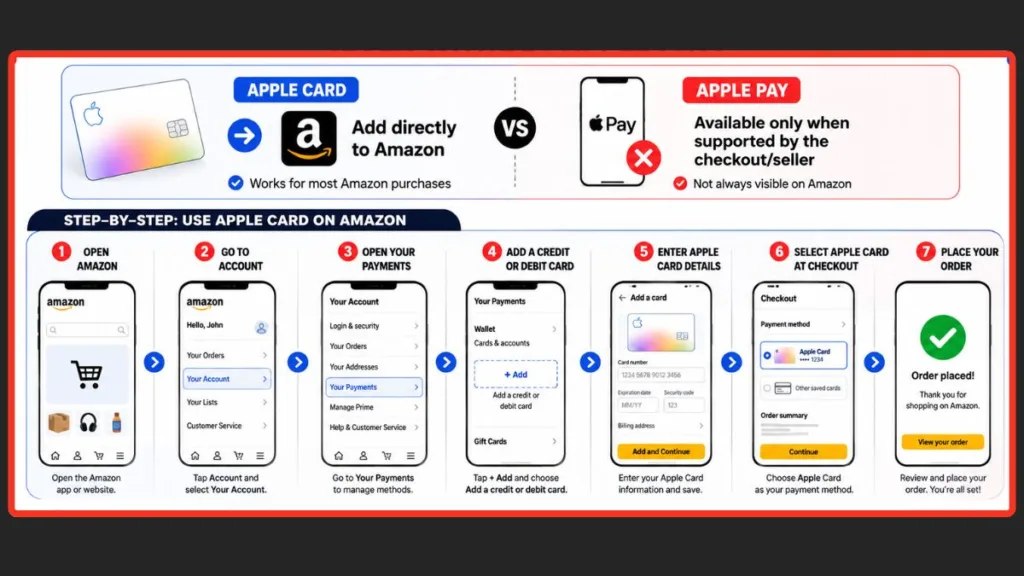
That workaround exists because Apple Card and Apple Pay are two different things, even though both live inside the Wallet app on your iPhone. Apple Card is the actual credit card — the one issuing your statement and your Daily Cash rewards. Apple Pay is the tap-to-pay checkout system that some online stores plug into, and Amazon’s checkout generally isn’t one of them. That’s the whole reason adding your Apple Card directly is the method that actually works.
This guide walks through exactly how to add your Apple Card to Amazon on your iPhone and on desktop, how to select it at checkout, what’s really going on with Apple Pay on Amazon, whether it works for gift cards, and what to try if your card gets declined.
Apple Card vs. Apple Pay: Why the Difference Matters on Amazon
It’s easy to assume that having an Apple Card automatically means you have Apple Pay access everywhere, including on Amazon. That assumption is where most of the confusion starts.
Apple Card is a credit card. It has a card number, an expiration date, and a security code, just like any card in your physical wallet. You can type those details into a payment form anywhere online, including Amazon, whether or not Apple Pay is involved.
Apple Pay is different. It’s Apple’s digital wallet and checkout system. When a store supports it, you can pay by holding your iPhone near a reader, or tapping an Apple Pay option at online checkout, then confirming with Face ID or Touch ID. You never have to type in your card number, because Apple Pay sends a secure, one-time code instead.
Having your Apple Card added to Apple Wallet doesn’t mean Amazon will show you an Apple Pay button. Whether Apple Pay appears depends on Amazon’s checkout system and, in some cases, the individual seller — not on anything set up on your end. Since Amazon’s own checkout doesn’t offer Apple Pay directly, adding your Apple Card the traditional way, as a saved card, is what actually gets you paying with it on Amazon.
Note: Apple Card purchases earn Daily Cash at different rates depending on how you pay. Apple Pay purchases earn 2% (3% at Apple and a handful of partner merchants), but purchases made by typing in your card number — which is what happens once you add Apple Card directly to Amazon — earn the base 1% rate instead. It’s still a real reward, just not the higher Apple Pay rate.
How to Add Your Apple Card to Amazon
Adding your Apple Card to Amazon takes a few minutes, and you only need to do it once. After that, it’s saved to your account like any other payment method.
Adding Apple Card on the Amazon App (iPhone or iPad)
- Open the Amazon app on your iPhone or iPad.
- Tap the Account icon at the bottom of the screen.
- Tap Your Account.
- Scroll down and tap Your Payments.
- Tap + Add next to your saved cards.
- Select Add a credit or debit card.
- Enter your Apple Card’s 16-digit number, expiration date, and security code. If you don’t have the number memorized, open the Wallet app, tap your Apple Card, view the card details, then copy and paste the number into Amazon.
- Tap Add and Continue.
- If you want Amazon to charge this card automatically going forward, check Set as default payment method.
- Tap Save.
Tip: Exact button names can shift slightly between Amazon app versions or regions, but the path is always the same — your account settings, then payment methods, then add a card.
Adding Apple Card to Amazon on Desktop
Prefer to do this on your computer? The process uses the same information, just through Amazon’s website instead of the app.
- Go to Amazon.com and sign in.
- Hover over your name or Accounts & Lists in the top-right corner.
- Select Your Account, then click Your Payments.
- Click Add a Payment Method, then choose Add a credit or debit card.
- Enter your Apple Card’s number, expiration date, security code, and billing address.
- Click Save to add the card to your account.
Once it’s saved, it’s available on both the website and the Amazon app, no matter which one you used to add it.
How to Pay With Your Apple Card at Amazon Checkout
With your Apple Card saved to your account, using it for an order is straightforward.
- Add items to your cart and go to checkout.
- Under Payment method, check which card is currently selected.
- If your Apple Card isn’t already showing, select Change, then choose it from your saved cards.
- Review your order and place it as usual.
Tip: You don’t have to add your Apple Card ahead of time. When you’re already at checkout, you can select Add a credit or debit card right there and enter your Apple Card details on the spot.
Does Amazon Accept Apple Pay?
Not directly, at least not in a way most shoppers will ever run into. Amazon’s own checkout, on the website and in the app, is built around its saved-card system rather than Apple Pay. Amazon has said in the past that Apple Pay support is something individual third-party sellers can choose to enable, but in practice, very few shoppers report actually seeing it appear at checkout.
If you’re wondering whether Amazon accepts Apple Pay for your specific order, the honest answer is: probably not, and there’s no way to check ahead of time other than reaching the payment step and looking. If it’s there, it’ll show up as an option alongside your saved cards. If it isn’t, your saved Apple Card is the reliable path.
Why Apple Pay Might Not Show Up at Checkout
Amazon hasn’t offered a clear public explanation for why Apple Pay isn’t part of its checkout more broadly. What is clear is that it isn’t something you can fix from your end — it doesn’t matter how your Apple Wallet or Apple Card are set up. Whether Apple Pay shows up comes down to settings on Amazon’s side, not yours.
It’s worth knowing that Apple Pay isn’t inherently limited like this everywhere. It works directly at checkout for a long list of other online stores and apps. Amazon is simply one of the more notable exceptions, which is exactly why the Apple Card workaround in this guide exists.
How to Use Apple Pay on Amazon (When It’s Available)
On the rare chance a seller does support it, here’s what actually happens when you try to pay Amazon with Apple Pay directly. You’ll need a card already added to your iPhone’s Wallet app first, since Apple Pay pulls from whatever’s already set up there.
- Open the Amazon app.
- Add items to your cart and go to checkout.
- Check the payment options. If the seller supports Apple Pay, you’ll see it listed.
- Select Apple Pay.
- Review your order and shipping details.
- Authenticate with Face ID or Touch ID.
- Confirm to complete the order.
The main advantage of real Apple Pay, when you can use it, is that you skip typing in your card number entirely. Apple Pay sends a secure token instead, and you authenticate with your face or fingerprint rather than entering anything manually. If you don’t see Apple Pay listed anywhere in your payment options, that particular seller hasn’t enabled it — there’s no separate setting on your account that adds it.
Can You Use Apple Pay for Amazon Gift Cards?
It depends on where you’re buying the gift card.
If you’re buying an Amazon gift card directly on Amazon, you’re checking out through Amazon’s normal system, so the same rules apply as any other Amazon purchase. You’ll pay with a saved card, like the Apple Card you added earlier, not Apple Pay.
If you’re buying an Amazon gift card from a different retailer that accepts Apple Pay, such as certain gift card marketplaces or grocery, drugstore, and convenience store apps that sell Amazon gift cards, you can pay for that gift card with Apple Pay through their checkout. Once you have the gift card code, redeem it on Amazon under Account & Lists > Gift Cards > Redeem a Gift Card, and the balance gets added to your account like cash.
Tip: If you go this route, stick to well-known, reputable retailers for buying gift cards. It’s a legitimate workaround, but it only pays off if the source is trustworthy.
Troubleshooting: What to Do If Apple Card Isn’t Working on Amazon
If your Apple Card gets declined or won’t save to your account, a few things are usually to blame.
- Double-check the card details. It’s an easy number to mistype. Recheck the 16-digit number, expiration date, and security code, or copy them directly from the Wallet app to avoid errors.
- Confirm your billing address matches. Amazon compares the billing address you enter against what your card issuer has on file. If they don’t match exactly, the card can be declined.
- Remove and re-add the card. If a card that used to work suddenly stops, deleting it from Your Payments and adding it again often clears things up.
- Select it manually if it’s not the default. If Apple Card isn’t set as your default payment method, make sure you’re actively choosing it at checkout instead of assuming Amazon will use it automatically.
- Check for a hold or restriction. Card issuers occasionally flag a transaction for extra security, especially for a large or unusual order. Check the Wallet app for alerts, or reach Apple Card support directly through the Wallet app’s Support option.
- Contact Amazon if the account itself seems flagged. In rare cases, Amazon restricts which payment methods an account can use. If nothing else works, Amazon customer service can confirm whether that’s happening.
Frequently Asked Questions
Does Amazon accept Apple Pay?
Not through its own checkout. Amazon’s website and app are built around saved credit and debit cards rather than digital wallets like Apple Pay. Individual third-party sellers can technically enable it, but it’s uncommon in practice.
How do I add Apple Pay to my Amazon account?
You don’t add Apple Pay itself. There’s no toggle for it. What you add is the card linked to Apple Pay — your Apple Card, for example — as a regular saved card through Your Payments in your Amazon account settings.
Can I use Apple Pay to buy an Amazon gift card?
Not directly on Amazon.com, since Apple Pay isn’t a checkout option there either. You can use Apple Pay to buy an Amazon gift card through a different retailer that accepts it, then redeem the resulting gift card code on Amazon.
Can I pay on Amazon with my Apple Card from a computer, not just my phone?
Yes. The steps are nearly identical to the app: go to Your Account > Your Payments on Amazon.com, add your Apple Card as a credit card, and it’s available at checkout on both desktop and mobile from then on.
Why isn’t Apple Pay showing up when I check out on Amazon?
Most likely because the seller you’re buying from hasn’t enabled it, or because Amazon’s checkout doesn’t support it for that particular order. It isn’t a sign that something’s wrong with your Apple Wallet or iPhone settings.
Does my Apple Card still earn Daily Cash when I use it on Amazon?
Yes, but at the base 1% rate rather than the higher Apple Pay rates. Since adding your Apple Card to Amazon means typing in the card number rather than paying through Apple Pay, it earns Daily Cash the same way any manually entered Apple Card purchase does.
What else can I use Apple Pay for besides Amazon?
Plenty. Apple Pay works directly at checkout for a large number of online stores, apps, and physical registers that support it. Amazon is simply one of the more notable exceptions.
Final Thoughts
For most people, the simplest and most reliable way to shop on Amazon with an Apple Card is to add it directly to your account as a saved payment method, then select it at checkout like you would any other card. Apple Pay might occasionally show up for a specific seller, but it’s not something to count on.
Once your Apple Card is added, it works the same as any other saved payment method: quick to select, easy to update, and ready whenever you check out. If you run into an issue these fixes don’t solve, drop a comment with what you’re seeing. It helps other readers dealing with the exact same thing.
Visit Our Post Page: Blog Page
Discover more from Izoate
Subscribe to get the latest posts sent to your email.