
Keep getting the Pokémon GO network error 2? You aren’t banned! Learn exactly what causes this connection glitch and follow our easy steps to fix it fast.
Did you just get booted to the login screen right after defeating a Dynamax boss? Maybe you were in the middle of a shiny appraisal, or you were just steps away from finishing your 10-year anniversary research tasks when everything froze.
If you are dealing with the Pokémon GO network error in 2026, take a deep breath—you are not alone, and more importantly, you are not banned or hacked.
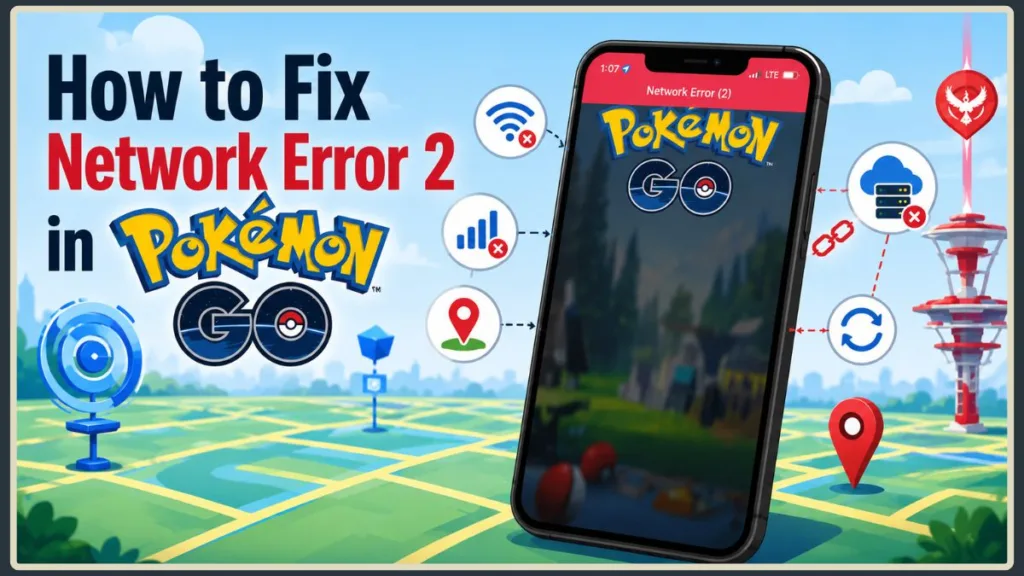
This sudden crash usually causes a wave of panic, especially when it refuses to let you log back in. However, this is simply a known connectivity bug. In this guide, we will walk through exactly what this glitch means and provide practical, step-by-step solutions to get you back to catching Pokémon.
What is Network Error 2 in Pokémon GO?
At its core, Pokémon GO network error 2 is a generic connection-to-server error code. It simply means that the communication between your smartphone and Niantic’s game servers has completely dropped.
You might see this pop up with a sudden “Prepare a battle” message, or it might happen when your game is trying to sync with an auto-catcher device like the Pokémon GO Plus. If you experience a Pokémon GO error when joining a raid lobby or during a local trading session, this exact server disconnect is usually the culprit.
Why Do I Keep Getting Network Error 2 in Pokémon GO?
If you are asking yourself, “why do I keep getting network error 2 in Pokémon GO?”, the answer usually comes down to three main culprits:
- Global Server Outages: Sometimes the servers simply crash under pressure. Massive updates, transitions to new game versions, or heavy traffic during special Community Day events can bring the entire system down for everyone.
- Data Connection Drops: Your phone might be struggling to hand off its connection. When you walk out of range of your home Wi-Fi and your phone tries to switch over to 5G or 4G cellular data, the game can easily lose its connection to the server.
- Feature Glitches: New mechanics often introduce temporary bugs. You might experience the error due to a remote berry feeding bug, an unexpected GPS location glitch, or even gym battle animation lag that disrupts the server handshake.
How to Fix Network Error 2 (Pokémon GO Solution)
When your Pokémon GO keeps freezing on a network error, your first instinct might be to immediately delete and reinstall the app. Hold off on that! Reinstalling wastes time and data, especially if the servers are simply down for everyone.
Instead, try these practical steps to find your network error 2 Pokémon GO fix:
1. Check if Pokémon GO is Down Right Now
Before you start changing settings on your device, you need to know how to check Pokémon GO server status. If there is a massive server outage, no amount of troubleshooting on your phone will help.
- Head over to a third-party tracker like Downdetector to see if there is a sudden spike in player reports.
- Check the official Niantic Support page on X for real-time updates from the developers.
- Look at community hubs like https://www.reddit.com/r/pokemongo/ to see if players worldwide are locked out.
2. Toggle Your Wi-Fi and Cellular Data
If the servers are running fine for everyone else, the issue is likely your local connection. Toggling Wi-Fi and cellular data is often the quickest way to force a fresh ping to your local cell tower.
- Swipe down on your phone to open your quick settings.
- Turn on Airplane Mode and wait for about 10 seconds.
- Turn Airplane Mode back off.
- Allow your phone to reconnect to your cellular network and reopen the game.
3. Refresh Your Login Token
Sometimes, your active gameplay session gets stuck in a loop with the server. You can fix this by forcing a fresh authentication.
- Tap the Poké Ball menu and go to your Settings.
- Scroll to the bottom and select Sign Out.
- Completely close the app from your phone’s background multitasker.
- Open the game and log back in using your Google Sign-In, Apple ID, or Meta (Facebook) account.
4. Clear Your App Cache
Corrupted temporary files can cause the game to stutter and drop its connection. You can resolve this when you clear app cache on iOS and Android.
- For Android: Go to your phone’s Settings > Apps > Pokémon GO > Storage, and tap Clear Cache.
- For iOS: Apple doesn’t have a direct clear cache button. You will need to go to Settings > General > iPhone Storage, select Pokémon GO, and tap Offload App. This removes the temporary files but keeps your data safe. Simply tap the app icon on your home screen to reinstall the core files.
Frequently Asked Questions
Does Network Error 2 mean my account is banned?
No, you do not need to worry about a ban! If you were permanently banned or suspended, you would see a very specific splash screen explicitly stating your account status the moment you try to log in. A network error simply means your phone cannot talk to the servers right now.
Will I lose my Pokémon if I get a network error after a raid?
Dealing with the Pokémon GO network error 2 after a raid is incredibly frustrating, but you usually will not lose your Pokémon. If you encounter the network error 2 raid glitch in Pokémon GO while on the catch screen, simply restart your app. As long as the raid timer hasn’t expired on the map, you can tap the gym again and it will place you right back into the encounter screen. This is the most reliable Pokémon GO gym error 2 workaround available.
Similarly, if you run into a Pokémon GO network error when fighting a gym, restarting the app and re-entering the battle will usually sync your damage and let you pick up where you left off.
Wrapping Up
While running into a Pokémon GO network error 2 at a gym or during a major event is a massive headache, it almost always boils down to a temporary server outage or a quick local network hiccup. By checking the server status first and then refreshing your phone’s connection, you’ll be back to catching and raiding in no time.
Are you dealing with this network error right now, or did you find another clever workaround that fixed the issue for you?
Visit Our Post Page: Blog Page
Discover more from Izoate
Subscribe to get the latest posts sent to your email.