
Want your iPhone to work smarter in 2026? Learn how to use Apple Shortcuts with the best shortcuts and automations. From Siri commands and custom workflows to Apple Intelligence features, save time and boost productivity today.
You probably spend a lot of time on your iPhone running one task after another—checking the weather, opening your calendar, texting a partner that you are leaving work, and shuffling a playlist. Think about how much time you could save if you automated those tasks or combined them into a single tap.
That is exactly what Apple Shortcuts do. The Shortcuts app is essentially a magic wand for your iPhone, allowing you to string together complex actions into simple, automated workflows. By the end of this guide, you will learn exactly what Apple Shortcuts are, the best pre-built shortcuts you can copy right now, how to build your own from scratch, and how to set up background automations to instantly boost your productivity.
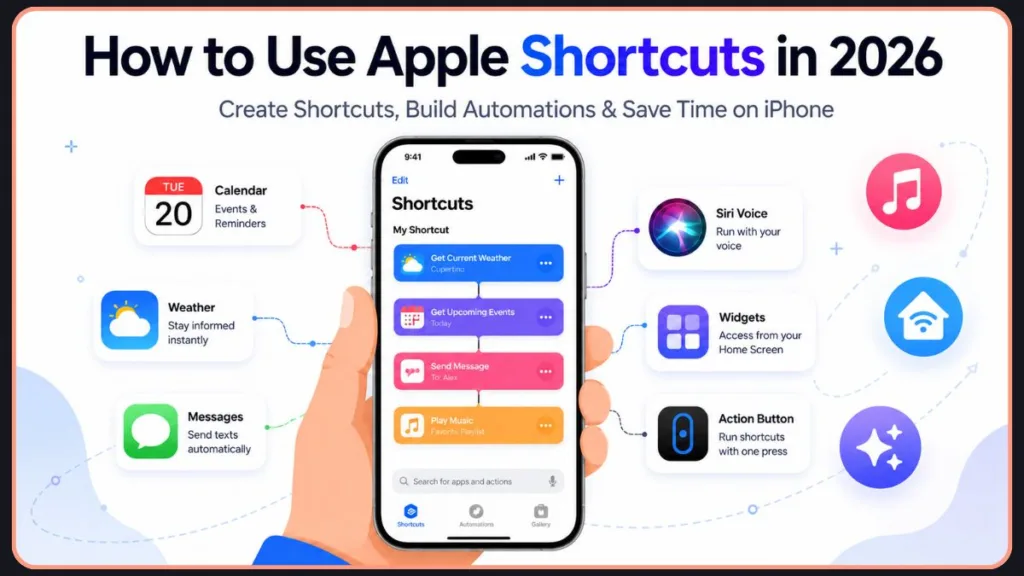
Apple Shortcuts is Apple’s built-in automation app that lets you combine multiple actions into a single tap, Siri command, widget, or automated workflow. You can use it to send messages, open apps, control smart devices, create routines, and automate repetitive tasks on iPhone, iPad, Apple Watch, and Mac.
What Are Apple Shortcuts?
The Shortcuts app is Apple’s built-in automation tool. It allows you to create custom workflows that perform a series of tasks across your apps with a single tap or a Siri voice command.
How Apple Shortcuts Work: Shortcuts operate on a simple logical flow. To use them effectively, you need to understand four core components:
- Actions: The individual building blocks. An action is a single step, such as “Get Current Weather,” “Send Message,” or “Open App.”
- Workflows: The sequence of actions. You string actions together to create a workflow (e.g., Get Weather $ \rightarrow $ Format Text $ \rightarrow $ Send Message).
- Automation: A shortcut that runs by itself in the background when a specific trigger occurs (like arriving at a location or hitting a specific time).
- Siri Integration: Every shortcut you build can be triggered hands-free by saying, “Hey Siri, [Name of Shortcut].”
Apple Shortcuts vs Siri Shortcuts: Many users still search for “Siri Shortcuts,” which was the original name of the feature when Apple introduced it in iOS 12. Today, they are essentially the same thing, all managed within the central Shortcuts app. The primary distinction in daily use is that a “Shortcut” is a workflow you tap or trigger on your screen, while a “Siri Shortcut” refers to triggering that exact same workflow using a voice command (e.g., “Hey Siri, Morning Routine”).
Many third-party apps also include an “Add to Siri” button, allowing you to create simple, voice-activated shortcuts without building them from scratch.
Difference Between Shortcuts and Automations: While they live in the same app, they serve different purposes.
| Feature | Shortcuts | Automations |
| Trigger | Manual | Automatic |
| Runs in Background | No | Yes |
| Siri Support | Yes | Yes |
| Best Use Case | On-demand tasks | Recurring actions |
What You Can Do With Apple Shortcuts: The possibilities are virtually endless. You can build workflows to automatically text your ETA to a contact, shuffle a specific workout playlist, launch two apps back-to-back for a morning routine, turn off your alarms while reading the news and starting your coffee maker, or control smart devices by turning off all your HomeKit lights at once.
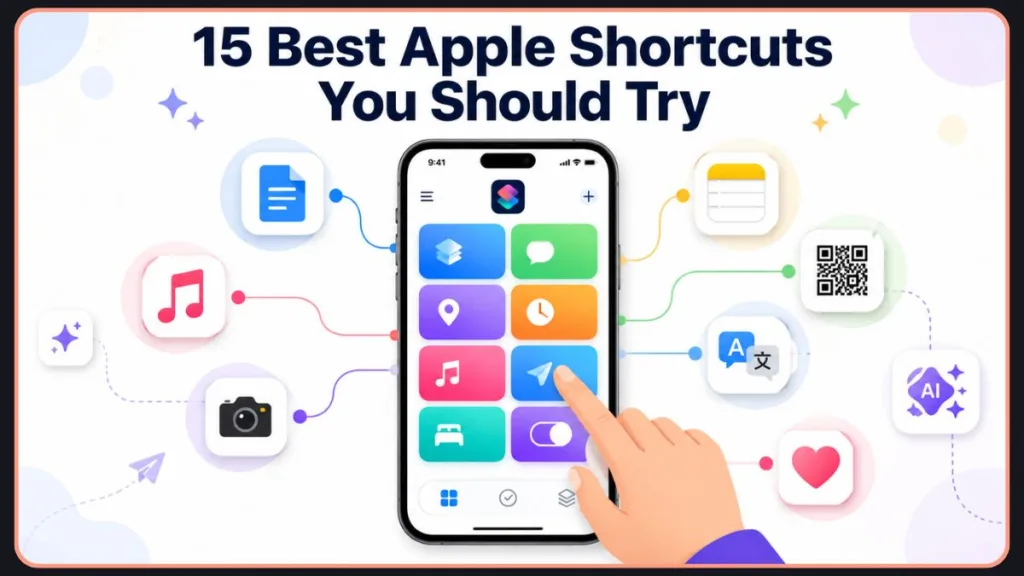
15 Best Apple Shortcuts You Should Try
Ready to supercharge your device? Here are 15 incredibly useful shortcuts you can build or download from the Gallery today to immediately boost your productivity, organized by category for easy scanning.
Productivity Shortcuts
- Convert Photos to PDF (Custom Shortcut): Essential for students and professionals. Select multiple images from your gallery, and this shortcut merges them into a single, easily shareable PDF document.
- Morning Routine (Custom Shortcut): Combines the “Get Current Weather,” “Get Upcoming Events,” and “Play Music” actions. Trigger this when you wake up to get a complete briefing for your day.
- Open Multiple Apps at Once (Custom Shortcut): Create a workflow that opens your email app, pauses for a second, and then opens your calendar.
If your iPhone supports Split View or you are on an iPad, this creates an instant productivity dashboard.
- AI Summary Shortcut (Custom Shortcut): Leverages the new Apple Intelligence features in the latest version of iOS. Pass any long article or email into this shortcut, and the on-device AI can instantly generate a 3-bullet summary.
- Quick Notes Shortcut (Custom Shortcut): Pops up a blank text box instantly. Whatever you type is automatically appended to a master “Quick Notes” file in your Apple Notes app.
- Take a Break (Apple Gallery Shortcut): Tapping this will immediately turn on Do Not Disturb and set a timer for a specific number of minutes, allowing you to focus completely uninterrupted.
Communication Shortcuts
- Text Last Image (Apple Gallery Shortcut): A massive time-saver. With one tap, this grabs the most recent photo in your Camera Roll and drops it into an iMessage ready to send. Perfect for sharing screenshots quickly.
- Translate Text (Custom Shortcut): A lifesaver for travelers. It takes any text on your clipboard, translates it to your desired language, and copies the result back to your clipboard.
- Speed Dial Contacts (Custom Shortcut): Instead of digging through your address book, create a dedicated shortcut to call your partner or best friend. Place it as a widget on your Home Screen for one-tap calling.
Media & Creativity Shortcuts
- Shazam Song Finder (Apple Gallery Shortcut): Instantly triggers the Shazam music recognition tool and saves the identified song to a designated Apple Music playlist.
- QR Code Generator (Custom Shortcut): Takes whatever URL is currently in your clipboard and instantly generates a scannable QR code image you can save or share.
- Create GIF From Photos (Custom Shortcut): A favorite for social media creators. Select a burst of photos or a video clip, and this shortcut instantly converts it into a looping GIF.
Health & Fitness Shortcuts
- Water Tracker (Custom Shortcut): Uses the “Log Health Sample” action. Tap it to instantly log 8oz of water into the Apple Health app without needing to open the app and navigate the menus.
- Log Workout (Custom Shortcut): Creates a one-tap shortcut on your Home Screen that instantly opens the Fitness app and begins tracking your preferred workout type (like an Outdoor Run or Strength Training) so you don’t have to fiddle with menus at the gym.
Utility Shortcuts
- Calculate Tip (Apple Gallery Shortcut): A simple mathematical workflow that asks for your bill total, calculates standard tip percentages, and tells you the final amount you owe.
10 Best iPhone Automations to Save Time
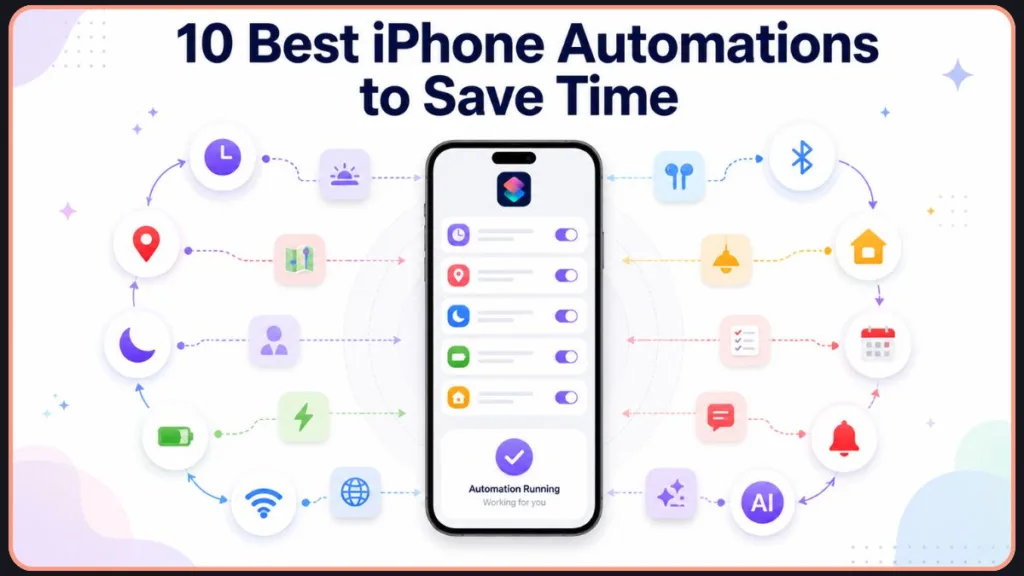
Automations run silently in the background. Here are 10 of the best to set up and forget.
1. Morning Automation
- Trigger: When your morning alarm is stopped
- What it does: Turns on your smart lights and reads the weather
- Why it’s useful: Eases you into the day without needing to touch your screen
2. Sleep Automation
- Trigger: Wind Down begins (via Apple Health Sleep Schedule)
- What it does: Turns on Do Not Disturb and dims the screen brightness
- Why it’s useful: Promotes better sleep hygiene by reducing distractions
3. Work Mode Automation
- Trigger: Arrive at your work address
- What it does: Activates the “Work” Focus Mode and silences non-essential notifications
- Why it’s useful: Instantly gets you into a productive headspace
4. Driving Automation
- Trigger: Your iPhone connects to your car’s Bluetooth or CarPlay
- What it does: Opens Google Maps and resumes your favorite podcast
- Why it’s useful: Keeps your hands on the wheel and your eyes on the road
5. Battery Saver Automation
- Trigger: Your battery falls below 20%
- What it does: Turns off Wi-Fi, lowers brightness, and enables Low Power Mode
- Why it’s useful: Stretches out those crucial last few percentages of battery life
6. AirPods Automation
- Trigger: Bluetooth connects to your specific AirPods
- What it does: Sets the media volume to a safe 40% and opens Spotify
- Why it’s useful: Prevents you from accidentally blowing out your eardrums with loud music
7. Home Arrival Automation
- Trigger: Arrive at your home address
- What it does: Disarms your HomeKit security system and texts your partner that you are home
- Why it’s useful: Seamless smart home integration
8. Leave Work Automation
- Trigger: Leave your work address
- What it does: Calculates the travel time home and sends that ETA to your family
- Why it’s useful: Keeps everyone informed automatically
9. Charging Automation
- Trigger: Your iPhone is connected to power
- What it does: Speaks the phrase, “Device is charging”
- Why it’s useful: Gives you audible confirmation that your cable is actually working
10. Wi-Fi Automation
- Trigger: Connect to your home Wi-Fi network
- What it does: Turns off cellular data
- Why it’s useful: Prevents you from accidentally burning through your data cap while sitting on your couch
How to Open and Use Apple Shortcuts on iPhone
If you want to get started immediately, here is the quickest way to use your first shortcut:
1.Open the Shortcuts app:
Locate and open the Shortcuts app on your iPhone.
2.Browse the Gallery:
Tap the Gallery tab at the bottom to view pre-built options.
3.Tap Add Shortcut and run it:
Select any shortcut, tap Add Shortcut, then head to your library to tap it and run it.
Find the Shortcuts App
The app comes pre-installed on modern iOS versions. If you don’t see it on your Home Screen, simply swipe down to open Spotlight Search and type “Shortcuts,” or check your App Library under the Utilities folder.
Browse the Gallery
You don’t have to build everything from scratch; the Gallery tab at the bottom of the app is Apple’s official repository of pre-built workflows.
It is categorized into sections like “Starter Shortcuts,” “Morning Routine,” and “Apple Intelligence.” Here you will also find foundational guides like What’s a Shortcut?, as well as dedicated collections like Accessibility shortcuts and Apple Music shortcuts.
Install a Shortcut
If you want to start downloading right away, search the Gallery for highly requested pre-built tools like “Take a Break” (automatically silences notifications and sets a timer), “Text Last Image” (instantly shares your most recent screenshot), or the “Shazam Shortcut” (identifies the song playing around you with a single tap). When you find a shortcut you like, tap it to view its details. Tap Add Shortcut, and it will be saved to your “All Shortcuts” library. Sometimes, it will prompt you to configure a setup step, such as selecting which playlist it should use or which contact it should text.
Run a Shortcut
Once a shortcut is in your library, you have several ways to trigger it. You can open the Shortcuts App and tap the colored tile, or simply say to Siri, “Hey Siri, [Shortcut Name].” For quicker access, you can add the shortcut directly to your Home Screen as an app icon, place a Widget on your Home Screen or Lock Screen, or run it on specific files directly from the iOS Share Sheet. If you have an iPhone 15 Pro or later, you can even map any shortcut to the physical Action Button.
Use Shortcuts With Siri
Siri and Shortcuts are heavily intertwined, allowing you to execute complex tasks completely hands-free. Any shortcut you create automatically becomes a Siri command. If you name a shortcut “Start My Workout,” you simply say, “Hey Siri, Start My Workout,” and the workflow executes.
You can even build workflows designed specifically to respond to custom voice prompts using the “Ask for Input” action, where Siri stops midway through a shortcut and asks you a question (e.g., “Siri, log my weight” $\rightarrow$ Siri asks, “What is your weight today?”)..
These hands-free ideas are perfect while cooking (“Hey Siri, convert measurements” to quickly calculate cups to grams) or while driving (“Hey Siri, traffic report” to get the commute time to your next calendar event).
Use Shortcuts Across Devices
The beauty of the Shortcuts ecosystem is that it lives in iCloud, meaning your workflows sync seamlessly across all your Apple hardware. You can run shortcuts directly from your Apple Watch by opening the app on your wrist or adding a complication to your watch face, provided the actions don’t require opening a full iPhone app like Camera. On the iPad, workflows utilizing Split View or interacting with the Apple Pencil shine, allowing for complex document management and multitasking automations. On macOS Monterey and later, shortcuts can interact with your desktop environment, allowing you to resize windows, batch-rename files in Finder, or run terminal scripts directly from the Mac Menu Bar.
To ensure this works, verify iCloud syncing is turned on by going to Settings > Apps > Shortcuts on your iPhone and toggling on iCloud Sync. Build it once on your phone, and use it everywhere.
How to Create a Shortcut on iPhone
Building your own custom workflows is where the app truly shines. To build your first workflow, follow these steps:
1.Open the Shortcuts app:
Navigate to the Shortcuts tab (bottom left) and tap the + icon in the top right corner.
2.Add an Action:
Tap Add Action. You can search for a specific app or browse categories like “Media” or “Location.”
3.Configure the Action:
Once added, tap any highlighted blue text within the action block to customize its variables (e.g., choosing which app to open or which contact to message).
4.Stack Actions:
Use the search bar at the bottom to find and add your next step. The actions will run in sequence from top to bottom.
5.Save and Exit:
Tap Done in the top right. Your new shortcut will appear in your library.
Adding Actions:
To make workflows useful, you need to combine actions. For example, a “Heading to Work” shortcut might include opening Maps (set to your office address), playing your morning podcast, and sending a message to your boss saying, “Running 5 minutes late.”
Renaming and Customizing: Tap the small downward arrow next to the shortcut’s default name at the top of the screen. From the drop-down menu, tap Rename to give it a custom Siri trigger phrase. You can also tap Choose Icon to change its color and symbol. From that same drop-down menu, select Add to Home Screen to place it alongside your regular apps for one-tap access.
How to Create Automations on iPhone
Unlike standard shortcuts that wait for you to tap them, Personal Automations run automatically in the background when specific conditions—known as triggers—are met. You can create several types:
- Time-Based Automations: A time trigger executes a workflow at a specific hour. For example, you can set an automation to automatically turn off Do Not Disturb, set your volume to 50%, and read you the day’s weather forecast every weekday at 7:00 AM for your morning routine.
- Location-Based Automations: Location triggers fire when your iPhone’s GPS registers you arriving at or leaving a specific place. For example, create an automation that automatically opens your Apple Notes grocery list the moment you arrive at your local supermarket.
- App-Based Automations: These trigger whenever you open or close a specific application. If you only listen to music in the car, you can set an automation to automatically hit “Play” on Apple Music the second you open Apple Maps.
- Battery and Focus Mode Automations: Your iPhone’s system state can also trigger actions. You can toggle Low Power Mode on automatically when your battery dips below 30% to save juice, or automatically change your Apple Watch face to a professional layout whenever your “Work” Focus Mode activates.
As an advanced automation use case, newer iPhone models have deeply integrated Apple Intelligence, creating a massive new search opportunity for users wanting AI on their devices. This allows your automations to process and generate content on the fly without relying on third-party apps. Examples of Apple Intelligence-powered workflows may include:
- Summarize Text: Using the “Summarize Text” action to pass any webpage, long email thread, or PDF into the AI model. The system can process the document and output a concise, bulleted summary directly into your Notes app or via a pop-up alert.
- Smart Replies: Combining actions to scrape your unread messages, pass them to Apple Intelligence to generate context-aware replies based on the conversation history, and present those drafted replies for your approval with a single tap.
- Generate Image: The “Generate Image” action allowing you to build a shortcut that takes a text prompt and uses Apple Intelligence to instantly render a custom visual. This generated image could then be automatically attached to an iMessage or saved to your Photos app.
- AI Workflow Ideas: Building advanced nightly automations that review all your calendar events and emails from the day, and use the AI model to generate a custom, prioritized “To-Do” list for the following morning, completely hands-free.
Troubleshooting Apple Shortcuts Not Working
Even the best automations occasionally fail. Here is how to fix the most common issues:
- Shortcut Won’t Run: Usually, this is an issue with broken actions. If an app you used in the shortcut recently updated or changed its structure, the action may fail. Open the shortcut in the editor and look for actions highlighted in red—delete and re-add them.
- Automation Not Triggering: Check your settings.
For time or location triggers, ensure you selected Run Immediately instead of “Run After Confirmation” when building the automation, otherwise, it will just sit as a notification on your Lock Screen waiting for your permission.
- Siri Can’t Find Shortcut: This is often a naming conflict. If you name a shortcut something too similar to a native Siri command (like “Set an Alarm”), Siri gets confused. Rename your shortcut to something unique and highly specific.
- Permission Problems: Shortcuts are sandboxed for security. If a shortcut needs to access a web API or your photo library, it must be granted permission. Go to Settings > Shortcuts > Advanced and ensure the necessary permissions (like sharing large amounts of data) are toggled on.
- Sync Issues Across Devices: If a shortcut built on your iPhone isn’t showing up on your Mac, force a sync by completely closing the Shortcuts app on both devices, checking your Wi-Fi connection, and ensuring both devices are logged into the same Apple ID.
Frequently Asked Questions
What are Apple Shortcuts used for?
They are used to automate repetitive tasks, combine multiple steps into single actions, and connect different apps to streamline your digital life.
Are Apple Shortcuts free?
Yes. The Shortcuts app is built directly into iOS, iPadOS, and macOS, and it is completely free to use.
Can Apple Shortcuts run automatically?
Yes, by using the Automation tab within the app. You can set them to trigger based on time of day, location, battery level, or opening an app.
What are the best Apple Shortcuts?
The best shortcuts are the ones that solve your personal pain points. However, universal favorites include the Water Tracker, Morning Routine summary, and the new Apple Intelligence AI summary tools.
Can you download Apple Shortcuts?
Yes. You can download shortcuts from Apple’s Gallery, app-specific shortcut collections, or trusted communities such as RoutineHub. Always review a shortcut’s actions before running it to ensure it does exactly what you expect.
Are Apple Shortcuts safe?
Yes. Shortcuts built by Apple or created by you are entirely safe. If you download a shortcut from a third-party website, iOS will display a warning and allow you to inspect the actions before running it to ensure it isn’t doing anything malicious with your data.
Can I share shortcuts with others?
Yes. You can tap the Share icon on any shortcut to generate an iCloud link, which you can text or email to anyone so they can download your exact workflow.
Can I use Apple Shortcuts on Apple Watch?
Yes. Most shortcuts can be run from the Apple Watch app or as a watch face complication, provided the actions don’t require opening an iPhone-specific application.
What’s the difference between a shortcut and an automation?
A shortcut requires you to manually trigger it (by tapping a button or asking Siri). An automation triggers itself in the background when a specific condition (like a time or location) is met.
Conclusion
Apple Shortcuts transform your iPhone from a simple communication device into a highly personalized, automated assistant. While the interface can seem complex at first glance, the benefits of learning the system are massive.
Start small. Browse the Gallery, download a simple pre-built shortcut, and see how it works. Once you get comfortable, try building a basic background automation—like turning on Low Power Mode automatically—because automations are where you will see the biggest productivity gains.
As you advance, experiment with integrating Siri voice commands, Home Screen widgets, and the powerful new Apple Intelligence features to make your device work smarter, not harder.
Recommended First Steps:
- Install a Gallery shortcut: Find one that appeals to you and tap to add it.
- Create a custom shortcut: Try combining two simple actions you use daily.
- Create your first automation: Set up a simple time-based trigger for tomorrow morning.
Visit Our Post Page: Blog Page
Discover more from Izoate
Subscribe to get the latest posts sent to your email.