
Can’t find your recent orders on Amazon in 2026? Learn how to open Your Orders, search and filter your order history, and find missing purchases. Let’s learn how to view my recent Amazon orders. Find the order you need and know exactly what to do next.
Online shopping on Amazon has become routine for millions of people across dozens of countries. You order, it arrives, and you move on. Then something comes up: a parcel hasn’t shown up, a repair desk wants proof of purchase, or you can’t remember whether you already bought that charger.
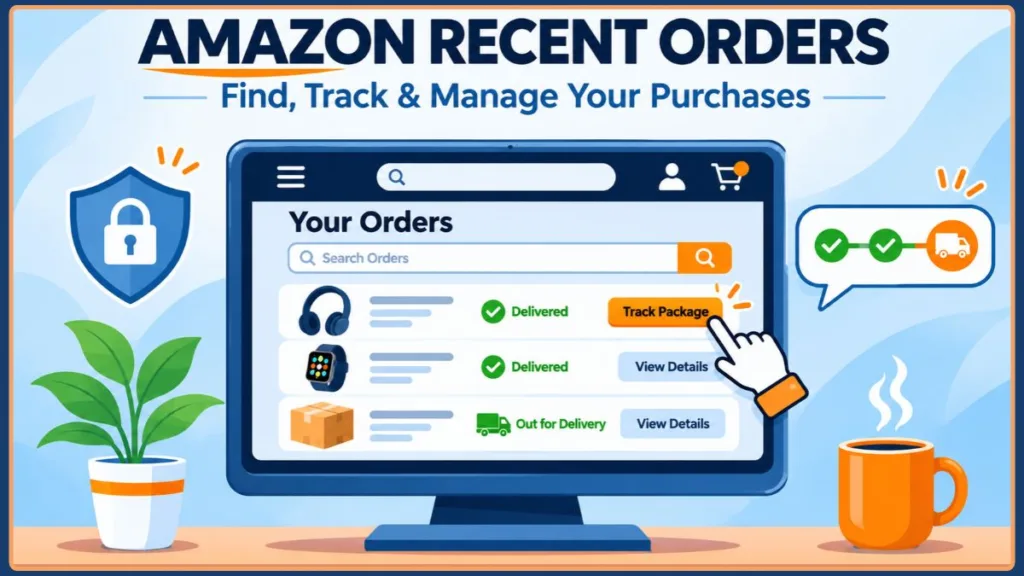
That’s when the order you need isn’t where you expect it. The good news is that your Amazon recent orders are almost always still there. You just need to know where to look, which filters to check and which old tips to ignore.
Key Insight: The Orders page usually opens on your most recent purchases only. If an older order looks missing, check the time-range filter, the account and the country store you’re signed into before you assume anything is wrong.
What Are “My Recent Orders” on Amazon?
“My Recent Orders” isn’t a separate feature. It’s how most people describe the Your Orders page, the place where Amazon keeps a record of everything you’ve bought.
From there, you can usually:
- Browse your latest purchases in date order
- Search for a product by name, brand or model
- Track a package that’s on its way
- Open order details, invoices and order summaries
- Reorder items you’ve bought before
- Start a return or replacement, or get help with a marketplace seller’s order
The labels and layout vary a little between countries, languages and app versions, but the purpose of each button stays the same. That’s why this guide describes what each option does, not just where it sits on the screen.
Why You Might Need to Check Your Recent Orders on Amazon
Most people open this page with a specific job in mind. Here are the most common ones.
- Delivery status: You want to know when a parcel will arrive, or whether it already has.
- Proof of purchase: A warranty claim, repair or insurance form often asks for an order number, date or invoice.
- Returns and replacements: You need to start a return, and the option lives inside the order itself.
- Reordering: You want the same item again without searching for it from scratch.
- Spending checks: You’re comparing your bank statement with what you actually bought, or looking for a charge you don’t recognize.
If any of these sound familiar, the sections below walk you through each one.
How to Find Your Recent Orders on Amazon
Start here. The route depends on your device, so follow the section that matches the way you shop.
Before you start: Make sure you’re signed in to the account you used to place the order. If you have more than one login, this is the first thing to check.
On the Amazon website (desktop)
- Sign in to your Amazon account.
- Click Returns & Orders, or hover over Account & Lists and choose Your Orders.
- Your latest orders appear at the top of the list.
- Click an order, or View order details, to open it.
On the Amazon app (Android and iPhone)
The Amazon Shopping app is Amazon’s official mobile app for checking purchases, viewing order details and tracking deliveries. If it is not installed on your device, download it from the official Google Play listing for Android or Apple App Store listing for iPhone and iPad.
- Open the Amazon Shopping app and sign in.
- Tap the profile (person) icon at the bottom of the screen.
- Tap Your Orders.
- Scroll through the list, or tap an order to open it.
On a mobile browser
If you shop through Chrome, Safari or another browser, the steps are close to the desktop ones. Open the menu or account icon and choose Your Orders.
You do not need to install another browser if one already works. If you need Chrome to test whether your current browser is causing a problem, it is an alternative web browser for opening Amazon and other websites.
What to expect: You’ll see your recent orders grouped by purchase date, each showing the item, order status and action buttons such as Track package or Buy it again.
Good to know: Amazon changes its layout from time to time. If a button isn’t where this guide says, look for the one with the same purpose. If the app is in another language, look for the order-list icon, or change the app language in your settings.
Check You’re in the Right Amazon Store Before You Search
Before you start searching, rule out the most common reason orders “disappear”: you’re in the wrong account or the wrong store.
Amazon runs separate country stores, such as Amazon.com, Amazon.co.uk, Amazon.de, Amazon.co.jp, Amazon.com.au and Amazon.in. Each store generally keeps its own order history, even when one login works across several of them.
- Look at the address bar and note which store you’re in.
- Think about where you ordered. A gift sent from a store in another country appears in that store’s history.
- Check which email address you’re signed in with. If you’ve used a different email for Amazon in the past, sign out and sign in with the other one.
- Think about old shared logins. If you ever shared an account with someone, the order may sit in that account.
- Open Your Orders in each store or account you’ve used.
What to expect: If you find the order in another store or account, nothing is wrong with your history. It was simply recorded somewhere else.
How to Search Your Amazon Order History by Product Name
Once you’re in the right place, searching is faster than scrolling for anything older than last week’s purchase.
- Open Your Orders.
- Find the field that searches your orders, usually labeled something like Search all orders.
- Type a product name, brand or model, such as “earbuds” or “Samsung.”
- Select the search button, then open the matching order.
What to expect: Matching orders appear as a list, whichever time period they belong to. On some versions of the app, the order search isn’t limited by the date filter you’ve chosen.
Search in the store’s language: A product listed in German on Amazon.de may not match an English search term, so try the wording used on the product page.
Make sure you’re not using the shopping search: Amazon’s main search bar looks for new products to buy. The orders search looks through what you’ve already bought. If you only see product listings, you’re in the wrong box.
Izoate 2026 Update: You may notice that the order search looks different in your version of the app, or that it doesn’t appear at all. If you can’t find it, skip to the next section and use the time-range filter instead.
How to View Older Amazon Orders With Date Filters
If your purchase isn’t in the recent list and searching hasn’t found it, change the time period.
- Open Your Orders.
- Find the time-range drop-down near the top. Depending on your store, it may be labeled “Orders placed in” or show something like “past 3 months.”
- Choose a longer range or a specific year.
- Scroll through the list, or combine the year with a product search.
What to expect: The list reloads and shows only orders from the period you chose. A year filter plus a keyword narrows results quickly. If the order still isn’t there, try the previous year, since orders placed near January can easily land in the wrong one.
A simple rule works well here. If you remember the product, search for it. If you remember roughly when you bought it, filter by date.
How to Track an Amazon Order From Your Orders Page
When the order you’re looking for is still on its way, tracking takes only a few taps.
Before you start: You need to be signed in. Tracking details are shown inside Your Orders.
- Open Your Orders.
- Find the order you want to follow.
- Select Track package.
- Choose See all updates to view delivery updates and tracking numbers.
What to expect: You’ll see one of these statuses:
- Arriving: Your package is on its way, usually with a date.
- Out for delivery: It should arrive today.
- Delivered: It has been delivered, possibly to a safe place.
- Undeliverable: It couldn’t be delivered and is being returned to Amazon, which refunds you automatically once it arrives back.
Common tracking problems
- Items arrive separately. If you ordered several things, each parcel can have its own delivery date and tracking details.
- Tracking is missing. Some packages, such as standard international deliveries, may not be trackable. For marketplace sellers, tracking appears only if the seller shares it or you chose a trackable shipping option.
- The status hasn’t updated. If your package is due today and nothing has changed yet, that’s often normal. Amazon says most late parcels arrive within 48 hours of the estimated date. For additional steps, see Amazon’s guidance for late deliveries.
- It says Delivered but you can’t find it. Check around your property and with neighbors, then use Amazon’s missing-package help linked from the order.
- An item is missing from a parcel. It may have shipped separately, so check Your Orders before reporting it. Amazon explains how to find a missing item from an order.
If you ordered from a store in another country, delivery can take longer, and customs checks may pause the tracking updates for a few days. Your parcel may also be handed to a local carrier or postal service for the final stretch.
How to Find Your Invoice or Order Summary for an Amazon Order
Tracking tells you where an order is. An invoice proves it was yours, which is what warranty desks, expense reports and tax records ask for.
Before you start:
- Invoices become available once your order ships. Before that, you’ll typically see only an order summary.
- Use a computer if you can. The invoice option is easier to find in a desktop browser than in the app.
- Open Your Orders and find the order, using search or the time-range filter.
- Select Invoice beneath the order number. Amazon’s customer-service help page also lists invoice access among the order-management options.
- Choose Print this page for your records at the top of the order summary.
- Use your browser’s print button, and choose Save as PDF if you want a digital copy.
What to expect: You’ll see a printable page with the order date, items, payment and tax details.
Warnings and common problems
- Invoices can’t be changed after shipping. That includes adding a VAT number or adding serial numbers. If you need a VAT invoice, a business must add its VAT number in the account’s tax registration settings before ordering.
- Marketplace sellers can differ. If an invoice isn’t listed, some stores show Request Invoice under the Invoice menu so you can ask the seller. Otherwise, use the seller contact option on the order page.
- A confirmation email isn’t an invoice. For expense claims, use the invoice from Your Orders.
- Can’t see the order? Switch the time-range filter and try again.
If you buy for a company, a business account may add extras such as purchase order numbers and tax or VAT details, depending on your country.
How to Download Your Amazon Order History
If you want your whole history in one file, for budgeting or record-keeping, the method depends on your account type. Older guides that mention “Order History Reports” for personal accounts are out of date. Amazon retired that tool for personal accounts in 2023.
For personal accounts
Amazon’s data request tool is the current route.
- Go to Amazon’s Request your data page (also called Privacy Central) and sign in. For context on the information Amazon makes available in accounts.
- Select the information you want, such as your orders.
- Select Submit Request.
- Open the confirmation email Amazon sends and select the validation link.
- When your data is ready, use the secure download link Amazon emails you.
What to expect: You’ll receive your data as a downloadable file, often compressed, with spreadsheet-format files inside. Timing varies, so don’t expect it instantly.
For Amazon Business accounts
Business accounts have reporting tools, usually under Business Analytics. You can generate reports for a date range, and past downloads can be found in the download history. Amazon describes these reports as covering orders, shipments, refunds, savings and other purchasing information.
How to Reorder Items Using Buy Again
Once you’ve found an item, buying it again is quicker than searching for it from scratch.
- Open Buy Again from your account or shopping menu, or select Buy it again on the order.
- Find the product you want.
- Select the option to buy it again and check out as usual.
What to expect: The item is added to your basket, and you’ll see the current price and delivery date, which may differ from your original order.
It helps to know how this differs from the page you’ve been using:
- Your Orders is your record of purchases, with tracking, details, invoices and returns.
- Buy Again is a shortcut for repeat shopping.
If the reorder button is missing, the item may be out of stock or no longer sold by the same seller. Open the product page to see what’s available.
Can You Still Hide or Archive Amazon Orders in 2026?
If you’ve read older guides, you may have seen advice about archiving orders to hide them. That advice is out of date. Amazon staff confirmed that customers can no longer archive orders in this official Amazon forum response.
Here’s the timeline Amazon’s changes followed:
- May 15, 2025: Amazon Help said the Archive Order option was being removed, so you could no longer archive new orders. Some sources place the start a little earlier, around March.
- August 19, 2025: The Archived Orders view was removed, and previously archived orders returned to the main order history.
Nothing was deleted. Those orders simply became visible again.
Izoate 2026 Update: Some older articles still explain the Archive Order button and even URL tricks to force it. Don’t rely on them. The feature was discontinued, and workarounds can stop working without warning.
How to find an order you archived earlier
- Open Your Orders.
- Search for the product name, or filter for the time range when you originally bought it.
- Open the order as normal.
What to expect: The order appears in your regular list, with the same invoice and return options as any other order. Amazon’s own help page recommends exactly this search-or-filter approach.
How to Keep Your Amazon Orders Private on a Shared Account
With archiving gone, privacy takes a little more planning. The goal is simple: stop other people from seeing what you ordered, whether that’s in your order list, your recommendations or an announcement from a smart speaker.
Option 1: Give each adult their own login with Amazon Family
Amazon Family (formerly Amazon Household) links two adult accounts so they can share eligible Prime benefits while each keeps their own login. Amazon also recommends it for keeping separate order histories.
Before you start, read these carefully:
- Both adults need their own Amazon account. The invited adult can create one during sign-up.
- Prime sharing has requirements. Members must share the same primary residential address, and free-trial, student or young-adult, and Prime Shipping-only memberships can’t share Prime benefits.
- Payment sharing is part of the deal. The person who creates the Family (the organizer) shares a payment method with the other adult. Amazon states that the other adult could see those card details and potentially use them for purchases. Only continue if you’re comfortable with that.
- A Family can hold up to two adults.
How to add an adult:
- Sign in to the account of the person who will organize the Family.
- Open Amazon Family: on desktop, use Manage Your Amazon Family in your account area. In the app, tap the Me tab, then Your Account, then Manage Your Amazon Family.
- Under Add a new member, select Send an Invite, or Add Adult in some stores.
- Enter the other adult’s name and email address, then select Continue.
- Have them open the invitation and accept it with their own Amazon login.
What to expect: The invitation stays valid for 14 days and works once. If it expires or is declined, you’ll need to send a new one. If it doesn’t arrive, check the spam folder or look at the status on the Amazon Family page.
Option 2: Check the order-sharing setting
This is the step many people miss. Amazon Family has an order history sharing feature, so being in a Family doesn’t automatically guarantee private orders.
- Open Amazon Family settings.
- Select Family Shopping.
- Select Share orders with my family and choose the setting you want.
- Repeat on the other adult’s account, since each member controls their own sharing.
What to expect:
- Shared orders show as “Ordered by [name]” and are view-only.
- Members who join by invitation see only orders placed after they joined.
- Gift orders and orders you mark private aren’t shared. You can mark an order private at checkout, or afterward on the Order Details page.
- Changes can take a little while to take effect.
Option 3: Switch from a shared login to your own account
If you currently share one login with someone, your profile may be able to become its own account.
Before you start: You must be 18 or older, use a profile on someone else’s account, and both accounts must be in good standing. This change is permanent.
- Open the Amazon Family page and select your profile on the shared account.
- Follow the prompts to create or sign in to a new individual account.
- Wait for the account holder to approve the request and choose what data to share.
What to expect: Most data arrives within minutes, though some can take up to 48 hours. The Family page shows the status as In progress, Complete or Action needed. If you don’t see the option, it isn’t available for that account yet. After the switch, Family members may be able to see each other’s order history unless sharing is changed in the settings above.
Option 4: Use a separate account
If you don’t need to share Prime at all, a separate account for gifts works just as well and avoids payment sharing entirely.
Keep browsing and recommendations from giving away a surprise
Your order list isn’t the only place a gift can show up. Recommendations are built from what you look at, so a shared screen can spoil things too.
- Remove items from your Browsing History through your account menu, so recently viewed products don’t appear.
- Shop in a private or incognito window so your searches aren’t saved to the account.
Privacy note: Private or Incognito mode mainly limits what the browser stores on the device; it does not make activity invisible to websites. Amazon says that to browse without linking browsing history to your Amazon account, sign out and block cookies. See Amazon’s sign-out instructions and Privacy Notice for details.
Stop Alexa from announcing your orders
If you have an Echo device, it may announce deliveries aloud or show them on screen. The Amazon Alexa app lets you manage compatible Echo devices and notification settings, so you need it to change the shopping announcements below. Amazon also provides an official staff-guided walkthrough for Amazon Shopping notifications.
- Open the Alexa app and tap More, then Settings.
- Tap Notifications, then Amazon Shopping.
- Under Say or show item titles, turn off For items in delivery updates, and the returns option if it’s listed.
- Under Delivery Notifications, turn off Out for delivery and Delivered, and switch off Order Updates if you want no order alerts at all.
What to expect: Alexa will stop naming your items. Turning off only the item titles still lets alerts about an arriving package come through, so switch off delivery notifications too if you don’t want anyone to know a delivery is coming. Menus can differ by app version and country.
Make deliveries more discreet
Where available, choose a pickup point or locker instead of your home address. Gift options can also hide prices and keep the contents less obvious.
An honest note
Amazon doesn’t let you permanently delete your order history. Anyone who can sign in to your account can see what you’ve bought, so separate logins plus the privacy settings above are your safest options.
How to Fix Amazon Recent Orders Not Showing Up
If you’ve followed the steps above and still can’t see your recent amazon orders?isn’t there, work through this list in order. It follows the same logic as Amazon’s own help page.
- Confirm the account. Check whether you used a different email address, or an old shared login.
- Confirm the country store. Order histories are usually separate by marketplace.
- Change the time range. Use the time-range filter and pick a longer period or the right year.
- Search by product name, or by the order number from your confirmation email.
- Find the confirmation email. If you have one, the order exists and carries an order number. If you don’t, the order may not have completed, so check your bank for a pending charge.
- Look for previously archived orders using search or the year filter.
- Check order tabs and filters. On desktop, look at Open Orders and Cancelled Orders. If you bought through Buy with Prime on a brand’s own site, those orders appear on a separate tab inside Your Orders.
- Refresh and update. Reload the page, update the app, or try another browser or device.
- Contact Amazon support for your country if you’ve been charged but can’t find the order. Have the order number or the amount and date of the charge ready, and never share your full card number.
What to expect: Most cases end at step 1, 2 or 3. If you reach step 9, support can look up the order from the details you provide.
A Quick Example
Imagine a laptop stops charging, and the repair desk asks for proof of purchase. You know you bought it last year but not the date.
You open Your Orders, search for the brand name and open the matching order. Then you select Invoice and save the page as a PDF. That takes about a minute, and you’ve avoided digging through old emails. If the search comes up empty, you switch to the country store you bought it from, and the order is there.
Accessibility Tips for Checking Your Orders
If the order screens are hard to read or use, a few built-in tools can help.
- Use voice input: Speak a product name into the orders search instead of typing it.
- Increase text size: Adjust your device’s display settings if the order list is hard to read.
- Turn on a screen reader: Your phone’s screen reader can read order names and statuses aloud.
- Change the app language: Switch to the language you’re most comfortable with in the app settings.
Options differ by device, app version and country.
Helpful Tools and Related Services for Managing Amazon Orders
A few extras can make order tracking and record-keeping easier.
- Request your data: Amazon’s Privacy Central data-request page lets you request a downloadable copy of your order data for budgeting or insurance inventories.
- Business Analytics: Business accounts can generate and download purchase reports using Amazon Business Analytics.
- Package-tracking apps: These bring Amazon and other carriers into one place, which helps if you shop across several stores.
- Bank and payment-app statements: Cross-checking them with Your Orders helps you spot unfamiliar charges, especially across currencies.
- Account security settings: If you see an order you didn’t place, change your password and review your sign-in activity straight away. Amazon’s Customer Service and account-support page includes account sign-in and security options.
Limitations of Viewing and Managing Orders on Amazon
It helps to know what Amazon doesn’t offer, so you don’t waste time looking.
- You can’t permanently delete order history. Orders stay on your account.
- You can’t merge two separate accounts. Each login keeps its own orders.
- Invoices can’t be edited after shipping, so details like VAT numbers must be set up beforehand.
- Amazon Family has rules. Prime sharing needs a shared address and payment sharing, and some membership types can’t share.
- Layouts differ. Menu names and button positions vary by country, language, device and app version.
Final Tip
Confirm you’re in the right account and country store first, then search by product name. That one habit solves most “missing order” problems faster than scrolling or changing filters.
Final Thoughts on Finding Your Amazon Recent Orders
Finding an order on Amazon comes down to four moves: find, identify, view, act. Open Your Orders, locate the right purchase, check its details, then do what you came to do, whether that’s tracking, getting an invoice, reordering or returning.
To summarize:
- Open Your Orders from Returns & Orders on desktop, or the profile icon in the app.
- Check your account and country store before you assume an order is gone.
- Search by product name, and use the time-range filter for older orders.
- Use the order page to track, get an invoice, reorder or start a return.
- Skip the old archive tricks, since the feature was removed in 2025.
- Check Amazon Family’s order-sharing setting if you share Prime with someone and want orders kept private.
Did this help you find your order? Tell us in the comments which Amazon store you shop from and whether anything didn’t match what you saw on your screen. We read every comment.
Frequently Asked Questions
Q1: Where can I see my recent orders on Amazon?
Open Returns & Orders or Account & Lists > Your Orders on desktop, or tap the profile icon and then Your Orders in the app. Labels vary slightly by country.
Q2: Why aren’t my Amazon orders showing up?
You’re most likely on the wrong account or country store, or the time-range filter is too narrow. Search by product name, check your confirmation email, and widen the range.
Q3: Does each Amazon country store keep its own order history?
Generally, yes. An order placed on one country’s store usually appears only in that store’s history, even if the same login works elsewhere.
Q4: Where did my archived orders go?
They’re part of your main order history now. Search for the product or filter by the period when you bought it.
Q5: Can I still hide an Amazon order?
No. Amazon removed the archive option in 2025. For privacy, use separate logins, mark Family orders private, and adjust your notification settings.
Q6: How do I get an invoice for an Amazon order?
Find the order in Your Orders, select Invoice beneath the order number, then print the page or save it as a PDF. Invoices become available once the order ships.
Q7: Can I download my whole Amazon order history?
Personal accounts can use Amazon’s Request your data page, and business accounts can use Business Analytics. The old Order History Reports tool for personal accounts is gone.
Q8: Can my family see my orders if we use Amazon Family?
Only if order sharing is on. Shared orders appear as “Ordered by” the member, and gift orders and orders marked private aren’t shared. Check the setting in Amazon Family settings.
Visit Our Post Page: Blog Page
Discover more from Izoate
Subscribe to get the latest posts sent to your email.