
Trying to find an old Amazon purchase but cannot remember when you bought it, what it was called, or even which account you used? Learn how to search your complete order history by year, keyword, product name, and account across every device. From tracking down old receipts to finding purchases made years ago, here is everything you need to locate any forgotten order you have ever placed on Amazon.
You remember buying it. You are almost certain it was on Amazon. But when you open your order history, it is simply not there.
Maybe it was a phone case you purchased fourteen months ago that just cracked, and now you need the order details to file a warranty claim. Maybe it was a birthday gift you ordered two years ago and you need to prove you actually bought it. Or perhaps you are staring at an Amazon charge on your bank statement and cannot match it to any order you can find.
This is one of the most common and frustrating experiences Amazon shoppers have — not necessarily because Amazon hides your purchase history, but because many shoppers do not know which tools to use when the standard order view does not show what they are looking for.
The default Amazon order history view shows only the past three months. Most shoppers never change this filter. They scroll through the orders they can see, conclude that the purchase must not exist, and give up. In many cases, the order was there the entire time.
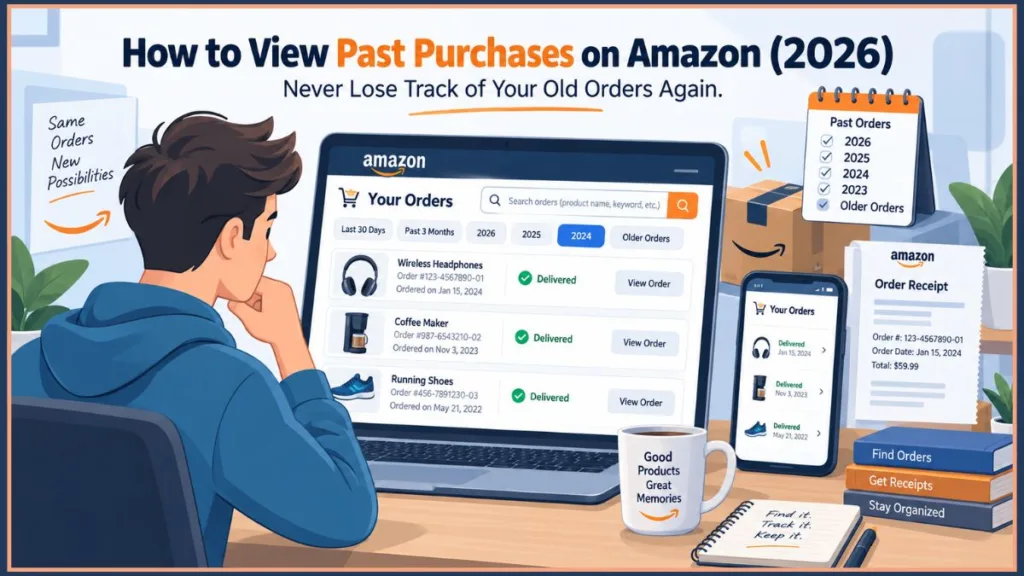
This guide is designed to solve that problem. We will walk through every method available to find a past Amazon purchase — no matter how long ago you bought it, whether you remember the product name, what device you are using, or which account the order might be on.
How to Access Your Full Amazon Order History: Your Starting Point for Recovering Old Purchases
Before you can search for a forgotten purchase, you need to reach the right starting point. Your Orders is where your entire transaction history lives, and getting there correctly is the first step toward recovering an old order, regardless of how long ago it was placed. Here is the fastest way to get there on any device.
On Desktop or Laptop
Go to Amazon.com and sign in to your account. Look at the top-right corner of the screen and click the chevron next to “Accounts and Lists” beneath your name. Select “Account” from the dropdown menu, then click “Your Orders.”
You will now see your order history with item names, order dates, prices, and delivery status for each purchase.
The most important thing to do immediately is check the dropdown filter near the top of your order list. It will likely say “past 3 months.” This is the default view and is one of the most common reasons shoppers cannot find an old order. Do not search for anything yet. Change this filter first. We will cover exactly how to do that in the next section.
On iPhone or Android
The Amazon Shopping App on both iOS and Android is useful for checking recent deliveries, but it has a significant limitation when you are trying to find older purchases. It does not display your complete order history going back years, it cannot search orders by keyword across all time periods, and it has no option to filter by specific years.
For finding a purchase that is older than a few months, skip the app entirely and use your mobile browser instead.
Open Safari on iPhone or Chrome on Android. Go to Amazon.com, sign in, and navigate to “Accounts and Lists,” then “Account,” then “Your Orders.” The full desktop-style order history will load in your browser with the available filters and search tools, giving you the same access to your historical purchases as the desktop version.
For a full device-by-device walkthrough of accessing your orders, including the Amazon app, see our guide on [how to find recent Amazon orders].
The Number One Reason You Cannot Find Your Old Order
Before moving on to advanced search methods, start with this one fix. It can solve the problem for many readers.
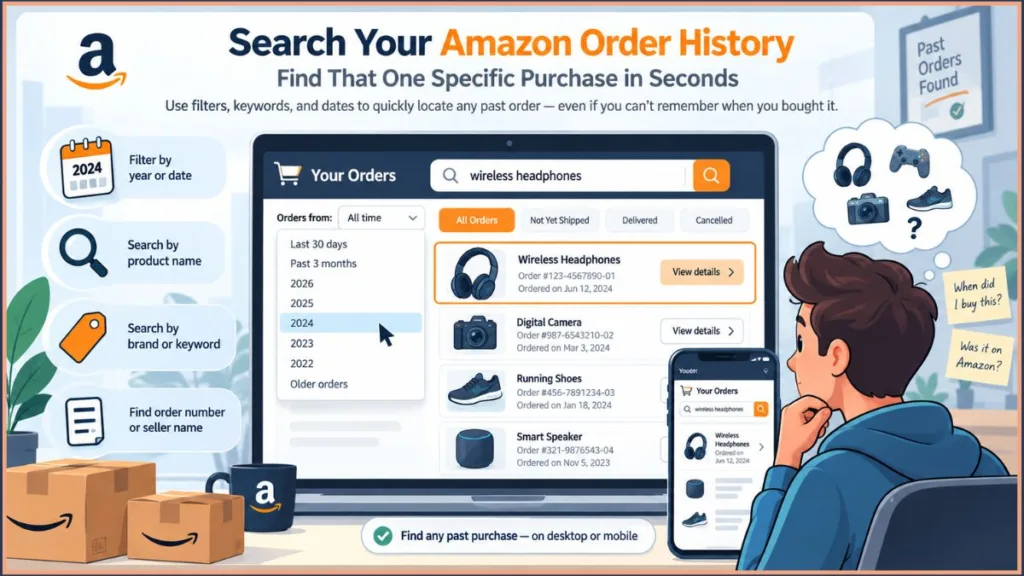
On your “Your Orders“ page, find the dropdown filter near the top of your order list and click it. You will see options including:
- Last 30 days
- Past three months — this is the default that is almost certainly active right now
- Specific years — 2026, 2025, 2024, 2023, 2022, and every year going back to when you first created your account
Select the year you believe the purchase was made. Your complete order history for that calendar year will load.
If you are not sure which year the purchase was made, start with the most recent year and work backward one year at a time. You can also scroll to the bottom of the year dropdown to find the oldest available option. This shows your complete Amazon order history going back to the first purchase you ever placed on the platform.
This filter change alone recovers the vast majority of “missing” orders that are simply outside the default three-month window.
How to Search Your Amazon Order History by Product Name, Keyword, and Brand
Once you have set your time filter to the relevant year or your full account history, the next step in finding a forgotten purchase is to use the search tools available directly within your order history. This is one of the most useful options when you have no idea exactly when you bought an old Amazon purchase.
Look for the search bar at the top of your “Your Orders“ page.
This search bar scans your purchase history and returns matching results across the available order history. Here is how to use it for different situations.
Searching by Product Name
Type what the item was called, even if you only remember part of the name.
For example, if you are looking for a desk lamp you bought two years ago, type “desk lamp.” If you bought a specific brand of headphones but cannot remember the model, type the brand name alone. Amazon will return orders in your history that match.
You do not need to remember the exact product title. Partial names can help, and category words can also be useful. If you bought kitchen scales but cannot remember the brand, type “kitchen scales” and look through the matching purchases in your history.
Searching by General Keywords When You Do Not Remember the Product Name
This is where the search tool can become particularly useful. You do not necessarily need to know the product’s exact name. You only need to remember something about the purchase.
Examples that work:
- You bought something for your bathroom but cannot remember exactly what — type “bathroom.”
- You ordered something for a child’s birthday — type the child’s age or the toy category.
- You bought a cable of some kind — type “cable,” “USB,” or the connector type you remember.
- You ordered something related to cooking — type “kitchen” or the specific cooking method.
Amazon searches the product information associated with your orders, so broad category searches like these can help surface relevant purchases in your history.
Searching by Brand Name Alone
If you remember the brand but not the specific product, search for the brand name by itself. Orders from that brand across your purchase history can then appear, making it easier to scroll through and identify the item you need.
Searching When the Product Listing Has Been Removed
Occasionally, a product listing is removed from Amazon after you purchased it, particularly with third-party sellers. Your order record can still exist in your history even if the product is no longer available on Amazon.
Searching your order history can still return the order. It may simply display the original product title without a link to the current listing. The order details, price, date, and seller information remain available in the order record.
Thank you for sharing that screenshot. I can see the Transactions page lives under Your Account → Your Payments → Transactions and shows gift card usage with the order number, date, and amount spent. Here is the updated paragraph rewritten to reflect exactly what readers will see:
Searching for Old Gift Purchases
If you used Amazon’s gift order option when placing an order, the purchase still appears in your standard order history alongside your other purchases.
If you paid using an Amazon Gift Card and need to track down what was purchased with it, navigate to Your Account > Your Payments > Transactions. This page shows a list of completed gift card transactions including the date, order number, and amount deducted from your gift card balance. You can use the order number listed there to go directly to that order in your “Your Orders” page and pull up the full order details. To see a complete record of all gift card activity including refunds, Amazon provides a link on that same page to view your gift card balance and activity.
Search for the recipient’s name if you included it, or search for the relevant product category. Gift orders are not stored separately — they are part of your regular order list and can be searched using the same tools.
How to Find an Amazon Order Without the Order Number
Once you have narrowed down the year and searched by keyword, you may still need to identify a specific transaction, particularly if you need the order number for a warranty claim or return.
Most guides assume you already have the order number. If you are trying to find an old purchase, you almost certainly do not. Here is how to locate the order without it.
Search Your Email Inbox for the Original Confirmation
When Amazon processes an order, it sends an order confirmation email to the email address connected to your account. This email contains the order ID, item name, purchase date, price, and delivery address.
Search your email inbox for:
- “Your Amazon order” — this phrase appears in the subject line of Amazon order confirmation emails
- The product name if you remember it
- “amazon.com” as the sender domain
Once you find the confirmation email, the order number appears clearly in the message. You can then use that order number to locate the order on your “Your Orders” page and pull up the complete order record.
What the Amazon Order Confirmation Email Contains
Beyond the order number, the original confirmation email can give you the information needed to verify a purchase, including the exact product title and ASIN, the seller name if it was a third-party purchase, the price paid including tax and shipping, the payment method used, and the delivery address it was sent to.
If you cannot locate the order in your account, this email can also serve as standalone proof of purchase for warranty claims, returns, or expense reporting.
What to Do if You Cannot Find the Confirmation Email
Check your spam and junk folders first. Amazon’s automated emails can occasionally be flagged by email filters. Also check whether you have email filters or rules that might have automatically archived or labeled Amazon messages.
If you have cleaned out your old emails and the confirmation is genuinely gone, search your Amazon order history using the approximate date range and year filter. The order may still be available in your account even if the original email no longer exists.
What to Do When You Still Cannot Find an Old Amazon Order
You have changed the time filter, searched by keyword, and checked your email. The order is still not appearing.
Before concluding that the order does not exist, work through each of these possible explanations.
Your Time Filter Is Still Too Narrow
Go back to the dropdown filter and confirm that you actually changed it from the default “past 3 months.”
Select a specific year rather than relying on a general “past” option. If you are not certain which year the purchase was made, select each year individually, starting with the most recent and working backward.
Do not rely entirely on your memory for the year. Check each year systematically.
The Order Was Archived
Amazon allows users to archive orders, which removes them from the standard “Your Orders” view. If someone archived an order on your account — or if you archived it yourself and forgot — it may not appear in the standard search or filter view.
To check your archived orders, go to “Your Orders” and look for the “Archived Orders“ option, typically accessible from the same page. Archived orders are stored there and can be searched. If the order you are looking for appears there, you can unarchive it to return it to your main order list.
Note: Amazon began making changes to the archiving feature in 2025. If you cannot locate an archived orders section, this feature may have been modified or removed from your account view.
You Are Logged Into the Wrong Amazon Account
This is one of the common reasons a purchase cannot be found and one of the least obvious.
Many Amazon shoppers have multiple accounts connected to different email addresses — a personal account, a work account, an old account from years ago, or an account created when they first started using Amazon under a different email address.
If you cannot find an order you are certain you placed, there is a possibility it is sitting in a different account.
Here is how to check:
Open a new private or incognito browser window. Go to Amazon.com and sign in using a different email address you might have used at the time of the purchase. Check the order history in that account.
Common email addresses to try include an old personal email, a work email, a university email if the purchase was made during your student years, or any email address you used regularly around the time you believe the purchase was made.
If you cannot remember which email addresses you have used, search your email inbox across all accounts for “Your Amazon order” to identify every email address that has received an Amazon confirmation. Each unique address that returns results could indicate a separate Amazon account with its own order history.
The Order Was Placed by Someone Else on Your Behalf
If you share a household with someone who has their own Amazon account, the purchase may have been made from their account rather than yours — even if the purchase was for you or delivered to your address.
Check with other household members who have Amazon accounts before spending more time searching.
If your household uses Amazon Household to share Prime benefits, each member has their own separate account and order history. The purchase will appear in the account of the person who actually placed the order.
The Item Was Purchased Through a Third-Party Marketplace
Most Amazon Marketplace purchases appear normally in your order history. However, purchases made through some Amazon-adjacent services or through a seller’s external website that redirected through Amazon’s payment system may have incomplete records.
If you believe this applies to your purchase, check the order confirmation email for seller details and contact that seller directly.
Account Inactivity and Potential Data Deletion
If you are trying to recover an order from an old Amazon account that has been inactive for two or more years, Amazon may have deleted the account data. Amazon typically notifies account holders before deletion occurs.
If you believe this has happened, contact Amazon customer service directly and provide any details you have about the account, including the email address it was connected to and the approximate time period of the purchase. Amazon may be able to confirm whether the account still exists.
Using “Buy Again” to Rediscover Previously Purchased Products
If you are trying to rediscover something you bought on Amazon in the past — particularly a product you purchased repeatedly or regularly — the “Buy Again“ feature can help jog your memory.
Located beneath individual orders or in its own dedicated tab, this feature surfaces items from your buying history that you have ordered before.
It is not a substitute for a full historical order search, but it is a useful quick reference for frequently purchased items that might otherwise be buried deep in your order history.
If the product you are trying to find was something you bought more than once, checking the Buy Again tab is a fast way to confirm the purchase before digging into the full year-by-year search.
Finding Digital Purchases, Alexa Orders, and Subscribe and Save
If you have worked through the year filter, keyword search, and troubleshooting steps above and still cannot locate a purchase, the next possibility is that it belongs to a category of Amazon transaction that does not appear in the standard order history view in the same way.
Standard order history does not always capture every type of Amazon purchase in the same place. If you are searching for a digital purchase and cannot find it in your main order list, here is where to look.
Kindle Book Purchase History
Kindle books do not always appear prominently in the standard “Your Orders” view.
To find a specific Kindle book purchase, go to “Manage Your Content and Devices“ from your account settings. Kindle books, magazines, and digital publications purchased on your account are listed there with purchase dates and prices.
Prime Video Purchases and Rentals
Movies and TV episodes purchased or rented through Prime Video are stored separately from physical order history.
Go to “Prime Video“ and navigate to “My Stuff” or check your account settings under “Digital Orders” to find a record of video purchases and rentals.
Amazon Music and Audible Purchases
Amazon Music purchases and Audible audiobooks similarly maintain their own purchase records within their respective services rather than in your standard order history.
Log into your Audible account separately to find audiobook purchase history. Amazon Music purchase history is accessible through your Amazon Music account settings.
Alexa Voice Orders
Orders placed through an Alexa device appear in your standard “Your Orders” history alongside other purchases — they are not stored separately.
However, if you are unsure whether a charge came from a voice order, look for the notation in the order details indicating that it was placed via Alexa.
You can also review your Alexa voice purchase history through the Alexa app under “Activity.”
Subscribe and Save Orders
Subscribe and Save recurring orders appear in your order history as individual orders each time they ship.
If you are looking for a specific Subscribe and Save delivery, search for the product name in your order history.
You can also manage and review active and past Subscribe and Save subscriptions through the dedicated Subscribe and Save section in your account settings. This provides a cleaner view of recurring purchases without the noise of your other order history.
Using a Downloaded Order History Report to Find and Verify Old Purchases
If you have worked through every search method above and still cannot pinpoint a specific historical transaction, downloading your complete order history as a spreadsheet is the most thorough fallback available.
For anyone trying to locate a specific historical purchase, retrieve old receipts, or verify spending from a particular period, this gives you a single searchable file covering every transaction you have ever made.
This is particularly useful when you need to search across multiple years simultaneously or when you want to search by price rather than product name.
How to Request Your Complete Amazon Order History
Amazon has updated its data request process, so here is exactly how it works in 2026:
- Go to Amazon.com and sign in to your account.
- Click “Accounts and Lists” at the top-right corner of the screen.
- Select “Account” from the dropdown menu.
- Scroll down and click “Data and Privacy” from your account settings.
- Find the “Request your data“ option and click it.
- From the list of available data types, select “Your Orders.”
- Click “Submit” to send your request.
After submitting, Amazon will send a validation email to the address connected to your account. You must click the link inside that email to activate your request. Without clicking this validation link, Amazon will not process your download.
Check your spam and junk folder immediately if the validation email does not arrive within a few minutes. Amazon’s automated emails can occasionally be filtered incorrectly, and missing this email means your download will not be processed.
Once Amazon processes your validated request, you will receive a second email containing your download link. Your complete order history will download as a CSV file.
Which Report Type to Request
When requesting your report, select the type that matches what you are looking for.
- Items Report — Shows exactly what you bought, including product title, category, ASIN, and condition. This is the best report for finding a specific old purchase by product name when you want a searchable spreadsheet of everything you have ever ordered.
- Orders and Shipments Report — Shows full financial data, including payment method, subtotals, taxes, and shipping charges. Use this if you are trying to match an old order to a specific charge on a bank statement or credit card, or if you need your purchase history for tax records or expense reporting.
- Returns Report — Tracks every return, including dates and reasons. Use this if you are trying to verify whether you returned an item and need documentation of the return.
How to Search the CSV File to Find a Specific Old Purchase
Once you have the file, open it in Google Sheets, Microsoft Excel, or Apple Numbers.
Here is how to use it to find a specific old purchase:
- Search by product name: Use the Find function (Ctrl+F on Windows or Command+F on Mac) and type the product name or keyword. The spreadsheet will highlight every row containing that term across your complete order history.
- Filter by date range: Use the filter function on the date column to display only orders from a specific time period. This is faster than scrolling when you have hundreds or thousands of rows.
- Search by price: If you remember approximately what you paid, filter or sort the price column to narrow down candidates. Searching for a purchase you remember costing around a specific amount can quickly surface the right order when the product name is unclear.
- Search by seller: If you remember the seller’s name, search that column to find all orders from that seller across your entire history.
Downloading Your Report on iPhone or Android
Since the Amazon app offers no built-in report download capability, many iPhone and Android users assume they are stuck waiting until they get back to a computer.
The good news is that you are not.
Open Safari on iPhone or Chrome on Android. Go to Amazon.com and sign in. Navigate to “Accounts and Lists,” then “Account,” then “Data and Privacy,” then “Request your data.” Select “Your Orders” and tap “Submit.”
Check your inbox for the validation email and tap the confirmation link to activate your download.
Once Amazon processes your request, the second email containing your download link will arrive directly in your inbox, and the file will be accessible from your phone.
On iPhone, downloaded files save to the Files app. On Android, check your Downloads folder in the File Manager.
Checking the Right Amazon Account for Old Purchases
If you have worked through every search method above and still cannot locate a purchase you are certain you made, the most likely remaining explanation is that the order is on a different Amazon account than the one you are currently using.
How to Identify Every Amazon Account You Have Ever Used
Search your email inbox — across every email address you have ever used — for the phrase “Your Amazon order.”
Every email address that returns results has at least one Amazon account associated with it.
Make a list of every email address that returns results. Each one is a potential separate Amazon account with its own independent order history that you have not yet checked.
How to Access an Old or Forgotten Amazon Account
Go to Amazon.com and click “Sign In.” Enter the email address associated with the old account.
If you no longer know the password, use the “Forgot your password“ option to reset it through the email address.
Once you regain access, navigate to “Your Orders” and search for the purchase you are looking for.
If you no longer have access to the email address itself — for example, an old university email that has been deactivated — contact Amazon customer service directly.
Provide as much identifying information as you can about the account, including the email address, your name, and approximate purchase dates. Amazon can verify account ownership through identity verification and may be able to assist you in recovering access.
Amazon Business Accounts
If you or your employer uses an Amazon Business account in addition to a personal account, business purchases are stored in the business account’s order history and do not appear in your personal account.
Log into your Amazon Business account separately and search there if you are looking for a work-related purchase.
Frequently Asked Questions About Finding Old Amazon Purchases
How far back can I see my Amazon order history?
You can view your complete purchase history all the way back to the first order you ever placed on the platform. Use the year-based dropdown filter on your “Your Orders” page and scroll to the bottom of the list to access orders from the earliest available year.
There is no cut-off date on viewable history as long as your account has remained active. The primary limitation is the default filter, which shows only the past three months until you change it.
Why can I not find an old Amazon order I know I placed?
Work through these possibilities in order.
First, your time filter may be set to “past 3 months” — change it to the specific year you believe the order was placed.
Second, the order may have been archived and could be hiding in your archived orders section rather than your main list.
Third, you may be logged into the wrong Amazon account — many shoppers have multiple accounts connected to different email addresses.
Fourth, the purchase may have been placed by another household member on their own account.
Fifth, if the account has been inactive for two or more years, the order history may have been deleted.
Can I search my Amazon order history by product name?
Yes. Use the search bar at the top of your “Your Orders” page and type the product name, brand name, or any keyword associated with the item.
Amazon will scan your purchase history and return matching results. You do not need to know the exact product title — partial names and category keywords can also help.
Can I find old Amazon purchases without the order number?
Absolutely.
Search your email inbox for “Your Amazon order” to find the original confirmation email, which contains the full order ID.
Alternatively, use the keyword search on your “Your Orders” page to find the purchase by product name or category without needing the order number at all.
Can I permanently delete old orders from my Amazon purchase history?
No. Amazon does not allow permanent deletion of orders from your purchase history. These records are retained for legal and financial compliance purposes.
The available option is archiving, which hides an order from your main view without deleting it. The archived order remains accessible in your archived orders section whenever you need to find it.
Note that Amazon began modifying the archiving feature in 2025 and its long-term availability is uncertain.
How long does Amazon keep my order history?
Amazon retains your complete purchase history for as long as your account remains active.
If your account is inactive for two or more years, Amazon may delete your data and will typically notify you before this happens.
If you receive such a notice, download your complete order history as a CSV file immediately to preserve a permanent offline record before the deletion occurs.
Why is my Kindle book or Prime Video purchase not showing in my order history?
Digital purchases including Kindle books, Prime Video purchases and rentals, Audible audiobooks, and Amazon Music purchases are stored in their respective service accounts rather than in your standard order history.
Go to “Manage Your Content and Devices” for Kindle purchases, your Prime Video account settings for video purchases, and your Audible account for audiobook history.
The Bottom Line: No Old Amazon Purchase Has to Stay Lost
Every purchase you have ever made on Amazon is still in your account history — the challenge is simply knowing which tools to use and where to look.
Start with the year filter and change it from the default three months to the specific year you believe the order was placed. Use the keyword search to scan your history by product name, brand, or category without needing to know the exact date.
If the order still does not appear, check your archived orders, verify that you are using the correct Amazon account, and search your email inbox for the original confirmation.
For purchases that remain elusive across all of these methods, download your complete order history as a CSV file and search it as a spreadsheet. This gives you a single document containing your historical transactions that you can search by product name, date, price, and seller simultaneously.
Your complete Amazon purchase history is one of the most underutilized tools in your account. With the right filters and search methods, finding an order you have ever placed — no matter how long ago — can take minutes rather than hours.
Visit Our Post Page: Blog Page
Discover more from Izoate
Subscribe to get the latest posts sent to your email.