
Getting Prime Video error code 5051? It’s probably not your Wi-Fi. Learn what really causes the “unable to play video” glitch and 5 verified ways to fix it.
You finally sit down, snacks in hand, ready to binge-watch a new series on your iPad, Android phone, Smart TV, or laptop. You hit play, the screen buffers for a split second, and then you are hit with a dreaded message: “unable to play video error code : 5051.”
If you’ve searched for a solution, you’ve probably seen standard advice claiming your Wi-Fi connection is too weak or your hardware is obsolete. But if your internet connection runs YouTube and Netflix on those exact same devices without breaking a sweat, you know those aren’t the real culprits.
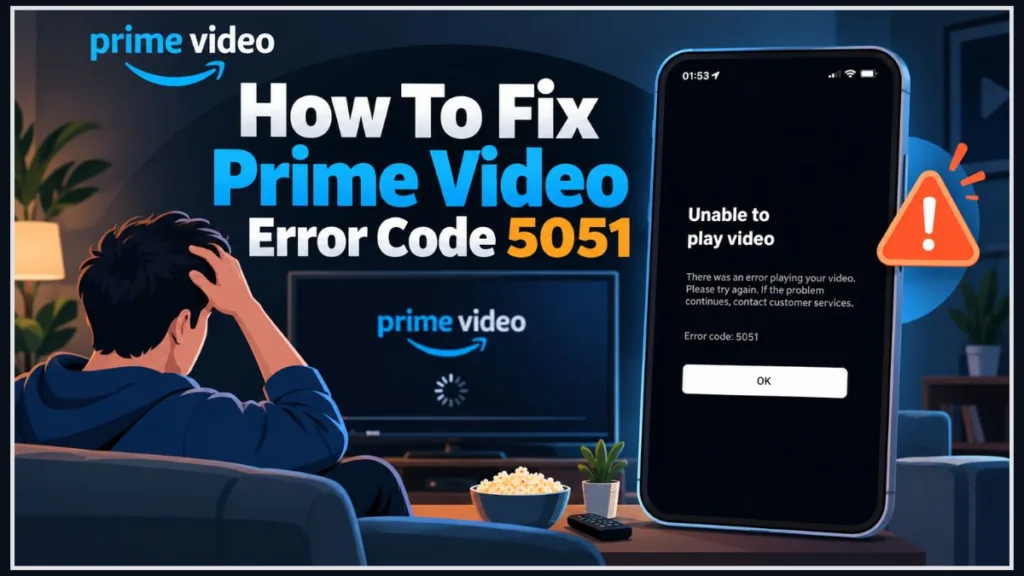
In this guide, we bypass generic advice. By combining official Amazon support protocols with real-world, verified workarounds from discussions on Reddit and the Amazon Customer Forum, we have compiled the ultimate list of solutions to get your video playing again across Android, iOS, Smart TVs, and the Web.
What Causes Prime Video Error Code 5051?
Before jumping into the fixes, understanding the root causes makes troubleshooting much faster. Community telemetry and user reports identify four primary triggers:
- Device Registration Limits (The Silent Crackdown): Prime Video strictly enforces concurrent stream limits and account-sharing restrictions. Having your Amazon account linked to too many legacy devices—such as older Android phones, iPads, Apple TVs, or inactive browser sessions—is the leading trigger for this lock.
- Operating System & Adapter Incompatibility: Major software rollouts—most notably iOS 18.1 on Apple hardware, new Android OS updates, or proprietary Smart TV firmware updates—frequently break the app’s handshake protocols, particularly when streaming via AirPlay, screen mirroring, or a Lightning-to-HDMI adapter.
- The “Older Device” Myth: While Amazon Technical Support frequently attributes this issue to end-of-life hardware, community data in the Amazon Forum discussion disproves this: users report encountering Error 5051 on brand-new iPad models, current iPhone 16 lineups, and modern Smart TVs.
- Title-Specific CDN Corruptions: In select cases, the issue is entirely server-side. A corrupted digital video asset or damaged DRM/HDCP certificate on Amazon’s Content Delivery Network (CDN) can trigger error 5051 on a single title while the rest of the library plays normally.
How to Fix Prime Video Error Code 5051 (Verified Solutions)
Below are the most effective solutions ranked by real-world user success rates.
1. Deregister Unused Devices (The Most Effective Fix for All Platforms)
Both official Amazon representatives and Reddit users confirm that cleaning out old registered devices resolves this error most consistently. If Amazon’s authentication servers detect too many legacy devices tied to your profile, playback is automatically blocked with Error 5051.
Step-by-Step Tutorial:
- Open a Dedicated Web Browser: Do not use the Prime Video mobile app. Launch Safari, Google Chrome, or Microsoft Edge on a laptop, desktop, or mobile device.
- Log into Amazon: Go to the official Amazon website and log in with your primary Prime-enabled Amazon account.
- Navigate to Content & Devices:
- Hover over the Account & Lists dropdown menu in the upper-right corner.
- Select the official Manage Your Content and Devices portal.
- Access Registered Hardware: Click on the Devices tab near the top navigation ribbon, then filter by Prime Video.
- Deregister Inactive Hardware: Review your active registrations. Identify old smartphones, retired streaming sticks, secondary browsers, or former tablets, then click Deregister and confirm the removal.
- Re-authenticate Your Active Device: Return to the specific device experiencing the error, sign out of your account completely, restart the application, and sign back in.
- Verification: Launch any video title. If the registration conflict has been resolved, playback will start immediately without failing.
2. Use Safari, Chrome, or a Web Browser (The Quick Workaround for iOS and Android)
If you want an immediate fix without altering your account settings, bypassing the native mobile application completely avoids the code entirely.
Step-by-Step Tutorial:
- Launch Your Mobile Web Browser: Open Safari on an iPhone/iPad, or Google Chrome on an Android phone or tablet.
- Navigate to Prime Video Online: Go directly to the official Prime Video Web Player URL.
- Bypass Native App Redirection:
- If your operating system attempts to force-open the installed application, long-press the URL and select Open in New Tab, or tap browser settings and select Request Desktop Website.
- Sign In: Authenticate using your Amazon login details and approve any Two-Factor Authentication (2FA) prompt.
- Begin Playback: Select your movie or episode and press Watch Now. The browser’s native HTML5 video player will stream the title directly, circumventing native app glitches.
3. Download the Video for Offline Viewing (For iOS, Android, and Supported Tablets)
Error 5051 is strictly a live network playback and server-handshake error. Downloading the encrypted media file directly to local storage bypasses the live streaming check altogether.
Step-by-Step Tutorial:
- Open the Prime Video Mobile App: Launch the app on your iOS, iPadOS, or Android device while connected to a stable Wi-Fi network.
- Select the Problematic Title: Search for the specific film or television episode that triggered the error code.
- Initiate Local Download:
- For movies: Tap the Download button displayed beneath the primary play button.
- For TV series: Scroll to the individual episode and tap the downward-arrow Download icon.
- Select File Quality: Choose your preferred video resolution (Good, Better, or Best), then confirm Start Download.
- Play from Local Storage:
- Navigate to the Downloads tab located in the bottom navigation bar.
- Once the download is complete, tap the title to launch offline playback. The local media decoder will render the file without pinging the streaming server.
(Note: Offline download functionality is supported on iOS, iPadOS, Android, and the Windows Prime Video desktop client, but is unavailable on standard web browsers and most Smart TV operating systems).
4. Test a Different TV Show or Movie (For All Platforms)
As documented in the official Amazon Forum thread, Error 5051 can occasionally stem from a corrupted stream profile isolated to a single piece of content on Amazon’s edge servers.
Step-by-Step Tutorial:
- Exit Playback: Back out of the error screen using your remote control, back gesture, or browser navigation.
- Select an Alternate Title: Choose a widely viewed title, such as a trending Amazon Original or high-traffic movie.
- Analyze the Results:
- If the alternate title streams properly: The issue is isolated to a defective video asset on Amazon’s servers. You can flag the title directly to Amazon Customer Support so their technical team can re-encode the file.
- If the alternate title also throws Error 5051: The issue is widespread across your local app installation, system cache, or account configuration. Proceed to step 5.
5. The Official Amazon Method (Clear Cache & Reinstall)
When simpler workarounds do not solve the problem, execute a clean application reinstallation using the verified platform-specific steps below:
Platform A: Android Phones, Tablets & Google TV
- Open device Settings.
- Select Apps (or Apps & Notifications) > See all apps.
- Locate and select Prime Video.
- Select Force Stop, then tap Storage & Cache.
- Tap Clear Cache, followed by Clear Storage (or Clear Data).
- Uninstall the application, perform a full device reboot, reinstall the app from the official Google Play Store, and log back in.
Platform B: iOS & iPadOS (iPhone, iPad)
- Long-press the Prime Video icon on the Home Screen or App Library.
- Select Remove App > Delete App to purge all corrupted temporary data.
- Power down your iPhone or iPad completely, wait 30 seconds, and turn it back on.
- Open the official Apple App Store, reinstall Amazon Prime Video, authenticate your account, and test streaming.
Platform C: Smart TVs (Fire TV, Apple TV, Roku, Google TV, Samsung, LG)
- Sign Out: Launch the TV application, navigate to Settings (Gear icon), and select Sign Out.
- Clear Application Cache (Fire TV / Android TV):
- Go to TV Settings > Applications > Manage Installed Applications > Prime Video.
- Click Force Stop, then run both Clear Cache and Clear Data.
- Reinstall (Apple TV / Roku / Tizen / webOS): Delete the Prime Video channel or application, then download a fresh copy from your TV’s official app store.
- Perform a Cold Power Cycle: Disconnect your Smart TV or streaming device directly from the AC electrical outlet. Leave it completely unpowered for 60 seconds to flush the hardware’s residual volatile memory, then reconnect it.
- Re-open Prime Video, link your device using the on-screen activation code or login credentials, and restart playback.
Frequently Asked Questions (FAQs)
What does error code 5051 mean on Amazon Prime? Error 5051 is a playback handshake failure indicating that the Prime Video application cannot establish a secure stream with Amazon’s media servers. While automated troubleshooting often blames Wi-Fi or outdated hardware, it is primarily caused by device registration limits, corrupted local cache, or OS-level playback incompatibilities.
Does error 5051 mean my device is too old for Prime Video? No. Although Amazon support documentation suggests older hardware may fail DRM requirements, extensive user testing confirms this error frequently impacts brand-new iPads, modern flagship Android devices, and current-generation Smart TVs.
Why is my Wi-Fi strong but Prime Video still shows error 5051? The error prompt is misleading. If your local network supports high-bitrate 4K streaming on Netflix, Hulu, or YouTube, your bandwidth is not the issue. The failure occurs at the account authorization layer, application cache layer, or within an incompatible OS video pipeline.
Conclusion
Encountering playback interruptions during movie night is frustrating, but fixing the problem does not require buying new hardware. In the vast majority of cases, deregistering inactive devices from your Amazon account or switching to a mobile web browser will resolve the issue immediately.
Did one of these fixes work for you? Let us know in the comments below which device you are streaming on and which troubleshooting step resolved your 5051 error!
Visit Our Post Page: Blog Page
Discover more from Izoate
Subscribe to get the latest posts sent to your email.