
Seeing “Indexing in Progress” after the iOS 27 update? Learn exactly what this means, why it happens, and how long your iPhone needs to finish the process.
After updating to iOS 27, you may have opened the Settings app only to find a new message at the top of the screen saying “Indexing in Progress” or “Indexing to Improve Search.” If you’ve never seen this before, it’s easy to assume something went wrong during the update.
You’re not alone. Since the release of iOS 27, many users have reported seeing the same message appear for hours or even days after installing the update. Some noticed that Settings Search stopped working, while others experienced faster battery drain, device warmth, or delays with Apple Intelligence features.
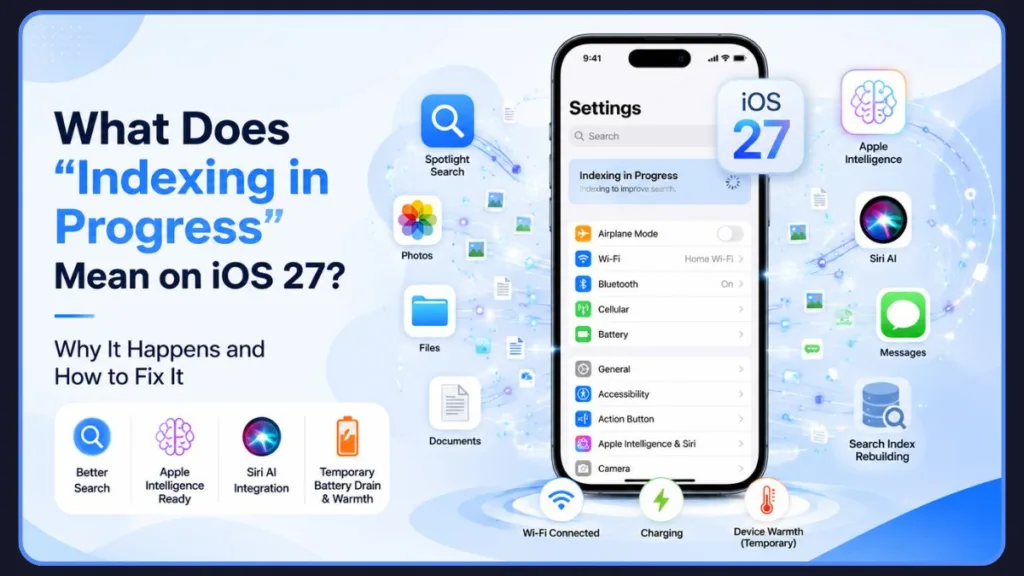
The good news is that, in most cases, this is completely normal.
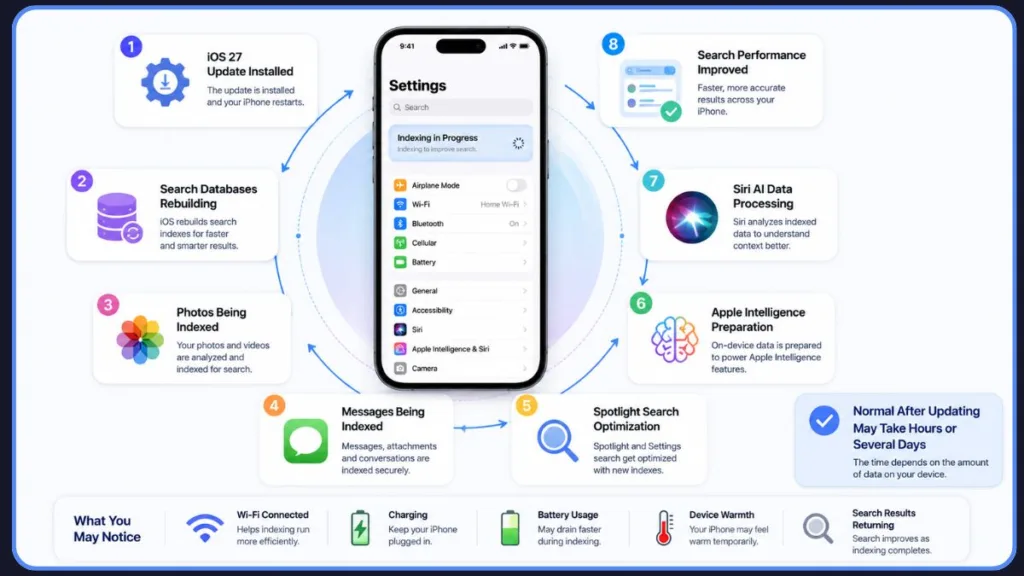
The “Indexing in Progress” message appears because your iPhone is rebuilding search databases and preparing various system features after the update. This process helps improve Spotlight Search, Settings Search, Messages Search, Photos Search, Siri, and Apple Intelligence functionality. Depending on the amount of data stored on your device, indexing can finish in a few hours or continue for several days.
Important Tip: Do not force-reset your iPhone simply because you see the indexing message. In most cases, the process completes automatically once iOS finishes rebuilding its search databases.
In this guide, you’ll learn what “Indexing in Progress” means on iOS 27, why it happens, how long it usually takes, whether it affects Siri AI, and what you can do if the process appears stuck.
What Does “Indexing in Progress” on iOS 27 Actually Mean?
The “Indexing in Progress” banner simply means that your iPhone is rebuilding its internal search system after updating to iOS 27.
Whenever Apple introduces major system changes, the operating system often needs to reorganize and reprocess data stored on your device. This includes your apps, messages, contacts, files, notes, settings, photos, and other content. Rather than searching through everything individually every time you use Spotlight Search or Settings Search, iOS creates searchable indexes that allow results to appear instantly.
With iOS 27, this process has become more noticeable because Apple now displays a visible notification explaining that indexing is taking place.
The indexing process helps power several important features across the device. It improves Spotlight Search results, allows Settings Search to locate options quickly, enhances Photos Search capabilities, and helps Apple Intelligence understand content stored on your device. Siri can also benefit from this indexing because many AI-powered features rely on searchable information that has already been organized by the system.
In simple terms, your iPhone is creating a roadmap of your content so it can find information faster later.
Important Tip: Indexing is not uploading your personal data to Apple. Most of the processing happens locally on your device to improve search performance and AI functionality.
While the message may look concerning, it is generally not a warning, not an error, and not an indication that something is broken. Instead, it is a temporary maintenance process that occurs in the background after the update.
Why Is Your iPhone Still Indexing After the iOS 27 Update?
Many users become concerned when the indexing message remains visible long after the installation has finished. However, updating iOS and completing indexing are two separate stages.
The software update installs first, but once the device restarts, several background processes begin working. One of the most important is rebuilding search databases throughout the system.
Apple Intelligence appears to be one reason why indexing has become more prominent in iOS 27. The new AI features rely heavily on semantic search and contextual understanding. Before these tools can work effectively, your iPhone needs to organize and process existing information stored locally on the device.
This means your iPhone may scan messages, photos, files, apps, notes, and settings to create indexes that can be used later for faster and more intelligent search results.
The process can also vary significantly depending on how much content is stored on your device. An iPhone with a relatively small photo library and limited message history may complete indexing quickly. On the other hand, devices containing years of photos, thousands of messages, large file collections, and extensive app data may require much longer.
Real-world reports from Reddit and MacRumors highlight just how different experiences can be. Some users reported indexing completing overnight, while others continued seeing the banner after 24 hours, 48 hours, or even several days.
Important Tip: Large photo libraries and extensive message histories are among the biggest reasons indexing takes longer than expected.
This variation is one reason Apple does not provide an estimated completion time.
Can’t Find Settings or Apps? Here’s Why Search Stops Working During Indexing
One of the most common complaints after updating to iOS 27 is that search suddenly stops behaving normally.
You might open Settings, type a familiar term such as “Messages,” and receive no results. In some cases, Spotlight Search may show incomplete information, while Settings Search appears unresponsive.
Although this can feel like a bug, it is often a direct result of indexing.
Search functions rely on indexes to locate information quickly. When those indexes are still being rebuilt, the system may not have enough processed data available to provide accurate results. As a result, searches can return incomplete matches, delayed results, or no results at all.
Many users discussing the issue on Reddit reported that search functionality gradually returned as indexing progressed. Others noticed that the problem disappeared entirely once the indexing banner was removed from Settings.
This temporary disruption can affect several areas of the operating system, including:
- Settings Search
- Spotlight Search
- Messages Search
- Photos Search
- App Search Results
Fortunately, this behavior is usually temporary. Once indexing finishes, search functions typically return to normal without requiring additional troubleshooting.
Important Tip: Missing search results during indexing does not necessarily mean your data is gone. In most cases, the content simply has not been fully indexed yet.
If search remains broken long after indexing should have completed, a device restart may help refresh the indexing process and restore functionality.
How Long Does iOS 27 Indexing Take? What Real Users Are Reporting
One of the biggest frustrations with iOS 27 indexing is that Apple does not provide a countdown timer, percentage indicator, or estimated completion date.
As a result, many users wonder whether the process is progressing normally or if their iPhone is stuck.
The truth is that there is no fixed timeline.
Several factors influence indexing duration, including the amount of stored content, device activity, available storage space, battery level, and overall system workload.
| Situation | Typical Duration |
|---|---|
| Small library | Few hours |
| Average users | Several hours to 1 day |
| Large photo/message libraries | 1–3+ days |
| Heavy storage usage | Several days in some cases |
Community reports show just how wide the range can be.
Some Reddit users reported the banner disappearing within approximately 12 hours. Others continued seeing indexing activity after two or three days. MacRumors discussions include reports from users whose devices remained in the indexing phase for more than 24 or 48 hours before eventually completing.
Several experienced users pointed out that this behavior is not entirely new. Previous iOS versions also performed extensive indexing after major updates, but iOS 27 makes the process much more visible through the Settings notification.
If your iPhone contains a large photo library, years of messages, downloaded files, and numerous installed apps, it is reasonable to expect indexing to take significantly longer than it would on a newer or less heavily used device.3
Important Tip: It is perfectly normal for indexing to take anywhere from a few hours to several days, especially on devices with large amounts of stored data.
For most users, patience is the most effective solution. While it may be tempting to repeatedly restart the phone or search for hidden settings to disable indexing, the process is designed to finish automatically once all required data has been processed.
Is “Indexing in Progress” Connected to Siri AI and Apple Intelligence?
Many users who see the “Indexing in Progress” message after updating to iOS 27 immediately wonder whether it is connected to Apple Intelligence or the new Siri AI features.
Based on Apple’s description of indexing and reports from users on Reddit and MacRumors, the answer is partially yes.
The indexing process helps your iPhone rebuild searchable databases used by features such as Spotlight Search, Settings Search, Photos Search, Messages Search, and various on-device intelligence features. Because Apple Intelligence relies on understanding and retrieving information stored on your device, some of its capabilities may depend on this indexing process being completed.
However, indexing itself is not the same thing as Apple Intelligence activation.
Many users reported that Apple Intelligence became available while the indexing banner was still visible. Others saw indexing complete but continued waiting for Apple Intelligence features to finish downloading or activating. This indicates that indexing is only one background process occurring after the update.
In practical terms, indexing prepares your device’s data so search and intelligence features can work efficiently, but it does not control Apple’s server-side rollout, feature downloads, or activation status.
If you’re waiting for Apple Intelligence features to appear, make sure:
- Your iPhone model supports Apple Intelligence.
- Your device is connected to Wi‑Fi.
- Apple Intelligence is enabled in Settings.
- Your language and region settings are supported.
- Your iPhone remains plugged in when possible.
Even if Apple Intelligence is available, your iPhone may continue indexing for some time afterward.
Important Tip: Indexing supports Apple Intelligence functionality, but it does not determine when Apple Intelligence or Siri AI becomes available on your device.
Is iOS 27 Indexing Draining Your Battery and Making Your iPhone Hot?
Yes, temporary battery drain, device warmth, and even minor performance slowdowns are common while indexing is running.
After a major iOS update, your iPhone performs numerous background tasks simultaneously. In addition to rebuilding search indexes, the system may be analyzing photos, processing messages, syncing iCloud content, updating app databases, and preparing data for newer features.
Because these tasks require significant processor activity, users frequently notice:
- Faster battery drain
- Increased device temperature
- Occasional lag or stuttering
- Reduced battery life estimates
- Slower search performance
Reports from Reddit and MacRumors show that many users experienced these symptoms during the first 24 to 72 hours after updating.
This behavior is not unique to iOS 27. Similar reports appear after nearly every major iOS release because the operating system performs extensive housekeeping tasks in the background.
The amount of impact varies depending on factors such as:
- The size of your photo library
- Message history length
- Number of installed apps
- Available storage space
- iCloud synchronization activity
- Whether Apple Intelligence features are being prepared
Most users report that battery life and device temperature gradually improve once indexing and other post-update tasks finish.
For this reason, it’s generally recommended to wait several days after updating before evaluating battery performance or deciding whether iOS 27 has negatively affected your device.
Important Tip: Temporary battery drain and warmth are usually normal during indexing. If these issues persist for several days after indexing finishes, additional troubleshooting may be necessary.
How to Help “Indexing in Progress” Finish Faster on iOS 27
Unfortunately, there is no way to manually force indexing to complete. However, you can create conditions that allow iOS to finish the process more efficiently.
1. Keep Your iPhone Connected to Wi‑Fi
Many post-update tasks work best when your device has a stable internet connection.
Keeping your iPhone connected to Wi‑Fi allows iCloud synchronization, Apple Intelligence downloads, and other background services to complete without interruption.
Users who left their devices connected to Wi‑Fi overnight often reported faster completion times.
2. Leave Your iPhone Plugged In
Apple performs many background maintenance tasks more aggressively when the device is charging.
Connecting your iPhone to power overnight gives indexing several uninterrupted hours to continue processing data.
For best results:
- Use a reliable charger.
- Keep the device connected throughout the night.
- Avoid repeatedly disconnecting and reconnecting power.
3. Let the Device Remain Idle
Heavy usage can slow indexing because system resources must be shared between your activities and background processing.
If possible, allow your iPhone to sit idle for extended periods while connected to Wi‑Fi and power.
Many users noticed significant progress after leaving their devices untouched overnight.
4. Turn Off Low Power Mode
Low Power Mode reduces background activity to conserve battery life.
Because indexing relies on background processing, disabling Low Power Mode may help iOS complete tasks more efficiently.
To check:
- Open Settings.
- Tap Battery.
- Turn Low Power Mode off.
If battery life is not a concern, leaving this setting disabled during indexing may help.
5. Make Sure You Have Enough Free Storage
Low storage can sometimes slow system operations.
If your iPhone is nearly full, consider removing:
- Unused apps
- Large downloads
- Duplicate photos
- Old videos
- Unnecessary files
Having adequate free space gives iOS more room to rebuild databases and perform temporary processing tasks.
6. Install Newer iOS Updates
If you’re running an early beta or recently released build of iOS 27, Apple may issue updates that improve indexing behavior.
Several users reported that indexing-related issues improved after installing newer beta releases or follow-up updates.
To check for updates:
- Open Settings.
- Tap General.
- Select Software Update.
- Install any available update.
Keeping your device current ensures you receive the latest bug fixes and performance improvements.
7. Restart Your iPhone if Indexing Appears Stalled
While indexing usually completes on its own, some users reported success after performing a simple restart.
To restart:
- Turn off your iPhone.
- Wait about 30 seconds.
- Turn it back on.
This won’t erase indexing progress, but it may help refresh background processes if something appears stuck.
Important Tip: The most effective approach is usually the simplest: leave your iPhone connected to Wi‑Fi, plugged into power, and idle overnight.
How to Tell When iOS 27 Has Finished Indexing
Apple does not provide a progress bar or percentage indicator for indexing, which can make it difficult to know when the process is complete.
Fortunately, there are several signs that indexing has finished.
The Indexing Banner Disappears
The clearest indicator is that the “Indexing in Progress” or “Indexing to Improve Search” message no longer appears in Settings.
Once the banner disappears, the primary indexing process has usually completed.
Search Starts Working Normally Again
Many users first notice indexing is complete when search functions return to normal.
You should be able to search successfully in:
- Settings
- Spotlight Search
- Messages
- Photos
- Files
Results should appear quickly and accurately.
Battery Life Stabilizes
Battery drain often improves once indexing and other post-update tasks finish.
If your battery usage suddenly becomes more predictable after several days, indexing may have completed.
Device Temperature Returns to Normal
Many users report that their iPhones stop feeling unusually warm once background processing slows down.
A cooler device is often a good sign that indexing activity has decreased significantly.
Search Results Become More Complete
During indexing, searches may return incomplete or missing results.
Once indexing finishes, searches typically become faster and more comprehensive across the system.
Important Tip: The disappearance of the indexing banner combined with fully functional search results is usually the most reliable indication that iOS 27 has finished indexing.
Think iOS 27 Indexing Is Stuck? Try These Fixes First
While most iPhones finish indexing automatically, some users become concerned when the “Indexing in Progress” message remains visible for several days.
Before assuming something is wrong, remember that community reports from Reddit and MacRumors show that indexing times can vary significantly. Some users saw the process finish within hours, while others reported indexing activity continuing for multiple days, particularly on devices with large photo libraries and extensive message histories.
That said, if the indexing banner has remained visible for an unusually long period and search functionality still appears broken, there are several troubleshooting steps worth trying.
Restart Your iPhone
A simple restart remains one of the easiest troubleshooting methods.
Several users reported that restarting their devices helped clear temporary software glitches and allowed indexing to continue normally. While a restart will not instantly complete indexing, it can refresh background services that may have become unresponsive.
After restarting, reconnect your iPhone to Wi-Fi and allow it to remain idle for some time.
Check Available Storage
Storage shortages can sometimes interfere with background system processes.
If your iPhone is running low on available space, iOS may struggle to rebuild search databases efficiently. Review your storage usage under Settings > General > iPhone Storage and remove unnecessary files, duplicate photos, or unused applications if needed.
Many users overlook storage limitations when troubleshooting indexing issues.
Connect to Wi-Fi Overnight
One of the most consistent recommendations from experienced beta testers is simply leaving the device connected to power and Wi-Fi overnight.
This gives iOS several uninterrupted hours to complete indexing and other background maintenance tasks without competing with active usage.
Community discussions suggest this approach solves the issue for many users without requiring additional intervention.
Install New Beta Updates
If you’re running an early iOS 27 beta build, some indexing problems may be caused by software bugs rather than the indexing process itself.
Apple frequently releases updates that address performance issues, search bugs, and Apple Intelligence-related problems. Installing the latest available version can often improve overall system behavior.
Wait Longer if You Have a Large Library
This may not be the answer many users want to hear, but patience is sometimes necessary.
Reports from both Reddit and MacRumors include users whose devices continued indexing for several days before finally completing. Large collections of photos, videos, messages, files, and downloaded content can dramatically increase processing time.
If search functionality is gradually improving and the device otherwise works normally, waiting may be the most appropriate solution.
Important Tip: If your iPhone is functioning normally aside from the indexing message, the safest approach is often to give the process more time rather than repeatedly attempting aggressive troubleshooting.
Real User Experiences: What Reddit and MacRumors Users Say About iOS 27 Indexing
One reason the “Indexing in Progress” message has generated so much discussion is that Apple provides very little information about what is actually happening behind the scenes.
As a result, many users have turned to community forums to compare experiences and determine whether their devices are behaving normally.
What Reddit Users Report
Reddit discussions reveal a wide range of experiences.
- Some users reported the indexing banner disappearing within approximately 12 hours of updating.
- Others continued seeing the message after two or three days.
- Several users mentioned temporary battery drain, increased device warmth, and search-related issues while indexing was active.
A common theme across many discussions is that users initially believed something was wrong with their devices, only to discover that indexing eventually completed on its own.
Another interesting observation from Reddit is that many users received access to Apple Intelligence features even while indexing continued in the background. This further supports the idea that indexing and Apple Intelligence activation are separate processes.
Several community members also emphasized that battery performance should not be judged immediately after updating because indexing can significantly increase background activity during the first few days.
What MacRumors Users Report
MacRumors forum discussions tell a very similar story.
- Many users reported indexing durations of 24 to 48 hours.
- Others claimed the process continued for several days.
- Large photo libraries and extensive message histories appeared to be common factors among users experiencing longer indexing times.
Another frequently discussed topic was the lack of a progress indicator. Many users expressed frustration that Apple provides no percentage, estimated completion time, or detailed status information.
Some participants also pointed out that indexing after major iOS updates is not new. Previous versions of iOS performed similar background tasks, but iOS 27 simply makes the process more visible through the Settings banner.
Perhaps the most reassuring takeaway from both Reddit and MacRumors is that the overwhelming majority of users eventually saw the indexing message disappear without needing advanced troubleshooting.
Important Tip: Real-world user experiences suggest that long indexing times are often normal, especially on devices containing years of photos, messages, and stored content.
Frequently Asked Questions About “Indexing in Progress” on iOS 27
Is Indexing in Progress on iOS 27 Normal?
Yes. Indexing is a normal post-update process that helps rebuild search databases and prepare features such as Spotlight Search, Photos Search, Messages Search, Siri, and Apple Intelligence.
How Long Does iOS 27 Indexing Take?
There is no official timeline. Some users report indexing completing within a few hours, while others experience indexing activity for several days. The amount of content stored on your device plays a major role in determining how long the process takes.
Can I Stop iPhone Indexing?
No. Apple does not provide an option to disable indexing. The process is required for rebuilding search databases and preparing system features after the update.
Does Indexing Affect Battery Life?
Yes. Temporary battery drain is common while indexing is active because the device is performing extensive background processing.
Why Is Search Not Working After Updating?
Search functions rely on indexed data. While indexing is still underway, Settings Search, Spotlight Search, Messages Search, and Photos Search may provide incomplete or missing results.
Does Indexing Mean Siri AI Is Installing?
Not necessarily. Indexing helps prepare data that Siri and Apple Intelligence may use, but it is separate from Apple’s activation and rollout process.
Why Is My iPhone Still Indexing After Two Days?
Community reports show that indexing can continue for multiple days, particularly on devices with large photo libraries, extensive message histories, and significant stored content.
Can Low Power Mode Slow Indexing?
Potentially, yes. Low Power Mode limits certain background activities, which may reduce the resources available for indexing.
Should You Worry About “Indexing in Progress” on iOS 27?
For most users, the answer is no.
Although the message can be confusing, “Indexing in Progress” is typically a normal part of the post-update process. Your iPhone is rebuilding search databases, preparing Apple Intelligence features, and organizing information so the system can provide faster and more accurate results later.
During this period, it is normal to experience temporary battery drain, increased device warmth, slower search performance, and occasional delays while background processing continues.
Real-world reports from Reddit and MacRumors show that indexing can last anywhere from a few hours to several days, depending on the amount of data stored on the device. While the lack of a progress indicator can be frustrating, most users eventually see the indexing banner disappear without needing extensive troubleshooting.
If the process appears unusually slow, focus on the basics:
- Keep your iPhone connected to Wi-Fi.
- Leave it charging whenever possible.
- Ensure sufficient storage space is available.
- Install any newer iOS updates.
In most cases, patience is all that’s required.
Important Tip: Once indexing finishes, search functionality should return to normal, battery life should stabilize, and your iPhone will be ready to take full advantage of everything iOS 27 has to offer.
Visit Our Post Page: Blog Page
Discover more from Izoate
Subscribe to get the latest posts sent to your email.