
Learn how to fix Stan Error Code A37 with proven troubleshooting steps. Discover why live streams crash and how to restore playback quickly.
When you sit down to relax at the end of a long day—or you’ve spent the entire weekend glued to a massive live sporting event—getting slammed with a streaming error is incredibly frustrating. One moment you are completely invested in the action, and the next, your screen goes dark with Stan Error Code A37.
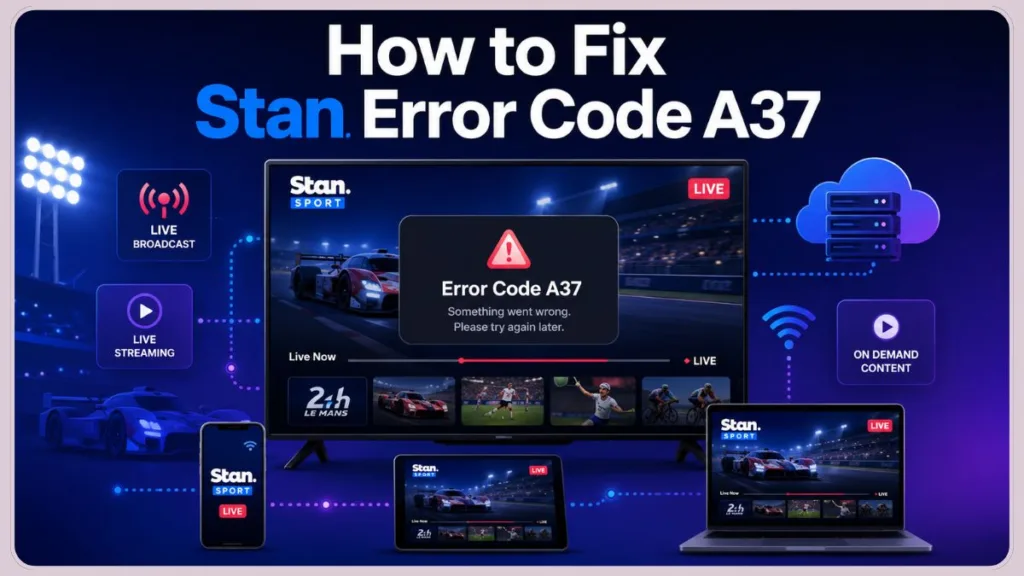
If you are frantically searching for a quick fix, you are not alone. While Stan documents many standard playback glitches, Error A37 is a bit of a mystery in their official guides, leading to a lot of confusion.
The good news is that you probably do not need to mess around with your Wi-Fi settings or buy a new router. In this guide, you will learn exactly what Error A37 means, why it targets live events, and the most effective steps to get your stream back on the big screen quickly.
Quick Answer
Stan Error Code A37 appears to be a playback interruption that can occur during live streams or regular video playback. It may be caused by temporary service issues, network interruptions, app glitches, or device-related problems. Restarting the stream, reopening the Stan app, and checking for service outages are usually the best first steps.
What Does Stan Error Code A37 Actually Mean?
While most A-series errors point to a problem with your internet connection or a corrupted app cache, Error A37 behaves differently. Based on user reports during the 24 Hours of Le Mans broadcast, Error A37 appears to be associated with live-stream interruptions that affect multiple viewers simultaneously. Some users noticed that Stan later provided a replacement stream, suggesting the issue may have originated from the broadcast feed or streaming infrastructure rather than individual devices.
Because the problem often originates on Stan’s end during these types of events, trying to change your DNS servers or rebooting your modem won’t immediately bring the dead stream back to life.
Was Stan Error Code A37 a Platform Issue?
During the 2026 WEC 24 Hours of Le Mans event, multiple viewers reported receiving Error A37 at roughly the same time. Because the issue affected multiple users simultaneously, it suggests that some A37 incidents may originate from Stan’s streaming infrastructure rather than the viewer’s internet connection.
How to Fix Error A37 During Live Events
If you just got booted from a massive motorsport race, a marathon tennis match, or any long-running live broadcast, you need to force the app to load the newly generated stream link. Try the following steps to get back into the action:
- Back out of the player: Do not hit the retry button on the error screen. You need to completely exit the broken video player and return to the main Stan Sport menu.
- Force close the app: If you are on a Smart TV, Apple TV, or mobile phone, completely close the application. If you are watching on a web browser, perform a hard refresh of the page.
- Look for the next broadcast part: When a live broadcast drops, Stan usually spins up a continuation feed. Look for a newly populated tile on the homepage labeled with the next sequence (for example, “Part 7” or “Final Hour”).
- Switch your device: If the new stream tile refuses to load on your Smart TV, try opening the Stan app on your smartphone or tablet and casting it to your screen using Chromecast or AirPlay.
How to Force Close and Clear Cache on Specific Devices
If you need to force close the app or clear its temporary memory to help the new stream appear, the exact steps depend on your hardware.
Samsung Smart TVs
If your Samsung TV’s operating system is holding onto corrupted temporary data, your stream will likely freeze or buffer indefinitely.
- Navigate to Settings: Press the Home button on your remote, scroll to the left, and select the Settings gear icon.
- Open Device Care: Go to Support, then select Device Care.
(If Device Care is grayed out, open the Samsung TV Plus app for a few seconds, then return to the settings menu).
- Access Storage: Select Manage Storage to view a list of all your installed apps.
- Clear the Data: Scroll to the Stan app, select View Details, and choose Clear Cache. For a completely fresh start, you can also select Clear Data, though this will require you to log back into your account.
Apple TV
Apple TV does not have a dedicated “Clear Cache” button in its settings menu. Instead, you can force the operating system to dump the app’s temporary memory by force-closing it.
- Open the App Switcher: Quickly double-click the TV/Control Center button (the icon shaped like a TV screen) on your Siri Remote.
- Find the Stan App: Swipe left or right on the clickpad or touch surface to locate the active Stan app window.
- Force Close: Swipe up on the clickpad to push the app off the screen and force it to close.
- Relaunch: Press the Back button to return to the home screen, then reopen Stan to start a fresh connection.
General Troubleshooting for On-Demand Shows
If you are seeing Error A37 while watching a standard movie or TV show, rather than a live event, the issue might actually be a temporary network timeout between your device and the servers. If that is the case, try these quick methods:
- Test your network with another app: Open an alternative platform like Netflix, Prime Video, or YouTube. If those streams are also buffering or failing to load, the issue is your internet connection, not the Stan app.
- Power cycle your hardware: Unplug your modem, router, and streaming device from the wall.
Wait a full 60 seconds before plugging everything back in to flush out any network routing glitches.
- Check for interference: If you are using a VPN or custom DNS settings to bypass region blocks, try disabling them temporarily. Stan actively blocks proxy services, which can cause sudden playback errors.
When to Contact Support
If you have refreshed the live event page and a new stream link hasn’t appeared after several minutes, the broadcast may have completely failed on Stan’s end.
In this situation, check social media platforms like X (Twitter) to see if other users are reporting a massive outage.
If the issue persists, your best option is to submit a direct ticket to Stan Support. Be sure to include your device model, the exact time the stream crashed, and the Error A37 code. Providing this specific information helps them track the server outage much faster so they can get the broadcast back online.
Visit Our Post Page: Blog Page
Discover more from Izoate
Subscribe to get the latest posts sent to your email.