
Getting the “Access has been blocked” Error 53003 on Microsoft Authenticator? Don’t panic. Here’s a complete step-by-step guide to fix Conditional Access login blocks and restore access fast.
Introduction: The Digital Bouncer Problem
Getting the right password should not feel like a failure, yet with Microsoft Authenticator Error Code 53003, that is exactly what happens. You enter your credentials, the success checkmark appears, and then you are hit with a screen telling you that you cannot access your own tools. In the modern hybrid work era of 2026, security has shifted from simple passwords to Zero Trust Architecture. This means that even if you know the password, the system still does not trust the environment from which you are logging in.
The Real Frustration: A Successful Failure
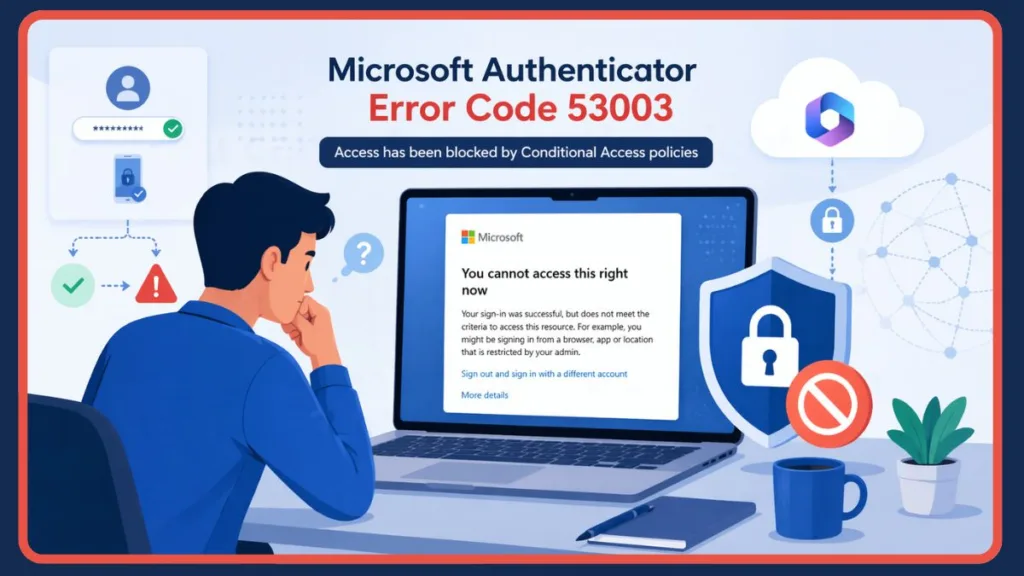
User frustration peaks when they see the message: Access has been blocked by Conditional Access policies. Token issuance not allowed. This is particularly jarring because the screen often confirms your sign-in was successful just seconds before the block occurs. This is not a simple login error; it is a policy-based restriction. It signifies that your authentication (who you are) was successful, but your authorization (what you are allowed to do right now) has been denied.
Affected applications typically include:
- Microsoft Outlook: Blocked during folder synchronization or when sending high-priority mail.
- Microsoft Teams: Prevented from loading channels or starting video calls.
- Microsoft 365 (Office): Inability to open, edit, or save documents to OneDrive and SharePoint.
Deep Dive: Understanding the Authorization Gap
To understand 53003, you must understand how Microsoft Entra ID (formerly Azure AD) handles security through a Two-Gate system. Most users assume that entering a password is the final step, but in 2026, it is only the beginning.
Authentication vs. Authorization
- Authentication (The First Gate): This checks who you are. You provide a password and verify your identity via the Microsoft Authenticator app (MFA). If these match, you pass. Result: Success.
- Authorization (The Second Gate): This is where the Conditional Access Engine lives. It asks: Is the device encrypted? Is the user on a corporate network? Is the browser updated? If any of these rules fail, the gate stays shut. Result: Blocked.
The Science of Token Issuance
This is the high-ranking reason why you are blocked even after a Successful Login. When you sign in, Microsoft generates an OAuth 2.0 Token. This token is like a temporary digital badge that lets you use Outlook or Teams for the next several hours without re-typing your password. Error 53003 occurs because the system has verified your identity but refuses to issue the token. Without that token, your app cannot talk to the Microsoft servers.
Important Tip: Think of it this way: You have the right ID, but the digital bouncer is refusing to give you the wristband required to enter the room because you are not wearing the right shoes (device compliance or location).
What Causes Error Code 53003?
While the error message is vague, the root causes are highly specific. In the current 2026 landscape, these are the primary culprits that trigger a policy block:
- Conditional Access Policy Restrictions: Your IT department has set specific If/Then rules. If you are logging in from a new region or a device that has not been used in a while, you may trigger a restrictive rule.
- Device Not Compliant / Unregistered: Many organizations require Managed Devices. If you are using a personal laptop that has not been enrolled in Microsoft Intune, the policy will see you as a Rogue Device.
- Location or IP Mismatch: If your IP address originates from a country marked as untrusted, or if you are using a public Wi-Fi that has been flagged for malicious activity, Entra ID will terminate the session.
- User Risk Flagged in Azure AD: Microsoft uses machine learning to calculate a Sign-in Risk Score. If you log in from New York and then try again from Tokyo 20 minutes later (Impossible Travel), your risk score hits 100%, and the token is blocked.
- VPN / Proxy Interference: VPNs are a leading cause of false positives. If your VPN exits in a different country or uses a shared IP that has been abused, Microsoft will treat your login as a threat.
- Browser Cache or Outdated Client: Legacy authentication protocols are being phased out. Using an old version of Google Chrome or an unpatched Microsoft Teams desktop app will fail the security handshake.
The Guest User Paradox: External Access Issues
Error 53003 is a major pain point for B2B (Business-to-Business) collaboration. Based on Microsoft Learn data and community discussions, this frequently affects external users, guest accounts, and cross-tenant access.
Why You Can’t See the Blocking Policy
One of the most confusing aspects of guest access is that the policy causing the error might not even belong to your company. It could be the Resource Owner’s policy. If Company B (the host) requires all guests to use a compliant, domain-joined device, and you are trying to join from a personal iPad, Company B’s gatekeeper will throw Error 53003.
This creates an Invisible Policy problem. Because of security obfuscation and privacy rules in multi-tenant environments, Microsoft will not show you the name of the external company’s policy. Furthermore, if the block happens at your Home tenant level before the traffic even reaches the Host, the host admin will see zero logs of the attempt. This is why many users feel stuck—they are being blocked by a rule they cannot see, in a tenant they do not manage.
Step-by-Step Fix for Error Code 53003
A. User-Level Fix (Try these first)
Before escalating to IT, perform these Quick Strikes to rule out local software conflicts.
- Use an Updated Browser: Microsoft officially supports Microsoft Edge, Chrome, and Firefox. Avoid niche browsers that may not handle modern security headers.
- Clear Cache and Cookies: Corrupted session tokens are a common trigger.
- Edge: Settings > Privacy > Clear browsing data.
- Chrome: Settings > Privacy and security > Clear browsing data.
- Try Incognito / Private Mode: This disables extensions and clears temporary data. If you can log in here, your main browser profile is the issue.
- Repair or Reset Microsoft 365: If the error is in the desktop app, go to Windows Settings > Apps > Installed Apps. Find Microsoft 365, click the three dots, and select Advanced Options. Click Repair. If that persists, click Reset.
Important Tip: Always set the time range to All Time when clearing browser data. Corrupted tokens from months ago can still interfere with the 2026 authentication protocols.
B. Special Case: Fix Device Unregistered
If the error specifically mentions that your device is unregistered, it means the server cannot verify that your hardware belongs to the company. This is a Device Compliance failure.
- Check the Company Portal: On Windows or Mobile, open the Microsoft Company Portal app. If it says This device is not compliant, click Check Compliance to see what is missing (often a pending Windows update or BitLocker encryption).
- Enroll the Device: If the device is not listed, you must Join it to the organization via Settings > Accounts > Access work or school > Connect.
Advanced Fix For Admin-Level
If user-level fixes fail, the issue is server-side policy enforcement. Admins must follow this diagnostic workflow:
- Review Conditional Access Policies: Search for policies targeting Guest Users that might be too broad or misconfigured in the Microsoft Entra admin center.
- The Correlation ID Filter: Ask the user for the Correlation ID from their error screen. Filter the Entra ID Sign-in logs with this ID to see exactly which policy resulted in a Failure.
- Check User Risk Level: If the user is flagged for suspicious activity, you must manually dismiss the risk or reset their password to clear the 53003 block.
- Enable or Disable Security Defaults: Ensure there is not a conflict between Security Defaults and your custom CA policies.
When to Contact Your IT Admin
There is a hard limit to what a standard user can do. Because Error 53003 is a security enforcement, users cannot hack or bypass these rules. If your company has blocked access from a specific country or requires a managed device, only an admin can:
- Modify the specific access rules.
- Allow temporary exceptions for traveling employees.
- Update the Named Locations in the Azure portal.
- Add the user to an Exclusion Group.
Important Tip: When you reach out to IT, provide the Correlation ID, Timestamp, and the specific application you were trying to access. This reduces troubleshooting time by 80%.
Best Practices and Policy Limitations
To prevent this error in the future, follow these 2026 security best practices:
- Avoid VPNs for Work: Unless it is a company-sanctioned VPN, keep it off. Personal VPNs frequently trigger untrusted IP blocks.
- Keep Devices Compliant: Never ignore OS updates. An unpatched system is an uncompliant system.
- Regular Azure AD Audits: Admins should use the What If tool in the Conditional Access portal to simulate logins and catch restrictive policies before they hit the workforce.
The Reality of the Block
It is important to acknowledge the Limitations of Fixes. In many high-security environments, Error 53003 is not a bug—it is the system working perfectly. If your organization’s policy dictates that no personal devices are allowed, no amount of cache-clearing will fix the issue. Organization-level policies override everything.
FAQ
What is Microsoft Authenticator error code 53003?
It is a security error where your sign-in was successful, but your access is blocked by a Conditional Access Policy. It usually relates to device health, location, or app version.
Why is my login blocked after successful sign-in?
Microsoft uses a Zero Trust model. You proved who you are (Authentication), but you failed to prove your environment is safe (Authorization).
Can I fix error 53003 without admin access?
Only if the cause is local, such as an outdated browser or a non-compliant device that just needs a Windows update. If the policy itself is the barrier, you need an admin.
Does VPN cause this issue?
Yes. VPNs change your IP and location, which can trigger untrusted location or impossible travel rules in Azure AD.
What does token issuance blocked mean?
A token is your digital pass to use an app. Microsoft is refusing to give you that pass because your current login attempt does not meet the security criteria.
Conclusion: Security Over Convenience
Microsoft Error Code 53003 is a powerful enforcement mechanism. While frustrating, it ensures that stolen passwords are not enough to compromise company data from unmanaged devices or unauthorized locations. By understanding the gap between authentication and authorization, working with your admin, and maintaining device compliance, you can resolve the 53003 block and maintain a secure, seamless workflow.
Important Tip: Treat Error 53003 as a confirmation that your organization’s security is active. A quick check of your compliance status is usually the fastest path back to productivity.
Visit Our Post Page: Blog Page
Discover more from Izoate
Subscribe to get the latest posts sent to your email.