
Download Minecraft Bedrock 26.50 today! Follow simple steps for all platforms to explore the new Dappled Forest, find Abandoned Camps, and craft cushions.
Are you trying to update Minecraft Bedrock to version 26.50, but your console or app store isn’t starting the download? Or have you already installed the update but can’t find the new forest biome anywhere near your base?
The long-awaited “Wilderness Bound“ game drop is officially live across Windows PC, Xbox, PlayStation, Nintendo Switch, iOS, Android, and Fire TV. We have tested the update process across all platforms to explain not only how to force the download, but also the important things you should know before installing it—including chunk generation mechanics, add-on compatibility, and ways to fix the most common 26.50 bugs.
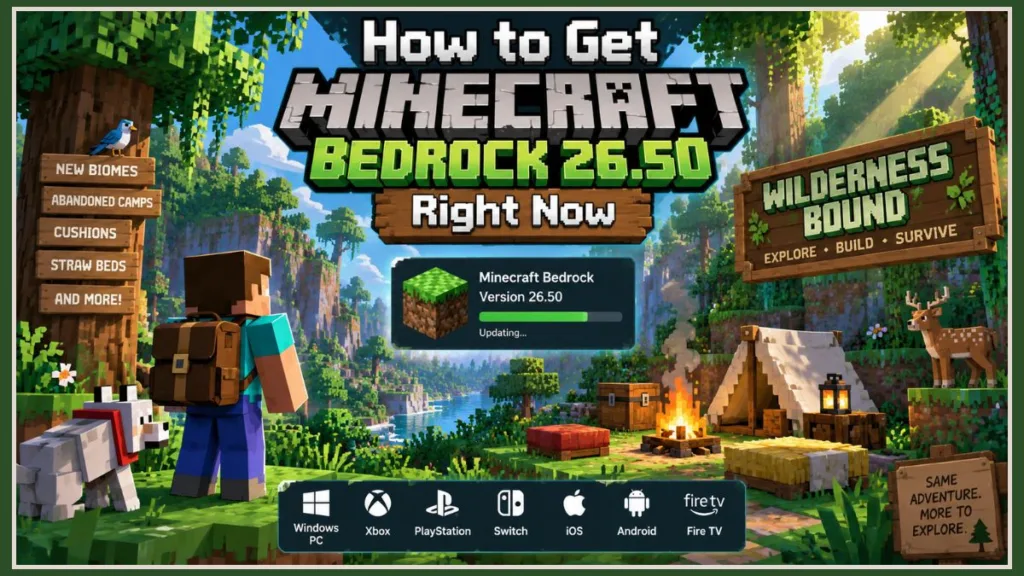
Quick Answer: How to Get Minecraft Bedrock 26.50 Right Now
To download the Minecraft 26.50 update, open your platform’s storefront or game library and check for the latest update:
- Windows 10/11: Open the Microsoft Store, go to Library, and select Get Updates. You can also make sure the Minecraft Launcher is set to Latest Release.
- Xbox / PlayStation / Switch: Highlight Minecraft from your home screen, press the Menu/Options/+ button, and choose Check for Update / Manage game > Updates.
- Mobile (iOS & Android): Search for Minecraft in the App Store or Google Play Store and select Update.
4 Crucial Things You Must Know Before Updating
Before you start the download, there are four technical details you should keep in mind. Knowing these can help you avoid potential game-data problems and prevent confusion when you load an existing world.
1. The “Unexplored Chunks” Rule (Why Your Base Won’t Change)
If you load an existing survival world and don’t see the new Dappled Forest outside your front door, don’t worry. Minecraft’s terrain generation doesn’t overwrite chunks that you have already explored or built in.
- To discover the new Dappled Forest biomes or Abandoned Camps, you need to travel into fresh, unrendered territory that you have never visited before.
- If your old world already has millions of rendered blocks, consider creating a Nether highway and traveling thousands of blocks away to generate new 26.50 terrain. Alternatively, start a fresh seed if you want to see the new content immediately.
2. Back Up Your Worlds First
Major version updates can change the underlying world-save formats. Although Minecraft attempts to convert your worlds automatically, an unexpected crash during the update could potentially corrupt your world files.
- How to back up on Bedrock: Open your World list, select the Edit (Pencil) icon beside your world, scroll to the bottom of the “Game” tab, and select Copy World or Export World.
3. Add-Ons, Shaders, and Texture Packs May Break
Third-party resource packs and behavioral add-ons can stop working correctly when Mojang introduces environmental overhauls and UI changes.
- Custom UI packs and inventory tweaks are particularly prone to crashing on version 26.50.
- If Minecraft crashes when you try to open a world after updating, temporarily disable your active resource packs by going to the World Settings and opening Resource Packs > Active.
4. Realms Auto-Update Delays
If you manage or play on a Minecraft Realm, keep in mind that the host Realm server doesn’t always update at exactly the same moment the client patch is released. If you’ve updated Minecraft but your Realm still displays “Outdated Server,” the Realm host needs to log in using the updated 26.50 client to trigger the server-side update.
What’s New in the 26.50 “Wilderness Bound” Update?
This game drop is the third major update of the year and focuses on wilderness immersion, cozy aesthetics, and quality-of-life additions requested by the community.
The Dappled Forest Biome
The main highlight of the update is the Dappled Forest. It adds:
- A denser, high-canopy ceiling that creates scattered, “dappled” light patterns across the forest floor.
- Unique foliage density, new ground scatter, and new wood variants designed for aesthetic camp and cabin builds.
- Enhanced atmospheric fog and ambient lighting adjustments that give woodland areas a softer and deeper appearance.
Abandoned Camps
These new generated structures are scattered throughout the wilderness and provide useful early-to-mid-game resources:
- They are built around remnants of campfires and small tents.
- They contain localized chest loot with survival starter packs, including food, tools, and basic exploration gear.
- They add environmental storytelling, helping solitary survival worlds feel as though they have a history.
Functional Cushions & Straw Beds
Mojang has also addressed base seating and rough survival sleeping:
- Cushions: A fully interactive furniture block. Rather than using stair blocks or invisible armor-stand glitches, you can now right-click/tap a Cushion to sit naturally.
- Straw Beds: An accessible, rustic sleeping option designed for mobile survival setups when wool is difficult to find during early-game nomadic exploration.
Engine Optimizations
The update also includes:
- Memory leak fixes aimed at long multiplayer sessions.
- Reduced rendering stutter when chunks are loaded rapidly on mobile devices and Nintendo Switch.
For the detailed update information, see the official Minecraft Bedrock Edition 26.50 changelog.
Step-by-Step: How to Download 26.50 on Every Platform
Use the instructions below for your specific platform.
Windows 10 & 11 PC
Method A: Via the Microsoft Store (Recommended)
- Close Minecraft completely.
- Open the Microsoft Store app.
- Select Library in the bottom-left corner.
- Select Get Updates in the upper-right corner.
- Wait while the download queue fetches Minecraft version 26.50.
Method B: Via the Minecraft Launcher
- Open the Minecraft Launcher.
- Select Minecraft: Bedrock Edition from the left menu.
- Beside the green “Play” button, make sure the drop-down is set to Latest Release.
- Select Play. The launcher will automatically download any missing update assets before starting.
Xbox One & Xbox Series X|S
- From the Xbox Home screen, open My Games & Apps.
- Highlight Minecraft and press the Menu button (three horizontal lines).
- Select Manage game and add-ons.
- Select Updates.
- Select the Minecraft 26.50 package to move it into your active download queue.
PlayStation 4 & PlayStation 5
- Hover over the Minecraft icon on your home screen or in your library.
- Press the Options button on your controller.
- Select Check for Update.
- If the update is available in your region, it will start downloading immediately in your Downloads hub.
Nintendo Switch & Switch 2
- Highlight Minecraft on your Switch home screen.
- Press the + or – button on your Joy-Con controller.
- Navigate down to Software Update.
- Select Via the Internet to contact Nintendo servers and check for the 26.50 patch.
(Alternatively, launching the game will display a pop-up redirecting you to the eShop to confirm the update).
Android & iOS (Pocket Edition)
- Android: Open the Google Play Store > tap your profile icon in the top right > Manage apps & device > Updates available > tap Update next to Minecraft.
- iOS: Open the App Store > tap your profile icon > drag down from the top of the screen to hard-refresh pending updates > tap Update next to Minecraft.
Amazon Fire TV
- From your home screen, navigate to the Store tab (magnifying glass).
- Search for Minecraft, or locate it in your “Recent” apps row.
- Press the Menu button (three lines) on your Fire TV remote and select More Info.
- Select the Update button on the product details page.
What to Do If the Update Won’t Download
Major game drops can introduce installation and gameplay bugs. Below are the most common issues and the corresponding fixes.
1. Download Stuck at 0% or 99% (Windows & Xbox)
- Cause: A Store cache lock or network socket timeout can occur while the files are being unpacked.
- The Fix on PC: Press
Windows Key + R, enterwsreset.exe, and press Enter. A blank command prompt will appear and clear the Microsoft Store cache. When the store opens again, retry the download. - The Fix on Xbox: Cancel the update, hold your console’s physical power button for 10 seconds to perform a hard cache clear, turn the console back on, and start the update again.
2. “Outdated Client” or “Could Not Connect: Outdated Server”
- Cause: Your device, your friend’s game, or the Realm server may be running a different version.
- The Fix: Make sure every player is running 26.50. If you’re attempting to join a private dedicated server, the server administrator needs to download the updated Bedrock Dedicated Server (BDS) zip file from Mojang’s site and update the server executables.
3. Crash on World Loading (0% or 100% Loading Screen Freeze)
- Cause: Incompatible experimental features or outdated resource/behavior packs may be attempting to render obsolete entities.
- The Fix: Edit your world settings without loading into the world. Open Resource Packs and Behavior Packs, then deactivate all custom non-Mojang packs. Try loading the world using the default vanilla textures first.
4. Low Frame Rates & Stutter in the Dappled Forest
- Cause: The dense canopy and additional leaf transparency can put extra strain on mobile and Switch GPUs.
- The Fix: Open Settings > Video and change the following:
- Turn Fancy Leaves to OFF.
- Turn Smooth Lighting to OFF or lower your Render Distance by 2–4 chunks.
- Disable Screen Animations.
5. Invisible or Unresponsive Cushions
- Cause: Multiplayer hitbox calculation can desync when cushions are placed on block borders or beside slabs.
- The Fix: Place cushions on flat, full solid blocks such as wood planks or stone. Avoid placing them on half-slabs or beside open trapdoors until Mojang releases a minor patch.
Frequently Asked Questions (FAQs)
Is the Minecraft 26.50 Wilderness Bound update free?
Yes. All Minecraft Bedrock Edition version updates and game drops are completely free for anyone who owns the base game.
Will updating to 26.50 delete my worlds or builds?
No. The update only installs new game engine files and assets, while your save files remain intact. However, we still strongly recommend using the “Copy World” feature so you have an uncorrupted safety duplicate.
Can Java and Bedrock players play 26.50 together?
Vanilla Bedrock and Java editions continue to use separate multiplayer networks. Native cross-play isn’t supported unless you connect through a third-party server using translation plugins such as GeyserMC, which will need to be updated to support version 26.50.
Can I downgrade back if 26.50 breaks my add-ons?
On consoles (Xbox, PlayStation, Switch) and mobile devices, there is no official way to roll back to an older version. On PC, you can only roll back by using specialized third-party version management tools or if you have a previous standalone backup.
Why hasn’t the update hit my device yet?
Mojang rolls out updates gradually across regional servers to prevent crashes. If it hasn’t appeared for you yet, restart your device, check your Wi-Fi, or manually refresh your platform’s store page.
Can I finally sit on cushions in Minecraft?
Yes! We tested this right away. Unlike stairs or slabs which require workarounds or mods to simulate sitting, the new cushions introduced in 26.50 are fully functional, interactive blocks.
Will this update corrupt my old survival worlds?
No, your existing worlds will automatically convert to the new version. However, we always recommend making a quick copy or backup of your favorite worlds before installing a major update just to be safe.
Summary Checklist
- Back up your important worlds before installing the update.
- Download 26.50 through your platform’s store or launcher.
- Disable outdated add-ons if you encounter startup crashes.
- Explore unrendered chunks to find the Dappled Forest and Abandoned Camps.
Have you explored the Dappled Forest yet, or are you running into an error code while downloading? Let us know in the comments below, along with the device you’re playing on!
Visit Our Post Page: Blog Page
Discover more from Izoate
Subscribe to get the latest posts sent to your email.