
Minecraft Dungeons 2 showing “Log In Failed” when you try to sign in? Learn how to fix Minecraft Dungeons 2 Error 0029 and Microsoft account linking issues.
Minecraft Dungeons 2, also written as Minecraft Dungeons II, uses a Microsoft account for sign-in. On PC, that account also needs to be connected to the store where you bought the game.
When that connection fails, you may never reach the main menu. Instead, Error Code 0029 can appear within minutes of your first launch.
If that is exactly what you are seeing, the problem is usually tied to account linking or sign-in, especially on Steam.
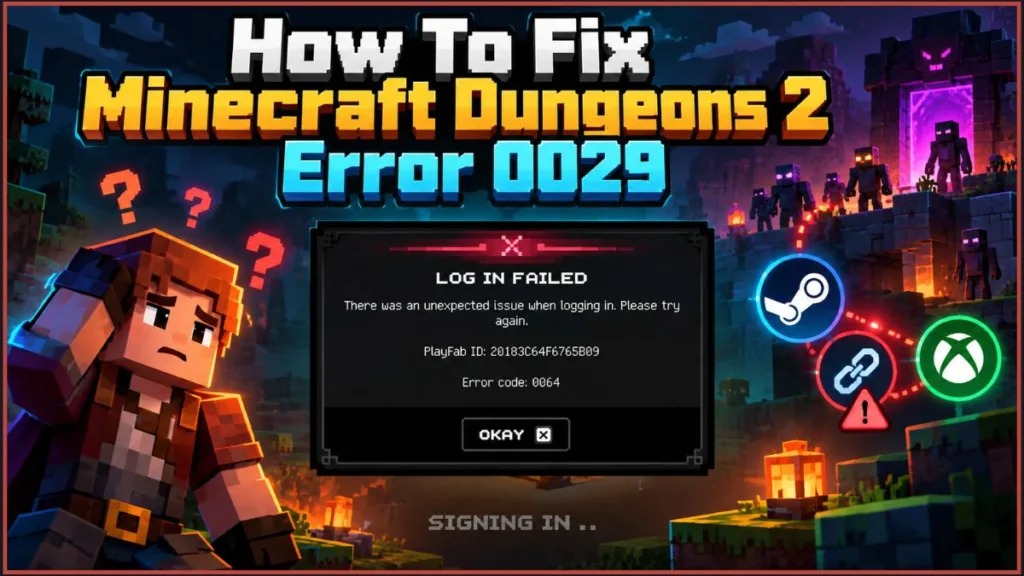
This guide explains what Error 0029 means, when it appears, what can cause it, and how to fix it. The fixes start with the quickest options and move into deeper Windows and account troubleshooting. We’ll also cover Game Pass and Xbox app players, explain how Error 0064 fits into the picture, and go over a few ways to reduce the chance of seeing 0029 again.
Important: Minecraft Dungeons 2 launched on September 29, 2026, and Mojang and Xbox have not yet published an official explanation for Error 0029. The steps below combine player reports with Microsoft’s and Xbox’s general guidance for account linking and Windows gaming components. Treat them as well-supported troubleshooting steps, not guaranteed cures.
So, What Is Error 0029 Actually Telling You?
Error Code 0029 appears when the game cannot finish signing you in or linking your accounts.
Minecraft Dungeons 2 authenticates through your Microsoft (Xbox) profile, so anything that interrupts that connection can trigger the error. That can include a missing account link, a signed-out app, the wrong account, or a broken Windows gaming component.
In other words, Error 0029 does not mean your game files are necessarily broken or that your PC is too weak. It points to a problem with your accounts and the services connecting them.
The issue is most commonly reported by Steam players, where the game asks you to connect a Microsoft account to your Steam profile before letting you continue.
Is Steam Actually the Problem, or Is Microsoft?
Both are involved, but the fix usually sits on the Microsoft side.
The process works roughly like this:
Steam launches the game > the game asks for your Microsoft account → Xbox services connect that account to your Steam profile.
Steam does not manage that connection itself. That is why many of the fixes below happen in the Xbox app and Windows settings, rather than directly in Steam.
When Are Players Seeing Error 0029?
Players report the error in several different situations:
- At launch: You start the game, reach the login stage, and the error appears before anything else loads.
- While linking accounts: The game asks you to connect your Microsoft account to Steam, but the process fails or sends you back to the error.
- After Error 0064: Some players see 0064 first, followed by 0029 when they attempt to link their account.
- After a crash: A few players report seeing the linking prompt, having the game crash, and then getting the error the next time they launch it.
- Around busy periods: Some players were able to get in simply by trying again later, suggesting the timing may matter for some users.
If one of those situations sounds familiar, the possible causes below should help narrow things down.
What Usually Causes Error 0029?
There is no official breakdown of the error yet, so the causes below are based on player reports and on how account linking normally works.
Your Steam and Xbox Accounts Aren’t Properly Connected
This is the cause reported most often.
If the connection was never created, or if an existing connection has gone stale, the game cannot confirm who you are.
What to Do: Create the connection, or remove it and create it again. The tutorials below cover both options.
The Xbox App or Its Components Need an Update
The Xbox app, Xbox Game Bar, and Microsoft’s Gaming Services handle much of the authentication work on Windows.
If one of them is outdated, or you are signed out of the Xbox app, account linking can fail. A top-rated launch-day Steam review lists this as the first thing to check.
What to Do: Update all three and confirm that you are signed in to the Xbox app with the correct account.
Minecraft Dungeons 2 Is Running as Administrator
Several players report that launching the game with administrator rights interfered with the Steam link and produced Error 0029.
This can be easy to miss, especially if an older compatibility setting enabled it.
What to Do: Check whether administrator mode is enabled and turn it off.
The Game Is Picking Up a Different Microsoft Account
Using more than one Microsoft account can create another problem.
The game may pick up an account you did not intend to use. The link can then fail, or it can connect to an account that does not contain your progress.
What to Do: Use the same Microsoft account in the Xbox app, Microsoft Store, and the game.
Gaming Services or the Xbox App Isn’t Working Properly
Minecraft Dungeons 2 relies on Microsoft’s Gaming Services on Windows.
Launch-day reports show the game attempting to install or repair that component when it starts. If Gaming Services is stuck or corrupted, sign-in can fail even when your accounts are fine.
What to Do: Repair or reset Gaming Services and the Xbox app, as explained later in this guide.
Windows Is Reusing an Old or Locked Sign-In
Windows remembers Microsoft and Xbox sign-ins.
If a saved account is locked, incorrect, or expired, the game may keep trying to use it and ignore the one you actually want.
What to Do: Clear the saved sign-in and check that your account is not locked.
The Login System Is Having a Temporary Hiccup
Several players report that Error 0029 disappeared after a restart or a few more attempts.
That fits a short-lived problem with login services, which is not unusual immediately after a major release. However, nobody has confirmed this as the cause of Error 0029, so treat it as something to rule out rather than a confirmed explanation.
What to Do: If nothing else applies, check service status and try again later.
Before You Start, Have These Ready
A few minutes of preparation can save you frustration and help you avoid mistakes that are difficult to undo.
What You’ll Need Before Troubleshooting
- A Microsoft account with an Xbox profile. Xbox support pages for other Steam games note that having a Microsoft account alone is not enough. The account also needs to be set up for Xbox with a gamertag. If you have never played on Xbox, sign in to the Xbox app once to create your profile. You can check or manage your account at account.microsoft.com.
- The Xbox app for Windows. This is the tool that holds your Xbox sign-in and, for Steam players, the Steam connection. It is free and requires Windows 10 or 11, version 22H2 or higher. You need it for the Xbox sign-in and account-linking steps in this guide. Get it from the official Xbox PC app page.
- The Steam Overlay turned on. When the game asks you to confirm a connection, the confirmation appears in the Steam Overlay. If you have disabled the overlay in Steam settings, that prompt may never appear.
- Up-to-date Windows. Go to Start > Settings > Windows Update and check for updates first because the Xbox components depend on them.
- A stable internet connection. Every step below involves signing in to Microsoft’s servers.
- Your Microsoft account details. Some steps sign you out, so make sure you know the password and can receive a verification code.
If you are not sure whether your PC can run the game at all, the Minecraft Dungeons II Steam page lists its system requirements.
A Few Things to Check Before Changing Anything
Know which Microsoft account holds your progress. Xbox guidance for other Steam titles notes that progress is tied to the Xbox account. Switching to another account means losing access to the first account’s progress until you relink it. If you have already played, use that same account again.
Never download Gaming Services from a random website. Get it only through the Microsoft Store or the Xbox app prompt. You do not need a third-party download for this component.
Do not remove your main Windows sign-in. Some steps involve removing an account in Windows settings. Only do this for an account you added, not the account you use to log in to Windows.
What to expect: Not every step below will apply to you. Stop as soon as the game lets you in. Work through the fixes in order because the early options are quick and low-risk.
Start With These Quick Fixes
The fixes below are player-reported steps, not officially confirmed solutions. They are grouped by the setup they apply to, so skip anything that does not match your situation.
If you play through Game Pass, the Xbox app, or the Microsoft Store, the Steam-specific fixes will not apply to you. The first group and the Deeper Fixes section can still help.
Restart Steam, the Game, and Your PC
Close Minecraft Dungeons 2 and fully exit the app you use to launch it.
On Steam, that means right-clicking the Steam icon in the system tray and choosing Exit. Simply closing the Steam window is not enough.
Reopen Steam and launch the game again.
If Steam is not installed on this PC, you can get the official Steam client from Steam’s install page. You only need this if Steam itself is missing.
Still seeing 0029? Restart your PC and try one more time.
What to expect: The game should either reach the main menu or show Error 0029 again. If the error returns, nothing is lost. Move on to the next fix.
Why It Helps: Restarting clears stuck sessions and forces a fresh sign-in attempt. At least one Steam player got past the login this way.
Bring the Xbox Components Up to Date
The Xbox app, Xbox Game Bar, and Gaming Services are the Windows components you will check here. The Xbox app provides the Microsoft/Xbox sign-in, while Game Bar and Gaming Services support the Windows gaming and authentication process.
- Open the Microsoft Store.
- Open Library from the left-hand menu. In some Store versions, you may need to select the three dots or More, then Downloads and updates.
- Click Get updates and let everything finish. Microsoft’s current guide to getting updates for apps and games in the Microsoft Store shows the layout if yours looks different.
- Check that the Xbox app, Xbox Game Bar, and Gaming Services have no pending updates. If Gaming Services is not listed, do not search for it online. The Xbox app will offer to install it if it is missing.
- Restart your PC and launch the game again.
What to expect: Updates usually take a few minutes. If the Microsoft Store itself will not update or install anything, Microsoft’s official Microsoft Store app troubleshooting guide walks through those fixes. You can also move to the repair steps in the Deeper Fixes section.
Why It Helps: Outdated Xbox components were the first thing launch-day players were told to check because they handle much of the sign-in and linking process on Windows.
Make Sure the Xbox App Is Using the Right Account
The Xbox app for Windows is important here because it holds your Xbox sign-in and, for Steam players, the Steam connection.
If you do not already have it installed, download it from the official Xbox PC app page. This is Microsoft’s own download page, so there is no reason to use a third-party installer.
- Open the Xbox app on your PC.
- Check the profile picture or name in the top-left corner to see which account is signed in.
- If you are signed out, sign in with the Microsoft account that owns your progress.
- If the wrong account is signed in, click your profile, sign out, and sign back in with the correct one.
- Open the Microsoft Store and confirm that the same account is signed in there too.
- Relaunch the game.
What to expect: The Xbox app should show your gamertag and profile. If it asks you to create a profile, follow the prompts because the game needs it.
Why It Helps: The game relies on your PC’s Xbox sign-in, so a signed-out or mismatched account is a common reason the connection fails.
If You’re Playing on Steam, Check the Account Link
Try Linking Steam and Xbox From the Game
There are two ways to create the connection.
Try the in-game prompt first. If that keeps failing, use the Xbox app instead.
Method 1: Follow the In-Game Link Prompt
Xbox Game Studios’ support pages for other Steam games describe this flow, and Minecraft Dungeons 2 appears to follow a similar pattern, although its own steps have not been officially documented yet.
- For a smoother sign-in, first sign in to the Microsoft account you want on another device, such as your phone, or in your browser.
- Launch the game from Steam.
- When the game asks you to link your Microsoft account, follow the sign-in prompt.
- When the Steam Overlay opens and asks you to confirm the link, check the accounts shown.
- If they are correct, choose Yes, Link Accounts or the equivalent confirmation option.
- If the wrong account is showing, press Shift + Tab to close the overlay, sign out from the game’s menu, and start again.
What to expect: After confirmation, the game should continue to the main menu.
Method 2: Create the Link From the Xbox App
- Open the Xbox app and click your profile picture or name in the top-left corner.
- Open Settings.
- Find the linked accounts section. In some versions it is called linked social accounts. Look for Steam.
- Click Link, then sign in to Steam and confirm when asked.
- Restart the game.
What to expect: Steam should appear as linked in the Xbox app.
Menu names can change between app versions, so look for whichever option mentions linked or social accounts.
For the official account-linking instructions, see Xbox’s guide to linking your social network accounts to Xbox.
Why It Helps: One Steam player described this as the step that finally got them into the game. Creating the connection yourself also removes an unreliable prompt from the process.
Already Linked? Remove the Connection and Start Again
Already linked but still getting Error 0029?
Try unlinking the accounts and starting the connection again.
This comes from one Steam player’s report and is not an official fix.
Steam does not manage this connection, so the unlinking happens on the Xbox side.
- Close the game.
- Press Windows key + G to open the Xbox Game Bar. Game Bar is built into Windows, so there is nothing separate to download. Microsoft’s official Game Bar guide explains how it works. If nothing opens, check that it is enabled under Settings > Gaming > Xbox Game Bar.
- Open its Settings and look for Accounts.
- Find the Steam connection and unlink it. If you cannot find it there, use the linked accounts section of the Xbox app instead.
- Restart your PC.
- Launch the game and go through the linking process again using either method above.
What to expect: Unlinking removes the connection but should not delete your game or Steam account. The game will ask you to link again the next time it launches.
Why It Helps: A half-finished or corrupted connection can keep failing no matter how many times you retry. Creating a fresh link gives the game a clean connection.
Make Sure Administrator Mode Is Off
- In Steam, right-click Minecraft Dungeons II in your library.
- Choose Manage > Browse local files.
- Right-click the game’s executable, the
.exefile, and choose Properties. - Open the Compatibility tab.
- If Run this program as an administrator is checked, untick it.
- Click Apply, then OK.
- Repeat the same check for Steam’s own executable and for any shortcut you use to start the game.
- Launch the game normally.
What to expect: The game should no longer trigger a Windows permission prompt when it starts.
If it still does, something else on the PC may be forcing elevated mode, such as another compatibility setting or a shortcut configured to run as administrator.
Why It Helps: Elevated permissions can change how the game communicates with Steam and Xbox services. Removing them lets the account connection behave the way it is meant to.
Verify the Game Files, Just in Case
- In Steam, right-click Minecraft Dungeons II and choose Properties.
- Go to Installed Files. Older Steam versions call this tab Local Files.
- Click Verify integrity of game files.
- Wait for the process to finish, then launch the game.
What to expect: Steam will check the files and may re-download a few. This takes a few minutes and will not affect your saves or account connection.
Steam provides the official instructions in its Verify Integrity of Game Files guide.
This is a lower-probability fix for Error 0029 itself, because the error is about your accounts. However, reports for the related 0064 error recommend it, and it rules out damaged files.
Why It Helps: It removes missing or corrupted files as a possible cause, helping confirm whether the issue is on the account side.
Try Leaving the Minecraft Launcher Open
One Reddit user reported that keeping the Minecraft Launcher open while starting the game allowed them to play.
This is a single anecdote with no explanation behind it, so only try it if nothing else has worked.
The Minecraft Launcher is Mojang’s free hub for its PC games. If you do not have it installed, use the official Minecraft download page rather than a third-party download site.
- Open the Minecraft Launcher and sign in with your Microsoft account.
- Leave it running.
- Launch Minecraft Dungeons 2 from Steam.
What to expect: Either the game works or nothing changes. If nothing changes, you can close the launcher.
Still Getting 0029? Move on to These Deeper Windows Fixes
Try these steps if the fixes above did not work, or if you play through Game Pass, the Xbox app, or the Microsoft Store.
Repair or Reset the Xbox App and Gaming Services
- Press Windows key + I to open Settings, then go to Apps > Installed apps.
- Find Xbox, click the three dots beside it, and choose Advanced options.
- Click Repair and wait for it to finish.
- Try the game again. If the error remains, return to the same screen and click Reset.
- Repeat steps 2 to 4 for Gaming Services. If you see Xbox Identity Provider in the list, repair that too because it handles the sign-in part.
- Restart your PC.
What to expect: Repair keeps your settings. Reset clears the app’s local data and signs you out of the Xbox app, so you will need your Microsoft account details to sign back in.
Neither deletes your installed games or cloud-saved progress.
If Repair and Reset are not shown for an app, that app does not support them, so move on.
If the Xbox app shows a message about a missing extra component, click Install to reinstall Gaming Services from there.
If Repair and Reset do not solve the problem, use Microsoft’s Gaming Services Repair Tool. This utility is specifically intended to troubleshoot installation and update problems with Gaming Services, so it is directly relevant when the Windows gaming component itself is not working correctly.
Use the official Gaming Services Repair Tool page on Xbox Support to get the tool and follow Microsoft’s instructions. Do not download a replacement Gaming Services package from an unofficial website.
Xbox notes that on Windows 22H2 or older, you may need to be signed in as the local administrator to run the tool. If it will not run, you will need to update Windows first.
Why It Helps: The game needs these components for authentication, so fixing them can solve a failure that has nothing to do with your account.
Clear Out Old Saved Sign-Ins
Use this when the game keeps selecting the wrong account or a locked account.
- Close the game, the Xbox app, and Steam.
- Open the Xbox app, sign out, and close it. Do the same in the Microsoft Store by clicking your profile picture and choosing Sign out.
- Search for Credential Manager in Windows Search and open it. Credential Manager is a built-in Windows tool for stored credentials, so you do not need to download anything. Microsoft’s current Credential Manager guide explains where to find it.
- Choose Windows Credentials.
- Look for entries mentioning Xbox, Microsoft account, Minecraft, or Dungeons. Expand each one and click Remove.
- Restart your PC.
- Sign in to the Xbox app and Microsoft Store with the correct account, then launch the game.
Players also report removing an extra Microsoft account under Settings > Accounts > Email & accounts.
Warning: Only do this for an account you added, not the account you use to sign in to Windows.
What to expect: You will be asked to sign in again everywhere, and the game should now prompt you for a fresh sign-in.
Removing credentials can also sign you out of other Microsoft services, so have your passwords ready.
Why It Helps: Removing the cached account forces the game to request a fresh sign-in instead of reusing the one that is failing.
Make Sure Your Microsoft Account Isn’t Locked
- Open a browser and go to account.microsoft.com.
- Sign in with the account you use for the game.
- If you are told the account is locked or needs verification, follow the on-screen steps, which usually involve a security code sent to your email or phone.
- If you cannot get in, Microsoft’s official guide for a locked Microsoft account explains the sign-in helper and account reinstatement form.
- Once you can sign in normally, restart the game and the Xbox app.
What to expect: If the account was locked, the game should work after you unlock it and sign in again.
If it was not locked, you will simply sign in without additional prompts.
If you had to submit a reinstatement form, Microsoft says it will contact you by email, and submitting extra requests can slow the response.
Why It Helps: Microsoft can lock an account after unusual sign-in activity, and a locked account can prevent Minecraft games from signing in until the lock is cleared.
Could Microsoft’s Services Be the Reason You Can’t Get In?
Check the Xbox Service Status
- Open the Xbox network status page.
- Check the listed services, especially those covering sign-in, accounts, and profiles.
- If any show a problem, wait and try again later.
- Make sure your own connection is stable too because the sign-in still needs to reach Microsoft’s servers.
What to expect: During a confirmed outage, there may be nothing you can change on your PC. In that situation, waiting is the fix.
Outside confirmed outages, it is still worth trying again after an hour or two, because some players saw the error disappear after repeated attempts.
Why It Helps: It prevents you from resetting apps or unlinking accounts when the problem is not actually on your PC.
Contact Xbox Support if Nothing Has Worked
If you have worked through everything above, contact Xbox Support.
Have these details ready:
- your platform (Steam, Game Pass, Microsoft Store)
- the exact error codes (0029, and 0064 if you saw it)
- the fixes you already tried
- the Microsoft account you are using
What to expect: Xbox Support can investigate account-side problems that you cannot see or change yourself, such as a link stuck on Microsoft’s servers.
Why Did Error 0064 Show Up Before 0029?
Now that you know the main fixes, it helps to understand why a second error code may have appeared.
Players report seeing both errors together, with 0064 usually appearing at login and 0029 appearing once the account link is attempted.
They look like two symptoms of the same sign-in trouble.
The fixes above tend to help with both. The additional suggestions for 0064, including verifying your game files on Steam and waiting for login traffic to settle, are already included in the tutorials above.
What About Linux, Steam Deck, or Proton?
If you are running the game through Proton, the account fixes may not help.
Launch-day reports say the game relies on Microsoft’s Gaming Services, which currently fails under Proton and can lead to a black screen or a game that closes without a message.
That is a compatibility problem, not a linking error.
Community workarounds exist, but they are experimental and tied to specific Proton versions. For now, it is best to watch for official support or a Proton update.
You can follow the progress on Valve’s Proton compatibility report for the game.
How Can You Avoid Running Into 0029 Again?
Once you are back in the game, a few habits can make another occurrence less likely.
Stay Signed In to the Xbox App
Signing in once and staying signed in avoids many authentication problems.
Why It Helps: The game checks your Xbox sign-in at launch, so keeping an active session means one less thing that can fail.
Keep Windows and Store Apps Updated
Check Microsoft Store > Library > Get updates every so often, and leave automatic updates enabled.
Why It Helps: Outdated components were one of the most common reported causes, and regular updates prevent them from falling behind.
Stick With One Microsoft Account
Choose the account that owns your game and progress, and use it in the game, Xbox app, and Microsoft Store.
Why It Helps: Your progress and linked profile stay in one place, and the game never has to guess which account you meant.
Leave Administrator Mode Off
Unless something specifically requires administrator rights, leave them disabled for both the game and Steam.
Why It Helps: Elevated mode was linked to failed Steam connections in player reports, so avoiding it removes a known trigger.
Can Error 0029 Damage Your PC or Account?
No.
The error does not damage your computer, files, or accounts. It simply means the game could not finish signing you in.
Once the connection between your accounts works, the message should stop appearing.
Minecraft Dungeons 2 Error 0029: Your Questions Answered
What is Error Code 0029 in Minecraft Dungeons 2?
It is a sign-in and account-linking error.
It appears when the game cannot connect your Microsoft account to the platform you are playing on, and it is mostly reported by Steam players on PC.
The message does not point to broken game files. It points to a problem in the chain connecting your accounts.
Why Won’t Minecraft Dungeons 2 Link My Microsoft Account?
The usual reasons are an outdated or signed-out Xbox app, a missing or stale Steam-to-Xbox link, running the game as administrator, or signing in with a different Microsoft account than you intended.
A Microsoft account without an Xbox profile, a broken Gaming Services installation, or a locked account can also cause it. Temporary login problems can do the same.
Start with the updates, sign-in check, and manual account link, since those resolve most cases.
How Do I Fix Error 0029 on Steam?
Restart Steam and the game, update the Xbox app, Xbox Game Bar, and Gaming Services, and confirm that you are signed in to the Xbox app with the correct account.
Then link Steam to your Xbox account manually, or unlink and relink it if it was already connected.
Finally, make sure neither the game nor Steam is set to run as administrator.
If it still fails, repair the Xbox components and clear old saved sign-ins.
How Do I Link My Steam Account to My Xbox Account for Minecraft Dungeons 2?
You can use the game’s own prompt, where the Steam Overlay asks you to confirm the connection, or you can use the Xbox app.
In the Xbox app, click your name in the top-left corner, go to Settings, find the linked accounts section, choose Steam, and follow the prompts.
Restart the game afterward.
If your version of the app looks different, look for the option mentioning linked or social accounts, or use the Xbox Game Bar by pressing Windows key + G.
Xbox’s guide to linking social network accounts covers the official steps.
Does Unlinking Steam and Xbox Fix Error 0029?
It worked for at least one player, but this is a community-reported workaround and not an officially confirmed fix.
It makes the most sense when your accounts were already linked and the game still will not get past the error.
Unlink through the Xbox side, restart your PC, and link again from scratch.
Steam itself does not hold the connection, so you will not find an unlink option in Steam.
Should I Run Minecraft Dungeons 2 as Administrator?
No.
Players report that administrator mode can interfere with the Steam account link and cause Error 0029.
Check the Compatibility tab on the game executable and untick the administrator option if it is enabled.
What Is the Difference Between Error 0064 and Error 0029?
They often appear together.
0064 appears to relate to the login stage, while 0029 relates to the account-linking step, but they respond to the same troubleshooting.
If you are seeing both, start with the Xbox app updates and Steam link.
Will Resetting the Xbox App Delete My Games or Progress?
Repair keeps your settings, while Reset clears the app’s local data and signs you out of the Xbox app.
Neither deletes your installed games or cloud-saved progress.
You will simply need to sign in again with your Microsoft account.
Can Error 0029 Go Away on Its Own?
Some players report that it disappeared after a restart or several attempts, especially immediately after launch.
If it does not clear, work through the fixes rather than waiting indefinitely because a broken link will not repair itself.
Do I Need a Microsoft Account to Play Minecraft Dungeons II on PC?
Yes.
The game relies on a Microsoft account for sign-in, including when you play through Steam, and that account needs an Xbox profile.
Without a working Microsoft account linked to your platform, you will keep hitting errors at the login stage.
Who Can I Contact If Nothing Works?
Xbox Support is the right place if you have tried every fix because it handles Microsoft accounts and Xbox-published games.
Have your platform, exact error codes, and the steps you already tried ready when you contact them.
Final Thoughts
Minecraft Dungeons 2 Error Code 0029 is frustrating because it can stop you from reaching the game on day one. The underlying problem, however, is usually straightforward: your platform and Microsoft accounts are not connecting the way they should.
Start with the simple fixes: restart, update the Xbox components, sign in to the Xbox app, link or relink Steam to your Xbox account, and turn off administrator mode.
Still stuck? Move on to repairing Gaming Services and the Xbox app, clearing old saved sign-ins, checking whether your Microsoft account is locked, and trying again once login services settle.
Because the game is so new, keep an eye out for patches or official notes from Mojang and Xbox. The recommended fixes may change quickly as the launch issues are addressed.
For official Minecraft updates and support, you can also use the Minecraft Help Center.
Until then, one of the steps above should get you through the login and into the dungeons.
Visit Our Post Page: Blog Page
Discover more from Izoate
Subscribe to get the latest posts sent to your email.