
Is Overwatch showing the “Unexpected Server Error Occurred” message? Learn how to fix the Overwatch Unexpected Server Error with 10 easy troubleshooting methods.
You open Battle.net, click Play, and Overwatch suddenly throws a red “Unexpected Server Error Occurred” message at you.
Or worse, you’re already in a match, get kicked back to the login screen, and can’t get back in.
The confusing part is that Overwatch doesn’t tell you what actually broke.
The game relies on several connected pieces: the Battle.net launcher, your Blizzard account, Blizzard’s game servers, and, on console, your PlayStation, Xbox, or Nintendo account. When something goes wrong with one of them, Overwatch simply gives you an “unexpected” error.
That makes it difficult to know whether you should restart your router, repair the game, or contact Blizzard.
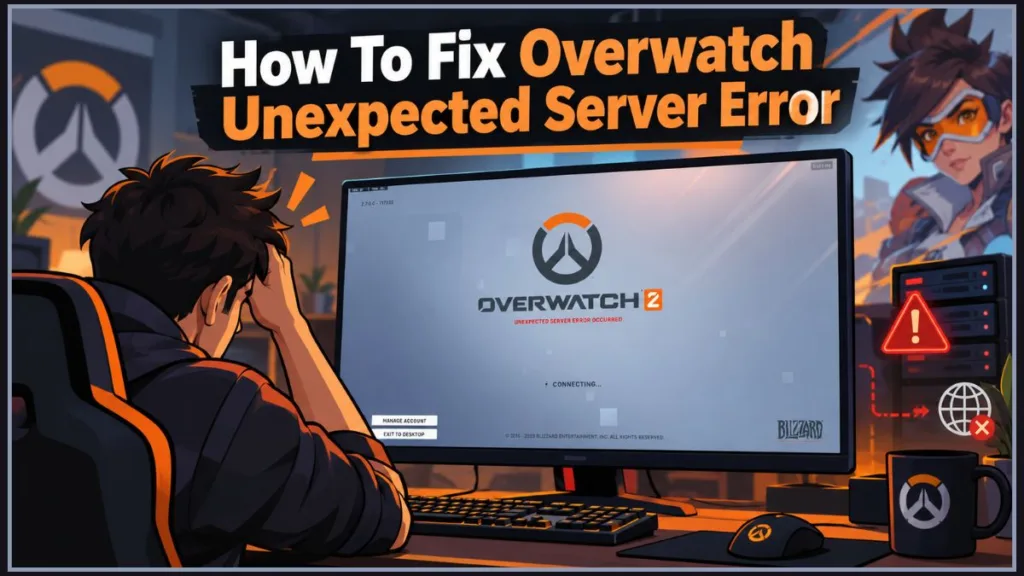
In this guide, we’ll explain what the Overwatch unexpected server error means, why it happens, and which fixes to try first. You’ll also learn how to test whether the problem is actually connected to your account, which is the part many troubleshooting guides skip.
What the Unexpected Server Error Actually Means
The “Unexpected Server Error Occurred” message appears when Overwatch can’t complete or maintain a connection with Blizzard’s servers and doesn’t have a more specific explanation to show you.
In other words, it’s a catch-all connection error.
The same message can come from three different places:
- Blizzard’s servers, which may be unstable, overloaded, or experiencing an incident
- Your own setup, including your network, game files, and security software
- Your Blizzard account, which may have a problem that only Blizzard can fix
There’s also a naming detail worth clearing up. The game is now officially called Overwatch. Blizzard announced that it was dropping the “2” and moving forward as simply Overwatch, with the change coming alongside Season 1 on February 10, 2026.
You’ll still see “Overwatch 2” in older guides and forum threads, but the error and its fixes are the same.
Is “Server Closed Due to an Unexpected Error” a Different Problem?
Not quite.
“Unexpected Server Error Occurred” usually appears during login or when you’re kicked back to the login screen.
“Server closed due to an unexpected error” generally ends a match that’s already in progress and drops you into a fresh game.
This guide focuses on “Unexpected Server Error Occurred,” although the same diagnosis tips can apply to both.
When You’re Most Likely to See the Error
Players report seeing the error in several situations:
- At launch or login. You click Play, Overwatch says “Entering Game,” and then the error appears. Sometimes the login fields return, and trying again produces the same result.
- After an update. Some players report that the error starts immediately after a new patch.
- In the middle of a match. Overwatch sends you back to the login screen, and you may get stuck in a loop of queueing and failing.
- At the same time every day. A few players report being able to play normally during the day but getting kicked out in the evening.
- With an authenticator problem. Some players say they were asked for an authenticator code that never appeared in their app after being kicked.
- With a console login error. On PlayStation and Xbox, you may see LC-208.001 (“Disconnected From Game Server”) instead of, or alongside, the unexpected server error.
The situation you’re seeing matters because it can quickly point toward the likely cause.
What Could Be Causing the Error?
Blizzard’s Servers May Be Having Trouble
Sometimes the problem isn’t on your side at all.
Patch days, new seasons, busy evenings, and server-side incidents can all trigger the error for multiple players at once.
How to recognize it: Other players report the same issue, or the error disappears on its own after a while.
What to do next: Check service status in Step 1, then wait. A server-side problem can’t be fixed from your end.
Your Blizzard Account Could Be the Problem
This is the part many guides leave out.
In several forum threads, players found that they could log in with another account on the same PC and network, while their own account still failed. Some also tried a phone hotspot and continued to get the error.
This isn’t new. In an older thread, a Blizzard support reply said the problem appeared to be an account-specific bug that customer service couldn’t resolve directly and that it had been passed to the Overwatch team. A later reply in the same thread said the error usually ends up being account-specific.
How to recognize it: Another account works on your device and connection, but yours fails everywhere.
What to do next: Run the account test in Step 3, then move to the “If the Problem Is Your Account” section.
Your Connection or Network Could Be Getting in the Way
Your network can also be responsible.
An unstable Wi-Fi signal, a router that needs a reset, stale DNS information, outdated network drivers, a VPN or proxy, or security software blocking Battle.net can all interrupt the connection.
How to recognize it: Other games or apps on the same network also misbehave, or other accounts fail too.
What to do next: Work through Steps 4 to 7.
A Regional or Routing Issue Could Be Involved
Sometimes the route between you and a particular server is the problem.
One European player reported getting the error on the EU region but not after switching to the US region. However, Blizzard’s support article on playing in a different region says Overwatch has no option to select servers and automatically chooses the one with the best latency for you.
So a region change is a workaround some players report, not a Blizzard-documented fix.
How to recognize it: The error disappears with one setting but not another, or only happens during certain hours.
What to do next: Check your region setting in Step 9 and contact support if the problem continues.
Damaged or Outdated Game Files Could Be Responsible
If an update didn’t install correctly or some files became damaged, Overwatch may fail to connect even when your internet is working normally.
How to recognize it: The error started right after a patch, or the game won’t update properly.
What to do next: Run Scan and Repair in Step 8, and reinstall if needed in Step 10.
How to Fix the Unexpected Server Error
Start with Step 1 and work your way down.
The order matters. The early fixes are quick, while Step 3 can tell you whether the later network fixes are even worth your time.
These steps follow the same approach as Blizzard’s own Overwatch login and disconnect troubleshooting article, which covers checking for service interruptions, updating the game, checking the region or account dropdown, repairing files, resetting network devices, flushing DNS, and allowing Blizzard apps through security software.
Step 1: First, Make Sure Blizzard Isn’t Having an Outage
Before you start: You only need a browser or your phone.
Try this:
- Check Blizzard’s customer support account on X (Twitter) for outage or service notices. Blizzard’s own troubleshooting pages tell players to check this account for service interruptions before trying anything else.
- Check Downdetector, a third-party site that collects player reports, and search for Overwatch to see whether reports are spiking.
- Look through recent threads in the Overwatch Bug Report forum to see whether other players are reporting the same error right now.
What you should see: Either an announcement or a burst of matching reports, which points to a server problem, or nothing unusual, which means you should continue.
Note: Not every incident gets announced. If there is no notice but players are reporting the same error, treat it as a likely server issue anyway.
Step 2: Restart Everything and Make Sure Overwatch Is Updated
Before you start: Make sure you have the Battle.net desktop app. Blizzard describes it as the app used to install, patch, and launch its games. If you need it, download it from Blizzard’s official page. Avoid third-party download sites.
Try this:
- Close Overwatch completely.
- Close Battle.net, including from the system tray near your clock.
- Reopen Battle.net and sign in.
- Select Overwatch from your game list.
- Click the gear icon beside the Play button and choose Check for Updates. According to Blizzard’s Battle.net app guide, this menu also contains Scan and Repair and Uninstall.
- Let any update finish, then launch the game.
What you should see: Either an “up to date” state or an update download. If an update starts, let it finish before pressing Play.
Tip: If you were kicked out of a match, wait a few minutes before trying again. Some players report being unable to reconnect for about five minutes after the error.
Step 3: Test Another Account Before You Reset Your Network
Tip: This test takes only a few minutes and can save you hours of unnecessary router resets.
Before you start: You’ll need one other working Blizzard account, such as a friend’s or family member’s account with their permission, or a second device or network such as your phone’s hotspot.
Try this:
- On your usual PC or console, log in with a different Blizzard account.
- If that works, try your own account on a different network by switching your device to a phone hotspot, or use a different device.
- If you own the game through Steam or the Xbox app, try launching it from there too.
What you should see, and what it means:
- Other account works, yours fails everywhere: The problem is tied to your account. Skip to “If the Problem Is Your Account” because router resets won’t help.
- Other accounts fail too: The problem is with your connection, device, or Blizzard’s servers. Continue to Step 4.
- Your account works on another network: Your home network is the culprit. Focus on Steps 4 to 7.
Warning: If you test with someone else’s account, only log in on your own device, and never ask for or share passwords.
Step 4: Restart Your Modem and Router
Try this:
- Turn off your PC or console.
- Unplug your modem and router from power.
- Wait a few minutes, then plug the modem first and wait for its lights to settle.
- Plug in the router and wait a couple of minutes.
- Turn your device back on and try Overwatch.
What you should see: A fresh connection with a new session from your provider. Blizzard’s connection troubleshooting guide lists resetting network devices as an early step for latency and disconnection problems.
Note: If your modem and router are a combined unit, just unplug the one device. Some players report that this didn’t help, which usually points to the server or account side.
Step 5: Refresh Your IP and Flush DNS on Windows
This step comes directly from Blizzard’s IP release, renew, and flush DNS guide, which describes it as a way to address networking issues. That article also includes macOS instructions if you’re on a Mac.
Before you start: Open Command Prompt as an administrator, since the DNS command may otherwise be denied. Save anything open first because your connection will drop for a moment.
Try this:
- Press the Windows key, type cmd, right-click Command Prompt, and choose Run as administrator.
- Type
ipconfig /releaseand press Enter. - Type
ipconfig /renewand press Enter. - Type
ipconfig /flushdnsand press Enter. - Close the window and launch Overwatch.
What you should see: Your connection drops briefly after the first command. It returns after the second. After the third command, you’ll see a message confirming that the DNS resolver cache was flushed.
Warning: Run
/renewright after/release. If your internet connection doesn’t return, restart your computer.
Tip: Not comfortable with the command line? Blizzard notes that restarting your computer may produce the same effects.
Step 6: Update Windows, Your Network Driver, and Close Heavy Apps
Blizzard’s connection guidance also recommends updating drivers and the operating system and closing other applications to free up resources.
Before you start: A network driver is the software that lets Windows communicate with your Wi-Fi or Ethernet hardware. Microsoft says the best way to get driver updates is through Windows Update, and its guide to updating drivers in Windows covers the Device Manager method below.
Try this:
- Open Settings > Windows Update and click Check for updates. Install anything pending and restart.
- Right-click the Start button and open Device Manager.
- Expand Network adapters, right-click your Wi-Fi or Ethernet adapter, and choose Update driver.
- Choose Search automatically for drivers and follow the prompts.
- Press Ctrl + Shift + Esc to open Task Manager, then close apps using a lot of bandwidth, such as large downloads or streaming.
What you should see: Either a message saying the best driver is already installed or a quick update. Windows may ask you to restart.
Tip: If Windows doesn’t find a newer driver, Microsoft advises contacting the device maker for the latest compatible driver. If your adapter is made by Intel, Intel’s Driver & Support Assistant is a free tool that scans your system and lists driver updates for Intel hardware. It only covers Intel components, so for other brands such as Realtek, Qualcomm, MediaTek, and others, check your PC or motherboard manufacturer’s support page instead.
Step 7: Check Your Firewall, VPN, and Proxy Settings
Blizzard’s guidance asks players to add Blizzard applications to their security software’s exception list and disable proxies that can interfere with login.
Try this (Windows Defender Firewall):
- Open Start, type Windows Security, and open it.
- Go to Firewall & network protection > Allow an app through firewall.
- Click Change settings. Administrator access is required.
- Click Allow another app, then Browse.
- Find and add the Overwatch and Battle.net program files from their install folders, then select both Private and Public.
- Click OK.
Microsoft’s own page, Risks of Allowing Apps Through Windows Firewall, follows the same path and explains why allowing an app is safer than opening a port.
Then check for VPNs and proxies:
- Disconnect from any VPN.
- Open Settings > Network & internet > Proxy and make sure Use a proxy server is off.
What you should see: Both apps in the allowed list and no active VPN or proxy.
Warning: Don’t turn off your firewall entirely. Microsoft recommends allowing the specific app instead and warns you never to allow an app you don’t recognize. If you use third-party antivirus software, add the same exceptions through its settings because the menus differ. Install locations can also differ, so use Browse to find yours.
Step 8: Repair Overwatch’s Game Files
Blizzard’s own steps for repairing game files are short, and you can read them in its Scan and Repair article.
Try this:
- Open the Battle.net app.
- Click the Overwatch icon in your game list.
- Click the gear icon below or beside the game title and select Scan and Repair.
- Click Begin Scan.
- Wait for it to finish, then launch the game.
What you should see: A progress bar followed by the normal Play button. It can take a few minutes, or longer on a slow drive.
Note: If Scan and Repair keeps looping—scanning, “updating,” and then scanning again—that usually signals corrupted game data. Blizzard’s article on the scanning loop suggests clearing the game’s data folder or reinstalling. Since either option may force a large re-download, go straight to Step 10 if you hit this.
Step 9: Check the Region Setting in Battle.net
Before you start: This works through Battle.net on PC. Players report that you can’t switch region from inside Steam. Console steps are more limited.
Try this:
- Open Battle.net and select Overwatch.
- Find the Region / Account dropdown above the Play button, shown by the globe icon. Blizzard’s login troubleshooting asks players to make sure the correct option is selected.
- Confirm that it matches your account’s region.
- To test a workaround, choose a different region and launch the game.
What you should see: If the game loads in another region, the problem may be related to a route or server. Some players report that switching regions stopped their disconnects.
Note: Blizzard says Overwatch automatically selects the best-latency server and has no in-game server selection, so a region change may not behave as expected, and your progress and ping may differ. Use it as a test or short-term workaround.
Step 10: Reinstall Overwatch Only as a Last Resort
Before you start: Be ready for a large download. Blizzard’s system requirements for Overwatch on PC list 50 GB of available hard drive space, so make sure you have enough room and a stable connection. Note your login details first.
Try this:
- In Battle.net, select Overwatch, click the gear icon, and choose Uninstall.
- Restart your computer.
- Install Overwatch again through Battle.net and log in. If Battle.net itself is causing problems, download a fresh copy from Blizzard and reinstall it too.
What you should see: A fresh installation that downloads and updates completely before the Play button appears.
Note: Some players still saw the error after reinstalling, so don’t expect it to fix account-side problems. If it fails here too, move to the next section.
What Console Players Should Try
Console players don’t have Scan and Repair or a firewall to adjust, so the focus is your connection, game version, and account link.
Blizzard’s login guidance also includes running the console’s built-in connection test.
Before you start: Have your Battle.net login ready and make sure the console is connected to your network. It’s also worth checking your platform’s own service status first because a console network outage can look like a game error: PlayStation Network status or Xbox Live status.
Try this:
- Fully restart your console. Power it down completely instead of using rest or sleep mode, then turn it back on.
- Run your console’s connection test. Menu names vary by system version, but most consoles have the option under network settings. For example, PlayStation 5 uses Settings > Network > Connection Status > Test Internet Connection; Xbox uses Profile & system > Settings > General > Network settings > Test network connection; Switch uses System Settings > Internet > Test Connection.
- Check for a game update and install it if one is available.
- Confirm your accounts are linked. According to Blizzard’s console linking guide, accounts are linked through the Connections section of your Battle.net Account Settings. If the game gives you an alphanumeric code, enter it at blizzard.com/link and sign in with your Battle.net account to finish the connection.
- Try your Blizzard account on a PC. If the error follows your account, your console isn’t the cause.
What you should see: A successful connection test and a game that signs in. If the test passes but the error continues, move to the account section below.
Note: Changing region is much more limited on console than on PC. One player reported the same login error with one account on PC, Xbox, PlayStation, and Switch 2, which strongly suggests an account issue rather than a device problem.
What to Do When the Error Follows Your Account
If your account fails on every device and network while other accounts work normally, you probably can’t fix the problem yourself.
At that point, the goal is to get Blizzard to look at it.
Recent forum threads describe support tickets receiving generic replies telling players to repeat the same network steps and, sometimes, directing them to the forums.
Here’s how to give Blizzard the right information from the start.
Gather the Details Blizzard Will Need
- Note the exact error text and any code, such as LC-208.001.
- Write down when it started, including the date, time, and your time zone.
- Record your platform (PC, PlayStation, Xbox, Switch) and region.
- List every step you’ve tried from this guide.
- Note the result of the account test from Step 3: which accounts worked, which didn’t, and on which networks.
What you should have: A short, factual summary showing that the problem isn’t your network.
Warning: Never include your password in a ticket or forum post, and avoid posting your account email publicly.
Send the Problem to Blizzard Support
- Go to Blizzard Support and sign in.
- Choose Overwatch as the game and describe the login problem. You can also check existing tickets on the My tickets page.
- Paste your summary and clearly state that other accounts work on the same device and network.
What you should expect: An automated or generic reply first. If it only repeats steps you’ve already completed, reply and point to your account test results. Mention that you’ve followed the troubleshooting from Blizzard’s own guides.
Why this matters: In an older thread, a Blizzard representative asked affected players to submit a ticket so their accounts could be added to a list and updated on progress.
Report It in the Overwatch Bug Report Forum
- Open the Overwatch Bug Report forum. Recent reports of this exact error, including some from late September 2026, are posted in this category, so it’s the right place to look.
- Search first for an active thread covering the same error.
- Post a clear title and use the same summary you included in your support ticket.
- You can also message Blizzard’s support account on X with a link to your post.
What you should expect: Replies can be slow. Some players say staff acknowledged account-specific cases in public threads, and at least one later reported that their account was fixed.
Check Your Authenticator and Login Method
If Overwatch asks for an authenticator code that never appears, make sure you’re using the authenticator connected to your Blizzard account and mention this in your ticket.
Players have described this happening after being kicked from a match.
Before you start: Blizzard’s current authenticator is built into the Battle.net mobile app, which Blizzard describes as including the Authenticator for account security.
Note: Blizzard’s support notes say the older standalone Authenticator app is no longer supported. If you’re still using it, move to the mobile app.
Try this:
- Open the Battle.net mobile app and confirm it’s signed in to the same account you’re using in the game.
- If codes aren’t syncing, read Blizzard’s article on login errors and resyncing your authenticator.
- If you get “Oops, something went wrong” while setting it up, see Blizzard’s mobile app troubleshooting article. It notes that a leftover physical authenticator on your account must be removed first.
What you should see: A code that matches what the login screen is asking for. If it still doesn’t, include that detail in your ticket.
Could This Error Affect Your Rank or Win?
This is a major concern, especially in Competitive.
One player said they lost two divisions after repeated kicks during competitive matches. Another said they kept getting suspended because of unstable servers.
Note: These are player reports, not confirmed Blizzard policy, and the results seem to vary. If you believe a server problem caused a penalty, contact Blizzard Support and include the date, time, and mode.
In the meantime, you may prefer Quick Play while the error keeps happening.
Does the Error Mean Something Is Wrong With Your PC or Account?
On its own, the message doesn’t indicate that something is wrong with your computer or console, and it isn’t a notice about your account standing.
It’s a connection failure. The cause may be on Blizzard’s side, on your side, or somewhere in between.
That said, repeated match disconnects are worth watching. If you’re seeing penalties, mention them to support.
The error itself isn’t a ban, but repeated disconnects may affect how the game treats you, so don’t ignore them.
How to Reduce the Chances of Seeing It Again
You can’t prevent server-side problems.
You can, however, reduce the chances of seeing the error when the cause is your own setup.
Keep Battle.net and Overwatch Updated
Running mismatched versions can cause connection failures.
Let updates finish completely before launching the game.
Use a Wired Connection When Possible
Wi-Fi drops are a common source of disconnects. An Ethernet cable keeps your connection steadier, and Blizzard’s connection troubleshooting guide also suggests optimizing a wireless connection if you can’t use one.
Leave VPNs and Proxies Off When You Play
They add another hop that can interfere with your connection to Blizzard’s servers.
Unless you need one, leave it off while you play.
Keep Windows and Your Network Drivers Updated
An outdated driver can cause hard-to-trace connection problems.
Check Windows Update every so often, and look at your adapter maker’s support page if you suspect an older driver.
Make Sure Your Security Exceptions Stay in Place
If you reinstall Battle.net or change antivirus software, check that Overwatch and Battle.net are still allowed through.
Check Server Status Before You Start Troubleshooting
When the error appears, take a minute to check whether other players are affected.
It can save you from spending an hour resetting things that were never broken.
Keep Your Account Secure
Use a strong, unique password and an authenticator through the Battle.net mobile app, and make sure your linked platform accounts are connected properly.
A well-maintained account is easier for Blizzard Support to help with if something goes wrong.
Answers to Common Questions About the Error
Why Does Overwatch Keep Saying “Unexpected Server Error Occurred”?
It’s a general message for a failed connection to Blizzard’s servers.
The cause might be a server problem, your network, damaged game files, or your account.
The fastest way to narrow it down is the account test in Step 3. The result points you toward the right fix.
Is Overwatch Down Right Now?
Check Blizzard’s support account on X, Downdetector, and recent Overwatch forum threads.
If many players are reporting the same error at once, the servers are the likely cause.
In that situation, the best thing you can do is wait and try again later.
Why Does the Error Only Happen on My Main Account?
If another account works on the same device and network, the problem is probably tied to your account.
Router resets won’t help in that situation.
Contact Blizzard Support with a detailed ticket, post in the Bug Report forum, and mention which accounts and devices you’ve tested.
Can Restarting My Router Fix the Error?
Sometimes, especially when your connection is the actual cause.
If other accounts work normally on your network, though, restarting the router probably won’t change anything.
It’s still worth trying because it’s quick and rules out a common cause.
Does the Error Mean I’ve Been Banned?
The error itself isn’t a ban notice.
It’s a generic connection message that players can see for many different reasons.
However, some players report penalties after repeated disconnects, so if you’re worried, check your account status in Battle.net and ask Blizzard Support to confirm.
What Is LC-208.001?
It’s a login error that console players often see, labeled “Disconnected From Game Server.”
It can appear alongside the unexpected server error.
You can troubleshoot it in the same way: check server status, restart your console, run the connection test, try your account on another device, and contact Blizzard if it persists.
Can Changing Region Help?
It might, but it isn’t an official fix.
Blizzard’s support says Overwatch automatically selects the best-latency server and offers no in-game server selection. Some players nevertheless report that changing the region setting in Battle.net stopped their disconnects.
Treat it as a test and expect different results from player to player.
How Long Does the Error Usually Last?
It varies.
In some forum reports, players were able to get back in after a few minutes. Others dealt with the issue for days, usually when the problem was tied to their account.
If it lasts more than a day and other accounts work for you, it’s time to contact Blizzard.
Should You Keep Playing Competitive While the Error Is Happening?
That’s your call, but if you’re getting kicked regularly, Quick Play is a lower-risk way to keep playing.
Some players worry about losing progress when disconnects hit ranked matches.
Until things stabilize, it may be safer to avoid ranked.
Final Thoughts: Narrow Down the Cause First
The Overwatch “Unexpected Server Error Occurred” message is frustrating because it doesn’t tell you what’s actually wrong.
The best approach is to narrow it down.
Check server status first. Restart and update the game. Then run the account test.
If other accounts work and yours doesn’t, stop resetting your router and get Blizzard involved with a detailed report.
Did one of these steps fix the error for you? Maybe you found a workaround that isn’t listed here. Share it in the comments so other players stuck on the same screen can try it too.
Visit Our Post Page: Blog Page
Discover more from Izoate
Subscribe to get the latest posts sent to your email.