
Can’t buy a game or redeem a code on PS5? Let’s learn how to fix error CE-112840-6 with what to check, what to try, and when to wait.
You’re about to buy a game, redeem a code, or start a download, and your PS5 suddenly throws up error CE-112840-6. Nothing finishes, and the message doesn’t tell you much.
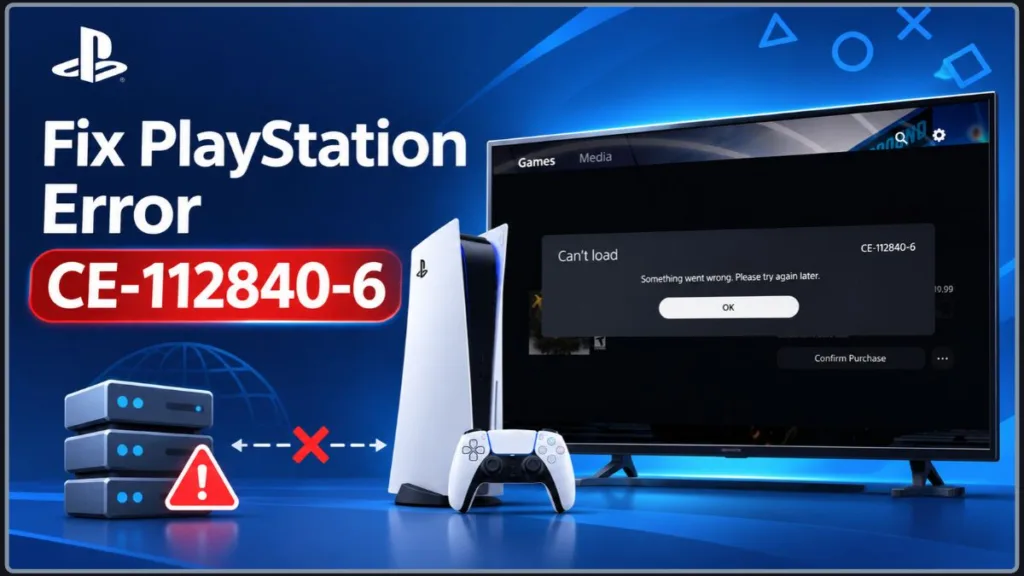
The good news is that this error is usually not a problem with your console. Sony’s own fix for it is just two lines long, and both of them point to the servers. In this guide, you’ll learn what the PlayStation error CE-112840-6 means, when it tends to show up, what you can try, and when it’s smarter to simply wait.
What Does PlayStation Error CE-112840-6 Mean?
Sony lists CE-112840-6 as a PS5 error meaning there was a problem connecting to the server. Sony’s advice is to check the PlayStation Network status page for server issues, then try again after a few hours. As of this writing in November 2026, that official guidance hasn’t changed.
Put simply, your PS5 asked a PlayStation server to do something, and the request didn’t go through. That’s different from errors that point to a damaged disc, a failing drive, or a broken console.
For the curious, the community-maintained PS5 developer wiki lists this code under the internal name SCE_RNPS_UNIVERSAL_CHECKOUT_ERROR_UNHANDLED_SERVER_ERROR, with the return code 0x81760003 and the cause given as a server issue. In plain terms, it’s an unhandled server error in the checkout flow, which fits the many reports of the error appearing during purchases and code redemption. It’s community documentation, though, not an official Sony statement, and Sony doesn’t say purchases are the only trigger.
You may also see articles claiming this error means a failed system update, a faulty hard drive, or a broken console. Sony’s official page doesn’t say that, so don’t assume the worst. Sony also doesn’t name a specific router, DNS, or Wi-Fi setting as the confirmed cause, which is why the fixes below are things to try, not guarantees.
When Does Error CE-112840-6 Appear?
Sony’s page doesn’t list every trigger, but across support pages and player reports, you’ll most often see it in these situations:
- During a purchase: You try to buy a game, add-on, or subscription in the PlayStation Store.
- When redeeming a code: You enter a voucher or gift card code, and it fails to apply.
- While downloading or installing content: The download won’t start or won’t complete.
- During PSN trouble or maintenance: The servers are overloaded, down for maintenance, or having a temporary problem.
If you’ve run into similar messages on other platforms, such as a failed Nintendo eShop purchase or a Steam checkout that won’t process, the pattern is the same. The store’s servers didn’t finish your request.
Common Causes of Error CE-112840-6
PlayStation Server Problems
This is the most likely cause. If PSN or the PlayStation Store is having issues, your console can’t complete the request, no matter how good your connection is.
Server problems range from brief to long. On March 21, 2026, PSN had a widespread outage that reports describe as lasting about two hours at its worst, with some players seeing lingering problems the next day. The February 2025 outage was far bigger: reports put it at roughly 20 to 24 hours, and Sony described it as an “operational issue” and gave PlayStation Plus members five extra days of service. Most store errors are nowhere near that long, but these examples show why Sony’s advice is to wait.
What to Do: Open the official PlayStation Service Status page (status.playstation.com) on your phone or computer. It shows separate rows for Account Management, Gaming and Social, PlayStation Video, PlayStation Store, and PlayStation Direct. A service is shown as Up and running when it’s fully operational and Limited when certain features have issues. If the Store or Account Management shows a problem, there’s nothing to fix on your side.
Why It Helps: It tells you in seconds whether the problem is yours or Sony’s, so you don’t waste an hour changing settings that won’t matter.
A Temporary Communication Interruption
Sometimes the server is fine, but one request fails halfway. A brief connection drop or a momentary server hiccup can be enough.
What to Do: Wait a few minutes, then retry the purchase, redemption, or download. If it still fails, wait a few hours, as Sony recommends.
Why It Helps: Temporary problems often clear on their own. Retrying immediately and repeatedly can just keep hitting the same failure.
A Local Issue (Possible, but Not Confirmed)
Your own connection, stored licenses, or console data could play a part. Sony hasn’t confirmed this for CE-112840-6, so treat the fixes below as low-risk things to try.
How to Fix Error CE-112840-6 on PS5
Step 1: Check the PSN Status First
- On another device, visit the PlayStation Service Status page.
- Look at PlayStation Store and Account Management.
- If either shows a problem, wait and try again later.
Why It Helps: If the servers are down, no fix on your console will work.
Step 2: Wait and Try Again After a Few Hours
This is Sony’s own recommendation, and it works more often than you’d think. If a short outage like the two-hour March 2026 one is the cause, a retry later the same day can be all you need.
What to Expect: If it was a temporary server problem, the same purchase, code, or download should simply work on a later attempt, with no changes needed.
Why It Helps: Server-side problems are usually fixed by Sony without you doing anything.
Step 3: Test Your Internet Connection
- Go to Settings > Network > Connection Status.
- Select Test Internet Connection.
- Check the results. The test confirms your internet connection and your PlayStation Network sign-in separately, and it also shows your download and upload speeds.
Why It Helps: If the internet check passes but only the PSN sign-in fails, the problem is most likely on PlayStation’s side. If the internet check itself fails, the problem is your network, and the next step will help.
Step 4: Restart Your PS5 and Your Router
Turn the console fully off (not Rest Mode), switch off your router and modem, wait at least five minutes, and then turn everything back on. Run the connection test again.
Why It Helps: It clears a stuck network session. It won’t fix a Sony outage, but it can help if the interruption was on your end.
Step 5: Try a Wired Connection
If you’re on Wi-Fi, plug your PS5 into the router with an Ethernet cable (Settings > Network > Settings > Set Up Internet Connection > Set Up Wired LAN) and retry.
Good to know: The PS5 supports IPv6, but it can’t connect to an IPv6-only network. If your router is set to IPv6-only, switch it to also use IPv4.
Why It Helps: A wired connection is more stable, and it rules out a weak signal as the reason the request failed.
Step 6: Sign Out and Back In
Go to Settings > Users and Accounts > Other > Sign Out, restart the console, and sign back in to your PlayStation account.
Why It Helps: PlayStation’s own voucher troubleshooting suggests this to refresh your account when the status page shows no problems.
Step 7: Update Your System Software
- Go to Settings > System > System Software > System Software Update and Settings.
- Select Update System Software.
Don’t turn off the console during an update. If an update download fails, press the PS button, open Downloads/Uploads, highlight the update, and choose View Error Info and then Try Again. If downloads keep failing, Sony also lists a manual USB method: create a folder named PS5 with a folder named UPDATE inside it on a FAT32 or exFAT drive, save the official update file there as PS5UPDATE.PUP (you need about 1.1 GB of free space), and run it from Safe Mode.
Why It Helps: Sony says updates are needed for the console to work properly, and an outdated console can run into avoidable problems with online features.
Step 8: Restore Your Licenses
- Go to Settings > Users and Accounts > Other > Restore Licenses.
- Select Restore.
Why It Helps: It re-syncs your purchases with PlayStation’s servers. Sony says it doesn’t affect your data.
Step 9: Unplug External Storage and Retry
Disconnect any external drive, then try the purchase or download again.
Why It Helps: It’s a common suggestion in troubleshooting guides and costs you nothing to try, though it’s not confirmed as a fix for this code.
Step 10: Rebuild the Database (Last Resort)
- Turn your PS5 completely off.
- Press and hold the power button until you hear the second beep (about seven seconds) to enter Safe Mode.
- Connect your DualSense controller with a USB cable and press the PS button.
- Select Clear Cache and Rebuild Database, then choose Rebuild Database.
How long it takes: Sony doesn’t publish a time. Reports range from a few minutes to an hour or more, and it takes longer the more data is on your storage, so don’t panic if the progress bar seems slow.
Important: Do not unplug the console while it rebuilds. Be careful to pick Rebuild Database, not the reset options further down the Safe Mode menu, because those can erase data.
Why It Helps: It rescans your storage and creates a fresh database of your content. It’s unlikely to fix a purely server-side problem, so try it only after the steps above.
What to Do If the Error Appeared During a Purchase
Before you try again, check your email for a receipt and your transaction history, so you don’t pay twice if the purchase went through but the console didn’t show it.
- On your PS5: Go to Settings > Users and Accounts > Account > Payment and Subscriptions > Transaction History.
- On the web: Sign in to Account Management on the PlayStation website and select Transaction History.
- Choose a date range (by default, the last two years are shown) and select a transaction to see its details.
If the game doesn’t appear in your Game Library, also check Settings > Users and Accounts > Account > Payment and Subscriptions > Game and App Services, which lists the content available for each app. If you’ve been charged twice for the same item, Sony points you to its PlayStation Store Cancellation Policy, because refund eligibility depends on it. If you’re the family manager, you can see your family members’ transaction history too.
If you were charged but you still can’t see the game, restore your licenses (Step 8), wait a little, and then contact PlayStation Support with your purchase details and a screenshot or video of the problem.
What to Do If the Error Appeared When Redeeming a Code
PlayStation’s official voucher troubleshooting points to several things worth checking, because a code problem can look like a server problem:
- Check the digits: A PlayStation voucher code has 12 digits. A 10-digit code is a discount code that can only be used during a purchase.
- Check the region: A voucher can only be redeemed in the same PlayStation Store region printed on it, and you can’t change your account’s region.
- Check if it’s already used: A code works only once. If you’ve redeemed it, it appears in your transaction history.
- Check activation: Some retail vouchers aren’t active until the retailer activates them at the register. If the code isn’t working, ask the retailer.
- Check the account: Funds and content can’t be transferred between accounts, so make sure you’re signed into the correct account.
- Child accounts: For an age-restricted voucher, the family manager may need to change Age Filtering for Online Content to Don’t restrict in Family Management, then switch it back afterward.
- Extra content: If you redeemed a voucher for in-game currency or a season pass, relaunch the game to see if it was applied.
If redeeming on the console isn’t working, you can also try the PlayStation Store website or the PlayStation App as another route. If your code is printed on a receipt, the retailer can help you recover it, and if you’re still stuck, contact PlayStation Support.
Tips to Avoid Error CE-112840-6 in the Future
Avoid Buying During Big Sales and Launches
Store traffic can spike during major sales and big game launches. Both the February 2025 and March 2026 outages landed on busy gaming weekends. Sony didn’t tie either one to demand, so this is a sensible precaution, not a proven cause.
Why It Helps: Quieter times can mean fewer failed requests.
Keep Your System Software Updated
Turn on Download Update Files Automatically and Install Update Files Automatically in System Software Update and Settings. For updates to install while the console sleeps, also go to Settings > System > Power Saving > Features Available in Rest Mode and turn on Stay Connected to the Internet.
Why It Helps: An up-to-date console is less likely to run into avoidable problems.
Use a Stable, Wired Connection for Big Downloads
Why It Helps: Fewer interruptions mean fewer failed requests.
Bookmark the PlayStation Status Page
Why It Helps: The next time something goes wrong, you’ll know within seconds whether to troubleshoot or just wait. Save status.playstation.com to your phone’s home screen or browser bookmarks.
Is Error CE-112840-6 Dangerous?
No. This error doesn’t harm your PS5, your saved data, or your account. It simply means a request to PlayStation’s servers didn’t complete. Once the servers recover or your connection settles, you can usually go ahead with your purchase or download as normal.
FAQ About PlayStation Error CE-112840-6
What does error CE-112840-6 mean on PS5?
It means your PS5 had a problem connecting to a PlayStation server. Sony suggests checking the status page and trying again after a few hours.
Is CE-112840-6 a PS5 error or a PS4 error?
Sony lists it as a PS5 error. There’s no official PS4 listing for this code. You can browse Sony’s full PS5 error code list to confirm.
Why can’t I buy a game or redeem a code on PS5?
If you see CE-112840-6 while doing this, the PlayStation Store or PSN may be having a problem. Check the status page first, then check the code details if you’re redeeming a voucher.
Is CE-112840-6 a storage or hard drive problem?
Sony’s official page doesn’t say so. It describes a server connection problem. Some third-party sites claim a storage or system issue, but that isn’t confirmed.
Can I fix CE-112840-6 myself?
Sometimes. If the cause is on Sony’s side, you can only wait. If it’s local, a restart, a wired connection, a system update, or restoring licenses may help, but none of these is officially confirmed for this code.
How long does error CE-112840-6 last?
Sony says to try again after a few hours. For reference, the March 2026 PSN outage lasted about two hours at its worst, with some lingering problems the next day, while the February 2025 outage ran roughly 20 to 24 hours. A single failed purchase is usually much shorter than either.
Will Sony compensate me for an outage?
After the February 2025 outage, Sony gave PlayStation Plus members five extra days of service automatically. Compensation isn’t guaranteed for shorter disruptions or for a single error on your console.
Will rebuilding the database delete my games or saves?
Rebuilding the database is not meant to delete your content, but never unplug the console while it runs, and don’t select a reset option by mistake. Sony’s Safe Mode guide explains each option.
Is CE-112840-6 related to WS-116520-5?
They’re similar server-connection errors, and some sites compare them, but they’re separate codes. If your code is different, look it up in Sony’s PS5 error code list.
When should I contact PlayStation Support?
If the error keeps happening for more than a day, if PSN shows no outage, or if you were charged and can’t access your purchase. Sony’s error page includes a Contact PlayStation Support link. Have your purchase details and a screenshot ready.
Visit Our Post Page: Blog Page
Discover more from Izoate
Subscribe to get the latest posts sent to your email.