
Seeing TiviMate Error Code 401? Try these 8 proven fixes to restore IPTV access, resolve authentication errors, and get your channels working again.
There is nothing more frustrating than sitting down to catch a live sports event or binge-watch a new series on your Amazon Firestick or Android TV, only to be hit with a black screen. If you are staring at TiviMate error code 401, you are probably feeling pretty confused right now—especially if everything was working perfectly yesterday.
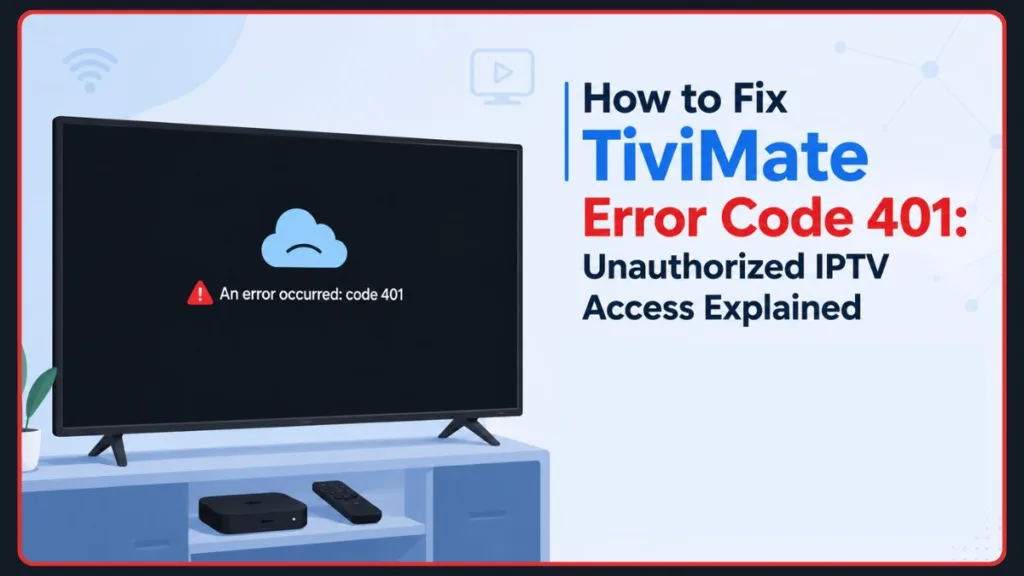
This is a widespread issue, but the good news is that it usually requires a very simple fix. Whether you are dealing with a TiviMate 401 error on a Firestick, an Nvidia Shield, or your trusty smart TV, this guide compiles the most practical, real-world solutions directly from the streaming community to get your channels back up and running.
What Does TiviMate Error Code 401 Mean?
Before jumping into the solutions, it helps to understand what is actually going on behind the scenes. The 401 code is a standard internet status message that simply means “Unauthorized.”
Here is the thing to remember: TiviMate is just a media player, much like VLC Media Player or IPTV Smarters Pro. It does not host any live channels or movies itself. So, when you see a TiviMate 401 Unauthorized message or an IPTV authentication failed notice, it means that your specific IPTV provider’s server is actively rejecting your device’s connection request.
Why Am I Suddenly Seeing the 401 Unauthorized Error?
If your TiviMate channels not playing or TiviMate channels not loading issue just started out of nowhere, you might be wondering why. Based on real-world troubleshooting, here are the most common culprits behind the block:
- Invalid or expired subscription: Your account may have run out of time, or your provider simply forgot to apply your recent payment credits.
- Incorrect IPTV provider credentials: A simple typo in your username, password, or server URL can quickly result in an Xtream Codes login failed event.
- Stuck server connections: Sometimes, your specific connection line gets “hung up” or frozen on the provider’s end, triggering a TiviMate playlist error.
- ISP throttling and blocking: Aggressive Internet Service Providers (like Vodafone or AT&T) often block traffic trying to reach third-party streaming servers.
- VPN location lock conflicts: Your provider might have geo-locked your account, and your VPN is routing you through an unexpected country.
Why Does TiviMate Work on Another Device or Network?
One of the most baffling aspects of an IPTV provider authorization issue is when the service works perfectly on your phone using mobile data, or the same Firestick works flawlessly when you take it to a friend’s house.
When the exact same account works elsewhere but fails on your home network, it points to a localized issue. This means your login credentials are valid, but your current setup—specifically your Internet Service Provider (ISP) or your specific device configuration—is causing the connection to drop. It narrows the problem down from a global provider outage to a specific network or application restriction.
How to Fix TiviMate Error Code 401
Knowing why this happens makes troubleshooting much easier. Explore the step-by-step solutions to fix the issue below. It is highly recommended to try these fixes in order, starting from the most common administrative checks to advanced network tweaks.
1. Double-Check Your Login Credentials
It sounds obvious, but a simple typo is often the number one cause of TiviMate premium login issues. If your provider recently updated their server portal URL, your old link will not work anymore.
- Open your TiviMate settings menu.
- Navigate to your playlists section.
- Carefully re-type your IPTV provider credentials, paying close attention to capital letters and the exact server URL.
2. Verify Your IPTV Subscription Status
Before spending hours troubleshooting your device, it is vital to rule out account administrative issues. Community threads repeatedly point toward expired subscriptions and billing oversights as root causes.
- Check expiration: Log into your provider’s client portal to ensure your subscription has not expired.
- Confirm billing: Confirm your latest payment was applied correctly to your account rather than sitting as a pending credit.
- Contact support: Ask your provider directly if your specific account status is active on their panel.
3. Ask Your Provider for a “Link Reset”
Here is a highly effective tip from the streaming community: if your service works fine on another network but throws an error on your home setup, the server has likely flagged your specific connection line.
- Reach out to your service provider’s support team and politely ask them to do a manual “link reset” or line refresh on their end. Many users report that the moment the provider refreshes the active connection line, the channels start loading instantly.
4. Test Whether Your ISP Is Blocking IPTV Traffic
Instead of guessing why the app is blocked, you should use a VPN as a diagnostic tool to determine whether the ISP or the IPTV provider is causing the issue. This is arguably the most valuable diagnostic insight from the streaming community.
If you notice that your service suddenly works at a friend’s house, on mobile data, or immediately after turning on a VPN, your ISP is actively blocking your IPTV traffic. Use the matrix below to pinpoint the cause:
| Result | Likely Cause |
| Works with VPN | ISP restriction |
| Still fails with VPN | IPTV provider issue |
| Works on another network | ISP or IP restriction |
| Fails everywhere | Subscription or credential problem |
5. Can a VPN Fix TiviMate Error 401?
Yes, a VPN can absolutely fix the issue if you are dealing with an ISP block. However, using a VPN can sometimes cause a location conflict. If your provider has locked your account to your home country, connecting to a VPN server in another region will trigger an unauthorized error.
Important Tip: If you test with a VPN and it resolves the issue, you can keep it running. If turning the VPN on causes the 401 error, contact your IPTV provider and ask them to switch your account location settings to “Auto” so you can stream safely with encryption.
6. Bypass ISP Blocks by Changing Your DNS
If you discover an ISP restriction but do not want to run a VPN continuously, you can change your device’s Domain Name System (DNS) settings to stop your ISP from filtering your connection requests.
- Go into your device’s network or Wi-Fi settings.
- Switch your IP settings from DHCP to Static.
- Change your primary and secondary DNS servers to 1.1.1.1 (Cloudflare) or 8.8.8.8 (Google).
7. Change the User-Agent Settings
Although 401 errors are usually caused by authentication issues, some IPTV providers restrict certain applications or players from accessing their servers. In these cases, changing the User-Agent to an approved player may resolve the problem.
Important Tip: Navigate to TiviMate Settings > General, select User-Agent, and type in VLC or IPTVSmartersPro exactly as written to disguise the connection request, then restart your stream.
8. Clear the App Cache
Sometimes, streaming devices like an Amazon Firestick or Android TV box hold onto corrupted connection data. If you are experiencing a TiviMate updating playlist failed message alongside the 401 error, clearing out the old data cache forces a fresh handshake.
- Go to your device’s main settings menu and find TiviMate under installed applications.
- Select Force Stop.
- Click Clear app cache (Be very careful not to click “Clear Data,” as that will wipe your entire setup!).
- Restart your physical device and launch the app again.
Frequently Asked Questions
What is the difference between TiviMate error code 403 vs 401?
A 401 error means “Unauthorized” (the server does not know who you are or your credentials are invalid), whereas a 403 error means “Forbidden” (the server knows who you are, but you are explicitly blocked from viewing that directory or asset).
Do I need to reinstall the TiviMate app?
Generally, no. A full reinstall is rarely needed to fix error 401 TiviMate and usually just causes the hassle of configuring your entire playlist and custom settings from scratch. Try the network and credential steps first!
Conclusion
Seeing a TiviMate error code 401 pop up right before your favorite show is definitely annoying, but remember—it just means “access denied.” By running a diagnostic VPN test, double-checking your login credentials, or modifying your User-Agent settings, you can almost always get your live TV back on screen in minutes.
Which of these steps got your channels working again? Are you dealing with a stubborn ISP block, or did a quick message to your provider do the trick? Share your experience in the comments below!
Visit Our Post Page: Blog Page
Discover more from Izoate
Subscribe to get the latest posts sent to your email.