
Need to find your Windows 11 product key quickly? Learn how to find your Windows product key using CMD, PowerShell, and built-in tools. Check OEM keys, digital licenses, activation status, and fix WMIC error.
If you’re about to reinstall Windows, swap out your hard drive, or troubleshoot an activation error, there’s a good chance you’re hunting for your Windows 11 product key right now. The good news is that you don’t need to dig through old emails, peel apart your laptop, or buy any third-party software to find it. In most cases, Command Prompt (CMD) can pull it straight out of your system in seconds.
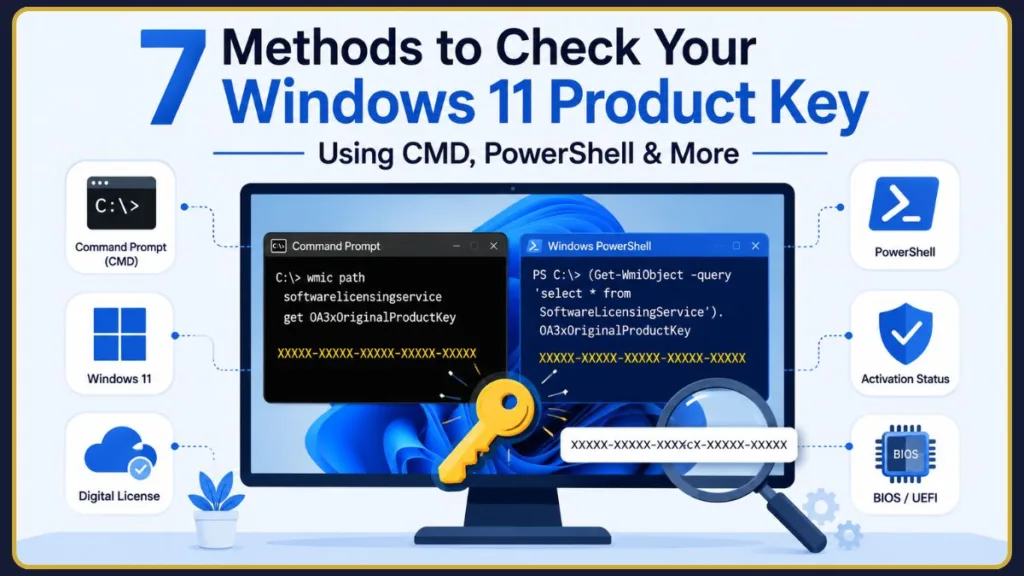
In this guide, you’ll learn exactly how to find your Windows 11 product key using CMD, what to do when the command comes back empty, and how to tell the difference between an OEM product key and a Digital License — because that one detail explains almost every “why isn’t this working for me” situation you’ll run into.
Quick Answer: Open Command Prompt as Administrator and run:
wmic path softwarelicensingservice get OA3xOriginalProductKeyIf your PC has an OEM product key embedded in its BIOS or UEFI firmware, Windows will display it instantly. If nothing appears, your device is most likely running on a Digital License instead — and we’ll show you how to confirm that further down.
What Is a Windows 11 Product Key?
A Windows 11 product key is a 25-character code that Microsoft uses to verify that your copy of Windows is genuine and properly licensed. It’s formatted in five blocks of five characters, separated by dashes, like this:
XXXXX-XXXXX-XXXXX-XXXXX-XXXXX
You’ll sometimes see this referred to as your activation key or license key — they all mean the same thing in everyday conversation, even though Windows 11 technically uses two different activation methods (more on that shortly).
Why You Might Need Your Product Key
You probably don’t think about your product key on a day-to-day basis — it just sits quietly in the background, keeping your copy of Windows activated. But there are a handful of situations where you’ll need to track it down:
- Clean installation — wiping your drive and installing Windows 11 fresh
- System recovery — rebuilding your PC after a crash or corruption
- Hardware upgrades — especially replacing your motherboard or SSD
- Activation troubleshooting — fixing a “Windows is not activated” error
- License verification — confirming you’re running a genuine, properly licensed copy
Tip: If you’re planning a major hardware change like a motherboard swap, grab your product key before you start. It’s much easier to find it on a working system than to troubleshoot activation after the fact.
How to Find Your Windows 11 Product Key Using CMD
Here’s the core method, broken down step by step.
Before You Begin:
- Sign in with an administrator account — CMD needs elevated permissions to query licensing data.
- Save any important work first, just as a precaution before opening elevated command windows.
- Know that this method only retrieves OEM keys stored in BIOS/UEFI firmware, not retail or Digital License activations.
- If your PC uses a Digital License, the command below may return a blank result — that’s expected, not an error, and we’ll explain exactly why further down.
Step 1: Open Command Prompt as Administrator
- Click the Start Menu or press Win + S
- Type cmd
- Right-click Command Prompt in the results and select Run as Administrator
- Click Yes when the User Account Control (UAC) prompt appears
You can also launch it through the Windows Terminal: open Terminal as administrator, then use the dropdown arrow next to the tab bar to open a new Command Prompt tab.
Fact: You need administrator privileges for this command to work. If you skip this step, CMD may return an error or simply fail to pull any licensing data.
Step 2: Run the Product Key Command
Type or paste the following command and press Enter:
wmic path softwarelicensingservice get OA3xOriginalProductKeyIf your system has an OEM key embedded in firmware, it’ll appear on the next line almost instantly, formatted as XXXXX-XXXXX-XXXXX-XXXXX-XXXXX.
Note: If WMIC isn’t available on your system, or Command Prompt tells you the command isn’t recognized, skip ahead to the PowerShell method below — it retrieves the exact same key using a different built-in tool.
Step 3: Copy and Save Your Product Key
Once the key appears, don’t just glance at it and move on — save it somewhere secure:
- Store it in a password manager
- Save it in an encrypted notes app
- Avoid emailing it to yourself in plain text or storing it in an unprotected file
Warning: Never share your product key publicly — in forum posts, screenshots, or support tickets. Sharing your product key can lead to unauthorized activation attempts and may create licensing conflicts if the key is used on multiple devices.
What the Command Actually Does
It helps to understand what’s actually happening behind the scenes here, especially if you ever need to troubleshoot it. Don’t worry, you don’t need to be a tech expert to follow along — here’s a simple breakdown:
| Command Part | Purpose |
|---|---|
wmic | Launches Windows Management Instrumentation Command-line, a built-in tool for querying system data |
path softwarelicensingservice | Targets the Windows module responsible for licensing and activation |
get OA3xOriginalProductKey | Retrieves the original OEM product key stored in your BIOS or UEFI firmware |
In short, you’re asking Windows to check its own licensing service for a key that the manufacturer burned into your motherboard’s firmware at the factory.
Fact: The “OA3” in
OA3xOriginalProductKeystands for OEM Activation 3.0, the system Microsoft introduced so manufacturers could embed a product key directly into a PC’s firmware instead of printing it on a Certificate of Authenticity (COA) sticker. This is also why most modern laptops and prebuilt desktops no longer ship with a key printed anywhere on the case — the key lives inside the UEFI itself.
When This CMD Method Works
This command is most reliable on systems where Windows came pre-installed by the manufacturer.
OEM Windows 11 PCs
If you bought a prebuilt machine from any major manufacturer, there’s a strong chance your key is sitting in firmware, ready to be pulled:
- Dell
- HP
- Lenovo
- ASUS
- Acer
Preinstalled Windows 11 Systems
On these machines, the product key is:
- Embedded directly by the manufacturer during production
- Stored in the BIOS/UEFI firmware, not in a file on your hard drive
- Permanently tied to that specific piece of hardware
This is also why a fresh Windows 11 install on an OEM laptop or desktop usually activates automatically, without you ever needing to type in a key manually.
Newer Laptops and Prebuilt PCs
Most modern OEM devices — laptops and prebuilt desktops shipped with Windows 11 already installed — contain a recoverable firmware key, which is exactly what this command is designed to retrieve.
Tip: If Windows came preinstalled on your computer rather than something you installed yourself from a USB drive, there’s a good chance this command will display your original OEM key right away.
When the Command Doesn’t Work
This is where a lot of guides stop — but it’s honestly the part that matters most, since so many Windows 11 users run this command and see… nothing. Here’s why that happens, and what it means.
Your PC Uses a Digital License
This is, by far, the most common reason the command comes up blank. With a Digital License (sometimes called a digital entitlement), there’s no physical or firmware-stored key to retrieve at all — your activation is tied directly to your Microsoft account and your specific hardware configuration instead.
You Upgraded From Windows 10
If your PC originally ran Windows 10 and you upgraded to Windows 11 for free, your original activation was very likely converted into a Digital License during that process. There may not be a traditional product key associated with your installation anymore, even if there was one originally.
You Built Your Own PC
Custom-built systems typically don’t ship with a firmware-embedded OEM key, since there’s no single manufacturer baking one in. If you assembled your own rig and purchased Windows separately, you’re almost certainly running on a retail license, which behaves differently from an OEM key (we’ll cover that next).
No OEM Key Exists in Firmware
Sometimes the command simply returns a blank field with no error message at all. If the command doesn’t return a product key, it typically means the PC doesn’t have an embedded license in its BIOS.
Command Prompt Wasn’t Opened as Administrator
It’s an easy step to miss, but running CMD without elevated permissions is one of the most frequent reasons this command fails silently or throws a permissions error.
WMIC Command Issues
This one’s worth paying close attention to, because it’s not actually your fault: Microsoft has been quietly phasing out WMIC. It was deprecated starting with Windows 10 and has been removed from clean installs of Windows 11 as part of a broader system modernization, with its functionality gradually being replaced by PowerShell’s CIM and WMI cmdlets. If you’re on a newer build and CMD tells you the command isn’t recognized, this is very likely why — and it’s not something you did wrong.
Tip: If WMIC has been removed from your system, you have two solid options: re-enable it through Optional Features in Windows Settings, or skip straight to the PowerShell method covered later in this guide, which works whether or not WMIC is installed.
Fix “‘wmic’ Is Not Recognized as an Internal or External Command” Error
If you run the command:
wmic path softwarelicensingservice get OA3xOriginalProductKeyand see the following error:
'wmic' is not recognized as an internal or external command,
operable program or batch file.
Take a breath — this usually doesn’t mean there’s anything wrong with your Windows installation.
Important: Microsoft has deprecated WMIC (Windows Management Instrumentation Command-line) and removed it from many newer Windows 11 builds. As a result, the command may no longer be available even if your system is working correctly.
Why Does This Error Appear?
You may encounter this error for several reasons:
- WMIC has been removed from your version of Windows 11
- You’re using a newer Windows 11 build where Microsoft replaced WMIC with PowerShell-based tools
- The WMI Command-line Tools optional feature is not installed
- System files related to WMIC are missing or disabled
Solution 1: Use PowerShell Instead
Microsoft recommends using PowerShell because it provides access to the same licensing information.
Open PowerShell as Administrator and run:
(Get-WmiObject -query 'select * from SoftwareLicensingService').OA3xOriginalProductKeyIf your computer has an OEM product key embedded in BIOS or UEFI firmware, you should see it pop up on the screen right away.
Tip: PowerShell is the preferred alternative to WMIC and works on most modern Windows 11 installations.
Solution 2: Reinstall WMIC
If you specifically want to use the original CMD command, the good news is you can reinstall WMIC yourself:
- Open Settings
- Navigate to System > Optional Features
- Click View Features
- Search for WMIC
- Select WMI Command-line Tools
- Click Install
- Restart Windows Terminal or Command Prompt
After installation, try running:
wmic path softwarelicensingservice get OA3xOriginalProductKeyagain.
Solution 3: Check Your Activation Status Instead
If your goal is simply to verify that Windows is activated, run:
slmgr /xprThis command confirms whether your copy of Windows 11 is permanently activated, even if WMIC is unavailable.
Note: If PowerShell also returns a blank result, your PC may be activated using a Digital License linked to your Microsoft account rather than a firmware-stored product key.
Windows 11 Product Key vs. Digital License
This distinction trips up more people than almost anything else related to Windows activation, so let’s break it down clearly, no jargon required.
What Is an OEM Product Key?
An OEM product key is embedded directly into your device’s BIOS or UEFI firmware by the manufacturer. It’s permanently tied to that specific motherboard and is exactly what the CMD command in this guide is designed to retrieve.
What Is a Retail Product Key?
A retail product key is one you purchase separately, either as a physical box copy or a digital download from the Microsoft Store. Unlike an OEM key, retail keys can often be transferred to a different PC if you upgrade or replace your hardware down the line — though Microsoft’s exact transfer rules can vary depending on the situation.
Fact: Under Microsoft’s licensing terms, a Retail license is tied to the person who purchased it, while an OEM license is tied to the machine it originally shipped on. That single distinction is why a retail key can follow you to a new PC build, but an OEM key generally can’t.
What Is a Digital License?
A Digital License (Microsoft also calls this a digital entitlement) is a more modern way of activating Windows that skips the traditional product key entirely. With a Digital License:
- Your activation is linked to your Microsoft account
- There’s typically no visible product key to find or copy
- Windows reactivates automatically after a reinstall on the same hardware, as long as you sign in with the same Microsoft account
Fact: A Digital License, also called a digital entitlement in Windows 11, is a method of activation that doesn’t require you to enter a product key at all — your PC simply checks in with Microsoft’s servers instead.
Which One Do Most Windows 11 Users Have Today?
Here’s a quick side-by-side to help you figure out what you’re actually working with:
| Activation Type | Product Key Visible? | Linked to Microsoft Account? |
|---|---|---|
| OEM License | Yes (usually) | Sometimes |
| Retail License | Yes | Optional |
| Digital License | Usually No | Yes |
Fact: A large and growing share of Windows 11 PCs today run on Digital Licenses rather than traditional product keys — especially machines that were upgraded for free from Windows 10, or that came with Windows 11 preinstalled and activated automatically out of the box.
How to Check Whether Windows 11 Is Activated
Sometimes you don’t actually need your product key at all — you just need the peace of mind of knowing Windows is properly activated. Here’s how to check, two different ways.
Method 1: Using Settings
- Press Win + I to open Settings
- Go to System > Activation
- Look for the activation status at the top of the page
Tip: This Settings page also confirms whether your Microsoft account is properly associated with your digital license — handy to double-check before you reinstall or swap hardware.
Method 2: Using Command Prompt
Open CMD as Administrator and run:
slmgr /xprThis pulls up a small pop-up window showing your activation status. If it says the machine is permanently activated, your copy of Windows is active and genuine. If it’s not activated, you’ll see an expiration date or an error explaining what’s missing instead.
What “Permanently Activated” Means
If you see this message, it means:
- Your license is genuine and valid
- No further action is needed on your part
- You’re free to make minor hardware changes without losing activation (though major changes like a motherboard swap can sometimes require reactivation)
View Detailed Windows License Information
If slmgr /xpr isn’t quite enough detail for you — say, you’re troubleshooting a trickier licensing issue or just curious about your exact license type — CMD has two more handy commands worth knowing.
Show Advanced Activation Details
slmgr /dlvThis displays a more detailed breakdown, including your:
- Activation ID
- License channel (Retail, OEM, Volume/KMS, etc.)
- Activation status
Show Basic License Information
slmgr /dliThis gives you a concise summary of your Windows license type along with a partial product key, making it a quick way to check your current license status without pulling up the full details.
Tip:
slmgr /dliis genuinely useful for spotting fake or pre-used keys. If the “Description” field shows OEM and matches your hardware manufacturer, that’s generally a good sign your license is legitimate.
How to Find Out What Type of Windows License You Have
Beyond just confirming activation, slmgr /dli also tells you which licensing channel your copy of Windows belongs to — and that detail matters more than it might seem, especially if you’re troubleshooting activation errors or trying to figure out whether a key is transferable.
Run the command again in an elevated Command Prompt:
slmgr /dliLook at the Description field in the output. You’ll typically see one of these license channels listed:
- OEM_DM — A license embedded by the manufacturer at the device level, tied permanently to that specific hardware (most common on prebuilt laptops and desktops)
- Retail — A license purchased individually, either as a boxed copy or a digital download, which can often be moved to a new PC
- Volume/KMS — A license used in business or enterprise environments, activated through a Key Management Service server rather than an individual product key
Fact: Knowing your license channel helps explain a lot of activation behavior. An OEM_DM license, for example, generally won’t transfer to a new motherboard, while a Retail license usually can — which is exactly the kind of detail worth checking before you assume something’s gone wrong with your activation.
Find Your Windows 11 Product Key Using PowerShell
If you’d rather skip CMD altogether — or WMIC has gone missing on your system — don’t worry, PowerShell has you covered with the exact same functionality, just a slightly different command.
Why Use PowerShell?
- It’s a solid alternative when WMIC isn’t available or has been deprecated on your build
- It’s the preferred tool for advanced users and IT admins, since Microsoft is actively shifting away from legacy WMIC in favor of PowerShell’s CIM and WMI cmdlets
- The command works identically across recent Windows 10 and Windows 11 builds
Run This PowerShell Command
Open PowerShell as Administrator, then run:
(Get-WmiObject -query 'select * from SoftwareLicensingService').OA3xOriginalProductKeyUnderstanding the Result
This command queries the exact same licensing data as the CMD method — it’s just using a different built-in tool to get there. That means it comes with the same limitations: if your PC runs on a Digital License rather than a firmware-embedded OEM key, this command will also return a blank result.
Tip: If both CMD and PowerShell come back empty, that’s a strong signal pointing toward a Digital License rather than a missing or broken command. At that point, checking your activation status (covered above) is more useful than retrying the key commands.
What If Neither CMD Nor PowerShell Shows a Product Key?
If you’ve tried both methods and you’re still staring at a blank result, don’t panic — here’s exactly where to look next.
Check Your Microsoft Account
If your copy of Windows 11 is tied to a Digital License, your activation record lives with your Microsoft account rather than in a retrievable key. Sign in to your account, check your Activation status under Settings, and confirm it’s linked to the right account — this is usually all you need for a smooth reinstall.
Check Purchase Records
If you bought Windows through official channels, your key or license details may still be on file:
- Microsoft Store purchase history
- Retail purchase receipts or confirmation emails
- PC manufacturer documentation, including the original box or any included paperwork
Contact Your PC Manufacturer
For OEM systems specifically, your manufacturer’s support team can sometimes confirm your licensing details or point you toward the right activation path, especially if you’re dealing with a warranty replacement or a motherboard swap.
Warning: Be cautious of any registry value that returns a key starting with patterns like
VK7JGorYTMG3. Generic placeholder keys are sometimes assigned to certain Windows editions by default and are not valid activation keys, even though they may appear in the registry. If that’s what you’re seeing, it’s not your real product key.
Link Your Microsoft Account to Your Digital License Before You Reinstall
If you’ve confirmed you’re running on a Digital License, there’s one extra step worth taking before you wipe your drive: linking that license to your Microsoft account. Doing this in advance makes reactivation dramatically smoother if you ever swap hardware or run into trouble after a clean install.
Here’s why it matters: when Windows activates successfully, your hardware ID gets stored on Microsoft’s servers and tied to your Digital License. If you reinstall the same edition on the same machine, Windows typically reactivates automatically without any input from you. But if your Microsoft account is also linked to that license, recovering activation becomes far easier — especially after bigger changes like a motherboard replacement, where your hardware ID effectively resets.
To link your account:
- Go to Settings > Accounts > Your Info
- Select Sign in with a Microsoft account instead (skip this if you’re already signed in with one)
- Once signed in as an administrator, the linking happens automatically in the background
Tip: If you’re reinstalling Windows 11 from a USB drive and you’ve already linked your digital license, you can simply select “I don’t have a product key” when Setup asks for one. Windows will activate automatically once you sign in with the same Microsoft account and connect to the internet.
Warning: If your drive uses BitLocker encryption, back up your recovery key before making major hardware changes. A motherboard swap can sometimes trigger a BitLocker recovery prompt, and losing that key alongside your activation details can mean losing access to your files entirely. You can find this under Settings > Privacy & security > Device encryption.
Frequently Asked Questions
How do I find my Windows 11 product key using CMD?
Open Command Prompt as Administrator and run wmic path softwarelicensingservice get OA3xOriginalProductKey. If your PC has an OEM key stored in firmware, it’ll display immediately.
What is the CMD command to show a Windows product key?
The standard command is wmic path softwarelicensingservice get OA3xOriginalProductKey. It pulls the original OEM key from your BIOS or UEFI firmware, if one exists.
Why does the command return a blank result?
This almost always means your PC is activated through a Digital License rather than a firmware-stored product key — which is increasingly common on systems upgraded from Windows 10 or purchased with Windows 11 already activated.
Can I find my Windows 11 product key without using CMD or third-party software?
Yes. You can check the Registry Editor under HKEY_LOCAL_MACHINE\SOFTWARE\Microsoft\Windows NT\CurrentVersion\SoftwareProtectionPlatform for the BackupProductKeyDefault value, though this sometimes shows a generic key rather than your true license key. This registry value often displays a generic installation key rather than the original OEM or retail key, so it should only be used as a secondary reference alongside the CMD or PowerShell methods above.
Does Windows 11 use a product key or a Digital License?
It depends on how you got your copy of Windows. Some systems use a traditional 25-character product key, while many modern PCs — especially those upgraded for free or sold with Windows 11 preinstalled — use a Digital License tied to your Microsoft account instead.
Can I recover my Windows 11 product key after activation?
If it’s an OEM key stored in firmware, yes — the CMD and PowerShell methods in this guide will retrieve it. If you’re on a Digital License, there’s no separate key to recover; reactivation happens automatically through your Microsoft account.
How do I check if Windows 11 is permanently activated?
Run slmgr /xpr in an elevated Command Prompt, or check Settings > System > Activation directly.
Is the Product ID the same as the Product Key? No. Your Product ID is a separate identifier tied to your specific Windows installation, used mainly for support purposes. Your Product Key is the 25-character code used for activation. They’re related but not interchangeable.
Can I use PowerShell instead of CMD?
Yes. The PowerShell command (Get-WmiObject -query 'select * from SoftwareLicensingService').OA3xOriginalProductKey retrieves the same information and is a great fallback if WMIC isn’t available on your system.
Does this method work on Windows 10?
Yes, the same CMD and PowerShell commands work on Windows 10 systems that have an OEM key embedded in firmware, since both versions use the same underlying licensing service.
Can I find my product key directly in the BIOS or UEFI setup screen?
Not usually. While the key is technically stored in firmware, most BIOS/UEFI setup screens don’t display it in a readable format — you’ll get a far more reliable result using the CMD or PowerShell commands covered in this guide, which are specifically designed to extract and decode that firmware-stored key for you.
Final Thoughts
Finding your Windows 11 product key using CMD is usually a quick, two-line process — but whether it actually shows you a key depends entirely on how your copy of Windows was activated in the first place. If you’ve got an OEM machine from a manufacturer like Dell, HP, Lenovo, ASUS, or Acer, there’s a strong chance the command will surface your key immediately.
If it comes back blank, don’t assume something’s broken. It almost always just means you’re running on a Digital License instead, which is actually more convenient in the long run since Windows reactivates automatically once you sign back in with your Microsoft account. Either way, checking your activation status with slmgr /xpr or through Settings > System > Activation will tell you everything you need to know.
Before you reinstall Windows, replace any hardware, or wipe a drive, take the two minutes to run these commands and store whatever you find somewhere secure. It’s a small step now that can save you a genuinely frustrating troubleshooting session later.
Got a different result than expected, or run into an error this guide didn’t cover? Drop a comment below — chances are someone else hit the same snag.
Useful Microsoft Resources for Windows Product Keys and Activation
Here are the most useful official Microsoft resources that validate the steps and explanations in your blog post:
- Find your Windows product key: This is the definitive Microsoft Support page explaining the difference between a 25-character product key and a Digital License. It’s a great reference to link when explaining why you might not find a key in Command Prompt, as it breaks down exactly how licenses are distributed—whether purchased digitally through the Microsoft Store, bought at a physical retailer, or embedded by manufacturers like Dell or ASUS.
- Reactivating Windows after a hardware change: If you’re walking readers through a motherboard swap or an SSD replacement, this guide is essential. It officially documents the process of linking a Digital License to a Microsoft Account. You can naturally mention that just like tying digital purchases to an Apple ID or a Google Account, linking your Microsoft Account is what keeps your Windows activation safely backed up in the cloud.
- WMI command-line (WMIC) utility: Since your post accurately points out that the WMIC tool is failing on newer Windows 11 builds, linking to this Microsoft Learn document proves it’s an official deprecation and not a user error. It’s the perfect way to transition your readers toward using modern alternatives like Windows PowerShell or the Windows Terminal.
- Get help with Windows activation errors: If your readers are running into issues beyond a missing product key, this page covers common error codes and the built-in Activation Troubleshooter. People dealing with stubborn activation messages often find that running this built-in tool is the fastest way to get their PC authenticated.
- Slmgr.vbs Options for Volume Activation: When you explain the
slmgr /xpr,slmgr /dlv, andslmgr /dlicommands toward the end of your guide, you can reference this technical document. It validates exactly what each parameter does behind the scenes to verify if a copy of Windows is permanently activated.
Visit Our Post Page: Blog Page
Discover more from Izoate
Subscribe to get the latest posts sent to your email.