
Need to update Amazon delivery instructions after placing an order? Learn how to manage your delivery plans, explore your available options, and make sure your package reaches the right place in 2026.
You place your Amazon order, close the app, and then remember something important: you forgot the gate code. Maybe the driver needs to use a different entrance, or you wanted the package left somewhere your dog cannot reach.
It seems like a small mistake, but it can mean the difference between finding your package safely at your door and discovering that it was left outside, exposed to the weather, or returned to the sender.
The good news? You may still be able to update your Amazon delivery instructions after placing the order. The available options depend on whether the order has shipped, who is handling the delivery, and which changes Amazon allows for your order.
This guide explains how to add or change delivery instructions on Amazon using the mobile app and desktop website. You’ll also learn how to change a shipping address, update a payment method, adjust shipping speed, and deal with missing editing options.
Most importantly, you’ll find out what to do when your package is already on its way.
Why Amazon Delivery Instructions Matter More Than You Think
Most shoppers spend plenty of time choosing a product but barely glance at the delivery details. Yet those details can determine whether a package reaches the right place.
Think of delivery instructions as a short note to the person delivering your package. They might need to find an apartment entrance, get through a security gate, locate an unmarked building, or decide where to leave the package.
The clearer your instructions, the less guesswork the driver has to do.
Key takeaway: Delivery is the final stage of your Amazon order, and it is often the stage you have the least control over. Clear delivery instructions can help you make that final step easier.
Well-written instructions can help you:
- Avoid the familiar “delivered, but I can’t find it” problem.
- Help drivers navigate gates, buzzers, and confusing building entrances.
- Keep packages protected from rain and out of public view.
- Explain details that are difficult to identify from the street, such as a side entrance or an unmarked apartment.
That is why searches such as Amazon delivery instructions, Amazon delivery instructions for a safe place, and Amazon delivery instructions for drivers are so common. Shoppers want their packages delivered safely, not simply marked as delivered.
What Are Amazon Delivery Instructions, and What Can You Include?
Amazon delivery instructions are notes associated with a delivery address or, where supported, a particular order. They tell the driver how to find your property, access the building, or leave the package.
Amazon’s help information describes examples such as driving directions and a safe place to leave a delivery.
Depending on your country and the order, you may be able to provide the following details:
- Safe-place instructions: Identify where the driver should leave the package.
- Address details: Specify whether the address is residential or commercial.
- Access information: Provide an intercom number or security access code where the relevant field is available.
- Entry instructions: Explain which door, entrance, or access point the driver should use.
- Additional delivery preferences: Some regional versions of Amazon offer options relating to weekend availability, neighbors, or pickup locations. These features are documented in Amazon’s UK and German help information, but they are not available everywhere.
Some address details can be saved in your address book for future orders. However, the instructions and settings available to you depend on your region and the type of delivery.
Before You Start: Check These Four Things
Before trying to update an Amazon order, spend a minute checking the details below. They can determine which changes are still possible.
1. Check the Order Status
Is your order still being prepared, or has it already shipped?
For Amazon-shipped orders, many changes are available only until the order enters the shipping process. Once that stage begins, your editing options may disappear.
2. Check Who Sold the Item
Open your order and look at the Sold by information.
Amazon-shipped orders and orders sold or fulfilled by third-party sellers can follow different rules. You may need to contact the seller rather than edit the order directly.
3. Find Out Which Carrier Is Delivering It
Open Your Orders and select Track package to check the carrier name and tracking number.
Amazon notes that different packages within the same order can have different carriers. Check each package separately when necessary. You can also consult Amazon’s official package tracking help page.
4. Choose the Right Device
For changing a shipping address, start with a desktop browser. Amazon’s US help guidance says mobile can support payment changes but not shipping-address changes through the same process.
Other options may also appear differently between the mobile app, mobile browser, and desktop website.
Quick tip: Take a screenshot of your order status and tracking page before making changes. If something goes wrong, you’ll have a record of the order’s status and the available options.
Can You Update Amazon Delivery Instructions After Placing an Order?
Often, yes, but it is not guaranteed. Whether you can edit the instructions depends on your region, the order type, the delivery service, and how far the package has progressed.
Amazon’s help information describes several places where you may find delivery instructions, including your address book, order progress tracker, and order confirmation page.
For an order you have already placed, the usual route is through the tracking page:
- Open Your Orders.
- Select the relevant order.
- Choose Track Item or Track package.
- Look for Provide Delivery Instructions on the progress-tracking page.
If the option is available, you can add or update your note there.
If it has disappeared, the order may already have entered the shipping process, or that particular order may not support changes.
Amazon’s instructions can differ by country and may change as its website and app are updated. Use the steps below as a starting point, then follow the options displayed on your own order.
What Can You Usually Change After Ordering?
| What you want to change | Usually possible? | Important details |
|---|---|---|
| Delivery instructions | Often | Use the order tracking page if the option is available. |
| Delivery address | Before shipping | For eligible Amazon-shipped orders, use a desktop browser. |
| Payment method | Before shipping | Eligible Amazon-shipped orders may allow payment changes through Your Orders. |
| Shipping speed | Only on eligible orders | Amazon Day orders can have a Change Delivery Speed option. |
| Delivery date | Only on eligible orders | A Request Reschedule link appears for some orders. |
The Golden Rule: Make Changes Before Shipping Starts
Amazon’s help information says that, for orders shipped by Amazon, you can make changes until the order enters the shipping process.
After that, you may need to contact the carrier directly to request a shipping-address change. Delivery instructions may also become unavailable for editing.
Quick tip: Review your order immediately after purchasing it. A 30-second check can be much easier than trying to reach a delivery driver later.
How to Add or Change Amazon Delivery Instructions After Ordering
There are several ways to manage delivery instructions. Start with the tracking page for your existing order, then try the desktop website, saved address settings, or Customer Service if the option is missing.
Method 1: Use the Amazon App on Android or iPhone
The Amazon Shopping app is usually the quickest place to check an active order.
Amazon updates its app frequently, so button names and menus can vary. Look for wording such as Provide delivery instructions or Add delivery instructions if the exact label below does not appear.
Follow these steps:
- Open the Amazon app on your Android phone or iPhone.
- Tap the menu icon and select Your Orders.
- Find the active order you want to update.
- Open its tracking page by selecting Track package.
- Look for Provide delivery instructions or a similar option.
- Enter your note, such as a gate code, building entrance, or safe place.
- Select Save instructions.
- Reopen the order and confirm that your instructions appear.
What should happen next?
If the option is supported, your delivery note should be saved against the order or address, depending on the feature you used.
If the link has disappeared, the order may have progressed beyond the point where self-service changes are available.
Quick tip: Keep your note short and specific. “Leave inside the screen door” gives the driver a clearer instruction than a long paragraph.
Method 2: Use Amazon on a Desktop or Mobile Browser
If the app does not display the editing option, try Amazon’s website. Desktop is particularly useful when you need to manage other order details.
- Open Amazon in your browser and sign in.
- Navigate to Your Orders or Returns & Orders.
- Select the active order.
- Open Track package.
- Look for Provide delivery instructions.
- Enter your instructions and select Save instructions.
Reopen the tracking page to check whether the note has been saved.
Desktop may display more order-management options than the mobile app, making it a useful alternative when a setting is difficult to find.
Need to change your address or payment method instead? Open Order Details and look for Change beside the relevant information. The following sections explain those options.
Method 3: Save Default Delivery Instructions for Future Orders
If you regularly forget your gate code, apartment details, or preferred drop-off point, save your instructions to the address itself.
This helps reduce the chance of making the same mistake on your next order.
Amazon’s UK help information describes the following process:
- Open Account and navigate to Your Addresses.
- Find the address you want to update.
- Select Add delivery instructions or Edit, depending on the options displayed.
- Enter your safe-place instructions, gate or building access details, and any other relevant notes.
- Select Save instructions.
Your saved details should then be associated with that address for future orders, where supported. Amazon’s official Add, Delete, and Manage Addresses guide explains how to manage saved addresses and delivery preferences.
Important: Updating an address in your address book does not automatically update an order you have already placed. Use the order-tracking methods above for an existing order.
This method is especially useful when you want to manage your Amazon delivery preferences, change delivery settings, or configure default delivery options.
One exception matters: saved address instructions do not apply to Amazon Fresh and third-party grocery deliveries in the same way. Amazon’s UK help information says those instructions are handled during checkout.
Using an Amazon Business Account?
Amazon Business provides a separate route for managing delivery preferences.
According to Amazon Business’s help information:
- Open Business Settings.
- Navigate to Billing and Shipping.
- Select Addresses.
- Under Actions, choose Edit Delivery Preferences.
- Add or update the instructions associated with the relevant address.
The available controls may vary with your account and region. See Amazon Business’s official delivery preferences guide for additional details.
Method 4: Contact Amazon Customer Service if the Option Is Missing
If you cannot find a way to edit your delivery instructions, ask Amazon Customer Service what is possible for that particular order.
- Open Customer Service or Help in the Amazon app or website.
- Select the order you need help with.
- Start a chat or request a call, depending on the options available.
- Explain precisely what you want to change.
For example, you could say:
“I’d like to add this delivery instruction to my order: [your note]. Can you help me update it?”
Customer Service cannot guarantee that the instructions can be changed, particularly if the package is already out for delivery.
If the order has shipped, contacting the carrier may be the more practical next step. You can also visit Amazon’s official Customer Service and support options.
Why the Delivery Carrier Matters
One reason delivery instructions sometimes appear to be ignored is that the carrier handling your package may not receive the notes saved in your Amazon account.
Amazon’s help information says that account delivery instructions are temporarily visible only to drivers delivering through Amazon Logistics. If an Amazon transportation partner or another delivery company is handling your package, you may need to contact that carrier directly.
In practical terms, a note saved on Amazon may not reach a driver delivering through UPS, FedEx, or another carrier.
How to Find Out Who Is Delivering Your Order
- Open Your Orders.
- Select Track package.
- Find the carrier name and tracking number.
- Consult Amazon’s Carrier Contact Information help page for the relevant carrier’s details.
Amazon’s US help information has also referred customers to carrier tools such as UPS My Choice and FedEx Delivery Manager. Because that guidance may be older, check the carriers’ current websites to confirm which services and delivery options they offer.
Quick tip: If your tracking page lists a carrier other than Amazon, check that carrier’s own delivery preferences rather than relying solely on the note saved to your Amazon account.
How to Write Delivery Instructions Drivers Can Actually Follow
A delivery note needs to work in the real world. Drivers are moving quickly, and they may have only a few seconds to read your instructions before completing the delivery.
A useful note answers three questions: Where should the package go? How does the driver get there? What should the driver do?
Make Your Instructions Specific
Give the driver an identifiable location rather than a vague suggestion.
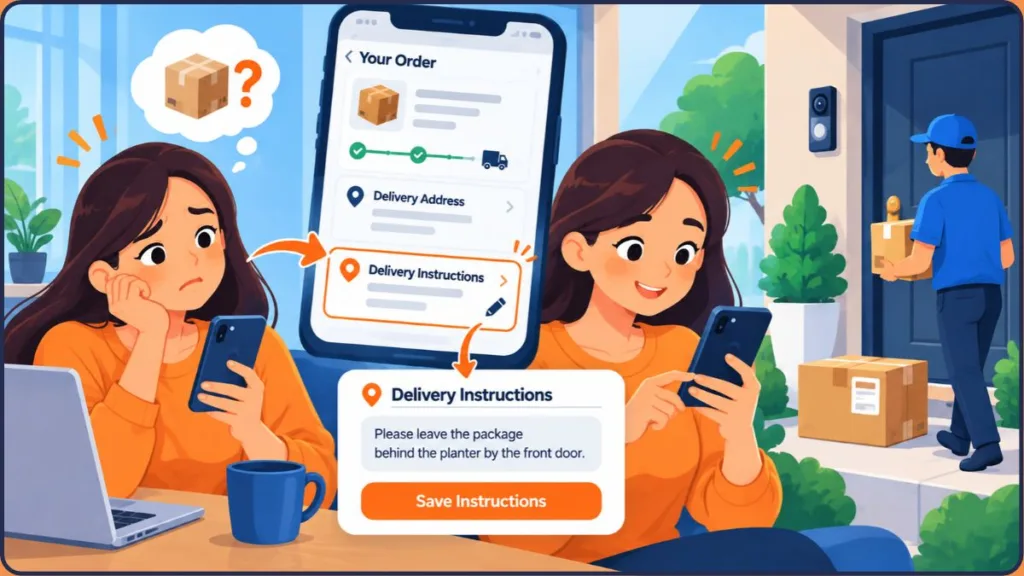
For example, “Leave the package behind the blue planter by the front door” is more helpful than “Leave it somewhere safe.”
Tell the Driver What to Do
Explain the action you need instead of only describing the property.
For example, “Enter through the side door” is clearer than simply mentioning that a side entrance exists.
Keep Your Note Short
A long paragraph can bury the most important detail. Focus on the information the driver needs to complete the delivery.
Why this works: Drivers may not have time to call and ask follow-up questions. A short, actionable note reduces guesswork about where to leave the package and how to access your property.
Amazon Delivery Instruction Examples You Can Copy
Use these templates as starting points and adjust them to match your property.
Safe-Place Instructions
- “Please leave the package behind the planter by the front door.”
- “Place the package inside the screen door, out of sight.”
- “Please leave the package with the front desk. Do not leave it outside.”
Choose a location that is practical, protected, and appropriate for your property.
Instructions for the Delivery Driver
- “Gate code is [code]. Please enter through the side door.”
- “Apartment 4B, second floor. Use the buzzer for 4B.”
- “Please text or call when you arrive.”
Only include access information in the appropriate delivery-instruction field and consider the privacy implications before sharing security codes.
Instructions for Apartments, Offices, and Gated Communities
Your note may need to include additional information when your delivery location is not easy to identify.
Include your unit number and building name when relevant. For office deliveries, mention the applicable business hours. For gated communities, explain the entry process and identify the correct building or entrance.
Amazon’s guidance recommends choosing a safe place that is protected from the elements and kept out of public view. Avoid selecting a drop-off spot that does not meet those conditions.
Accessibility: Delivery Instructions for Different Needs
Delivery instructions can also help explain accessibility requirements rather than simply making delivery more convenient.
Amazon’s UK help information describes an accessible-delivery field where customers can explain how a delivery driver can assist. Its examples include:
- “Ring the doorbell.”
- “Knock loudly.”
- “More time to answer the door.”
These examples are documented in Amazon’s UK help information. The field, wording, and available options may differ in your region.
If a similar field appears when you edit your delivery instructions, use it to explain what the driver needs to know.
How to Change Your Amazon Shipping Address After Placing an Order
Changing a delivery address is different from adding a delivery note. Your package may need to be routed to a different location, which is why address changes have stricter restrictions.
For eligible Amazon-shipped orders, you may be able to change the address before the order enters the shipping process.
Step-by-Step: Change the Address Before Shipping
Use a desktop browser for this process. Amazon’s US help guidance says mobile can support payment changes but not shipping-address changes through the same procedure.
- Open Amazon and sign in.
- Go to Your Orders.
- Select Order Details for the relevant order.
- Find the shipping address and select Change.
- Follow the instructions displayed on the screen.
Amazon’s help information says eligible orders that have not been dispatched can be updated through Your Orders, including the delivery address, payment method, and other available details. Follow the official Change Your Order Information instructions if you need help with the process.
What should you see?
The updated address should appear on the order page if the change succeeds.
Check the delivery estimate afterwards. Amazon warns that order changes can affect the expected delivery date.
What If the Change Address Option Is Missing?
Try these alternatives before giving up.
First, switch to desktop. Mobile versions may show fewer editing options.
Next, check who sold and ships the item. Amazon’s help information says only eligible Amazon-shipped orders that have not entered the shipping process can be updated through the standard process. For third-party orders, contact the seller when the available controls direct you to do so.
Finally, consider cancelling and reordering. If the item has not shipped and the order is eligible for cancellation, you may be able to cancel it and place a new order with the correct address. See the Plan B section below.
How to Update an Amazon Address After Shipping
Once the order has shipped, your options become more limited.
- Contact the carrier: Amazon’s help information recommends contacting the carrier directly to request an address change for Amazon-shipped orders.
- Ask someone at the original address for help: A trusted neighbor or contact may be able to hold the package until you can collect it.
- Refuse or return the package if necessary: If the order arrives at the wrong place, you may need to use the available refusal or return process and reorder the item.
Why Online Advice About Amazon Address Changes Often Conflicts
If you have searched for discussions about changing an Amazon shipping address after ordering, you may have found people describing completely different results.
That does not necessarily mean one person is wrong. The outcome can depend on the country, seller, fulfillment arrangement, and shipping status.
Use Amazon’s Change Your Order Information help page and the options displayed on your own order as your primary references. Treat forum discussions as examples of other customers’ experiences, not guarantees that your order will offer the same options.
Amazon-Shipped vs. Third-Party Orders: Why the Rules Differ
The type of order is one of the most important factors when deciding what you can change after checkout.
| Order type | What you can usually do | Timing or limitation |
|---|---|---|
| Shipped by Amazon | Change the address, payment method, and other eligible details through Your Orders. | Changes are generally available until the order enters the shipping process. |
| Third-party seller | Contact the seller and use any editing options that remain available. | Some regions allow changes within roughly 30 minutes; sellers generally cannot change the shipping address after submission. |
| Amazon Fresh or grocery | Available changes may include items or delivery slots, depending on the order. | Amazon’s UK help information says delivery instructions cannot be added or modified after the order is placed. |
For marketplace orders, Amazon’s help information in several regions describes a 30-minute window for certain changes. After that period, customers may need to contact the seller. Sellers generally cannot change the shipping address once the order has been submitted.
For Amazon Fresh, Amazon’s UK guidance says customers cannot add or modify delivery instructions on an upcoming order after placing it.
These restrictions are regional and order-dependent. Check the instructions displayed for your own purchase.
Quick tip: Look at the Sold by line before attempting to edit an order. It helps you identify which rules and support options apply.
Other Amazon Order Details You Can Change After Placing an Order
Delivery instructions are not the only details you may want to update. Payment methods, shipping speed, and delivery dates have their own restrictions.
How to Change the Payment Method on an Existing Amazon Order
If you used the wrong payment method, check whether the order still offers a payment-change option.
- Open Your Orders.
- Select Order Details.
- Find the payment method and choose Change.
- Select another available payment option.
- Follow the on-screen prompts to save the change.
Amazon’s US help information says mobile devices can be used to change the payment method even though the standard address-change process requires desktop.
If the payment option is missing, the order may have progressed beyond the point where payment changes are allowed. For additional help, see Amazon’s official Manage Payment Methods guide.
Can You Change Amazon Shipping Speed After Placing an Order?
Sometimes, but only for eligible orders.
Amazon documents a Change Delivery Speed option for Amazon Day orders that have not been dispatched.
To check whether it is available:
- Open Your Orders.
- Select the relevant Amazon Day order.
- Look for Change Delivery Speed.
- Follow the available instructions if the option appears.
For other orders, check the order page for any delivery-speed change option.
Amazon warns that changes to an order can affect the delivery date, so review the updated estimate before finishing. Once a package has shipped, its delivery speed usually cannot be changed through the normal order-management process.
Need to Request a Later Delivery Date?
You may not need to change the order itself.
Amazon’s help information says some eligible orders offer a Request Reschedule link on the tracking page.
To check:
- Open Your Orders.
- Select Track package.
- Look for Request Reschedule.
- Follow the available instructions if the option is displayed.
This feature is documented on regional Amazon help pages and is available only for eligible deliveries.
How to Change Amazon Order Details: Quick Reference
For most eligible order changes, begin here:
- Open Your Orders.
- Select the relevant order and open Order Details.
- Choose Change next to the detail you want to update.
- Follow the on-screen instructions.
- Recheck the order status and delivery estimate.
This is the standard starting point for editing eligible Amazon-shipped orders, but the available changes depend on the order type and its status.
Plan B: What to Do When You Cannot Change the Order
Sometimes Amazon does not display the editing option you need. You still have a few possible alternatives, depending on how far the order has progressed.
Option 1: Cancel and Reorder Before Shipping
If your order has not entered the shipping process and is eligible for cancellation, cancelling and placing a new order may be the simplest solution.
- Go to Your Orders.
- Find the order and select View or edit order.
- Choose Cancel items.
- Select the items you want to cancel. Select all items if you want to cancel the entire order.
- Choose a cancellation reason.
- Select Request cancellation.
- Once cancellation is confirmed, place a new order with the correct delivery address and instructions.
Amazon’s US help information says eligible items fulfilled by Amazon, or shipped and sold by Amazon, can be cancelled before entering the shipping process.
After you submit the cancellation request, Amazon sends a confirmation message to the email address associated with your account.
What should you see? A confirmation email and the order appearing among your cancelled orders in Your Orders, once the cancellation is processed.
Third-party orders follow different rules. Orders sold and shipped by a third-party seller can typically be cancelled within one business day, but once an order enters fulfillment, the seller must approve the cancellation.
Important: Do not assume that submitting a cancellation request means the order has already been cancelled. Check its status.
Option 2: Cancel the Delivery for Eligible Amazon-Delivered Orders
Some shipped orders delivered by Amazon may offer an additional option to stop the delivery.
Amazon’s UK help information describes the following process:
- Open Your Orders.
- Select Track My Parcel.
- Look for Cancel the Delivery.
- Select it if the option is available and follow the instructions.
This is a regional feature for eligible orders delivered by Amazon rather than a third-party carrier. Check your tracking page to see whether it is available.
Option 3: Redirect an Eligible Shipment to an Amazon Hub Locker
If you are concerned about leaving a package unattended, an Amazon Hub Locker may be an alternative for eligible shipments.
Amazon’s guidance says eligible shipments can be redirected to an Amazon Hub Locker through the Amazon Shopping app. Amazon’s UK help information adds that this option is available only before the package reaches the delivery station.
Because eligibility and timing matter, check the options shown in your app before relying on this method.
Option 4: Refuse or Return the Package
If the order cannot be changed or redirected, refusing or returning the package may be another option.
Amazon’s US help information says customers can refuse or return eligible orders shipped directly from Amazon through the Online Returns Center. For third-party orders, contact the seller for guidance.
Review the return or refusal options available for your particular order before taking action.
Which Device Should You Use: Amazon App vs. Desktop vs. Mobile Browser?
The best device depends on what you need to change.
| Task | Amazon app | Desktop browser | Mobile browser |
|---|---|---|---|
| Add instructions through the tracking page | Usually available when supported | Usually available when supported | Usually available when supported |
| Change shipping address | Not supported in the cited US guidance | Best option | Not supported in the cited US guidance |
| Change payment method | Yes, for eligible orders | Yes, for eligible orders | Yes, for eligible orders |
| Cancel an order | Yes, when eligible | Yes, when eligible | May be available, depending on region |
| Manage saved address instructions | Available where supported | Available where supported | Available where supported |
Amazon’s US help information says the address-change process requires desktop while payment changes can be made on mobile.
It also explains that an eligible order can be cancelled through the app or desktop before it enters the shipping process.
Amazon’s Canada and France help pages indicate that mobile may offer only cancellation in some situations, so available controls can vary by country, app version, and order type.
The practical approach: Start with the Amazon app for delivery instructions. Switch to desktop if you need to change the address or cannot find the relevant option.
Fix: “Your Delivery Options Have Changed Due to Your Updated Purchase Options”
This message can be confusing, especially when it appears immediately after you change something in an order.
Amazon does not publish a detailed explanation of this exact message in the guidance described here. However, it generally indicates that a change to the purchase, such as the delivery address, quantity, or selected items, has affected the delivery options available to you.
Since order changes can affect your delivery date, review the available options before continuing.
Common Reasons for This Message
- You changed the delivery address: The new location may have different delivery-speed options.
- You changed the quantity or items: Your updated selection may affect delivery eligibility.
- A payment or promotion changed: Your order may no longer qualify for the same free-shipping threshold or delivery option.
How to Fix the Message
- Open the order or checkout screen where the message appears.
- Review the selected delivery address.
- Check the available delivery speeds and choose the one you want.
- Review your order total to see whether any shipping fee has changed.
- Confirm the updated delivery date in Your Orders.
If the message continues to appear, try the desktop website or contact Amazon Customer Service for help.
Fix: Amazon Delivery Instructions Not Working or Not Showing
If your Amazon delivery instructions are missing, unavailable, or appear to have been ignored, first identify what is preventing the change.
Why the Delivery Instructions Option May Be Missing
The order has already shipped. Many self-service editing options close once the shipping process begins.
A third-party seller is involved. Marketplace orders follow different rules, and the seller may be your best contact for permitted changes.
You ordered Amazon Fresh or groceries. Amazon’s UK help information says instructions cannot be added after an Amazon Fresh order has been placed.
You are using a mobile device. Some order-management options, particularly address changes, may require desktop.
Your region has different controls. Amazon’s interface, button names, and available delivery preferences vary between countries.
Troubleshooting Steps to Try
Work through these checks before contacting support:
- Update the Amazon app. An outdated version may not display the latest available interface or controls.
- Clear the app cache on Android. This can help refresh the app if it is displaying stale information.
- Try the browser version. Open Amazon on a desktop browser to check whether additional options appear.
- Sign out and sign back in. Reopen your order after signing in again.
- Check the selected address. Delivery instructions are associated with an address, so make sure you are editing the correct one.
Why Is My Amazon Delivery Instruction Being Ignored?
Saving a delivery note does not guarantee that every instruction will be followed in every situation.
Amazon says instructions are used when possible, and some orders are not eligible for unattended delivery.
A delivery may also require someone to be present. For example, Amazon notes that drivers may call or text when critical delivery requirements involve a one-time password or age verification.
The carrier matters, too. If another delivery company is handling your package, the instructions saved in your Amazon account may not reach that company’s driver.
What to do: Check the tracking page, confirm the carrier, and contact Customer Service or the delivery company if the package has already shipped.
How to Check Whether Your Amazon Delivery Instructions Were Followed
Once your package has been delivered, you can use the available delivery information to check where it was left.
Check the Delivery Photo
For packages delivered through Amazon Logistics, Amazon may provide a Photo on Delivery.
To look for the photo:
- Open Your Orders.
- Select the delivered order.
- Choose Track package.
- Check whether a delivery photo is available.
The photo may help you identify where the driver left the package and whether the selected safe place was used.
A delivery photo is not guaranteed for every order. Amazon’s UK help information also says you can opt out of Photo on Delivery by contacting Customer Service, although disabling it may slow delivery investigations.
What If Amazon Says Delivered but You Cannot Find the Package?
If the tracking page says your package has been delivered but you cannot locate it, Amazon recommends several checks.
- Verify the shipping address in Your Orders.
- Look for an attempted-delivery notice or other delivery information.
- Check around the delivery location, including any nearby safe places.
- Ask whether someone else at your address accepted the package.
- Contact the carrier if the package is still missing.
Amazon’s help information also advises allowing 48 hours, because a package may sometimes be marked as delivered before it actually arrives. For the full process, see Amazon’s official Find a Missing Package That Shows as Delivered guide.
Real-Life Scenarios: What Should You Do?
The right solution depends on the mistake you made and the order’s current status.
“I Just Placed the Order and Forgot the Gate Code.”
Open the order’s tracking page and look for Provide delivery instructions. Add the code if the option is available, save the changes, and check that the note appears.
Then consider saving the relevant instructions to your address for future orders.
“I Entered the Wrong Apartment Number.”
If Amazon ships the order and it has not entered the shipping process, use a desktop browser to check Order Details > Change next to the shipping address.
If the address can no longer be edited, check whether the order is eligible for cancellation and reordering.
“My Order Is Already Out for Delivery.”
At this stage, changing the instructions is unlikely to work.
Check the carrier on the tracking page and contact the carrier directly if it offers address or delivery-preference changes. You can also ask a trusted person at the original delivery address to watch for the package.
“It Is a Third-Party Seller Order.”
Check whether the order still offers an editing or cancellation option. If a seller contact is required, contact them promptly.
Do not assume Amazon can change the address on your behalf after the order has been submitted.
“UPS or FedEx Is Delivering My Package.”
Look for the relevant carrier’s delivery-preference tools or contact the carrier directly.
Your Amazon delivery note may not reach a driver employed by another carrier, so checking the carrier’s own options is important.
“It Is an Amazon Fresh Order.”
Remember that saved address instructions do not apply in the same way to Amazon Fresh and third-party grocery deliveries.
Amazon’s UK help information says you cannot add or modify delivery instructions on an upcoming Amazon Fresh order once it has been placed. Check the options available for your specific order and region.
Stay Safe: Privacy and Security Tips for Delivery Instructions
Delivery notes can contain sensitive information. Keep them useful without sharing more than necessary.
- Be careful with access codes. Provide gate or door codes only in the appropriate delivery-instruction field when necessary.
- Avoid announcing that you are away. A note such as “out of town until Friday” reveals information that is not needed to complete the delivery.
- Consider a locker or pickup location. For eligible valuable orders, a pickup option may be preferable to leaving the package unattended.
- Watch for delivery scams. Fake delivery-problem texts and emails may try to get you to click malicious links. Check your order directly through the Amazon app or website instead of relying on links in unexpected messages.
Common Mistakes to Avoid
A few simple mistakes can make delivery harder than it needs to be.
- Waiting until the package is out for delivery before checking the instructions.
- Writing vague notes such as “leave somewhere safe.”
- Editing the wrong order or address.
- Forgetting that third-party sellers follow different rules.
- Assuming that changing your default address updates orders you have already placed.
- Trying to change a shipping address through the mobile app when the desktop process is required.
- Assuming your Amazon note will reach every delivery carrier.
- Adding so much detail that the most important instruction gets lost.
The easiest way to avoid these problems is to check the order immediately after purchasing it and keep your delivery note focused on the driver’s next action.
Pro Tips for Getting Your Amazon Packages Delivered Correctly
A few habits can make future deliveries easier to manage.
Set your default instructions once. Add reliable delivery notes to your saved address so you do not have to enter the same information every time.
Check the carrier early. As soon as the tracking page shows who is handling the package, make sure you know where to manage its delivery preferences.
Save multiple addresses. Separate addresses for home, work, and family can make it easier to select the correct destination when ordering.
Use pickup locations when appropriate. Amazon Hub Lockers and other eligible pickup options can be useful for valuable packages or situations where unattended delivery is a concern.
Check the order after making changes. Confirm the updated instructions or address, then review the expected delivery date.
Keep a record. A screenshot of your updated instructions can help if you later need to explain the change to Customer Service.
FAQs About Updating Amazon Delivery Instructions
How do I add delivery instructions on Amazon after placing an order?
Open Your Orders, select the active order, and go to its tracking page. Look for Provide delivery instructions and save your note if the option is available.
If the link is missing, check Your Addresses for instructions you can save for future orders or contact Amazon Customer Service.
Can you change your shipping address on Amazon after the order is placed?
Yes, in many cases. For eligible Amazon-shipped orders, you can generally change the address until the order enters the shipping process.
Third-party orders follow different rules, and sellers generally cannot change the shipping address after an order has been submitted.
How do I change delivery instructions on the Amazon app?
Open the Amazon app, go to Your Orders, select the order, and open its tracking page. Look for the delivery-instructions option and save your changes.
If the option is missing, try the desktop website or contact support. Your order may no longer be eligible for changes.
Can I change the payment method on an Amazon order already placed?
Often, yes, if the order is still eligible for changes. Open Your Orders, select Order Details, and look for Change next to the payment method.
If the option is unavailable, the order may already be past the point where payment changes are allowed.
Can I change shipping speed after placing an Amazon order?
Only on eligible orders. Amazon Day orders that have not been dispatched may offer a Change Delivery Speed option.
For other orders, check the order page for an available delivery-speed change. Once the package has shipped, its speed usually cannot be changed.
Do my Amazon delivery instructions work with UPS or FedEx?
Not necessarily. Amazon’s help information says account instructions are temporarily visible only to Amazon Logistics drivers.
If UPS, FedEx, or another carrier is handling your package, check that carrier’s delivery tools or contact it directly.
Why are my Amazon delivery instructions not working?
The order may have already shipped, another carrier may be delivering it, or the package may require someone to be present.
Amazon uses instructions when possible, but it does not guarantee that every note can be followed. Check your tracking information and contact the carrier if necessary.
Can I update my delivery address after the order ships?
Amazon’s help information says you should contact the carrier directly to request an address change for Amazon-shipped orders after shipping begins.
Whether the carrier can make that change depends on its available services and the shipment’s status.
Can I cancel an Amazon order after it has shipped?
Usually, the normal cancellation process applies to orders that have not entered the shipping process.
However, Amazon’s UK help information describes a Cancel the Delivery option for certain shipped orders delivered by Amazon. Check whether that option appears in your tracking details.
Can I redirect my Amazon package to a locker?
Amazon says eligible shipments can be redirected to an Amazon Hub Locker through the Shopping app, provided the shipment meets the requirements.
Amazon’s UK guidance specifies that this option is available only before the package reaches the delivery station. Check your order for eligibility.
How can I see where the Amazon driver left my package?
If Amazon Logistics took a Photo on Delivery, you may be able to view it by opening Your Orders, selecting the order, and choosing Track package.
Photos are not available for every delivery.
How do I edit orders shipped by Amazon?
Open Your Orders, select the order, and go to Order Details. Choose Change beside the information you want to update.
For eligible Amazon-shipped orders, changes are generally available until the order enters the shipping process.
Where can I update my default Amazon delivery preferences?
Open Your Addresses, find the relevant address, and look for the delivery-instructions option.
Amazon Business accounts use Business Settings > Billing and Shipping > Addresses, followed by Edit Delivery Preferences under Actions.
Available settings can differ by region and account type.
What does “Your Delivery Options Have Changed Due to Your Updated Purchase Options” mean?
It generally means that a change to your purchase, such as the address, quantity, or selected items, has affected which delivery options are available.
Review the delivery address, confirm your preferred shipping option, check any shipping-fee changes, and verify the updated delivery date in Your Orders.
Conclusion: Take Control of Your Amazon Deliveries
Updating Amazon delivery instructions after placing an order comes down to three things: act quickly, use the right method, and write clear instructions.
Start with Your Orders and open the tracking page to check whether you can add or update a delivery note. If you need to change the shipping address, use a desktop browser and check whether the order is still eligible for edits.
If the option has disappeared, identify the carrier and contact Amazon Customer Service or the delivery company when appropriate. For future orders, save useful delivery instructions to your address so you do not have to repeat the same steps.
Final tip: Open Your Orders immediately after making a purchase. A 30-second review can save you the trouble of tracking down a missing package later.
Visit Our Post Page: Blog Page
Discover more from Izoate
Subscribe to get the latest posts sent to your email.