
VALORANT Error Code 7 stopping you from logging in? Find out why VAL 7 appears and how to regain access to your Riot Games account.
VALORANT is an online tactical shooter from Riot Games that requires players to connect to its platform before they can access matches. However, some players encounter the VALORANT error code 7, which prevents them from connecting to the game and signing in successfully.
This VAL 7 connection error can be frustrating, especially when you’re ready to play but cannot get past the login process. Riot’s official website explains that the error appears when the game client cannot connect to the session service. It also mentions that the problem may occur when an account has been suspended.
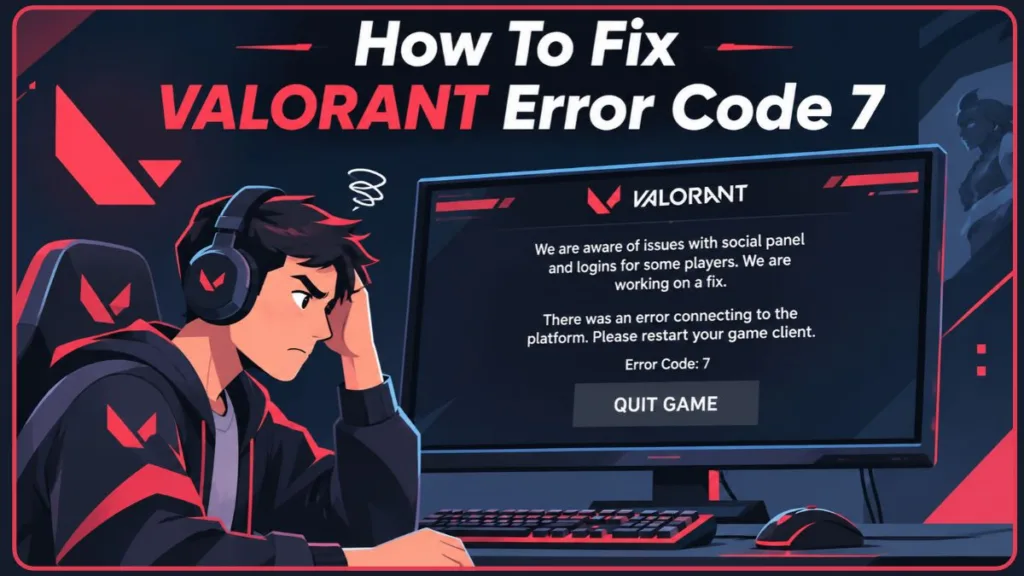
However, an account suspension isn’t the only possible reason. Problems with Riot’s platform can also cause this issue, while problems with the Riot Client, Vanguard, or your internet connection are worth checking during troubleshooting. Before reinstalling the game or changing Windows settings, it’s important to understand what causes VALORANT Error 7 and which solutions can help.
Understanding VALORANT Error Code 7 and Its Causes
What Does Error Code VAL 7 Mean in VALORANT?
If you encounter Error Code VAL 7, the first thing to understand is what the message actually means. According to Riot Games’ official VALORANT Error Codes and Solutions, the error is described as “Couldn’t connect to session service.”
In simple terms, your VALORANT client is having trouble connecting to the service required to establish your game session. As a result, you may be unable to sign in and access the game.
Riot’s website mentions two possible explanations for this VALORANT session service error. Your account might have a suspension, or there could be a problem with the VALORANT platform itself.
This means you shouldn’t immediately assume that your account has been banned when the VAL 7 error code appears. Checking your registered email and Riot’s service announcements can help you understand whether the problem is related to your account or the platform.
There’s also an important update to Riot’s documentation. Its official error-code page currently carries a warning that the list is out of date because a recent issue can cause VALORANT errors to display incorrectly. Riot recommends submitting a support ticket if the problem persists.
Common Reasons for VALORANT Error Code 7
The VALORANT session service connection error can leave players wondering whether something is wrong with their Riot account or computer. Although Riot specifically mentions account suspension and platform problems, there are a few other areas worth checking when troubleshooting this issue.
The possible reasons include:
- Account Suspension: Riot’s official documentation mentions that VAL 7 may appear when your account has received a suspension. Check your registered email for information about any restrictions.
- Riot Games Server Problems: If Riot’s platform or related services experience downtime, the VALORANT client may struggle to establish a session.
- Riot Client Issues: Temporary problems with the Riot Client can interfere with the VALORANT login process.
- Vanguard Problems: VALORANT uses Riot Vanguard as its anti-cheat software. If its installation or background service isn’t working correctly, you may experience problems starting the game.
- Internet Connection Issues: An unstable connection, VPN interference, proxy configuration, or network restrictions may affect communication with Riot’s services.
Vanguard and internet problems are additional troubleshooting possibilities rather than causes Riot specifically confirms for VALORANT Error Code 7. Checking them is still useful when your account and Riot’s platform appear to be working normally.
How to Check If VALORANT Is Down or Experiencing Server Issues
Before trying different solutions on your computer, it’s worth checking whether VALORANT is experiencing server connection problems.
Sometimes, the issue isn’t related to your Windows settings or game installation at all. If Riot’s platform is having trouble, reinstalling Vanguard or restarting your router won’t necessarily fix the VALORANT platform connection error.
Ways to Check VALORANT Server Status and Availability
Official Riot Games Service Status: Visit the Riot Games Service Status website. Select VALORANT and your region to check reported incidents, maintenance announcements, and service updates.
VALORANT Support Website: You can also visit the official VALORANT Player Support website. Check the support page for announcements about ongoing technical problems.
Official VALORANT Discord: Riot also recommends checking its official VALORANT Discord for information about emerging platform issues. Community announcements can help you understand whether other players are experiencing similar problems.
If Riot confirms that its platform is experiencing an issue, the best option is to wait until the affected service is restored. There’s no reason to make unnecessary changes to your computer when the problem is on Riot’s side.
However, if there are no relevant announcements and the service appears to be working, you can move on to checking your account and trying other VALORANT error code 7 fixes.
How to Fix VALORANT Error Code 7
If VALORANT isn’t experiencing a reported platform outage but you continue to encounter the VAL 7 error in VALORANT, there are several things you can try on your own.
These solutions cover account verification, the Riot Client, your internet connection, and Vanguard. Start with the simpler checks before making changes to Windows services or reinstalling software.
Step 1: Check Your Riot Account for Suspension
One of the first things you should do when encountering VAL 7 in VALORANT is check whether Riot has restricted your account. Since Riot specifically mentions account suspension as a possible reason for this error, looking for an account notification can help you avoid unnecessary troubleshooting.
To check your Riot account:
- Open the email account associated with your Riot Games account.
- Look for recent messages from Riot Games about account suspensions or restrictions.
- Check your spam and junk folders, as the notification may have been filtered.
- Open any relevant message and read the restriction details, including its duration.
- Visit the official VALORANT Player Support website if you need further information.
You can also read Riot’s Penalties and Bans FAQ to understand the different restrictions that can affect your account.
If you find a suspension notification, follow the instructions provided by Riot. Reinstalling VALORANT or Vanguard won’t remove an account-level restriction.
On the other hand, if you haven’t received a suspension notification, don’t assume your account is banned. Continue checking the other possible causes.
Step 2: Restart VALORANT and the Riot Client
Sometimes, a problem with the Riot Client or a running game process can interfere with the login process. Restarting both programs is a simple way to give the game another chance to establish its connection.
To do this:
- Close VALORANT if it’s currently running.
- Exit the Riot Client completely. Right-click its icon in the Windows system tray and select Exit.
- Press Ctrl + Shift + Esc to open Task Manager.
- Select the Processes tab.
- Look for any remaining Riot Client or VALORANT processes.
- Select the relevant process and click End task if it’s still running.
- Open the Riot Client again and launch VALORANT.
Make sure you save any other open work before closing background applications. You don’t need to end Vanguard services as part of this process.
Once the Riot Client restarts, try signing in again. Sometimes, closing the remaining game processes is enough to clear a temporary client problem.
Step 3: Restart Your Computer and Internet Router
If restarting the Riot Client doesn’t help, try refreshing your computer’s internet connection. Sometimes, network problems can prevent the game from communicating properly with Riot’s services, even when other websites appear to work normally.
Restarting your computer and router is a simple way to check whether the problem is related to a temporary network interruption.
Here’s what you need to do:
- Close VALORANT and the Riot Client.
- Restart your computer using the Windows Start menu.
- Turn off your internet router or modem.
- Disconnect its power supply for approximately 30 seconds.
- Reconnect the power cable and wait until the router finishes restarting.
- Connect your computer to the internet again.
- Open Riot Client and launch VALORANT.
After the router reconnects, try accessing the game. If the VAL 7 connection problem still appears, check your network settings to see whether something is interfering with the connection.
Step 4: Check Your Internet Connection and Network Settings
Sometimes, the easiest way to troubleshoot VALORANT Error Code 7 is to check your internet connection. Even when your Riot account is working correctly and the game servers are available, problems with your network can prevent the client from connecting.
A few simple checks can help you identify whether the problem is related to your internet.
Check Your Wi-Fi Connection: Open Windows Settings by pressing Windows + I, then navigate to Network & Internet > Wi-Fi. Make sure Wi-Fi is enabled and your computer is connected to the correct network.
Try an Ethernet Connection: If you’re playing over Wi-Fi, connect your computer directly to the router using an Ethernet cable, if available. Wireless connections can experience interference or signal problems, so testing a wired connection can help identify whether Wi-Fi is responsible.
Temporarily Disable VPN or Proxy: Some VPN and proxy configurations can interfere with connections to online gaming services. Disconnect from your VPN application and try launching VALORANT again. To check Windows proxy settings, open Settings > Network & Internet > Proxy and review whether a manually configured proxy is enabled. Don’t change settings required by your workplace or managed network.
Reduce Other Network Activity: Pause large downloads, video streaming, cloud syncing, and other activities using a significant amount of bandwidth. This can help rule out network congestion while testing the game.
If your connection remains unstable across other applications, restarting the router again or contacting your internet service provider may help.
Riot also provides an official High Latency and Disconnections troubleshooting guide with additional instructions for Ethernet connections, network configuration, DNS, VPNs, and firewall settings.
If your internet connection is working normally but the VALORANT session service error continues to appear, it’s worth checking Riot Vanguard next.
Step 5: Check the Riot Vanguard Service (vgc)
VALORANT uses Riot Vanguard to detect prohibited third-party software and help maintain a fair gaming environment. The anti-cheat software needs to run correctly when you play, so problems with its background service can interfere with starting the game.
One way to check its status is through the Windows Services application.
To do this:
- Press Windows + R on your keyboard to open the Run dialog.
- Type
services.mscin the text box. - Press Enter to open the Services window.
- Scroll through the list and look for vgc.
- Double-click vgc to open its properties.
- Check the Service status field.
If the service is stopped, you may need to start it. However, Riot has a slightly different startup arrangement for players using Vanguard Pre-Check, so it’s important to check which configuration applies to your computer.
If you haven’t enabled Vanguard Pre-Check, Riot instructs players to make sure the vgc service starts automatically with Windows.
Follow these instructions:
- Open the vgc Properties window.
- Find Startup type and select Automatic.
- Under Service status, click Start if it shows Stopped.
- Click Apply, then OK.
- Restart your computer.
- Open Riot Client and launch VALORANT again.
If you’ve enabled Vanguard Pre-Check, the service is designed to start on demand when you launch a Riot game instead of automatically when Windows starts. In that case, don’t force the startup type to Automatic. Launch Riot Client and VALORANT using the intended configuration.
You can find the complete instructions in Riot’s official Set VGC as Automatic guide.
If vgc refuses to start or the service repeatedly stops, reinstalling Riot Vanguard is another option worth trying.
Step 6: Uninstall and Reinstall Riot Vanguard
If checking the vgc service doesn’t help, you can try reinstalling Riot Vanguard. The anti-cheat software is required to play VALORANT, and damaged or incomplete installation files may cause problems with its operation.
Riot provides a straightforward way to remove Vanguard through its system tray icon or Windows settings.
Uninstall Vanguard Using the System Tray:
- Close VALORANT and any other Riot games that are running.
- Exit the Riot Client completely from the Windows system tray.
- Locate the Riot Vanguard icon in the bottom-right corner of your screen. You may need to open the hidden icons menu.
- Right-click the Vanguard icon.
- Select Advanced > Uninstall Vanguard.
- Follow the on-screen instructions to complete the removal.
Uninstall Vanguard Through Windows:
If you cannot use the system tray option, you can remove it through Windows instead.
- Press the Windows key on your keyboard.
- Type Add or Remove Programs in the search bar.
- Open the matching Windows settings page.
- Find Riot Vanguard in the installed applications list.
- Select it and click Uninstall.
- Confirm the removal if Windows asks for permission.
After uninstalling Vanguard, restart your computer. This helps complete the removal process.
Reinstall Riot Vanguard:
You don’t need to find a separate Vanguard installer from an external website. Riot Client can reinstall the anti-cheat automatically.
To do this:
- Open the Riot Client or launch VALORANT.
- Allow the client to download and install Vanguard again.
- Follow any additional instructions displayed by the installer.
- Restart your computer if prompted.
- Launch VALORANT and check whether the error has disappeared.
If you also need to reinstall the entire game, use the official VALORANT download page.
Riot also explains the complete removal process in its official Uninstall and Disable Vanguard guide.
Step 7: Get in Touch With Riot Games Support
If you’ve checked your account, restarted VALORANT, verified the platform status, and tried the other troubleshooting methods, contacting Riot Games Support is the next option.
Sometimes, the problem requires an account or platform investigation that you cannot complete from your computer. Riot’s support team can help determine whether the error is related to an account restriction or another technical problem.
To contact Riot Support:
- Visit the official VALORANT Player Support website.
- Sign in using your Riot Games account.
- Select the option to submit a support ticket.
- Choose the category that best describes your account or technical problem.
- Explain when Error Code 7 started appearing.
- Attach a screenshot of the error message.
- Mention the troubleshooting methods you’ve already attempted.
- Submit the ticket and follow any instructions from Riot’s support team.
Include relevant details about your internet connection, Riot Client, and Vanguard if you’ve already checked them. This gives the support team more information to work with instead of making you repeat the same basic troubleshooting steps.
Additional Tips for Troubleshooting VALORANT Error Code 7 and Related Problems
If VALORANT continues to have connection problems, there are a few additional things you can check in Windows.
- Check Your Firewall: Windows Firewall or third-party antivirus software may block applications from communicating with online services. Make sure VALORANT, Riot Client, and Vanguard are allowed through your firewall. Riot provides a dedicated VALORANT firewall troubleshooting guide.
- Keep Windows Updated: Install available Windows updates, particularly if you’re experiencing other connection or software compatibility problems.
- Avoid Unnecessary System Changes: Don’t randomly delete Vanguard services, modify system drivers, or run unfamiliar Command Prompt commands. Incorrect changes can create additional problems.
- Check Riot Support Announcements: If the error appears again after you’ve successfully logged in, check Riot’s announcements for any reported platform issues.
These checks are useful when the basic troubleshooting methods haven’t identified the problem. You don’t need to change several Windows settings at once; test one adjustment at a time so you can understand what actually makes a difference.
What to Do When VALORANT Error Code 7 Is Still Not Working?
If you’ve tried the solutions above and VALORANT Error Code 7 still appears, the next step depends on what you’ve found.
- Account Suspension Confirmed: Follow the instructions in your Riot account notification. Contact Player Support if you need clarification about the restriction.
- Riot Platform Issue Reported: Wait until the affected service is restored and check Riot’s announcements for updates.
- No Suspension or Relevant Outage: Submit a technical support ticket with a screenshot of VAL 7 and details of your troubleshooting attempts.
- Vanguard or Network Problems Remain: Include the service or connection problem in your support request so Riot can investigate further.
If none of these situations explains the error, avoid repeatedly reinstalling the game or changing Windows settings without a clear reason. Riot Support is better placed to investigate an issue that continues after these checks.
Why Does VALORANT Show Error Code 7 and How Long Does It Last?
The time it takes to resolve VAL 7 depends on what is causing the problem.
If Riot’s platform is experiencing downtime, the error may disappear once the affected services are restored. You’ll need to check Riot’s announcements for updates because there isn’t a fixed recovery time for every platform problem.
If your Riot account has a suspension, your ability to access the game depends on the restriction applied to your account. Check the notification from Riot for the relevant details.
However, if the issue involves your local client, network connection, or Vanguard installation, resolving the affected component may allow you to access VALORANT again.
This is why checking your account and Riot’s platform status first is useful. It helps you understand whether you’re dealing with something that requires a local fix or an issue that only Riot can resolve.
Conclusion: Fixing VALORANT Error Code 7
The VALORANT Error Code 7 or VAL 7 error appears when the game client cannot connect to the session service. Although an account suspension is one possible reason, platform problems can also cause it. Start by checking your Riot account email and VALORANT server status, then try restarting the Riot Client, checking your internet connection, and troubleshooting Vanguard. If the error continues after these steps, contact Riot Games Support to investigate your account or the platform issue.
Visit Our Post Page: Blog Page
Discover more from Izoate
Subscribe to get the latest posts sent to your email.