
Can’t find your Deltarune save location? Use our quick guide to locate your files on Windows, Mac, or Steam Deck and easily fix a missing save folder.
If you are like most players, you are incredibly excited to jump back into the Dark World now that Deltarune Chapter 5 is finally here. But before you can experience the new festival update, you might be running into a frustrating roadblock. If you haven’t played since the earlier chapters dropped, there is a good chance you have upgraded to a new PC, reformatted your hard drive, or simply lost track of where your game progress went.
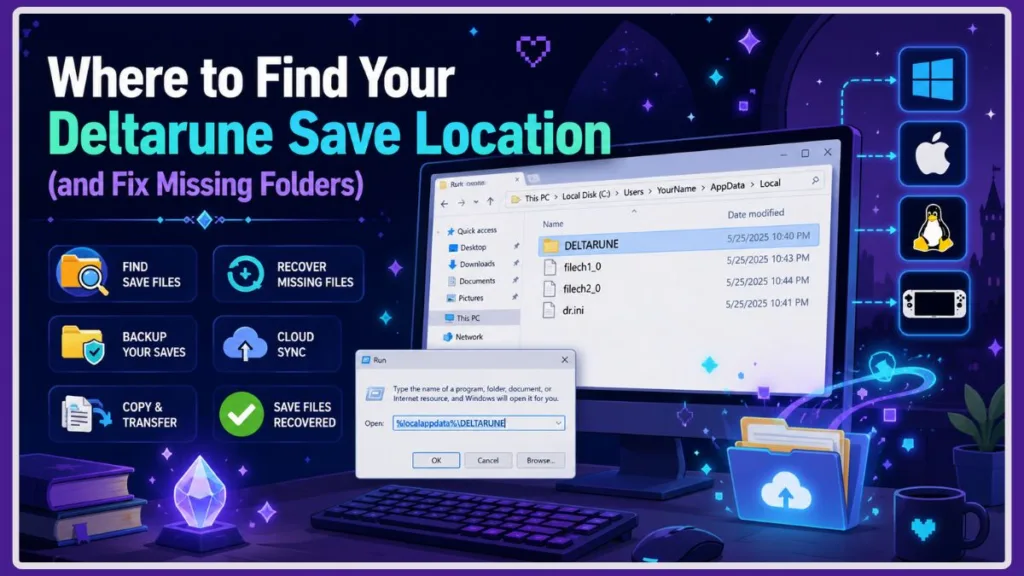
You may be looking for your Deltarune save location so you can safely back up your data, move your files to a new computer, or drop in a completed save file you found online. Navigating through hidden system folders can feel overwhelming, but don’t worry. This guide will walk you through exactly where to find your files and how to troubleshoot the annoying “folder missing” error that trips up so many players.
Tracking Down Your Dark World Data: Where to Find Your Deltarune Save Location
Finding your save data is actually quite simple if your computer is operating normally. The exact steps just depend on the operating system or device you are using to play the game.
Finding the Deltarune PC Save Folder (Windows)
If you are playing on a Windows PC, the fastest way to find your Deltarune PC save folder is by using the built-in Run command. This bypasses the need to click through multiple directories.
- Press the Windows Key + R on your keyboard to open the Run dialog box.
- Type exactly
%localappdata%\DELTARUNEinto the text field. - Click OK or hit Enter.
Your file explorer should immediately pop open, showing you a folder filled with files named things like filech1_0 or dr.ini.
Finding the Deltarune Mac Save File Path
If you are gaming on an Apple computer, your files are stored in a slightly different library directory. To access your Deltarune Mac save file path, you can open Finder, click “Go” in the top menu bar, select “Go to Folder,” and paste in this exact path:
~/Library/Application Support/com.tobyfox.deltarune/
Finding Saves on Linux and Steam Deck
For those of you enjoying the game on a Steam Deck or a Linux desktop using Proton, things are a little trickier. The Steam application creates a virtual Windows environment to run the game, meaning your files are tucked deep inside a compatibility folder.
You can find your saves by navigating through your file manager to this specific directory:
~/.steam/steam/steamapps/compatdata/1671210/pfx/drive_c/users/steamuser/AppData/Local/DELTARUNE
The Case of the Vanishing Directory: Try These Quick Fixes for Missing Folders
People dealing with the same problem often find themselves staring at an error message saying Windows cannot locate the %localappdata%\DELTARUNE folder. If you are reading through community discussions on Reddit, you will see this is a surprisingly common issue. If your folder seems to have vanished, try the following steps.
1. Make Sure You Have Actually Saved the Game
If you just installed Deltarune on a new computer and want to paste your old files into the directory, you won’t find the folder. The game does not actually create the DELTARUNE directory during installation. You have to boot up the game, start a file, and interact with a glowing save point at least once. After you do that, close the game, and the folder will magically appear.
2. Unhide Your AppData Folder
Windows operating systems hide the AppData folder by default to prevent people from accidentally deleting important system files. If the Run command isn’t working, you can manually unhide it.
- Open Windows File Explorer.
- Click on the View tab at the top of your window.
- Check the box labeled Hidden items.
- Navigate manually to
C:\Users\[YourUsername]\AppData\Local\DELTARUNE.
3. Search Your System for Specific File Names
If the deltarune missing save folder issue persists, bypass the folder completely and search for the files themselves.
- Open This PC or click on your primary C: Drive.
- Go to the search bar in the top right corner.
- Type the word
filechand press Enter.
Because Deltarune save files are named things like filech1_0 and filech2_9, this system-wide scan will track down your progress no matter where your computer decided to hide it.
4. Check Your Steam Cloud Settings
If you are playing through Steam, your cloud synchronization might be overwriting your local files or preventing the folder from behaving normally.
- Open your Steam Library and right-click on Deltarune.
- Select Properties from the drop-down menu.
- Under the General tab, locate the Steam Cloud toggle.
- Turn it off, launch your game, save your progress, and then check your local files again.
Prepping for the Festival: How to Transfer or Download a Chapter 5 Save File
Once you successfully locate your directory, you are free to modify, transfer, or replace your game data to get ready for the newest content.
Always Back Up Your Progress First
Before you start deleting things or dragging new files into your folder, you should always back up your original data. Simply right-click your DELTARUNE folder, copy it, and paste it somewhere secure like your Desktop, a USB drive, or your Google Drive account. If a new file corrupts your game, you can simply paste your original folder back in to restore everything.
Using a 100% Perfect Save File
If you lost your old PC or just don’t have the time to replay the older chapters, you can easily find a 100% perfect save file for Deltarune chapter 5 uploaded by helpful community members on platforms like Reddit or Discord.
Once you download the files, just extract the zip folder and drag the filech documents directly into your newly located DELTARUNE folder. When you boot up the game, you will be ready to start exactly where the previous chapter left off, with all the best gear and items.
Customizing Your Playthrough
If you want to keep your own file but forgot to grab a specific item (like the Shadow Crystal from a secret boss), you don’t have to restart. You can use community tools like the Spamton Save Editor. This browser-based tool allows you to upload your filech document, safely edit your inventory, stats, or story choices, and download the updated file to put back into your game folder. It is incredibly useful for testing out weird route consequences without losing your main pacifist run.
Hopefully, these steps helped you track down your missing files so you can get back to exploring the Dark World. Did you manage to recover your old save, or are you downloading a fresh one to jump straight into Chapter 5? Let me know in the comments below, and if you run into any other weird folder errors, drop a question so we can help you out!
Visit Our Post Page: Blog Page
Discover more from Izoate
Subscribe to get the latest posts sent to your email.