
Developer options not showing after you tap Build number 7 times? Learn why it happens and how to fix missing Developer options on Samsung, Pixel, Motorola, Xiaomi, and other Android phones.
You go to Settings → About phone, find Build number, and tap it seven times just like every guide tells you to. You’re expecting a little pop-up that says “You are now a developer!” — but instead, nothing happens. No message, no countdown, no new menu. Or maybe you did get the message, but when you go looking for Developer options in Settings, it’s nowhere to be found.
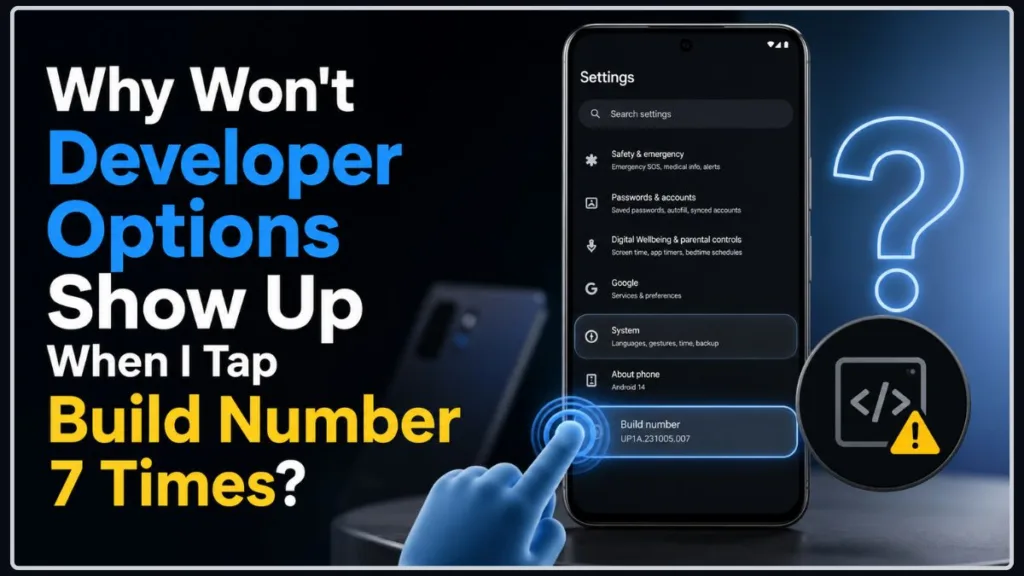
If that’s you, take a breath. This is one of the most common Android hiccups out there, and it almost never means your phone is broken. In most cases, it comes down to one of a handful of very fixable causes — a menu that moved, a step that already happened without you noticing, or a restriction you didn’t know was there.
Let’s walk through exactly why this happens and how to get Developer options showing up the way it should.
Two Different Problems, One Frustrating Symptom
Before troubleshooting, it helps to separate what’s actually going on, because “Developer options isn’t showing” usually means one of two different things:
- Nothing happens when you tap Build number — no countdown, no confirmation message, no reaction at all.
- The taps work fine, but you can’t find the Developer options menu afterward — you got a confirmation, but Settings doesn’t seem to have the new option anywhere.
These two situations have different causes and different fixes, so we’ll address both as we go.
What Should Happen After Tapping Build Number 7 Times?
Many Android devices display messages showing how many taps remain as you continue tapping Build number, and on some devices you’ll be asked to confirm your PIN, pattern, or password partway through. Once you complete the sequence, most devices show a final confirmation message, usually along the lines of “You are now a developer!“
After that, if you back out to the main Settings screen, a new Developer options entry should appear somewhere in your Settings menu — the exact spot depends on your device and Android version, which we’ll cover below.
If any part of that didn’t happen for you, you’re not alone, and there’s a good chance the fix is simpler than you’d expect.
Tapped Build Number 7 Times but Nothing Happened? Check These 5 Things First
Before diving into device-specific paths and settings menus, run through this quick checklist. It covers the most common reasons people report getting no response at all when tapping Build number.
- Developer options may already be enabled. If you’ve enabled it before, the seven-tap process isn’t needed again — check whether the menu is already sitting in Settings before assuming anything failed.
- You might be tapping the wrong entry. Some menus have a similarly named option (like an “Android version” or general “Software info” heading) that isn’t the actual Build number field.
- Your device might organize Settings differently than you’d expect. Tablets and certain manufacturer skins can structure menus differently than phones do, so instructions written for one device don’t always translate directly to another.
- Searching “Developer Settings” in Settings can be misleading. It can sometimes surface accessibility or debugging-related settings that aren’t the actual Developer options menu.
- A work profile, managed device, or parental restriction might be involved. Some device-management configurations can limit what settings are available, though this depends on how the specific device is set up.
We’ll go through each of these in more detail below, along with exactly what to do about them.
Why Developer Options Aren’t Showing
There isn’t one single cause here — it’s usually one of these:
- Wrong Build number location. You’re tapping in the right general area, but not the exact field Android is looking for.
- Developer options are already enabled and the menu simply moved somewhere you haven’t checked yet.
- A screen lock or PIN requirement interrupted the process without you realizing it.
- A work profile or managed device (MDM) restriction is limiting certain settings.
- Parental or supervision restrictions are limiting what can be changed on the device.
- A temporary Settings app glitch, in rare cases.
- Differences between manufacturers, models, and Android versions — the exact wording, location, and behavior can vary by device.
Let’s break down how to check for each of these, starting with the most common one.
Check Whether Developer Options Are Already Enabled
Here’s something worth checking first: if you’ve enabled Developer options on this device before, tapping Build number again may simply do nothing new — because there’s nothing left to unlock. If you don’t recall a confirmation message and aren’t sure whether it’s already on, the fastest way to find out is to check Settings directly rather than assuming the tap sequence failed.
Head to Settings → System → Developer options — the exact location can vary by device, so also check under Additional settings or your manufacturer’s equivalent path (more on that below). If it’s already there, you didn’t fail at anything — you just don’t need to tap Build number again. You can go straight to using it.
Find the Correct Build Number on Your Android Phone
One of the biggest reasons this trips people up is that manufacturers don’t all place Build number in the same spot. Here’s a general starting point for where to look:
| Manufacturer | Typical Location |
|---|---|
| Google Pixel | Settings → About phone → Build number |
| Samsung Galaxy | Settings → About phone/About tablet → Software information → Build number |
| Motorola | Settings → About phone → Build number |
| Xiaomi/Redmi/POCO | Settings → About phone → version/build information |
| OnePlus | Settings → About device → version/build information |
| OPPO/realme/Vivo | Settings → About device/About phone → software/version information |
Menu names and paths can vary by device model, Android version, and manufacturer skin. When in doubt, use the Settings search box and search for “Build number.”
On some Xiaomi, Redmi, and POCO devices, the developer-enabling entry may be an OS version entry rather than a field literally labeled “Build number” — tapping that version entry the same number of times triggers the same process.
Don’t Rely on the Same Menu Structure Across Devices
Here’s a scenario worth calling out specifically, because it trips up more people than you’d expect — especially on tablets.
Say your phone has a straightforward path to Developer options through a “System” menu. You’d reasonably expect a tablet running a similar version of Android to work the same way. But depending on the device, that menu structure isn’t guaranteed to match. Instead, you might need to go through something like Apps → General management → Accessibility → About tablet to find your way to Build number and, eventually, Developer options.
This isn’t a bug — it’s just a difference in how some manufacturers, especially on tablets, can structure their Settings layout compared to phones. If the instructions you’re following assume a menu structure your device doesn’t have, don’t assume something’s broken. Use the Settings search bar instead, or check the manufacturer table above for a closer starting point.
Tap Build Number Correctly
If you’ve confirmed Developer options aren’t already enabled and you’ve found the right Build number field, here’s the process step by step:
- Open Settings and go to About phone (or About tablet).
- Tap Software information or a similar sub-menu if your device has that intermediate step.
- Find Build number (or the equivalent version entry on some devices) and tap it seven times in succession, watching for the confirmation message.
- If prompted, enter your device PIN, pattern, or password to confirm.
- Look for the final confirmation message once the sequence completes.
If you complete all five steps and still don’t see a confirmation, move on to the next section — it’s likely a Settings navigation issue rather than a failed tap sequence.
Searching Settings for “Developer Options”? Watch Out for This
If you’ve tried using the search bar inside Settings to jump straight to Developer options, be careful about what you click on. Searching for terms like “developer settings” can sometimes surface accessibility or debugging-related settings that are not the Android Developer options menu.
Heads up: These accessibility-related settings are not the same menu that contains features like USB debugging. If a search result looks like it’s about accessibility rather than development tools, back out and use the Build number method instead.
Check Settings for Developer Options
Once you’ve successfully tapped Build number seven times, here’s where to look for the new menu:
- Settings → System → Developer options — a common location, though the exact path varies by device
- Settings → Additional settings → Developer options — common on some manufacturer skins
- Other manufacturer-specific variations noted in the table earlier in this article
If you don’t see it immediately, try backing all the way out to the main Settings screen and scrolling down again, or using the Settings search bar — some devices place it lower than you’d expect.
Restart Your Phone and Try Again
Restarting your phone is a low-risk troubleshooting step worth trying if the Settings app appears to be behaving incorrectly — for example, if menus are loading slowly, not updating, or acting unresponsive. It won’t fix every case, but it costs you nothing to try before moving on to more involved troubleshooting.
Restart your phone, open Settings again, and check whether Developer options is now showing up. If it’s still not there, repeat the Build number tap sequence from scratch.
Check Screen Lock, Work Profile, and Restrictions
If you’ve gone through everything above and Developer options still won’t show up, it’s worth checking whether something on your device is limiting access to it.
- Screen lock/PIN requirement. If your device asks for a PIN or pattern partway through the tap sequence and you back out or cancel that prompt, the process won’t complete. Try again and make sure you enter your credentials fully when asked.
- Work profile or managed device (MDM) restrictions. If your phone is company-managed, device-management policies can restrict certain system settings or development-related features. The exact restrictions depend on the organization’s management configuration, so this isn’t guaranteed to apply to every managed device. If the device is managed, contact your IT administrator to confirm whether Developer options has been restricted.
- Parental or supervision restrictions. Parental or device-management restrictions may affect what you can change on a supervised or managed device. If the device is linked to a supervised account, check with whoever manages that account before troubleshooting further.
What to Do If Developer Options Still Won’t Appear
If you’ve worked through every step above and you’re still stuck, it’s time to escalate — but carefully.
Start with manufacturer-specific support resources for your exact device model, since some firmware versions have had isolated bugs affecting this menu. It’s also worth checking whether a pending software update might resolve it, since Settings-related glitches are sometimes patched in routine updates.
Important: A factory reset should not be your first move here. It’s an intrusive step that wipes your device, and in the vast majority of cases, it isn’t necessary to fix a missing Developer options menu. Work through the checks above first — the correct Build number location, whether the option is already enabled, and any restrictions on the device — before considering anything that drastic.
Frequently Asked Questions
Why won’t Developer options show up after 7 taps, or why isn’t anything happening when I tap Build number? If nothing happens at all — no countdown, no pop-up — it usually comes down to one of a few things: you’re tapping the wrong field, Developer options may already be enabled from a previous attempt (try searching “Developer” in your Settings search bar to check), a PIN prompt was interrupted, or your device is restricted. On a work phone, school-managed tablet, or a device linked to parental or supervision controls like Google Family Link, an administrator may have limited or disabled this feature, in which case tapping Build number won’t do anything no matter how many times you try.
What should happen after tapping Build number 7 times? Many devices show a countdown message as you tap, possibly a PIN/password prompt, and a final “You are now a developer!” confirmation. Developer options should then appear somewhere in Settings, most commonly under System.
Why does Build number say I’m already a developer? This means Developer options were enabled previously, sometimes without you noticing a confirmation message the first time. Check Settings → System → Developer options, or Additional settings — it’s likely already there.
Where are Developer options after I enable them? Most commonly under Settings → System → Developer options, though this can vary by device — some manufacturers place it under Additional settings instead. Every brand tends to tuck the menu away in a slightly different spot: on a Google Pixel or Motorola, you’ll usually find it under Settings → System, while on a Samsung Galaxy it typically sits near the bottom of the main Settings page. If you’re still not finding it, open Settings, tap the search icon at the top, and type “Developer options” — that shortcut works regardless of how your specific device organizes its menus.
Do I need a PIN or password to enable Developer options? Only if your device already has a screen lock set up. If prompted, you’ll need to enter it to complete the process.
Can Android updates hide Developer options? In some cases a software update can reset or temporarily affect the menu, which is why it’s worth repeating the Build number tap sequence after a major update if the menu seems to have disappeared.
Can a work profile block Developer options? It’s possible. If your phone is company-managed, or a school- or organization-managed device, it may be enrolled in a mobile device management (MDM) system. Organizations sometimes use tools like Microsoft Intune or Google Workspace to manage security policies, and restricting Developer options can be part of that. The exact restrictions depend on the organization’s specific configuration, so this isn’t guaranteed to apply to every managed device. You generally can’t override this restriction yourself — if you suspect it applies to you, contact whoever manages the device (usually an IT administrator) and ask directly.
Why are Developer options missing on Samsung? On Samsung devices, Build number is commonly nested under Software information (Settings → About phone → Software information → Build number), which is easy to miss if you’re only looking under About phone directly.
Do I need to factory reset my phone to enable Developer options? No. A factory reset is not a required step for this issue and should only be considered after every other troubleshooting option has been exhausted.
I tapped a setting and a clock or a little animation popped up instead. What happened? You likely tapped the wrong entry. On many devices, tapping the Android version field (rather than Build number) triggers a hidden Android “Easter egg” — often a logo, a clock, or a small animation. It’s harmless, and easy to fix: just back out, look further down the same page, and find the field specifically labeled Build number (or its manufacturer equivalent, as covered in the table above).
Could my carrier be restricting Developer options on a new phone? This isn’t a common or well-documented issue, but it’s occasionally reported, mostly on heavily subsidized or carrier-locked prepaid devices. If you have a brand-new phone tied to a specific prepaid carrier and nothing else in this guide has worked, it may be worth asking your carrier whether any device-side restrictions apply during an initial activation period. For most people, though, this isn’t the cause — start with the more common checks above first.
How do I turn Developer options back off once I’m done with it? Leaving Developer options enabled generally won’t harm your device, though some banking apps or secure work apps may refuse to run while it’s on. To turn it off, open Developer options, and use the toggle switch at the top of the screen to switch it off. The menu will disappear from Settings until you repeat the Build number tap sequence again.
Final Thoughts
In almost every case, a missing Developer options menu isn’t a sign that something is fundamentally wrong with your phone. It’s usually a matter of finding the right Build number field for your specific device, confirming whether the option is already switched on, or ruling out a restriction you didn’t know existed.
Work through the steps in order, starting with checking whether Developer options are already enabled, and you’ll likely have it sorted out in a few minutes. If you’re still running into trouble after trying all of this, drop a comment with your device model — there’s a good chance someone else has run into the exact same thing and found a fix that worked.
Useful Resources
Need a little more help with your device? These resources cover the different situations that can affect Developer options:
- Android Developers – Developer options — Official Android documentation for Developer options and related development settings.
- Samsung Support – Developer options — Samsung’s guide for locating Software information and Build number on Galaxy devices.
- Android Enterprise — Learn how work profiles and managed Android devices are administered by organizations.
- Microsoft Learn – Android device restrictions in Intune — Useful when a company-managed phone uses Microsoft Intune and certain settings may be restricted.
- Google Family Link — Information about Google’s parental-control and supervised-device features.
- Google Family Link Help Center — Guidance for managing supervised accounts and family settings.
- Reddit – How else can I open the developer settings? — A real-world discussion involving Build number not responding and a Samsung Galaxy tablet.
Visit Our Post Page: Blog Page
Discover more from Izoate
Subscribe to get the latest posts sent to your email.