
Fix Windows update error 0x80244010 on WSUS and Windows 10/11. Learn how to resolve catalog bloat, fix the test detectoid bug, and reset your update cache.
You just stood up a shiny new Windows Server 2022 WSUS environment. Your Windows 10 and Windows 11 clients might be reporting in flawlessly, but half of your Windows Server VMs are suddenly failing to sync, throwing a cryptic 0x80244010 error code in the logs.
If your endpoints are suddenly failing to sync with WSUS and spitting out this error, you aren’t alone. This error is fundamentally an issue of information overload—think of it as a data firehose. Your client endpoint is choking because the server is trying to force-feed it too much update metadata at once, and the local agent simply cannot digest the payload fast enough.
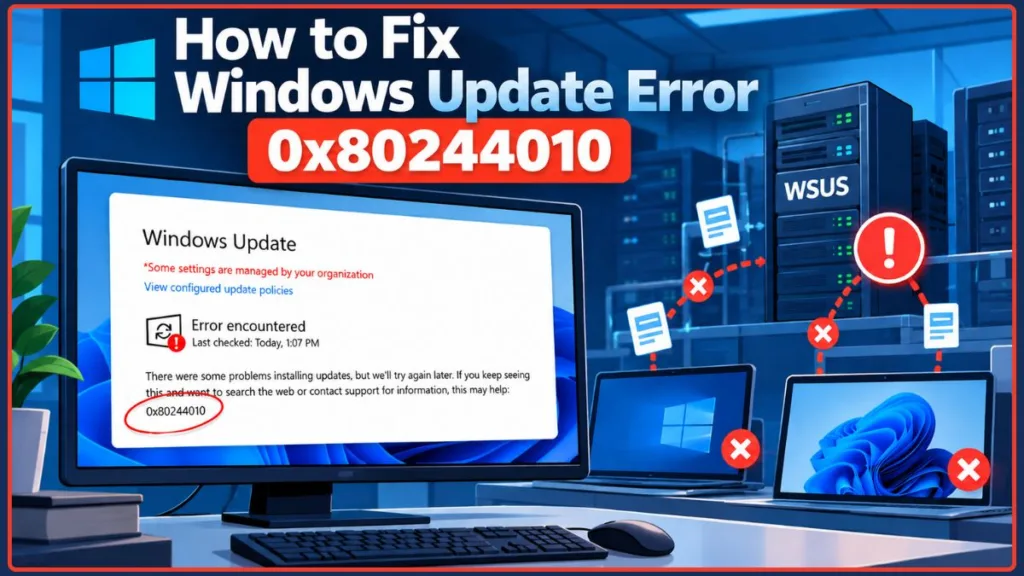
Whether you are dealing with an unoptimized catalog on a fresh server build or the recent Microsoft test detectoid bug, this guide covers the exact SQL database queries, catalog pruning strategies, and IIS tweaks you need to get your clients reporting successfully again.
What Causes Windows Update Error 0x80244010 (WU_E_PT_EXCEEDED_MAX_SERVER_TRIPS)?
If you dig into your WindowsUpdate.log or use the Get-WindowsUpdateLog PowerShell cmdlet, you will likely see this error translated precisely as WU_E_PT_EXCEEDED_MAX_SERVER_TRIPS.
To understand why this happens, you have to look at how the Windows Update Agent (WUA) communicates with the server. By default, a Windows client has a hardcoded limit of 200 “round trips” it can make to the WSUS server (specifically communicating with IIS via SOAP XML requests) to download update metadata. Each of these trips pulls down a small chunk of data, which has historically been capped at around 200 KB per trip.
If the server catalog is incredibly bloated with thousands of unneeded updates, the client hits this 200-trip limit well before it can finish evaluating the sync. When that hard limit is reached, the client forcibly severs the connection to protect its own memory, fails the update check entirely, and logs the 0x80244010 fix requirement.
Why Error 0x80244010 Occurs on New WSUS Servers: The Catalog Bloat Trap
A common misconception among SysAdmins is that a new WSUS server is automatically a clean and optimized one. Real-world experience across countless IT environments tells a different story.
When migrating to a new server, administrators often go into the Products and Classifications tab and check every single product they think they might need just to be safe. This instantly creates a massive, bloated catalog list. When your endpoints check in for the first time, they get blasted with that data firehose and time out almost immediately.
How to Prune WSUS Products to Fix Catalog Bloat
To resolve this, you need to reduce the sheer volume of metadata the server is handing to the clients.
- Prune Your Products: Heavily audit your WSUS products. Open the WSUS Administration Console, navigate to Options, and select Products and Classifications. Ruthlessly uncheck legacy software, deprecated operating systems (like Windows 7 or Server 2008 if you no longer host them), or superseded update classifications that your environment no longer actively requires. This simple step drastically reduces the payload size.
- The “Chunking” Workaround: Because the Windows Update client digests updates in chunks, you can sometimes brute-force a struggling endpoint through the server’s backlog. By repeatedly forcing a manual check using the command line, you command the agent to pick up exactly where it left off before it crashed. Running these commands a few times can eventually allow a machine to chew through the metadata and report in successfully:DOS
wuauclt /reportnow wuauclt /detectnowPro Tip: For modern Windows 10 and Windows 11 environments, you can also use theUsoClient.exe StartScancommand to achieve a similar forced check-in.
How to Fix WSUS Error 0x80244010 Caused by the July 2026 Test Detectoid Bug
If your WSUS environment has been running perfectly fine for months but suddenly started throwing the 0x80244010 error across the board, you likely fell victim to the bug documented in Microsoft KB5121986.
In July 2026, a massive buildup of mis-published “test detectoids” (a detectoid is simply a prerequisite rule that Windows Update checks before offering a payload) overloaded the WSUS channel. These problem detectoids were named along the lines of Product Detectoid for ProductName TestProduct%. This forced client machines to process an abnormally large and useless dataset, triggering the maximum server trips error globally.
Step 1: Back Up Your SUSDB Database via SQL Server Management Studio
Before doing anything, you must run a full database backup of the SUSDB via SQL Server Management Studio (SSMS). Open SSMS, connect to your Windows Internal Database (WID) or SQL instance, right-click the SUSDB database, navigate to Tasks, and select Back Up. The cleanup query you are about to run permanently deletes update metadata, and you cannot reverse it without a valid .bak file.
Step 2: Run the SQL Cleanup Query to Remove Detectoids and Lift the MaxXMLPerRequest Limit
You need to run a specific query against your SUSDB databases (including all downstream replicas) to delete the bad detectoids and temporarily set MaxXMLPerRequest to 0. Setting this configuration limit to zero essentially eliminates the standard 5MB XML limit in IIS, allowing clients to finish their bloated syncs without timing out midway through the transaction.
Open a new query window against SUSDB and execute the following:
SQL
SET NOCOUNT ON;
-- Lift the XML limit temporarily
UPDATE tbConfigurationC SET MaxXMLPerRequest = 0;

-- (Run the cursor script provided in KB5121986 to delete 'TestProduct%' detectoids)
Step 3: Restore the MaxXMLPerRequest Limit and Run the WSUS Server Cleanup Wizard
Once your WSUS environment stabilizes and your endpoints have successfully scanned and reported their status, you must restore the default XML limit. Leaving it at zero permanently can expose your IIS application pool to severe memory exhaustion.
SQL
UPDATE tbConfigurationC SET MaxXMLPerRequest = 5242880;
Post-Cleanup Maintenance: Deleting that much raw data heavily fragments the SQL database. To ensure long-term stability, you must reindex the SUSDB, run the WSUS Server Cleanup Wizard (ensuring you select all options to clear unused updates and expired revisions), and perform an IISReset from an elevated command prompt (or manually recycle the WsusPool application pool in IIS Manager) to completely clear the cached catalog state.
Top Client-Side Fixes for Windows 10, Windows 11, and Local Endpoint Machines
If your WSUS server is verifiably healthy, optimized, and not suffering from the detectoid bug, the issue might be an isolated client machine trying to pull corrupted data. Here are the best local, client-side fixes.
Clear the SoftwareDistribution Folder to Reset the Windows Update Cache
A corrupted temporary file from a botched update installation, an abrupt power loss, or a heavy antivirus scan can easily trigger the error. Clearing the local cache folder forces the endpoint to drop its broken state and negotiate a fresh, clean sync with the server.
- Open an elevated Command Prompt (Run as Administrator) and stop the core update services so the system releases its file locks:DOS
net stop wuauserv net stop bits - Navigate to
C:\Windows\SoftwareDistribution\DataStoreusing File Explorer or the command line, and delete all contents inside the folder (both the.edbfiles and theLogsfolder). - Restart the background services to re-initialize the update agent:DOS
net start wuauserv net start bits
How to Fix SusClientID Duplication on Cloned Windows Server VMs
If your failing endpoints happen to be cloned virtual machines deployed from the same golden image, they might share the exact same WSUS SID (SusClientID). When multiple machines on the same network share the same ID, they constantly overwrite each other’s status in the WSUS console, causing massive synchronization confusion and failing to report properly.
To fix this identity crisis, you need to strip the duplicated ID and let the system generate a new one:
- Open the Registry Editor (
regedit.exe) on the affected VM. - Navigate strictly to
HKLM\SOFTWARE\Microsoft\Windows\CurrentVersion\WindowsUpdate. - Locate and delete the
SusClientIdandSusClientIdValidationregistry keys. - Close the registry and restart the Windows Update service (
Restart-Service wuauservin PowerShell) to force the generation of a fresh, unique cryptographic ID.
Frequently Asked Questions About Windows Update Error 0x80244010
Can error 0x80244010 resolve itself?
Rarely. If you choose to simply wait, and the WSUS catalog size naturally shrinks due to automatic server-side cleanup rules expiring old updates, a client might eventually sneak through. However, relying on this is bad practice. Manual server cleanup or client-side intervention is almost always required to restore normal compliance operations quickly and securely.
Why is my Windows 11 endpoint failing but Windows 10 is fine?
Different operating systems pull completely different update classifications from WSUS. If your Windows 11 error 0x80244010 is flaring up while your older Windows 10 machines are updating just fine, it usually means the Windows 11 catalog is bloated with unnecessary metadata. This often happens if you are syncing massive driver updates or feature classifications for Windows 11 that you haven’t properly pruned, which trips the round-trip limit exclusively for that specific OS while the lighter Windows 10 payload sneaks by under the radar.
Visit Our Post Page: Blog Page
Discover more from Izoate
Subscribe to get the latest posts sent to your email.