
Seeing Amazon Error Code 3563 on Prime Video? Don’t panic. Learn why this payment authorization error happens and how to fix Amazon Error Code 3563 in minutes.
You are finally settling in for the night, snacks in hand, ready to rent a new release on your smart TV. But instead of the movie starting, you are hit with Amazon error code 3563.
It is an incredibly frustrating roadblock, especially when your Prime membership is fully active, your card works perfectly for regular Amazon shopping, and you can stream all the included Prime content without a hitch. Why is it suddenly declining your card just for a simple prime video rent movie error code?
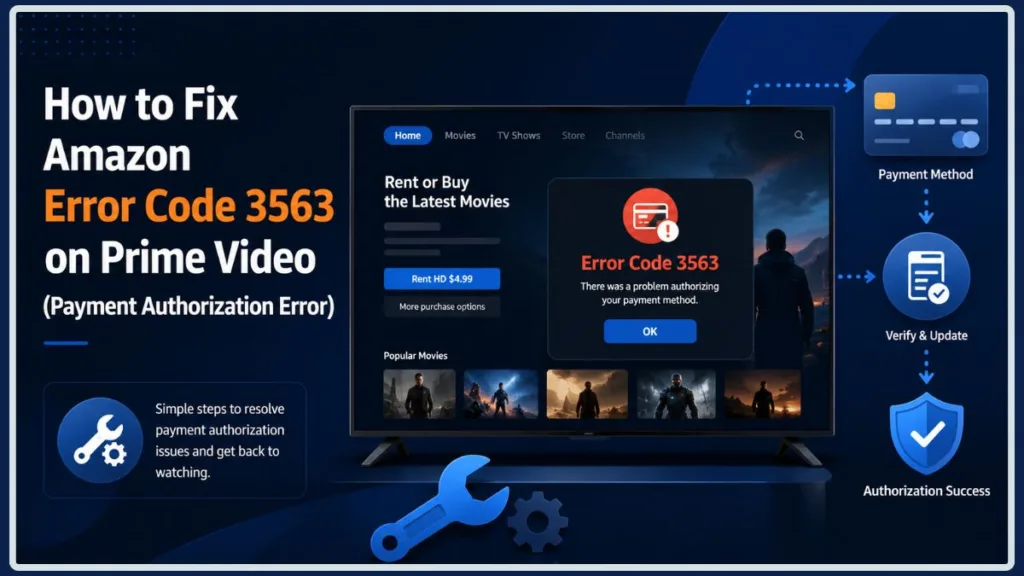
If you are experiencing this, don’t worry—you aren’t out of money, and your account hasn’t been blocked. This specific code is almost always related to how Amazon handles digital payment settings, which are often configured completely separately from your main shopping account.
In this guide, we are going to break down exactly what prime video error 3563 means, why it happens out of nowhere, and the step-by-step fixes you can use to clear the error and get your movie playing right now.
Quick Answer: How to Fix It
Amazon error code 3563 is a payment authorization failure that occurs when you try to rent, buy, or subscribe to a digital title on Prime Video. It typically happens because Amazon uses a separate payment profile for digital purchases than it does for your standard Prime membership. To fix it quickly, you need to open your Prime Video payment settings, update the specific card used for digital rentals, and ensure your 1-Click settings are actively linked to a valid card.
What Is Amazon Error Code 3563?
When you see Amazon error code 3563, your device is trying to tell you that it cannot authorize the payment for a specific digital transaction. This error is strictly a billing and account authorization block.
It almost exclusively pops up when you are trying to complete one of the following actions:
- Renting a movie for a 48-hour viewing window.
- Buying a digital movie or TV show to keep in your library.
- Signing up for a Prime Video channel add-on (like Max, Starz, or Paramount+).
- Making other digital purchases tied directly to your Prime Video account.
Just as importantly, let’s clear up what this error is not. If you are staring at this screen, you do not need to reboot your Wi-Fi router or call your internet service provider. It is NOT an internet connection issue, a streaming playback error, or a buffering problem. Your connection is perfectly fine; Amazon’s system simply hit a wall while trying to charge your card for the Prime Video payment error.
Symptoms of Amazon Error Code 3563
Because Amazon’s billing ecosystem is incredibly broad, you might feel like your account is randomly glitching. After all, if your credit card just paid for a physical delivery yesterday, why wouldn’t it work for a quick movie rental today?
Here is a quick breakdown to help you confirm if this is exactly the issue you are dealing with:
| You Can… | But… |
| Stream included Prime Video content perfectly | Cannot rent or buy new movies |
| Browse the Prime Video app normally | Payment fails immediately at checkout |
| Buy physical products on the main Amazon app | Digital purchases and rentals are declined |
| Use your Amazon account normally on all devices | Error 3563 blocks channel subscriptions |
If your experience matches the table above, you are in the right place. The fix involves diving into a very specific part of your account settings.
Why Does Amazon Error Code 3563 Happen?
When a movie night comes to a screeching halt, it is completely natural to wonder why your account is suddenly acting up. The truth is, a handful of specific account settings and banking rules can trigger this error.
Here are the most common reasons you are seeing this code:
- Separate Prime Video payment configuration: Amazon often keeps your physical shopping cart and your digital wallet separate. Your main card might be fine, but your digital settings are outdated.
- Expired card details: Even if you updated your new credit card for regular Amazon deliveries, the system does not always automatically apply those new dates or CVV numbers to your Prime Video account.
- Billing address mismatch: If you recently moved and updated your address with your bank but not on your digital Amazon profile, the transaction will fail verification.
- Bank security blocks: Some banks and credit unions will automatically flag and block unfamiliar digital purchases—especially if you do not rent movies online very often.
- 1-Click settings issues: Prime Video rentals rely heavily on Amazon’s 1-Click purchase system. If this is turned off or pointing to an old card, the rental will bounce.
- Pending digital orders: An unpaid balance on a previous digital purchase (like a Kindle book or an app) can cause Amazon to freeze all future digital rentals until the balance is cleared.
- Purchase restrictions: A glitch in your account’s parental controls can sometimes block the transaction outright instead of simply asking for a PIN.
How to Fix Amazon Error Code 3563
Now that you know what is going on behind the scenes, let’s get it fixed. Start with the first method below, as it is the most common culprit. Many people resolve the amazon prime payment failure 3563 right here without ever needing to contact customer support.
Method 1: Verify Your Specific Prime Video Payment Method ⭐ (Most Important)
This is the biggest secret that most tech guides miss, and it is a lifesaver that has been confirmed by countless frustrated users on forums like Reddit. Your Prime membership renewal does not guarantee that your movie rentals will use the same active card.
Because Amazon treats a digital movie rental differently than a box of paper towels, you have to explicitly tell the system which card to use for your digital payment settings.
Here is how to check and update it:
- Open a web browser on your computer or phone (it is much easier to navigate these settings on a browser than using your TV remote) and sign in to your Amazon account.
- Go to Accounts & Lists, and click on Your Account.
- Under the Ordering and shopping preferences section, click on Your Payments.
- Look for the specific tab or link that says Settings or Wallet. You will see a dedicated section for your Digital & Device Payments (this might also be labeled as your Prime Video or digital purchasing preferences depending on your region).
- Click Manage payment options under this digital section.
- Verify the active card. If it is pointing to an old, expired, or canceled card, select your current, active credit or debit card and save the changes.
Quick Tip: If you can watch regular included Prime shows without any problems, but you are instantly hit with error 3563 on an Amazon smart TV the second you try to rent a movie, this separate digital payment profile is almost certainly the culprit.
Method 2: Update Your Payment Information
If you just checked your Digital Payment settings in Method 1 and the right card is already selected, don’t assume the system has it right. Sometimes, a tiny mismatch in your billing profile can throw the whole transaction out of sync.
The most effective trick here is to completely wipe the card from your account and add it fresh. This forces Amazon’s system to re-authenticate the details with your bank.
- In your Your Payments section, select the credit or debit card you are trying to use.
- Click Remove from wallet and confirm the deletion.
- Now, click Add a payment method and re-enter your card details.
- Double-check your expiration date and CVV.
- Most importantly, carefully review your billing address. If you recently moved, or if your auto-fill feature added an old apartment number, a billing address mismatch will automatically trigger the 3563 error.
Method 3: Verify the Card With Your Bank
If your account looks perfect on Amazon’s end, the problem might actually be sitting with your bank. Sometimes, financial institutions place automatic, hidden security blocks on digital purchases, online subscriptions, or recurring e-commerce payments. They do this to protect you from fraud, but it can accidentally block your movie night.
Open up your mobile banking app (like your Chase, Capital One, or Bank of America app) and check for any recent transaction alerts. If you don’t see a notification you can approve with a tap, it is worth calling the number on the back of your card.
When you get a representative, ask them to confirm two things:
- Are online e-commerce transactions currently enabled for this card?
- Did their automatic fraud protection system block a recent charge from Amazon Prime Video?
Often, they can lift the block immediately, allowing you to go back to your TV and rent the movie without a hitch.
Method 4: Check Your Amazon 1-Click Settings
Because renting a movie on a Smart TV using a remote is cumbersome, Amazon designed Prime Video to rely heavily on its 1-Click settings. If this feature is misconfigured, your instant movie rental will instantly fail.
You need to make sure your 1-Click settings are active and pointing to the card you just verified.
- On a web browser, go back to your Amazon Your Account page.
- Under the Ordering and shopping preferences section, click on 1-Click settings (some regions may label this as Digital Payment Settings or Digital & Device Payments).
- Check the default payment method listed. Even if you updated your wallet in the previous steps, you still have to ensure your 1-Click default is manually set to that specific, working card.
- If it is pointing to an old payment method, click Make Default on your correct card.
Once this is updated, your TV will know exactly which card to charge the moment you hit the “Rent” button.
Method 5: Review Pending Digital Orders
It’s easy to overlook, but Amazon’s billing system is highly interconnected. If you have an unpaid balance from a previous digital purchase—such as a Kindle book, an app, or an earlier movie rental that failed to process—Amazon will often freeze your ability to make new digital transactions until that account issue is resolved.
- Navigate to your Your Orders page on a desktop browser.
- Filter your view to show Digital Orders.
- Scan your recent history for any items with a status like “Payment revision needed” or “Pending.”
- If you find an unpaid order, follow the prompts to update the payment method for that specific purchase.
- Once that outstanding balance is cleared, the block on your account should be lifted, and you can try renting your movie again.
Method 6: Restart Prime Video or Your Fire TV Device
If you’ve updated your payment settings, verified your bank, and confirmed your 1-Click defaults, but the error code 3563 persists on your screen, your device might simply be holding onto “stale” account data.
Restarting your hardware forces the Prime Video app to clear its local cache and re-authenticate your account with Amazon’s servers.
- If you are using a Fire TV Stick: Go to Settings > My Fire TV > Restart.
- If you are using a Smart TV (Samsung, LG, Sony, etc.): Unplug the power cable from the wall, wait for a full 30 seconds to allow the power capacitors to discharge, and then plug it back in.
- If you are using a Roku or Apple TV: Navigate to the system settings and select System Restart.
Once the device reboots, launch the Prime Video app again. This fresh start often clears minor authorization glitches.
Method 7: Sign Out and Back Into Your Amazon Account
If a simple restart didn’t do the trick, the authorization token stored within your app might be corrupted. Signing out and signing back in is a reliable way to force the app to pull your updated payment information and purchase permissions from scratch.
- Open the Prime Video app on your TV.
- Navigate to the Settings menu inside the app.
- Select Sign Out or Deregister this device.
- Once you are signed out, select Sign In and follow the on-screen instructions.
- You will usually be prompted to enter a code on your phone or computer (via
[amazon.com/code](https://amazon.com/code)) to re-link your device to your primary Amazon account.
By re-linking the device, you ensure the app is communicating with the most current version of your payment profile, which effectively clears most persistent payment errors.
Method 8: Check Purchase Restrictions and Parental Controls
Sometimes, the culprit isn’t a payment failure at all, but a security setting meant to protect your account. If you (or someone in your household) have enabled purchase restrictions, the Prime Video app might block any rental attempt that doesn’t include a PIN, occasionally triggering a generic error code instead of a prompt.
- Check your settings: On a web browser, go to your Account & Settings in Prime Video and select the Permissions tab.
- Review Purchase Restrictions: Look for the Purchase Restrictions toggle. If it is turned “On,” any attempt to rent or buy a title will be blocked unless the correct PIN is provided.
- Verify your PIN: Ensure you know your Prime Video PIN. If you don’t recall it, you can reset or create one directly in the Permissions section.
- Test the rental: With the restriction enabled and your PIN ready, try the rental again. If the system prompts you for your PIN, you’ve successfully identified the “block” and can now bypass it with your code.
Method 9: Contact Amazon Support
If you have methodically worked through every step above—your payment method is verified, your bank confirms no blocks, your 1-Click settings are active, and you’ve cleared all pending orders—it is time to have an Amazon representative look under the hood of your account.
Amazon support can see specific authorization logs that aren’t visible to you, allowing them to pinpoint why a payment is being rejected.
- How to reach them: Visit the Amazon Customer Service Home Page via your mobile app or desktop browser.
- Be specific: Don’t just say “it’s broken.” Tell the representative: “I am receiving Error Code 3563. I have already verified my digital payment method, checked my bank for blocks, and confirmed my 1-Click settings are correct.”
- Why this helps: Telling them exactly what you’ve already tried allows them to skip the basic troubleshooting scripts and escalate your case to the technical team faster.
Why Your Amazon Card Works for Shopping but Not Prime Video
This is the most common point of confusion for users, and understanding it is the key to mastering your account privacy and security.
Many people assume that because they have one credit card saved to their Amazon account, that card is the “master key” for every single transaction. In reality, Amazon manages different types of purchases through different authorization flows:
- Physical Shopping: When you buy a pair of shoes or household goods, the charge is processed against your default “Your Payments” wallet.
- Digital Purchases: Rentals, movie purchases, and channel subscriptions often rely on “1-Click” settings or a specific “Digital & Device” payment profile.
This separation exists to protect your account. It prevents an accidental click on your TV remote from charging your primary shopping card if you’ve configured your digital wallet differently. While it’s designed for safety, it creates a “hidden” barrier where your shopping card works perfectly, but your Prime Video rental is declined because the system is looking at an entirely different (and perhaps expired) card in your digital settings.
Before You Contact Amazon Support: The Final Checklist
Before you spend time on a chat or a phone call, quickly run through this list. If you can check every box, you’ve done everything possible on your end.
- [ ] Primary Payment Method Updated: You have manually removed and re-added your card in the “Digital & Device” payment section.
- [ ] Billing Address Matches: Your billing address in Amazon settings perfectly matches the statement address on your bank’s website.
- [ ] Funds & Online Access: You have confirmed with your bank that your card has sufficient funds and is authorized for online/e-commerce transactions.
- [ ] 1-Click Settings: You have verified that 1-Click is enabled and pointing to your active, valid card.
- [ ] No Pending Digital Orders: You have checked “Digital Orders” in your order history to ensure no failed transactions are blocking your account.
- [ ] Device Refreshed: You have restarted your device (Fire TV, Smart TV, or Roku) and signed out/back into the Prime Video app.
- [ ] Parental Controls: You have confirmed that purchase restrictions aren’t silently blocking your request.
Did these steps get your movie night back on track? Or did you find a different trick that worked for your specific TV model? Let us know in the comments below—your experience might just save someone else a call to customer support!
Frequently Asked Questions (FAQ)
If you still have lingering questions about Amazon Error Code 3563, these answers should clear things up.
Q1: Is Amazon Error Code 3563 definitely a payment error? Yes. This error code is a signal from Amazon’s billing system that the payment authorization for a digital transaction failed. It is not an issue with your internet speed or the movie file itself.
Q2: Why can I watch included Prime content but not rent movies? This is because streaming “included” Prime content doesn’t require a new payment transaction—you’ve already paid for the membership. Renting or buying a title is a separate purchase transaction, which triggers a new authorization check against your stored payment methods.
Q3: Does Error Code 3563 mean my card is declined? It means the transaction could not be authorized. This doesn’t necessarily mean you don’t have enough money; it often means the payment method on file for digital purchases is either expired, restricted by your bank, or mismatched with your current billing address.
Q4: Can my bank cause Amazon Error Code 3563? Absolutely. Many banks have strict fraud-detection filters for digital subscriptions and one-off streaming rentals. If the bank doesn’t recognize the transaction as a “normal” purchase for you, they may block it automatically. Always check your banking app for a “transaction declined” alert first.
Q5: Does changing my Prime membership payment method fix Error 3563? Usually, no. Changing your Prime membership payment method only updates how your annual or monthly subscription fee is paid. To fix this error, you must specifically update the payment method listed under your Digital & Device Payments or 1-Click settings.
Conclusion
Amazon Error Code 3563 is a frustrating hurdle, but it is rarely a permanent problem. Because this error is almost always a payment authorization issue rather than a technical failure, you can usually resolve it by aligning your digital payment profile with your active, current credit card.
By prioritizing the check of your Prime Video digital payment settings and ensuring your 1-Click settings are correctly configured, you address the root cause of the error. If you’ve followed these steps and verified the transaction with your bank, you should be back to enjoying your movie night in no time.
Did this guide help you resolve your payment issue? Let us know in the comments below! If you found a different solution or had to take a specific step with your bank to get it working, share your experience—it might be exactly what the next person needs to hear to get their stream running again.
Visit Our Post Page: Blog Page
Discover more from Izoate
Subscribe to get the latest posts sent to your email.