
Seeing “Pocket Full! Sent to Storage” in Deltarune? Learn how to access the Storage menu at SAVE Points, retrieve your stored items, and manage your Pocket before your next boss fight.
To access your storage in Deltarune, interact with any glowing SAVE Point in the Dark World. Look at the bottom right of the menu and select the Storage option located next to “Save” and “Recruits.” Here, you can easily retrieve items sent to storage when your inventory was full.
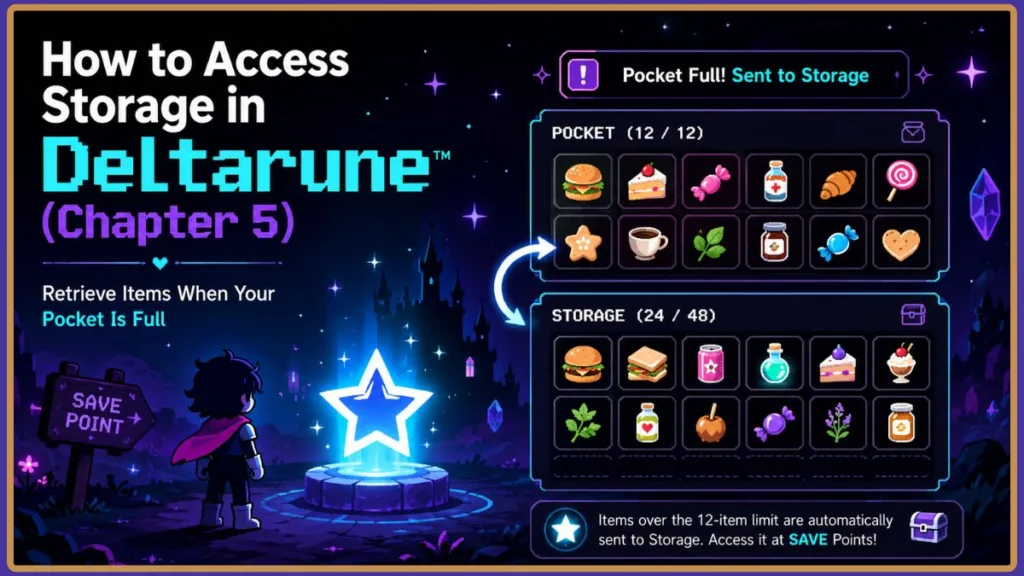
If you are seeing the “Pocket Full! Sent to Storage” notification on your screen, you might be confused about where your items actually went. Managing your inventory efficiently is essential, especially as you collect more items in later chapters.
This guide explains exactly how the Deltarune Storage menu works, how to retrieve stored items, and what limits you need to keep in mind.
What Does “Pocket Full! Sent to Storage” Mean?
In Deltarune, your primary active inventory is called your Pocket. Your Pocket has a strict inventory limit and can only hold exactly 12 consumable items.
When your Deltarune inventory is full and you open a chest, buy an item, or receive a drop, the game prevents you from losing that item. Instead, the game automatically bypasses your Pocket and sends the new item directly to your reserve Storage. If you are wondering, “Where did my items go in Deltarune?” they are safely sitting in this hidden menu waiting for you to claim them.
How to Access Storage in Deltarune
You cannot open your Storage directly from your main pause menu while walking around. Instead, SAVE Point Storage is built directly into the game’s save system.
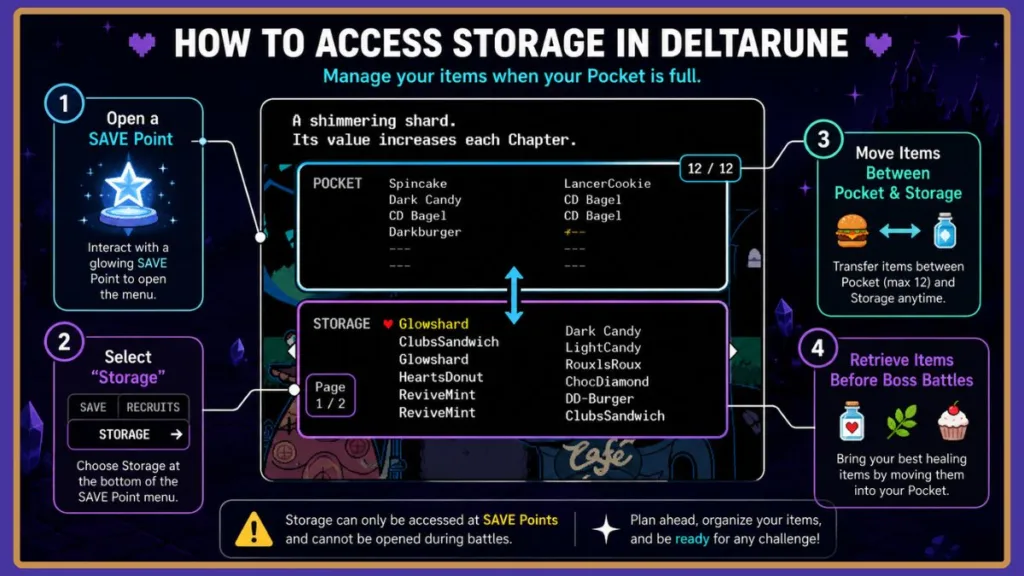
- Locate any glowing SAVE Point star in the Dark World.
- Interact with the SAVE Point to open the save interface.
- Look at the bottom of the menu screen.
- Select the Storage button.
Where Is the Storage Menu?
The Storage option is located right next to the “Save” and “Recruits” buttons on the SAVE Point interface. Simply clicking this button opens a split-screen view showing your Pocket on one side and your Storage on the other.
How to Retrieve Stored Items
Once you have the Deltarune Storage menu open at a SAVE Point, retrieving your items is simple.
Because your Pocket only holds 12 items, you may need to free up space first. You can do this by moving older, weaker items from your Pocket into Storage, or by dropping them. Once you have an empty slot in your Pocket, simply select the item you want from the Storage side and move it over to your active inventory.
Practical Tip: You do not need to retrieve items just to sell them. When talking to shopkeepers like Seam or Swatch, you can sell items directly from your Storage. Watch the bottom of the screen for the UI toggle that lets you switch between selling from your Pocket or your Storage.
Why Isn’t the Storage Option Showing?
If you are interacting with a SAVE Point but the Deltarune Storage not showing issue occurs, it is likely because of the chapter you are currently playing or your game version.
The Storage system was officially introduced as a mechanic in Chapter 2. If you are playing an older version of Chapter 1, or haven’t updated your game, the Storage option will not appear. Make sure your game is updated to the latest version, as newer patches retroactively added basic storage functionality to Chapter 1 save files to match the rest of the game.
Can You Access Storage During Battles?
No, you cannot use Storage during battles.
This is the most common mistake players make. When you enter combat, you only have access to the 12 consumable items currently sitting in your Pocket. Even if you have dozens of top-tier healing items in Storage, they are completely inaccessible mid-fight.
Important Tip: Always stop at a SAVE Point to organize your Pocket and pull out your best healing items before heading into a boss encounter.
Storage Capacity by Chapter
Your Deltarune Storage capacity automatically expands as you progress through the game to accommodate the increasing number of item drops. Based on community data, here is exactly how much space you have depending on your current chapter:
| Game Progress | Storage Pages | Total Storage Slots |
| Chapters 1, 2, and 3 | 2 Pages | 24 Slots |
| Chapter 4 | 3 Pages | 36 Slots |
| Chapter 5 | 4 Pages | 48 Slots |
Frequently Asked Questions
What items can I put in Storage?
Storage is strictly for consumable items (food, drinks, and healing items). You cannot store equipment.
Where do my weapons and armor go if my Pocket is full?
Weapons, armor, and Key Items are completely separate from your consumable Pocket. Equipment goes into a dedicated tab in your main menu. You can hold up to 48 weapons and 48 pieces of armor without ever needing to use a SAVE Point to store them.
What happens if both my Pocket and Storage are completely full?
If you hit your absolute Deltarune inventory limit across both your Pocket and all available Storage pages, you will not be able to collect new consumable items. You will need to consume, drop, or sell items to make room.
Sources & Community Credits: Early gameplay discovery details, bug workarounds, and lore confirmations sourced via player discussions on the r/Deltarune Chapter 4 Capacity Thread and the Storage Access Troubleshooting Thread. Supplemental capacity datamining and historical patch notes (v1.0 to v1.50) cross-referenced from the official Undertale/Deltarune speedrunning boards and community wikis.
Visit Our Post Page: Blog Page
Discover more from Izoate
Subscribe to get the latest posts sent to your email.