
Learn how to fix Diablo 4 Error Code 395002 and the “account locked” error on PC, PS5, and Xbox, plus what to do if the error won’t go away.
Few things in gaming are more alarming than getting abruptly booted from a high-stakes Helltide, a tense Nightmare Dungeon, or a World Boss encounter, only to be greeted at the login screen by a stark warning: “Your account is currently locked. Please wait a few minutes and try again. (Code 395002).”
If your stomach immediately dropped at the thought of losing hundreds of hours of character progression, take a deep breath. In almost every situation, your account is not banned, suspended, or compromised.
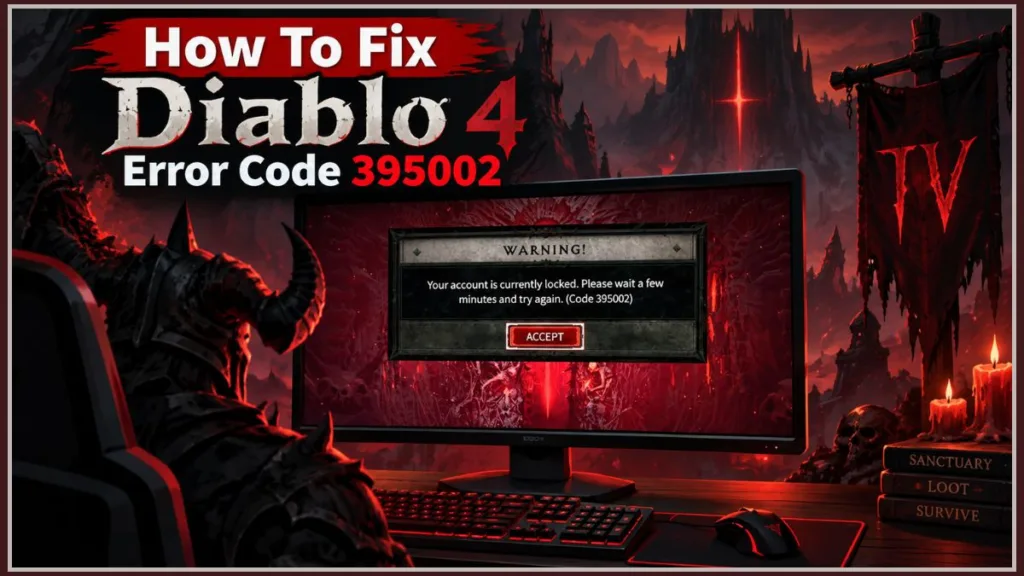
This specific D4 login error is primarily a backend communication breakdown between your game client and Blizzard’s authentication servers. Below, we break down exactly what error code 395002 means in Diablo 4, why it impacts PC and console players differently, and the step-by-step methods to fix Diablo 4 error 395002 and safely get back into Sanctuary.
What is Diablo 4 Error Code 395002?
Unlike ordinary connection issues where you simply rubber-band or lag out mid-combat, Error 395002 represents a Diablo 4 server authentication failure.
When your game disconnects suddenly during high-intensity gameplay, your character data cannot perform a clean, authorized logout sequence. Blizzard’s backend servers are left scrambling to complete an uninterrupted background save of your gear, exact map coordinates, and session stats.
This creates what engineers call a “ghost session.”
Because the server infrastructure still registers your character as actively roaming the open world, it rejects subsequent login attempts to prevent a severe Diablo 4 character save error, file corruption, or unintended item duplication. The server throws Code 395002 as a strict data-safety mechanism.
You are most likely to encounter Diablo 4 error 395002 after a disconnect during periods of intense Diablo 4 server overload, such as:
- Seasonal launches and major expansion drops: Millions of players hammer the Battle.net authentication nodes simultaneously, creating massive server bottlenecks.
- Peak weekend gaming hours: Sudden spikes in packet exchange can drop your client while the server struggles to confirm your real-time character state. You can monitor live platform health via the Blizzard Customer Support Twitter/X or Downdetector.
The Golden Rule: The 15-Minute Wait
Before running command prompts, tweaking your router, or reinstalling graphics drivers, try the most effective and simplest fix: do absolutely nothing.
For roughly 90% of the player base, patience is the only real cure for this Diablo 4 account locked error.
When your game crashes, Blizzard’s backend needs time to recognize that your local client is no longer responding. It must manually terminate the lingering ghost session and finalize your character’s save file. If you repeatedly spam the “Login” button in a panic, you reset that server handshake, effectively prolonging the lock.
- Close Diablo 4 completely (do not leave it resting on the main menu or character select screen).
- Step away for 10 to 15 minutes.
- Do not attempt to log in during this window. Let the server flush the dead session automatically.
- Relaunch the game and sign in normally.
Advanced PC Fix for Error 395002
If you have waited 20 minutes and still cannot log in on PC, your local client may be holding onto corrupted authentication tokens or cached network routes. Here is how to manually force a clean slate to fix Battle.net error 395002.
Clear the Battle.net Cache
Corrupted cache files in the background often trap the Battle.net launcher in a faulty authentication loop, repeatedly feeding expired login tokens to the server.
- Completely close Diablo 4 and exit the Battle.net launcher. Open your Windows Task Manager (
Ctrl + Shift + Esc) to ensure noAgent.exeor Battle.net background processes remain running. - Press Windows Key + R on your keyboard to open the Run dialog box.
- Type
%ProgramData%and hit Enter. - Locate the Blizzard Entertainment folder and open it.
- Delete the Battle.net folder inside. (Note: This will not delete your installed games or save data).
- Restart your PC, launch Battle.net, and allow the client a moment to rebuild its fresh cache files before launching the game. For full details, review Blizzard’s official cache deletion guide.
Flush DNS and Reset Network Configuration
Sometimes, Diablo 4 connection issues stem from outdated DNS entries routing your login request through an unresponsive server endpoint. Resetting your network adapter clears these blocked pathways:
- Press the Windows Key, type
cmd, right-click on Command Prompt, and select Run as administrator. - Run the following commands one by one, pressing Enter after each:
ipconfig /flushdnsipconfig /releaseipconfig /renew
- Restart your computer and test your connection.
Scan and Repair Game Files
A missing or corrupted game file—often resulting from an interrupted background update—can fail Blizzard’s mandatory client verification handshake.
- Open the Battle.net desktop app.
- Navigate to your Diablo IV game tab.
- Click the Gear icon (Options) located right next to the blue Play button.
- Select Scan and Repair, then click Begin Scan (see Blizzard’s Repair Tool documentation if the scan fails to initialize).
- Wait for the launcher to verify and redownload any damaged files before attempting to log in again.
Error 395002 on PS5 and Xbox: The Console Dilemma
If you are encountering this error on a PlayStation 5 or Xbox Series X/S, the troubleshooting process is notoriously frustrating.
Console players do not have access to directory folders to wipe cache files, nor can they swap server regions via a launcher settings menu to force a network refresh. If power cycling your console and restarting your home router does not immediately resolve the error, your account is trapped in a severe server-side desync.
Community reports on the official Blizzard Technical Support Forums show that severe server desyncs on console can occasionally persist for hours. In extreme edge cases—like mid-Helltide disconnects—players have reported being locked out for several days until a scheduled weekly server maintenance routine finally flushed the stuck session.
If you are playing on console:
- Perform a full shutdown of your console (do not just use Rest Mode or Sleep Mode) and unplug it from the wall for two minutes to clear the local hardware cache.
- Avoid spamming login attempts, which can re-trigger timeout flags on Blizzard’s end.
- If the issue extends beyond 24 hours, submit a support ticket via the Blizzard Support Contact Portal to request a manual server-side session reset.
The Browser Check: Is It a Ban or Payment Hold?
While Code 395002 is usually a technical desync, it is also Blizzard’s generic catch-all notification for account-level administrative holds. Because the console and PC game clients do not always display detailed error explanations for security reasons, you might be looking at a billing issue disguised as a server bug.
If you have been locked out for more than two hours, verify your account health directly:
- Open a web browser on your computer or smartphone.
- Navigate to your Battle.net Account Overview and log in.
- Check the dashboard for any administrative alerts, Terms of Service (ToS) notices, or temporary security suspensions.
- Review your Battle.net Transaction History. Ensure your base game license, recent expansion purchase, or seasonal Battle Pass payment did not fail, expire, or get charged back by your bank.
- Check your Battle.net Authenticator. Under the Account Security Settings, verify your two-factor authentication (2FA) status. An out-of-sync authenticator clock can repeatedly fail silent login handshakes in the background. Resync your authenticator app or temporarily remove and re-add your device.
Frequently Asked Questions (FAQ)
Is my Diablo 4 account banned if I get code 395002?
Almost certainly no. A genuine account ban is accompanied by a formal email notice from Blizzard detailing a specific Terms of Service violation. Code 395002 is essentially a server-side traffic jam caused by an interrupted character save or an authentication bottleneck, not a punitive ban.
How long does Diablo 4 error 395002 last?
For the vast majority of players, the account lock clears automatically within 10 to 15 minutes once the server recognizes your character is no longer active. In rare cases of severe server congestion during major patch launches, it can take a few hours for the backend to cycle through stuck instances.
Why does Diablo 4 say “your account is currently locked” when my internet is fine?
Even with gigabit internet, minor network jitter or temporary high packet loss can interrupt the critical data exchange between your machine and Blizzard’s servers during zone transitions. If the handshake fails right as the game is saving your character, the server locks the account to protect your data. Switching to a wired Ethernet connection significantly cuts down on the packet drops that trigger these accidental ghost sessions. If you suspect regional connection issues, you can run an analysis using tools like Looking Glass to test latency to Blizzard’s server clusters.
Visit Our Post Page: Blog Page
Discover more from Izoate
Subscribe to get the latest posts sent to your email.