
Applying for a job on the go but can’t find the save button? Let’s learn how to download your LinkedIn profile as a PDF on your iPhone or Android.
Applying for a job from your phone and need your resume right now?
If you are currently tapping every menu trying to figure out how to save your LinkedIn profile as a PDF on the mobile app, take a breath. You aren’t crazy, and you aren’t missing it. The feature simply does not exist inside the native app.
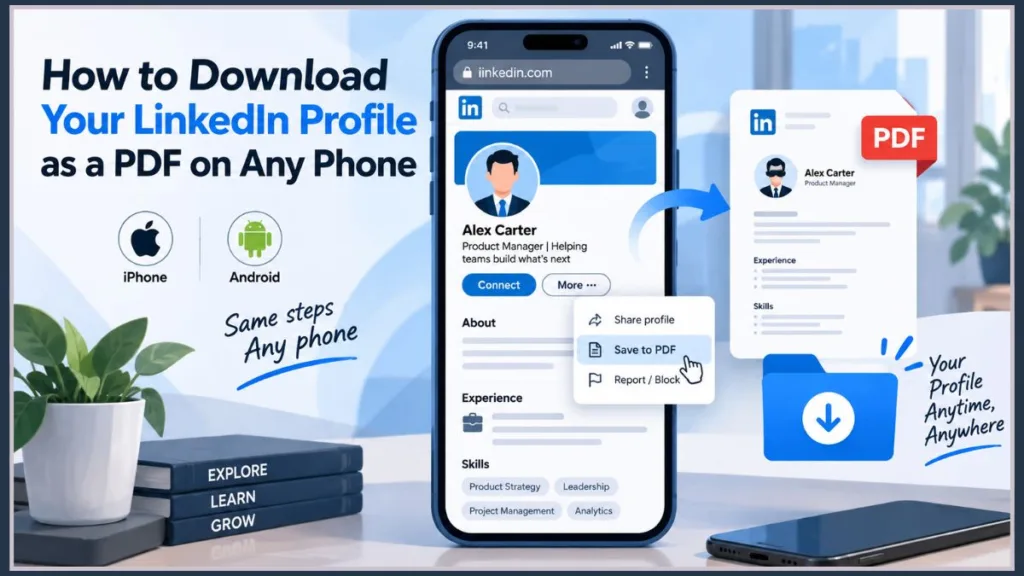
Whether you are sitting in a waiting room, commuting to an interview, or trying to submit an application before a deadline, you can still download your LinkedIn resume on your phone in under 60 seconds. You just have to bypass the app entirely.
Here is the exact workaround to get your profile exported and attached to your job application.
Why is the “Save to PDF” Option Missing on the LinkedIn App?
It isn’t a glitch—LinkedIn intentionally restricts the native iOS and Android apps from exporting profiles directly. The platform prioritizes keeping you inside their ecosystem for networking, while reserving heavier document-management features for the desktop experience.
If you want to export a LinkedIn profile to a PDF on mobile, you have to use your phone’s mobile web browser (like Safari, Chrome, or Firefox) instead.
3 Things to Check Before You Download
Because you are rushing, it is easy to export a file that looks sloppy. Before you hit download, take 10 seconds to check these three things on your profile:
- Your Headline: This sits right at the top of the PDF. Make sure it reflects the job you are actually applying for, not just your current job title.
- The About Section: The PDF export pulls your summary as a block of text. If you have weird spacing or emojis, they often format poorly in the final document.
- Contact Info: Ensure your email and phone number are visible so the hiring manager can actually contact you from the document.
How to Save Your LinkedIn Profile to PDF on Mobile
Close the LinkedIn app completely so your phone doesn’t automatically try to redirect you, and follow these steps:
- Open your mobile browser: Use Safari, Chrome, or Firefox. Do not use the Google Search app, as it often forces links to open natively in the LinkedIn app.
- Log into LinkedIn: Navigate to LinkedIn.com and sign into your account just like you would on a desktop.
- Navigate to the target profile: Tap on your own profile picture to go to your page, or search for the specific person whose profile you need to download.
- Tap the ‘More…’ button: Look right below the profile picture and headline. Next to the “Message” or “Connect” buttons, you will see a grey button labeled More…
- Select ‘Save to PDF’: Tap the dropdown menu and select the save option. The file will generate immediately in your browser.
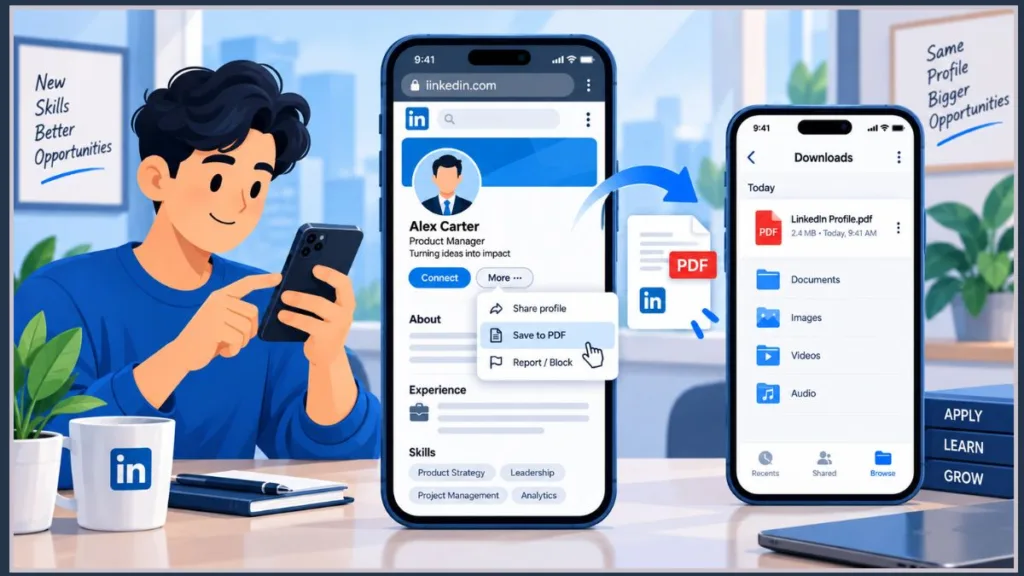
The document is now generated, but you aren’t done yet. You need to save it locally so you can actually upload it to your job application.
Where Does the Exported PDF Go?
One of the biggest frustrations for mobile job seekers is finding the file once it generates. The browser doesn’t always make it obvious. Here is how to track it down based on your operating system.
Finding the File on iPhone (iOS)
When you tap “Save to PDF” in Safari, the document will open in a new browser tab. It is not saved to your phone’s hard drive yet.
- Tap the Share icon (the square with the upward arrow) at the bottom center of the screen.
- Scroll down the menu and tap Save to Files.
- Choose a destination (like your iCloud Drive, “On My iPhone”, or a dedicated app like GoodReader) and tap Save.
- When you go back to your job application, tap upload, and select the iOS Files app to attach your new PDF.
Finding the File on Android
Android handles downloads a bit more automatically, which is faster but can be confusing if you don’t know where to look. Once you tap “Save to PDF” in Chrome, the file will automatically download in the background.
- Open your Android Downloads folder or your preferred file manager app (like Google Drive or Files by Google).
- Look for the most recent file. The document will automatically be labeled with the person’s name and “LinkedIn Profile” (e.g., Jane-Doe-LinkedIn-Profile.pdf).
Recommended Apps to Open and Manage Your PDF Resume
Once you find your file, it helps to have a reliable app to view it, check the formatting, and attach it easily. Here are the most useful mobile tools to handle your new PDF:
- For Fast Viewing: Apple Books (iOS) or Google Drive PDF Viewer (Android) are the fastest native ways to open and check your file immediately without downloading third-party software.
- For File Management: The native iOS Files App and Files by Google (Android) are absolutely essential. They allow you to organize your resume and sync it to the cloud so it is ready whenever an online job portal asks for an upload.
- For Professional Formatting Checks: Adobe Acrobat Reader, GoodReader, or Xodo PDF Reader & Editor are heavy-duty, cross-platform apps. Reopening your resume in one of these ensures you are seeing the exact layout and formatting the hiring manager will see.
A Quick Warning for the On-the-Go Applicant
While converting your LinkedIn profile to a resume PDF on your phone is a lifesaver in a time crunch, keep in mind how Applicant Tracking Systems (ATS) read these files.
The automated LinkedIn PDF export is not a perfectly formatted resume. It is a raw data pull.
- It strips your profile picture.
- It creates awkward page breaks.
- It lacks modern resume formatting.
If you are applying for a highly competitive role, this browser workaround is perfect for getting your application in on time. However, whenever you have desktop access, it is always best to use a dedicated, ATS-friendly resume file or use LinkedIn’s actual Resume Builder tool (which is also strictly limited to the desktop version).
Visit Our Post Page: Blog Page
Discover more from Izoate
Subscribe to get the latest posts sent to your email.