
Stuck with an outdated creator bio? Learn the true method for how to edit description on Facebook Professional Mode. Get step-by-step mobile and desktop guides.
You’re updating your social media presence, you switch to the new creator layout, and the worst-case scenario happens: you’re stuck with an outdated intro and frantically searching, “how to edit description on Facebook Professional Mode?”
Can You Still Edit Your Bio on Facebook Professional Mode?
Let’s answer that question immediately: yes, but it isn’t always intuitive. When you turn on Professional Mode, your profile layout changes to resemble a Facebook Business Page. Because of this, the standard “Edit Profile” button can glitch or redirect you to unfamiliar menus. The fix everyone is looking for is actually understanding how to navigate the Professional Dashboard and bypass app caching errors.
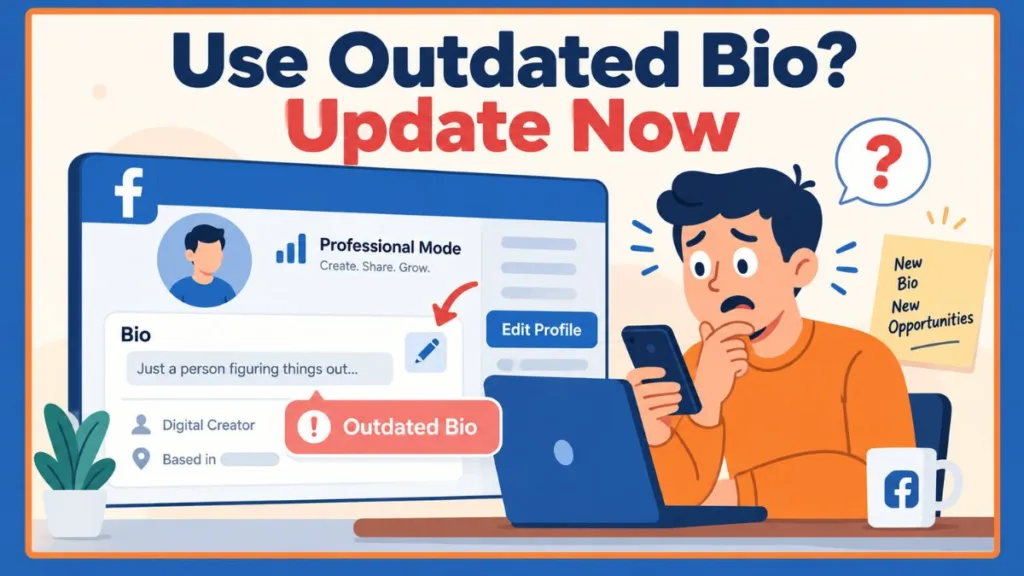
This guide will show you exactly how to do that, explain what happens when your Facebook Professional Mode bio is not updating, and provide strategies to manage your creator categories gracefully. It covers both mobile and desktop, clearly separates standard bio edits from category changes, and includes tips for managing a professional profile bio that refuses to save.
How to Edit Your Bio on Facebook Professional Mode
Having an outdated Facebook profile description can feel unprofessional, but the most reliable way to update it is through the dedicated edit screens. This method changes the short public profile information visible right beneath your profile picture.
Step-by-Step on Mobile (iPhone & Android)
If you are wondering how to edit Facebook Professional Mode bio on mobile, the process is slightly different than a standard profile.
- Open the Facebook app and tap your profile picture to go to your main profile page.
- Tap the Edit Profile button located just beneath your name. (If this is missing, tap View Tools or go through your Professional Dashboard).
- Scroll down to the Bio section.
- Tap Edit (or Add if you don’t currently have one), then select Edit Bio.
- Type your new professional profile description and tap Save in the top right corner.
Tip: If you are trying to figure out how to change Facebook professional bio on Android or iPhone and the “Edit” button does not work, force-close the app and reopen it to refresh the page layout.
Step-by-Step on Desktop
If you are searching for how to edit Facebook Professional Mode bio on desktop, you often bypass the mobile glitches entirely.
- Go to Facebook.com and click your profile picture in the top right to navigate to your profile.
- Click the gray Edit Profile button located beneath your cover photo.
- A pop-up menu will appear. Scroll down to the Bio section and click Edit.
- Customize your text and click Save.
Tip: This desktop method is highly recommended if you are experiencing the “Facebook Professional Mode edit details missing” error on your phone. The web browser version rarely suffers from the same caching glitches as the mobile app.
What to Do When You Can’t Edit Bio on Facebook Professional Mode
Even after saving your new bio, you might notice that the old one keeps reappearing. If your Facebook Professional Mode bio is not updating, here is how to handle the situation:
- Clear the App Cache: App caching can freeze your bio. It might look like you changed it, but the old one returns. Go to your phone’s settings, find the Facebook app, and clear the cache data.
- Log Out and Log Back In: A simple session refresh can force the app to sync with Facebook’s servers, fixing the “Facebook Professional Mode edit profile not working” bug.
- Check Meta Accounts Center: If your Facebook and Instagram accounts are linked, syncing issues can cause your bio to revert. Check your Meta Accounts Center settings to ensure your Instagram bio isn’t continuously overwriting your Facebook intro.
Tip: If the mobile app is completely frozen and your Facebook Professional Mode bio option is missing, log into a PC or laptop. Using a computer is the ultimate workaround for mobile app glitches.
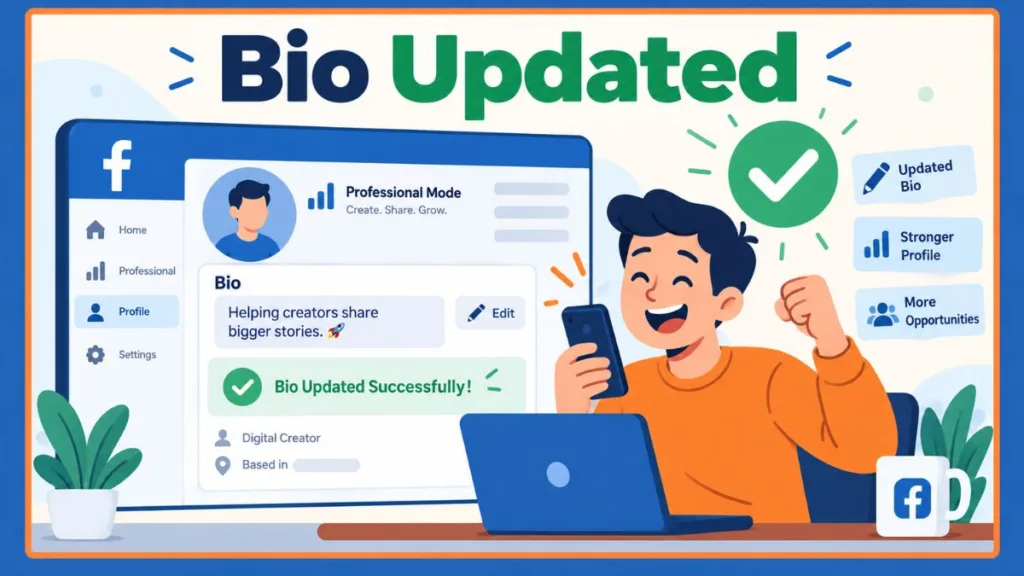
How to Manage Your “Digital Creator” Category
Editing your bio is different from editing your page category. Facebook automatically assigns categories when you switch modes, but you have control over this public label.
How to Change Category on Facebook Professional Mode
- Go to your profile and tap Edit Profile (or Edit Details).
- Scroll down to the Details section and tap Edit.
- Look for the Category section (it often defaults to Digital Creator). Tap the pencil icon.
- Search for a new category that fits your brand (e.g., Public Figure, Actor, Writer) and save it.
Tip: If you are wondering how to remove Digital Creator from Facebook profile entirely, you can uncheck the “Show on Profile” toggle in this exact same menu to hide the label without turning off Professional Mode.
FAQs About Facebook Professional Mode Bios
1. Why can’t I edit my Facebook professional profile?
App caching or Meta Accounts sync issues are usually to blame. If your Facebook Professional Mode description won’t change, try clearing your phone’s cache or making the edit on a desktop computer.
2. Where is the Facebook Professional Mode bio option missing to?
When your layout shifts to resemble a Page, the standard edit buttons sometimes hide inside the Professional Dashboard. Click into your dashboard and look for the page setup or edit details options.
3. How do I edit Facebook Professional Mode bio on PC?
Navigate to your profile on Facebook.com, click the gray Edit Profile button under your cover photo, and scroll down to the Bio section to make your changes.
4. What is the character limit for a Facebook profile bio?
The short intro text located directly under your profile picture has a strict limit of 101 characters, including spaces and emojis.
5. Why is my Facebook Professional Mode category not showing?
If your category is hidden, go to Edit Profile > Edit Details, find the Category section, and ensure the toggle for “Show in Intro” is turned on.
Conclusion: Efficiently Managing Your Creator Profile
Facebook Professional Mode is an incredible tool for growing an audience, but managing your layout effectively is key to a smooth social experience. Editing directly on a desktop browser is the most reliable method for bypassing app glitches, while the Edit Details page works well for changing your category.
By following this guide, you can stay in control of your public profile information, handle caching glitches gracefully, hide unwanted categories, and keep your creator profile looking fresh.
Tip: Check your public profile regularly from a friend’s device or by using the “View As” tool to ensure your Facebook profile details are displaying correctly and manage your brand like a pro.
Visit Our Post Page: Blog Page
Discover more from Izoate
Subscribe to get the latest posts sent to your email.