
Want to install the native Discord ARM64 app on your Windows on ARM laptop? Learn how to download and set up Discord ARM64 for better performance, smoother voice chats, and improved battery life on Snapdragon-powered Windows 11 PCs.
For years, adopting a Windows on ARM device felt like an exercise in compromise. You could buy a razor-thin, fanless laptop with exceptional battery life, but the moment you launched your favorite daily apps, the illusion shattered. They would either stutter, drain your battery in hours, or require complex workarounds. That era is officially coming to a close. As of May 2026, Discord has quietly rolled out a fully native ARM64 Windows desktop client.
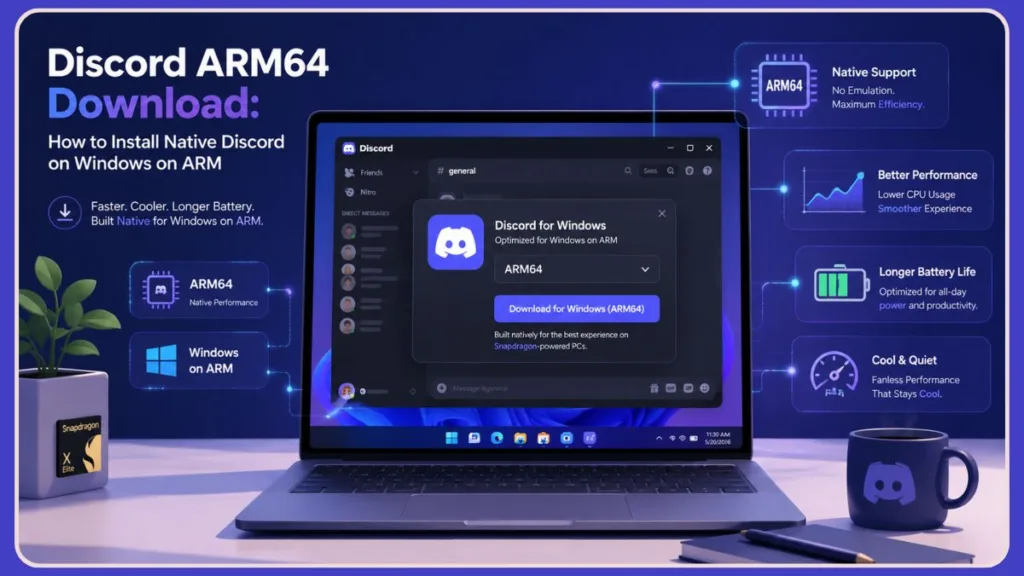
This isn’t a minor, behind-the-scenes patch. Discord is a massive, always-on background application used by millions for gaming, study groups, community moderation, and daily communication. By moving away from x86 translation and embracing native ARM64 code, Discord has removed a massive performance bottleneck for Qualcomm Snapdragon-powered laptops. Whether you just unboxed a new Copilot+ PC or you are eyeing upcoming hardware, here is everything you need to know about downloading, installing, and verifying the native ARM64 version of Discord.
Important Tip: Always prioritize downloading the native ARM64 installer directly from the official developer’s website rather than third-party repositories to ensure you receive the most optimized, hardware-accelerated experience available for your Snapdragon device.
What Is Discord ARM64?
To understand why this release is such a milestone, it helps to understand the foundational shift happening in modern Windows laptops.
- x86/x64 Architecture: The traditional processor design used by Intel and AMD. It prioritizes raw performance but historically requires substantial power and active cooling.
- ARM64 Architecture: The power-efficient processor design used by smartphones, Apple Silicon Macs, and a rapidly growing segment of Windows laptops (like those powered by the Qualcomm Snapdragon X Elite or Snapdragon X Plus).
Because ARM and x86 speak completely different machine languages, ARM-powered Windows laptops have had to use an emulation or translation layer (known as Prism in Windows 11) to run traditional x86 apps. While Prism translation is incredibly impressive—allowing legacy apps to run seamlessly without crashing—it requires a constant “translation tax.” Every action the app takes must be translated in real-time, which spikes CPU usage, generates excess heat, and drains battery life rapidly.
Because traditional Discord is built on the Electron framework (essentially a specialized web browser running as a desktop app), running it through emulation was incredibly resource-intensive. A native ARM64 app eliminates this middleman entirely. The code executes directly on the ARM processor cores, allowing Discord to run with maximum efficiency and virtually zero overhead.
Important Tip: If you notice your laptop fans spinning up or the chassis getting unusually warm during a basic text or voice call, you are likely still running the emulated x86 version of an Electron app instead of the native ARM64 build.
Does Discord Work on Windows on ARM?
Yes, Discord now works flawlessly and natively on Windows on ARM. It is officially supported on Windows 11 ARM64 devices.
If you own a modern ARM-based laptop, you no longer have to rely on web browser workarounds or community-made alternative clients like ArmCord. The official desktop client natively supports your hardware, meaning features like low-latency voice processing, system-wide overlays, and hardware-accelerated video streaming are completely optimized for your processor. This official support extends directly to the newest waves of Copilot+ PCs, unlocking the full potential of their internal NPUs and delivering an uncompromised social platform experience.
How to Download Discord ARM64 on Windows 11
Because this rollout happened quietly without a massive press release, many users are accidentally downloading the old x86 version out of habit. To ensure you get the native ARM64 build, you must use the official website deployment path.
Download from the Official Website (The Right Way)
- Open your web browser and navigate directly to discord.com/download.
- Locate the main Download for Windows section on the homepage.
- Instead of simply clicking the large button, look closely for the architecture dropdown arrow.
- Select ARM64 from the menu options to fetch the correct installer package.
- Save the setup executable to your local storage drive.
Important Tip: Discord remains available through the Microsoft Store, but the store listing’s hardware requirements and metadata do not reliably reflect or serve the native ARM64 build. To ensure you aren’t accidentally handed an x86 version that forces your system into emulation, skip the Store and use the direct web download path instead.
How to Install and Verify Discord on ARM64 Windows 11
Installing the native app is straightforward, but verifying that it is actually running natively is an essential step to ensure your system isn’t wasting system resources on unnecessary background translation.
Step-by-Step Installation
- Locate the downloaded installer file (usually named something like
DiscordSetup-arm64.exe). - Double-click the file to execute the setup wizard.
- The installer will quickly unpack the native client. If you have an older version of Discord running, it is highly recommended to completely close it via the system tray before running the new installer.
- Sign into your Discord account as normal and allow the application to sync your settings.
Pro Tip: Verify Your Architecture in Task Manager
Because Windows 11’s Prism translation layer is so seamless, you cannot tell the difference between an emulated app and a native app just by looking at the user interface. Use this quick verification method:
- Open the Windows Task Manager by pressing
Ctrl + Shift + Esc. - Click on the Details tab on the left-hand navigation pane.
- Right-click any of the column headers at the top (e.g., Name, PID, Status) and click Select Columns.
- Scroll down, check the box next to Architecture, and click OK.
- Find
Discord.exein your active process list. The Architecture column should explicitly read ARM64. If it says x86 or x64, your machine is still paying the emulation tax, and you need to reinstall using the dropdown selector on Discord’s website.
Important Tip: Make a habit of checking the Architecture column in Task Manager for all your frequently used background applications. Transitioning as many apps as possible to ARM64 is the fastest way to unlock true multi-day battery life on your laptop.
Why Discord ARM64 Matters for Snapdragon Laptops
Discord is distinct from specialized applications like Photoshop or premier video editors. It isn’t an app you launch, use for an hour, and close. For a massive portion of PC users, Discord is part of the baseline system infrastructure—it boots up with the OS and sits in the background all day long.
When an always-on app runs via emulation, the performance penalty accumulates silently over hours. On thin, light, battery-dependent laptops like Copilot+ PCs, this translates directly to a compromised user experience.
Performance & Efficiency Comparison
| Metric / Feature | x64/x86 Emulated (Prism) | Native ARM64 Build |
| System Overhead | Continuous translation tax via Prism layer | Direct, efficient execution on ARM cores |
| Thermal Profile | Laptop runs noticeably warmer during long voice/video calls | Laptop remains cool; fanless devices stay entirely silent |
| Idle Battery Drain | High background drain from translating the Electron framework | Optimized background state; minimal impact on all-day battery |
| Voice & Video Stability | Potential frame drops or stuttering during heavy multitasking | Flawless hardware-accelerated rendering and voice processing |
By compiling natively for ARM64, Discord no longer aggressively wakes up the CPU while resting in the system tray. Your laptop stays cooler, the fans spin less (or not at all on fanless designs), and you save vital battery percentage points for tasks that actually need the raw processing power.
Common Discord ARM64 Problems and Fixes
If you encounter issues during or after your transition to the native build, use these targeted troubleshooting protocols to resolve them quickly and restore your system’s stability.
Discord ARM64 Not Downloading
- The Cause: Missing the architecture dropdown on the website or browser caching serving the old page layout.
- The Fix: Hard-refresh the Discord download page (
Ctrl + F5) or completely clear your browser cache. Ensure you explicitly click the dropdown selector arrow rather than the default download button to reveal the ARM64 download package.
Discord Installation Failed on ARM64
- The Cause: Corrupted registry files or conflicting file paths left behind by the older emulated x86 client.
- The Fix: Completely uninstall any existing Discord application. Press
Windows Key + R, type%appdata%, and delete thediscordfolder. Repeat the process by typing%localappdata%in the Run dialog and deleting the correspondingDiscordfolder there before restarting the installer with Administrator privileges.
Why Is Discord Still Slow or Stuttering?
- The Cause: Hardware acceleration conflicts or running an outdated Qualcomm graphics driver.
- The Fix: Go to User Settings > Advanced inside Discord and ensure Hardware Acceleration is toggled on. Additionally, check Windows Update or your laptop manufacturer’s software suite to ensure your Snapdragon system drivers are fully up to date.
Important Tip: Keeping your Qualcomm Adreno GPU drivers updated through Windows Update is critical for ensuring smooth, glitch-free video rendering and screen sharing within the native Discord client.
Feature Parity: Does It Support Screen Sharing and Voice?
A common worry with early-stage ARM64 ports is stripped-back feature sets. Fortunately, the native ARM64 desktop client offers absolute feature parity with the legacy x86 version, ensuring you do not lose any critical functionality during the transition.
All core features are fully intact, including:
- High-fidelity, low-latency voice channels with Krisp noise suppression.
- Hardware-accelerated 1080p/60fps video calls and screen sharing.
- System-wide notifications and integrated media key support.
- In-game overlay functionality (though overlay compatibility can still vary depending on whether the game itself is running natively or via emulation).
Discord Stable vs. Canary vs. PTB on ARM64
When navigating Discord’s development channels, you will see three main branches: Stable, Public Test Build (PTB), and Canary (the experimental alpha branch).
While ARM64 optimizations often surface in Canary first, the primary Stable build now natively supports ARM64. Unless you are a developer looking to test cutting-edge, potentially unstable features, you should stick entirely to the standard, Stable ARM64 build for your daily driver laptop. It offers the most reliable experience and the best optimized battery footprint without exposing your system to frequent beta-level bugs or sudden app crashes.
Important Tip: If you frequently rely on Discord for important remote work meetings or competitive gaming communication, avoid the Canary branch. The experimental features pushed to Canary can sometimes temporarily break core audio routing or video capture on ARM devices.
Final Thoughts: The Turning Point for Windows on ARM
Platform transitions don’t succeed because of flashy tech keynotes, synthetic benchmarks, or first-party optimization demos. A new hardware platform succeeds when the boring, everyday software fabric of computing stops treating it like an afterthought.
The arrival of a native ARM64 Discord build lands at a pivotal moment. With the Snapdragon X series proving its commercial footprint and hardware developers actively preparing next-generation Snapdragon X2 devices, the software ecosystem is reaching a critical tipping point.
Windows on ARM no longer feels like an experimental computing landscape when the apps that anchor your daily digital life run effortlessly, natively, and without compromise. If you are running an ARM-powered laptop, make the switch to the native installer today—your battery life and thermals will thank you.
Frequently Asked Questions
Q: Is there a native ARM64 version of Discord for Windows?
A: Yes. Discord officially provides a native ARM64 desktop client for Windows 11. It allows users with Snapdragon-powered laptops to run the application efficiently without relying on x86 emulation layers, guaranteeing significantly improved responsiveness and drastically reduced battery consumption.
Q: How do I force Discord to download the ARM64 version?
A: Navigate to Discord’s official download page, click the arrow dropdown directly next to or below the main “Download for Windows” button, and explicitly select the ARM64 option. Avoid the Microsoft Store version for the time being, as its distribution metadata is less transparent and may mistakenly deploy the outdated x86 emulation client to your device.
Q: Will native Discord save battery on my Snapdragon laptop?
A: Yes, significantly. Because Discord is designed to run constantly in the background, executing native code eliminates the continuous CPU translation overhead of the Windows Prism layer. This keeps background power draw to an absolute minimum and prevents unnecessary device warming, extending your overall unplugged workflow by potentially hours.
Q: Can I run native Discord on a Linux ARM64 device or Raspberry Pi?
A: The official native client from Discord’s website is built specifically for Windows on ARM and macOS Apple Silicon. For Linux ARM64 environments or Raspberry Pi setups, community-maintained clients like ArmCord remain the preferred method for native performance, as the primary Windows build cannot natively execute within standard Linux architectural boundaries.
Visit Our Post Page: Blog Page
Discover more from Izoate
Subscribe to get the latest posts sent to your email.