
Getting a Disney Plus Error Code 50 message on your Smart TV, PS5, Roku, or Firestick? Don’t worry. Here’s a complete step-by-step guide to fix Disney+ Error Code 50 quickly and get back to streaming your favorite shows.
We know exactly how it feels: you’ve got your snacks ready, you’re settled on the couch to watch your favorite show, and suddenly, you’re greeted by a stubborn Disney+ error 50 login issue. No matter how many times you restart the app, the screen simply freezes or loops you right back to the beginning.
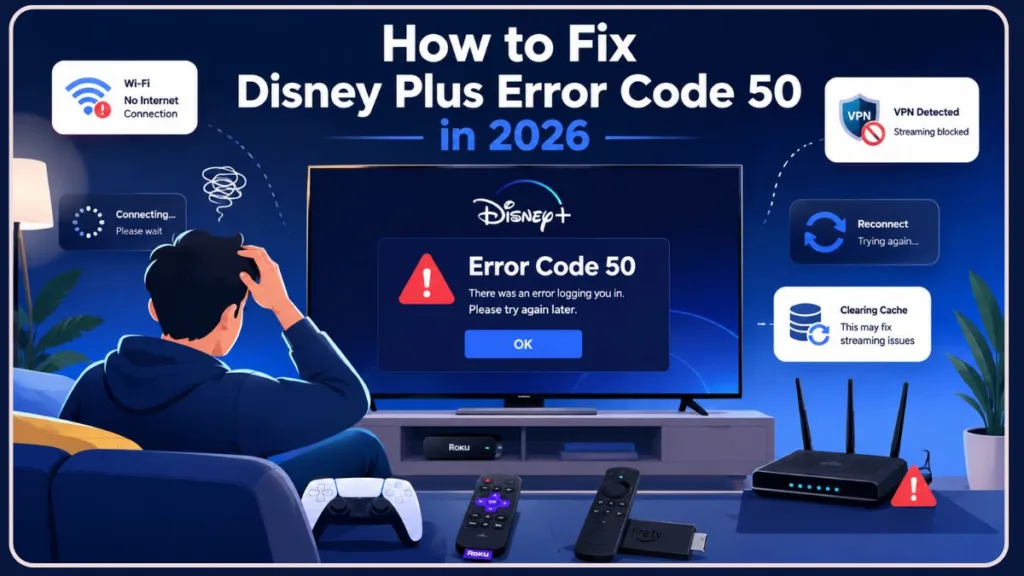
If you’ve been dealing with this, you aren’t alone! This specific error has been causing headaches for subscribers for months. The official Disney+ Help Center doesn’t currently provide a dedicated explanation for Error Code 50, which is exactly why so many users rely on community-tested fixes to get back online.
Quick Fixes for Disney Plus Error Code 50
- Restart TV and router
- Disable VPN temporarily
- Reinstall Disney+
- Clear cache files
- Update TV firmware
- Check Disney+ server status
Check Disney Plus Server Status First
Before you spend time troubleshooting your own equipment, it’s always a smart idea to check if there is a widespread disney plus server issue causing a disney plus unavailable error. If the servers are down on Disney’s end, you may need to wait until Disney resolves the outage.
- Downdetector: Check crowdsourced outage tracking pages like Downdetector to see if other users are reporting sudden login failures.
- Official Disney Support: Check the official Help Center or their support accounts on X (formerly Twitter) for live updates.
- Social Media Outage Reports: Search for hashtags like #DisneyPlusDown to quickly see if the community is experiencing the same lockout.
What Does Error Code 50 Mean on Disney Plus?
To put it simply, Error Code 50 is the app’s way of saying it can’t establish a secure connection. It usually points to a network connectivity hiccup, a device incompatibility, or an authentication timeout. Whenever your device tries to verify your account with Disney’s servers and the “handshake” fails, this code pops up as a catch-all network block.
In real-world terms, this often leads to the Disney+ app crashing or trapping you in a frustrating, endless login loop. While this can happen on any Disney Plus error code 50 smart TV setup, it impacts different devices in unique ways:
- On Samsung or LG TVs: Samsung and LG Smart TVs may show Error 50 after outdated firmware updates or corrupted Disney+ cache files.
- On Firestick or Roku: Streaming devices like Firestick and Roku commonly trigger Error 50 after interrupted app updates or temporary storage glitches.
- On Gaming Consoles: We see a lot of folks reporting PS5 streaming app issues, alongside similar lockouts on the PS4 and Xbox, as consoles hold onto corrupted network data longer than other devices.
Important Tip: It’s highly suspected that you might trigger this error if you try to log in after exceeding Disney+’s strict 10-device limit!
How to Fix Error Code 50 on Disney Plus (The Proven Reddit Solution)
Since official support pages don’t always cover the specifics of this code, the community has stepped up with a reliable, tested workaround. If you are searching for a solid disney plus error code 50 ps5 fix, disney plus error code 50 samsung tv solution, or a fix for any other device in your home, follow these steps:
Step 1: Uninstall and Reinstall Disney Plus Rather than just closing the app, we want to start fresh. Completely delete and uninstall the Disney+ application from your device’s hard drive.
Step 2: Power Cycle Your Streaming Device and TV Next, turn off your TV and streaming device entirely. Here is the crucial part: unplug both of them directly from the wall outlet and leave them unplugged for a full 10 minutes.
Important Tip: Simply using your remote to turn off the TV won’t do the trick here; a true “hard reset” is required to drain the internal power supply and clear out the system’s temporary cache.
Step 3: Router Reset for Streaming While you are waiting for your devices to rest, go ahead and unplug your internet router for 5 minutes. This effectively clears your network cache, refreshes your IP address, and forces a brand-new connection with your internet service provider.
Important Tip: If you are comfortable tinkering with your router’s admin settings, tech-savvy users have found that temporarily toggling off your router’s IPv6 setting can also resolve network incompatibilities causing the app to freeze.
Step 4: Reinstall and Log In Now, plug everything back in and power up your router, TV, and streaming device. Reinstall the Disney+ app. Before you open it, be sure to read our VPN steps further down to ensure your login goes smoothly!
Clear Disney Plus Cache
Sometimes, a full reinstall isn’t necessary if you can simply clear disney plus cache. Clearing out these temporary files is a high-value troubleshooting step that solves a lot of hidden connection bugs. Here is how to do it on the most popular devices:
Samsung TV
Go to Settings > Support > Device Care. Select Manage Storage, then highlight the Disney+ app. Click View Details and choose Clear Cache.
LG TV
Press the Home button and navigate to Settings > General > Storage, then select Clear Cache. Alternatively, open the Web Browser app on your TV, go to its Settings, and select Clear Browsing Data.
Firestick
Navigate to Settings > Applications > Manage Installed Applications. Scroll down to Disney+ and select both Clear Cache and Clear Data.
Can VPN Cause Disney Plus Error Code 50?
Why Disney+ Blocks Certain VPN Connections
Streaming platforms like Disney+ use strict geo-blocking algorithms to uphold their regional licensing agreements. When you use a Virtual Private Network (VPN) and share an IP address with hundreds of other people, Disney’s system might flag that activity as suspicious. This often triggers a disney plus vpn issue, instantly cutting off your connection to their servers and throwing an Error 50.
How to Fix Disney Plus VPN Issues
A helpful Reddit thread discussing PS5 and VPN-related fixes pointed out that a VPN-related authentication conflict is very often the hidden culprit behind Error Code 50. Thankfully, the login page workaround is straightforward:
- Disable VPN temporarily: Completely turn off your VPN provider at the router or device level before you launch the newly installed Disney+ app.
- Log in first without VPN: With the VPN still off, enter your login credentials. Wait until you have successfully passed the login screen and are looking at your Disney+ profile selection page.
- Restart Disney+: Now that your session is authenticated and active, you can safely turn your VPN back on and enjoy your shows!
How to Prevent Disney Plus Error Code 50 in the Future
Want to keep your streaming experience as smooth as possible going forward? We highly recommend adding this quick disney plus troubleshooting guide to your routine!
Keep Disney+ Updated
Older app versions can easily cause connection failures with streaming servers. Do yourself a favor and ensure automatic updates are enabled in your TV or console settings so you’re always enjoying the latest version.
Avoid Unsupported VPN Services
Free or budget-tier VPNs often reuse the same blocked IP addresses, which will just keep locking you out of your account. For the best experience, try sticking to premium providers that actively cycle their streaming-optimized servers to fly under the radar.
Maintain Stable Internet Speed
Sometimes, a quick drop in bandwidth or a momentary internet hiccup is all it takes to cause an authentication timeout, leaving disney plus not streaming. Try to keep your network clear of heavy background downloads while logging in.
Important Tip: For reference, official Disney guidelines recommend a consistent speed of at least 5Mbps for standard streaming and 25Mbps for 4K Ultra HD.
Restart Streaming Devices Regularly
You can easily prevent data corruption by fully shutting down your TV or console once a week.
Important Tip: Leaving our devices in low-power “Sleep” or “Rest” modes for months on end is actually one of the main causes of app caching errors!
FAQ
How do I clear the cache on my Disney Plus app?
If you’d rather not do a full reinstall, clearing the cache directly from your device is a great alternative. For most Android-based smart TVs and Firesticks, simply go to your application management settings, find Disney+, and click Clear Cache.
Important Tip: Always ensure your device has at least 500MB to 1GB of free storage space, as low memory is a major cause of Disney+ crashes.
Why is my Disney Plus not working on my PS5?
PlayStation consoles are somewhat notorious for holding onto corrupted network data a bit longer than your standard streaming stick. If the app keeps hanging on your PS5, standard restarts usually won’t help. You really need to perform that hard hardware reset on both the console and your router using the 10-minute rule we outlined above.
Is Disney Plus error code 50 related to internet issues?
Yes, absolutely! Error Code 50 is fundamentally a network communication issue. It happens when your device’s connection times out while trying to authenticate your login with Disney’s servers. This is why resetting your router is just as important as restarting your device.
How do I restart Disney Plus on my TV?
To properly restart Disney Plus, we recommend fully closing the app instead of just backing out of it. On most Smart TVs, you can do this by opening your TV’s app menu, force-closing Disney+, and then unplugging your TV from the wall for about 60 seconds to clear out any temporary bugs before launching it again.
Why is Disney Plus not working on my Smart TV?
If the app won’t open or keeps freezing on your Smart TV, it’s usually due to a buildup of corrupted cache files or outdated firmware. Taking a moment to clear the Disney Plus cache or updating your TV’s operating system often resolves these stubborn glitches quickly.
How do I fix Disney Plus streaming errors?
Most general streaming errors (like endless buffering or sudden drops) can be fixed by ensuring your internet speed meets the 5Mbps minimum, restarting your router, or switching from Wi-Fi to a wired Ethernet connection to guarantee a highly stable signal.
Why does Disney Plus keep crashing?
Constant app crashes typically point to low storage space on your device, outdated app versions, or a buggy software update. Freeing up at least 1GB of storage on your hard drive and completely reinstalling the app usually gets everything running smoothly again.
How can I update the Disney Plus app?
Keeping your app updated is super easy! Simply navigate to the app store on your specific device (like the Google Play Store, Apple App Store, or your TV’s dedicated app hub), search for Disney Plus, and click Update if a newer version is available. You can also turn on automatic updates in your device settings to never miss one.
What are the common Disney Plus error codes?
While Error 50 is a tricky login blocker, you might also bump into Error 83 (a device compatibility or connection issue), Error 73 (a location or VPN block), or Error 42 (a general internet connectivity timeout). These can typically be resolved with a quick router reboot or by double-checking your network settings!
Conclusion
In most cases, Error Code 50 is caused by temporary authentication or network conflicts rather than permanent account problems. Starting with a full hardware reset, router reboot, and temporary VPN disable usually resolves the issue within minutes. If you’ve patiently run through the full hardware reset and you are still locked out, your best next step is to reach out directly to official Disney+ customer support via Twitter or their official help portal. They can check whether your account has a device-limit restriction or an authentication lock. Happy streaming!
Visit Our Post Page: Blog Page
Discover more from Izoate
Subscribe to get the latest posts sent to your email.