
Windows 11 not activated after a motherboard or hardware change? Learn why it happens and how to activate Windows 11 after changing hardware—often without needing to buy a new license
You just got your PC back after swapping out a dead motherboard, and instead of picking up right where you left off, you’re staring at a message that says “Windows isn’t activated” or “Microsoft has detected a hardware change.” Maybe you tried re-entering your product key and got hit with something like error 0xC004F211 or 0x803FA067 instead of a fix.
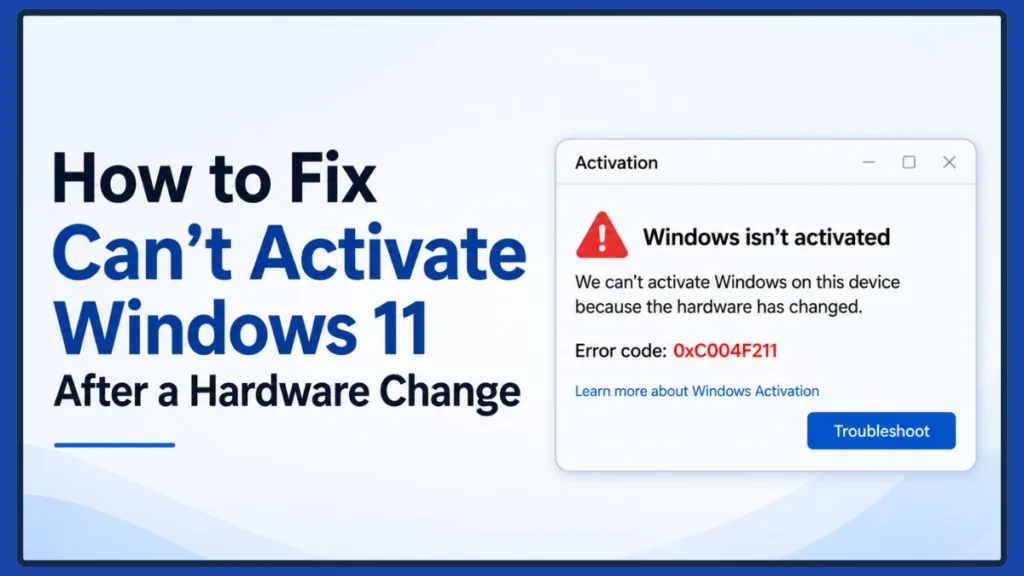
Take a breath — this doesn’t automatically mean your Windows license is gone for good. What actually happens to your activation after a motherboard swap depends on a few things: the type of license you have, whether that license was ever linked to your Microsoft account, and whether the motherboard was replaced by you or by the manufacturer as part of a warranty repair.
This guide walks you through why Windows 11 loses activation after a motherboard replacement, what those error codes actually mean, and — most importantly — how to get activated again without necessarily spending a cent.
Quick answer: If your digital license is linked to your Microsoft account, or you own a transferable retail license, you can usually reactivate Windows yourself in a few minutes. If your PC came with an OEM license preinstalled by the manufacturer, you may need their help — or, in some cases, a new license.
Why Does Windows 11 Lose Activation After a Motherboard Swap?
A lot of people assume that changing a motherboard somehow erases Windows or wipes out their product key. That’s not quite what’s going on.
How Your Digital License Gets Tied to Your Hardware
Since Windows 10, Microsoft has activated most installations using a digital license rather than a product key you type in every single time. That license lives on Microsoft’s activation servers, and it’s built from a fingerprint of your PC’s hardware — with the motherboard being one of the most significant components used to establish your device’s hardware identity.
Swap in a new RAM stick, drop in a bigger SSD, or upgrade your graphics card, and Windows won’t blink. Replace the motherboard, though, and Windows sees a completely different fingerprint. The activation servers can no longer match your current setup to the license on file, so your PC effectively looks like a brand-new device that’s never been activated. That’s the moment messages like “Windows isn’t activated” or “Microsoft has detected a hardware change” start showing up.
Tip: The single best thing you can do before any motherboard swap is confirm your Microsoft account is linked to your digital license. Go to Settings > System > Activation and check that it reads “Windows is activated with a digital license linked to your Microsoft account.” Doing this before you touch your hardware is what gives Microsoft’s official reactivation path something to work with.
Does a BIOS Update Cause the Same Problem?
Not usually. A BIOS or UEFI firmware update on its own rarely triggers a loss of activation, since it doesn’t change the underlying hardware Windows is checking. If you find yourself deactivated right after a repair, the motherboard swap itself — not a routine BIOS update — is almost always the real cause. If you’re unsure whether a firmware update was involved in your situation, a detailed BIOS update guide can help you check your current firmware version and understand what a safe update process looks like.
What Happens If You Don’t Reactivate Right Away?
Nothing catastrophic — at least not immediately. An unactivated copy of Windows 11 still boots, runs your programs, and keeps receiving critical security updates. What you will notice is a persistent watermark in the bottom-right corner reminding you to activate, along with losing the ability to personalize things like your desktop background, colors, and lock screen until activation is restored.
In other words, there’s no need to panic or rush into buying a new license the same day your motherboard gets replaced. It’s worth working through the checks below properly instead of guessing.
OEM vs Retail Windows Licenses: Why the Difference Matters
Before you try any fix, it helps to know exactly what kind of Windows license you’re dealing with, since that alone can decide whether reactivation is quick or complicated.
| Feature | OEM License | Retail License |
|---|---|---|
| Comes preinstalled by manufacturer | Yes | No |
| Purchased separately | No | Yes |
| Transfers to a new motherboard | Usually not | Usually yes |
| Tied to one specific device | Yes | No |
| Works best linked to a Microsoft account | Yes | Yes |
OEM Licenses: Built Around Your Original Hardware
An OEM (Original Equipment Manufacturer) license ships preinstalled on laptops and prebuilt desktops from brands like Lenovo, Dell, HP, ASUS, Acer, and MSI. Because it’s designed to stay with the hardware it shipped on, swapping the motherboard yourself can leave Windows unable to activate automatically.
That said, an OEM license isn’t necessarily a dead end. If the motherboard was replaced through an authorized repair — think a warranty claim handled by the manufacturer — there’s a real chance the manufacturer can restore your activation, even though the same swap done independently might not work.
Retail Licenses: Designed to Move With You
A retail license is one you bought separately, either directly from Microsoft or through an authorized retailer. Retail keys are built to be portable, so as long as you’re not running the same key on two PCs at once, you can generally move it to a new motherboard.
If Windows won’t activate after the swap, signing into the Microsoft account tied to that digital license and running the Activation Troubleshooter clears things up for most people. If it doesn’t, Microsoft Support can look at your activation history and step in manually.
Do You Actually Need to Buy a New Windows License?
This is usually the first worry that pops into people’s heads, and the honest answer is: probably not.
Signs Your Existing License Should Still Work
You’re likely fine without spending anything if:
- Your digital license is already linked to your Microsoft account
- You’re working with a retail copy of Windows
- Your laptop manufacturer replaced the motherboard as part of a warranty repair
- You’re reinstalling the exact same edition you had before (Home stays Home, Pro stays Pro)
- Microsoft Support has confirmed your license is still valid on their end
Plenty of people who assumed they’d lost their license entirely got back up and running just by verifying ownership through one of the methods further down.
Signs You May Actually Need a New License
A new license becomes more likely if:
- You built an essentially new PC around the new motherboard, rather than just repairing an old one
- Your OEM license isn’t eligible for transfer and no warranty repair was involved
- You no longer have access to the Microsoft account the license was linked to
- Your product key belongs to a different Windows edition than the one installed
- Microsoft’s activation servers determine the license has already reached its transfer limit
Before you buy anything: Even if your situation matches the list above, it’s worth contacting Microsoft Support first — especially if the motherboard failed rather than being swapped out by choice. You might be able to reactivate your existing license instead of paying for a new one.
What Happens When Your Manufacturer Replaces the Motherboard?
A surprising number of activation headaches show up after a warranty repair rather than a DIY upgrade — and in those cases, you usually haven’t done anything wrong.
Warranty Repair vs. DIY Upgrade
If a technician replaced your motherboard because it failed, and the repair went through the manufacturer or an authorized service center, your Windows license typically remains valid — Windows may just need to reactivate because the hardware fingerprint changed. Start with the Activation Troubleshooter, and loop in the manufacturer’s support team if that doesn’t clear things up.
If you swapped the motherboard yourself for a personal upgrade, Windows may treat the PC as a new device altogether, and your outcome depends heavily on whether you’re working with a retail or OEM license.
Lenovo, Dell, HP, ASUS, Acer, MSI, and Other Brands
Say a Lenovo Legion owner sends their laptop in for a keyboard or motherboard repair and gets it back fully fixed — only to find Windows no longer activated. That’s not unusual, and it’s rarely something the owner caused.
For most major manufacturers — Lenovo, Dell, HP, ASUS, Acer, MSI, Samsung, Gigabyte, Razer, and others — Windows should generally reactivate on its own once the repaired device connects to the internet, assuming the repair happened under warranty and the original license is still valid. If it doesn’t reactivate automatically, the manufacturer may ask for your device’s serial number, the repair order number, proof of purchase, or your Windows edition to sort it out.
To be more precise about it: automatic reactivation depends on the replacement motherboard being correctly provisioned by the manufacturer with the right licensing information, and on your original license still being eligible for reactivation on their end. When either condition isn’t met — which does happen, particularly with older devices or independent repair shops using generic replacement boards — reactivation simply doesn’t happen by itself. That’s the point where contacting the manufacturer or Microsoft Support stops being a formality and becomes the actual next step.
Questions Worth Asking Your Repair Center
Before assuming you need to pay for anything, ask your repair center:
- Was the replacement motherboard an authorized part?
- Did the repair transfer or preserve the original Windows license?
- Is any BIOS or firmware update needed before Windows will activate?
- Should activation happen automatically once the device is back online?
Most activation problems tied to a manufacturer repair get sorted out without anyone having to buy a new copy of Windows.
Common Windows 11 Activation Errors After a Hardware Change
Once you understand what each error code is actually telling you, troubleshooting gets a lot less confusing.
0xC004F211 and 0xC004F213 – Hardware Change Detected
These two show up together so often that Microsoft groups them under the same explanation: your Windows license is tied to your device’s hardware, and a significant change — almost always a motherboard swap — means the activation servers can no longer find a match. If Windows came preinstalled and the motherboard was swapped outside of warranty, a new license may genuinely be required.
How to approach it:
- Sign in using the Microsoft account linked to your digital license
- Open the Activation Troubleshooter and select I changed hardware on this device recently
- If prompted, choose the device you’re currently using and select Activate
0x803FA067 – Your Product Key Didn’t Activate Windows
This one typically shows up right after entering a product key. It usually means the key doesn’t match your installed edition, isn’t eligible for transfer, or has already been used elsewhere. Before assuming the key itself is bad, double-check that you’re installing the same edition — Home or Pro — that the key was actually issued for.
0x803F7001 – No Valid License Found
Windows displays this when it can’t locate any digital license for the device you’re currently using. It often turns up after a clean reinstall following a motherboard swap, or when you’re signed into a Microsoft account that was never linked to the original license.
0xC004C003 – Activation Servers Rejected the Key
This means the product key you entered has already been flagged — often because it’s tied to another device or has hit its activation limit. If your device is new or came from a reseller, the manufacturer or reseller is usually best placed to help; otherwise, the Activation Troubleshooter is worth trying first.
0xC004F050 – Invalid or Mismatched Product Key
This one generally points to a mismatched or invalid product key — commonly a Home key being used on a Pro installation (or the reverse), a typo, or a key meant for an entirely different Windows version. Confirm your installed edition under Settings > System > Activation before trying the key again.
Quick Checks Before You Start Troubleshooting
A few minutes of double-checking here can save you from chasing a fix that was never going to work in the first place.
Confirm Your Windows Edition
A Windows Home key cannot activate a Pro installation, and a Pro key won’t work on Home. Head to Settings > System > Activation and confirm which edition is listed under Windows specifications before you do anything else.
Confirm You’re Signed Into the Right Microsoft Account
If your digital license was ever linked to a Microsoft account, you need to be signed into that exact account for the Activation Troubleshooter to find it. It’s easy to lose track of which email — Outlook, Hotmail, Live, or a Microsoft 365 account — was actually used, so check under Settings > Accounts before troubleshooting any further.
Check Your Current Activation Status
Open Settings > System > Activation to see whether Windows is currently activated, which error code (if any) is showing, and whether a digital license is linked to your account. Jot down any error code you see — it tells you exactly which fix to try next.
How to Check Whether Your Windows License Is OEM or Retail
Before you try any of the fixes below, it’s worth spending two minutes confirming exactly what kind of Windows license you’re working with. Whether your license is OEM, Retail, or Volume changes almost everything else in this guide — it affects whether a motherboard swap should reactivate on its own, whether you’re legally able to move your license to new hardware, and whether your manufacturer or Microsoft Support is the right first call.
OEM, Retail, and Volume Licenses, Explained
- An OEM license is issued to manufacturers and system builders, and it’s designed to activate on the first motherboard it’s ever installed on. This is what ships preinstalled on most prebuilt desktops and laptops.
- A Retail license is sold directly to an individual — boxed or digital — and Microsoft’s terms allow it to move with you to new hardware, as long as it’s only active on one device at a time.
- A Volume license is issued to organizations through Volume Licensing or a Key Management Service (KMS), and it’s managed by an IT administrator rather than tied to a personal Microsoft account.
You don’t have to guess which one you have. Windows will tell you directly, using a set of commands most people have never had a reason to run before now.
Method 1: Check Your License Channel with slmgr /dli
Open Command Prompt or PowerShell as an administrator and run:
slmgr /dli
This brings up a Windows Script Host dialog box with a quick summary: your Windows edition, activation status, and licensing channel. Here’s how to read what shows up:
| Result | What It Means |
|---|---|
| Retail | A transferable license purchased separately, tied to your Microsoft account rather than a specific motherboard |
| OEM_DM | A manufacturer-installed license, tied to the original hardware it shipped on |
| OEM_COA | An older-style OEM license tied to a physical Certificate of Authenticity sticker |
| Volume_KMS | An organization-managed license activated through a local Key Management Service server |
| Volume_MAK | An organization-managed license activated with a Multiple Activation Key |
If your result says Retail, a motherboard swap is far less likely to leave you stuck. If it says OEM_DM or OEM_COA, the outcome depends heavily on whether the replacement happened through an authorized warranty repair. If it says Volume_KMS or Volume_MAK, reactivation is really your IT department’s job rather than something Microsoft’s consumer support line typically handles.
Method 2: Get the Full Picture with slmgr /dlv
For more detail than /dli provides, run:
slmgr /dlv
This shows everything /dli does, plus your Activation ID, partial product key, license status, and remaining rearm count — useful information to have on hand if you end up describing your situation to Microsoft Support or a manufacturer instead of just sending them a screenshot of Settings.
Method 3: Confirm Permanent Activation with slmgr /xpr
Once you know your license type, it helps to confirm whether Windows considers itself permanently activated, or whether it’s running on a timer. Run:
slmgr /xpr
For most Retail and OEM licenses, this simply confirms the machine is permanently activated. Volume-licensed machines behave differently — since KMS activations are designed to renew periodically rather than activate once and stay activated forever, /xpr may return a specific expiration date instead. That’s normal behavior for that license type, not a sign anything is broken; it just means the machine needs to check in with a KMS server periodically to stay activated.
If you’re not familiar with running commands from an elevated prompt, a guide to Windows Command Prompt basics can walk you through opening it safely and understanding the output.
Running all three commands takes under a minute combined, and together they tell you almost everything you need to know before deciding which method below is worth trying first.
How to Fix Windows 11 Activation After a Motherboard Replacement
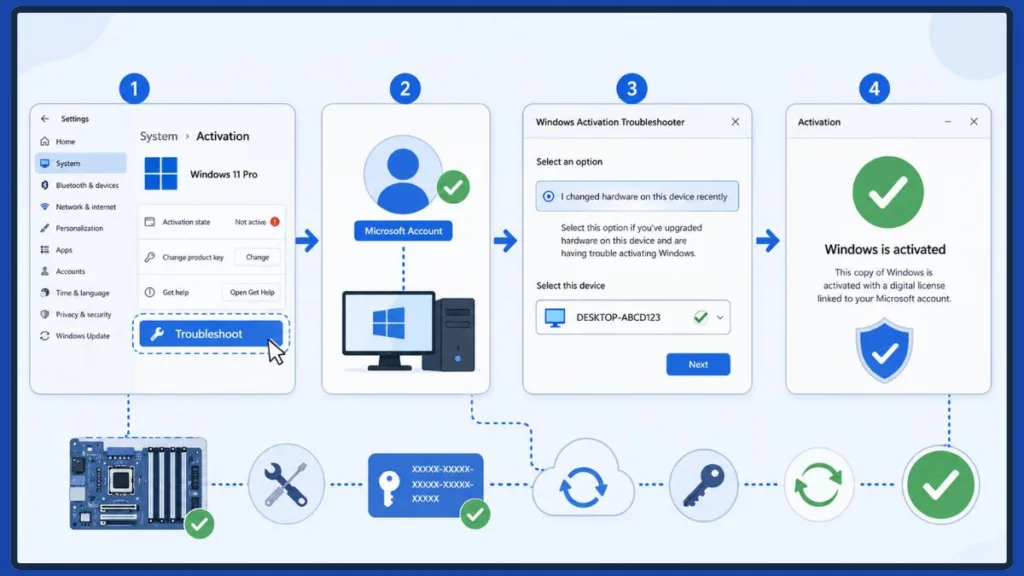
With the basics confirmed, here’s the order most people find success working through. Since you now know whether you’re working with a Retail, OEM, or Volume license, you can skip straight to whichever method below applies to your situation.
Method 1: Run the Windows Activation Troubleshooter
This is the fastest fix if your digital license is already linked to your Microsoft account.
- Press Windows + I to open Settings
- Go to System > Activation
- Select Troubleshoot
- Choose I changed hardware on this device recently
- Sign in with your Microsoft account when prompted
- From the list of devices, check This is the device I’m using right now, then select Activate
If your device doesn’t show up in that list, it’s usually one of these:
- Your Microsoft account wasn’t linked to the digital license before the hardware change
- You’re signed into a different Microsoft account than the one used previously
- Your previous PC was removed from your Microsoft account at some point
- Your license type simply isn’t eligible for transfer
If none of that gets you unstuck, move on to the next method rather than repeating the troubleshooter — it won’t produce a different result without one of the factors above changing.
Why this method works when it works: If your digital license was ever linked to your Microsoft account — even briefly, even years ago — the troubleshooter has a hardware record to search against, and reactivation usually takes under two minutes.
Why it sometimes can’t work at all: If your copy of Windows was never linked to a Microsoft account in the first place — common with OEM licenses activated purely through firmware, with no account ever added during setup — there’s no account-linked record for the troubleshooter to search. Running it a second or third time won’t change that outcome, since the tool is only as good as the record it’s checking against.
Behind the scenes, this whole process relies on something called a hardware hash — a fingerprint Windows generates from your PC’s components, weighted heavily toward the motherboard. That hash gets registered with Microsoft’s activation servers and linked to your Microsoft account the first time you activate. When you select This is the device I’m using right now, you’re really telling Microsoft to associate this new hash with your existing digital license. If your previous device is listed but not obviously selected, look for a “see other devices linked to your Microsoft account” option — it doesn’t always show up as a default entry, and it can surface an older PC name you might not immediately recognize.
This is also where having multiple Microsoft accounts causes real problems. Between a personal account, a work or school account, and one created just for Xbox or gaming, it’s easy to activate Windows under one account and sign into a completely different one months or years later without noticing the mismatch. If the troubleshooter can’t find your device, it’s worth signing out and checking every Microsoft account you own at account.microsoft.com before assuming your license is unrecoverable.
For a more detailed walkthrough of every screen you’ll encounter, a dedicated guide to using the Windows Activation Troubleshooter covers the full process step by step.
Method 2: Re-Enter Your Windows Product Key
If you own a retail copy of Windows, your original 25-character product key can restore activation on its own.
- Open Settings > System > Activation
- Select Change product key
- Enter your key, select Next, then Activate
Misplaced your key? Check your Microsoft Store purchase history, your original confirmation email, or the packaging your retail copy came in. OEM keys, by contrast, are usually embedded in firmware rather than printed anywhere, so this method mainly helps retail license owners. If you’re not sure where to look, a dedicated guide on how to find your Windows product key covers every retrieval method in detail.
Method 3: Try Phone Activation
If the Troubleshooter and product key both come up short but you’re confident your key is genuine, Windows still offers a phone-based activation path for certain hardware-change errors. Type SLUI 04 into the taskbar search, select it from the results, and follow the on-screen prompts. This option isn’t available if you’re running Windows 11 Pro for Workstations or Pro EDU — those editions have to activate over the internet.
What SLUI 04 actually opens is Windows’ built-in phone activation wizard — a long-standing tool that’s been part of Windows since well before Windows 11, just tucked a little further out of sight in the current Settings layout. Typing the command directly is faster than hunting for the option through menus.
How this differs from online activation: Instead of your PC quietly exchanging its hardware hash with Microsoft’s activation servers over the internet, the wizard gives you a phone number alongside a long Installation ID. That ID gets read or keyed in over the phone — sometimes to an automated system, sometimes with a live agent involved — and in exchange you receive a Confirmation ID, which you type back into the wizard to finish activating. It’s slower and more manual than online activation, but it doesn’t rely on the same automatic hardware-matching process that trips up the Activation Troubleshooter, which is exactly why it’s worth trying once that process has already failed.
What Microsoft asks for: Mainly your Installation ID, which the wizard generates automatically, plus your country or region — this determines which phone number and automated system you’re connected to — and confirmation of your Windows edition. Keeping your product key or proof of purchase within reach helps if you’re asked to verify ownership.
One genuine advantage: Phone activation can complete even when the PC itself has no internet connection, since the ID exchange happens over a phone call rather than online — useful if you’re troubleshooting a machine that isn’t network-connected yet.
Availability does vary by region and Windows edition. Beyond Pro for Workstations and Pro EDU being excluded outright, not every country offers the same phone support setup, and some users find the automated system easier to reach than a live agent depending on where they’re calling from.
Method 4: Check Whether Your License Is Transferable
If you already ran the commands in the license-check section above, you already have your answer here — this is just the transferability angle on that same result. Not sure if your license type even allows a transfer? Open Command Prompt or PowerShell as an administrator and run slmgr /dli for a quick summary, or slmgr /dlv if you want more detail, including your activation ID and partial product key.
| Result | What It Means |
|---|---|
| Retail | Transferable license, tied to your Microsoft account |
| OEM_DM / OEM_SLP | Manufacturer-installed license, tied to the original hardware |
| Volume_KMS / Volume_MAK | Organization or enterprise license |
If you upgraded from Windows 10 to Windows 11 on the same device, your license type usually carries over unchanged — a Windows 10 retail key stays retail, and an OEM key stays OEM.
Method 5: Contact Your Laptop Manufacturer
If the motherboard swap happened through an authorized repair, reach out to your manufacturer before spending anything on a new license. Have your serial number, repair order, proof of purchase, activation error code, and Windows edition ready — most manufacturers can tell you fairly quickly whether the repair should have preserved your activation.
Method 6: Contact Microsoft Support
When nothing else works, Microsoft Support can sometimes verify your license and reactivate it manually. The quickest route these days is through the Get Help app built into Windows, where you can chat with an agent directly rather than hunting for a phone number.
Worth knowing: Self-service reactivation isn’t guaranteed to work every time. Some users with older devices, or ones previously removed from a Microsoft account, find that even the troubleshooter and support chat can’t always locate a matching license. Having your proof of purchase and original account details ready gives you the best shot at a manual fix.
How to Avoid This Problem the Next Time You Upgrade
A little prep now saves you a headache the next time hardware fails or you decide to upgrade.
Link Your Microsoft Account Before You Touch Any Hardware
This is the single most effective step you can take. Head to Settings > System > Activation and confirm it shows your account is linked before you ever open your case. Microsoft’s official reactivation path specifically calls for this to happen before the hardware change, not after.
Here’s exactly what to look for: open Settings, select System, then Activation. Underneath your Windows edition, you’ll see one of two messages. If it reads “Windows is activated with a digital license linked to your Microsoft account,” you’re already set — your license and your account are connected, and the Activation Troubleshooter will have a record to work with if your hardware ever changes.
If instead it reads “Windows is activated with a digital license” with no mention of an account, that’s your signal to act. Windows is genuinely activated, but nothing ties that activation to an account you can sign back into later — which matters enormously the moment a motherboard needs replacing.
To fix this now, make sure you’re signed in as an administrator, then look for an Add an account option on that same Activation page. Sign in with the Microsoft account you want tied to this PC, and the message should update to confirm the two are linked. It takes under a minute, and it’s the single change that turns a future motherboard replacement into a two-minute troubleshooter fix instead of a support ticket.
For a full walkthrough of reading and understanding your current activation status, a dedicated guide on how to check your Windows activation status walks through every detail.
Save Your Product Key Somewhere Safe
If you’re running a retail license, keep that 25-character key somewhere you’ll actually remember — a password manager, a note in your email, or a photo of the original packaging.
Back Up Your Files Before Any Repair
Activation data lives on Microsoft’s servers, but your personal files don’t. Before any motherboard swap or repair, back up what matters to an external drive or a cloud service like OneDrive, just in case something doesn’t go as smoothly as planned. If a repair ultimately requires a clean start, a guide on how to factory reset Windows 11 walks through everything you need to do before and after the process.
How We Researched This Guide
This guide was put together by working through Microsoft’s own activation documentation — including its official guidance on reactivating Windows after a hardware change and its full reference list of activation error codes — alongside Windows licensing guidance covering how OEM, Retail, and Volume channels actually function. We also looked at manufacturer support documentation from brands like Lenovo, Dell, HP, ASUS, Acer, and MSI to understand how warranty repairs are typically handled, and read through real-world activation scenarios and troubleshooting discussions shared by Windows users who ran into this exact motherboard-replacement situation themselves. Error codes, command syntax, and every troubleshooting step here were checked against that documentation rather than assumed, so you’re working from a guide grounded in how activation actually behaves — not a rehash of guesswork.
Frequently Asked Questions About Windows 11 Activation After a Motherboard Change
Can I activate Windows 11 after replacing my motherboard?
In most cases, yes — through the Activation Troubleshooter, a linked Microsoft account, or Microsoft Support.
Will replacing a motherboard deactivate Windows?
Usually, yes, since Windows treats the motherboard as a core part of your device’s hardware identity.
Does replacing a motherboard delete my Windows license?
Not necessarily. Whether you keep it depends on your license type and how the motherboard was replaced.
Can I transfer my Windows 11 license to a new motherboard?
Retail licenses generally transfer without issue. OEM licenses usually don’t, unless the swap happened through an authorized warranty repair.
What does error 0xC004F211 mean?
It means Windows detected a significant hardware change and needs to be reactivated.
What does error 0x803FA067 mean?
It typically means the product key you entered couldn’t activate Windows after the hardware change.
Should I contact Microsoft or my manufacturer first?
If the repair happened under warranty, start with the manufacturer. Otherwise, Microsoft Support is your next stop.
How do I check if my license is OEM or Retail?
Run slmgr /dli or slmgr /dlv from an elevated Command Prompt or PowerShell window.
Can I reuse my product key after replacing the motherboard?
Yes, as long as it’s a transferable retail key that isn’t already active on another device.
Will reinstalling Windows fix the activation error on its own?
Not by itself — reinstalling only helps once your license can actually be verified again. If you’re planning a clean install, a guide on how to create Windows 11 installation media and a separate guide on how to install Windows 11 cover both steps in full.
Does replacing the motherboard remove Windows?
No — your installation, files, and installed programs are untouched. What changes is activation status, not the operating system itself.
Why does Windows think my PC is a new device?
Because your digital license is matched against a hardware hash built largely from your motherboard. Replace that component, and the hash no longer matches what’s on file, so Windows treats the PC as unrecognized until it’s reactivated.
Does changing RAM deactivate Windows?
No. RAM isn’t part of the hardware fingerprint Windows checks during activation, so upgrading or adding memory has no effect on your license.
Does changing SSD deactivate Windows?
No. Storage drives aren’t part of that fingerprint either, so you can replace, upgrade, or clone your SSD without losing activation.
Does replacing an NVMe drive affect activation?
Not normally — NVMe drives are treated the same as any other storage device for activation purposes. If an activation prompt does appear right after an NVMe swap, it’s worth checking whether anything else changed at the same time, since drive swaps are rarely the real cause on their own.
Does updating BIOS deactivate Windows?
Rarely. A BIOS or UEFI update alone doesn’t usually change the hardware identity Windows checks — see the BIOS section earlier in this guide for more detail.
Can Microsoft reactivate an OEM license?
Sometimes. It depends on whether the OEM license is still eligible for transfer and whether Microsoft Support can verify your ownership. It’s less consistent than with retail licenses, but not impossible — especially following a manufacturer warranty repair.
What happens if I replace both the motherboard and SSD?
The same rules that apply to a motherboard-only swap still apply here — the SSD swap itself doesn’t add any extra risk to activation. Windows treats it as a standard motherboard hardware change, so the troubleshooting order in this guide still applies.
Will Windows activate automatically after a warranty repair?
Often, yes, once the repaired device reconnects to Microsoft’s activation servers — but only if the replacement motherboard was properly provisioned and your original license is still eligible. If it doesn’t happen automatically, that’s when your manufacturer or Microsoft Support becomes the next step.
Can I activate Windows without internet?
Yes, through phone activation (SLUI 04) — see the Phone Activation method above. It’s slower than online activation but doesn’t require the PC itself to be connected, since you exchange an Installation ID and Confirmation ID over a phone call instead.
Can I transfer Windows 11 to a completely new PC?
Only if you have a transferable retail license. OEM licenses are meant to stay with the device they originally activated on, even once that device is retired, so a completely new PC build typically needs its own license unless you’re starting from a retail key.
Final Thoughts on Reactivating Windows 11 After a Motherboard Replacement
Losing activation after a motherboard replacement feels alarming, but it’s rarely the dead end it first appears to be. Between the Activation Troubleshooter, signing into the right Microsoft account, and reaching out to your manufacturer or Microsoft directly, most people get back to a fully activated PC without spending anything extra.
Before you consider buying a new license, take a moment to confirm whether your setup is OEM or retail, double-check that your installed edition matches your key, and note down any error code you’re seeing. Those few minutes of homework can save you both time and money.
Have you run into a Windows activation error after a hardware change? Let us know in the comments what worked for you — it might be exactly what someone else needs to read.
Visit Our Post Page: Blog Page
Discover more from Izoate
Subscribe to get the latest posts sent to your email.