
Can’t find the cancel button on Amazon Subscribe & Save? Learn where the hidden cancel button is, how to cancel Amazon Subscribe and Save, and stop recurring deliveries fast.
If you keep receiving Amazon Subscribe & Save deliveries you no longer need, you’re not alone. People dealing with this problem often find that they can easily skip a single delivery but struggle to find the option to cancel a subscription completely. You might have accidentally subscribed during checkout, or maybe you just want to stop those surprise boxes for good.
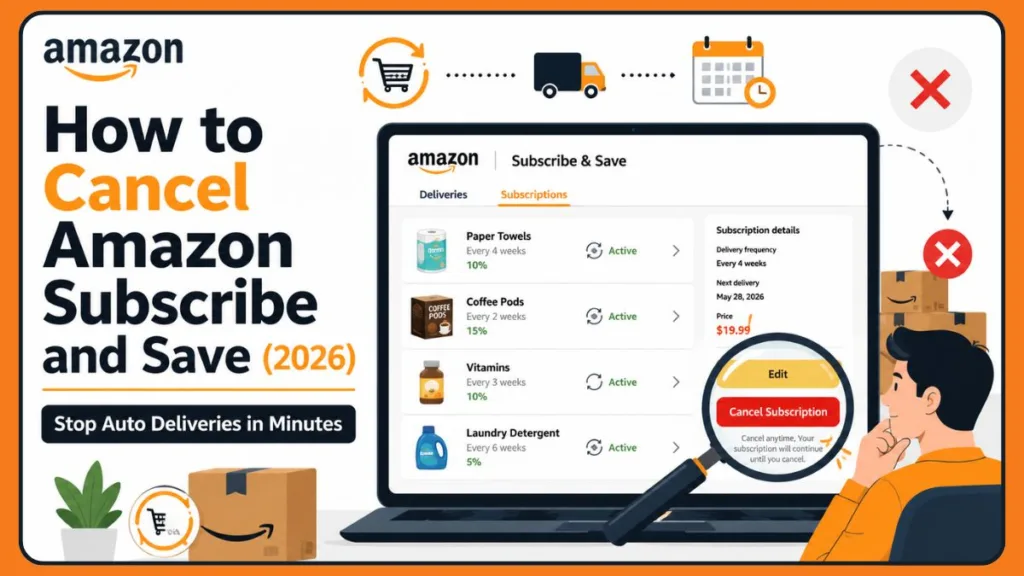
If you’ve been searching for the cancel button in the Amazon app or website, this guide shows exactly where to find it and how to stop future deliveries permanently. Amazon often makes the option difficult to locate, your mobile app can feel deeply confusing, and the interface changes frequently. Do not worry—you can easily navigate both the desktop site and the tricky mobile app to take back control of your budget.
Official Amazon Statement: You may cancel your Subscribe & Save subscription at any time or skip your next delivery before it ships via the Manage Your Deliveries page.
What Is Amazon Subscribe and Save and Why Might You Want to Remove It?
When you sign up for Amazon’s auto-deliveries, you get up to 15% off your household staples by setting a recurring schedule. It is highly convenient until your habits change. Before you know it, you are dealing with a stockpile of vitamins you haven’t finished. Eventually, you will need to Amazon remove subscribe and save items to maintain control of your budget and your pantry space.
Why You Might Want an Amazon Cancel Product Subscription
You might realize you can grab the same items cheaper during flash sales at your local grocery store. Or perhaps you are just tightening your household budget. The financial relief of a quick Amazon cancel order subscription process can be huge, letting you shop only when you actually need a refill.
The Mobile App Trap: Why It Feels Impossible to Amazon Delete Subscribe and Save
If you are trying to use your phone, you might feel like it is impossible to Amazon delete subscribe and save items. If you’re experiencing this issue, you might tap “Edit Subscription” expecting to find a straightforward cancel button, only to hit a dead end. The app tends to hide the true cancellation options deeper within the menus, which causes a lot of unnecessary frustration.
Can’t Find the Cancel Subscription Button?
If you know you need to cancel but just cannot locate the button, you are dealing with a very common headache. Here is exactly where you can find that hidden button:
- Open Subscribe & Save.
- Go to Subscriptions (make sure you are not on the default “Deliveries” tab).
- Click the product image or Edit.
- Scroll all the way down to find Cancel Subscription.
Keep in mind: Depending on your Amazon app version or website layout, the exact button location may vary slightly, but this path will always get you there.
Step-by-Step: How to Cancel Amazon Subscription Online via Desktop
Using your computer is generally the easiest way to cancel Amazon subscription online. If you have a laptop or desktop nearby, you can try the following steps:
- Go to the Amazon homepage and hover over Accounts & Lists in the top right corner.
- Under the far-right “Your Account” column, click on Your Subscribe & Save Items.
- Crucial Step: Switch from the default Deliveries tab to the Subscriptions tab. These tabs are located right under the top border.
- Locate the cancel Amazon item subscription you want to stop. Do not click on the delivery frequency link; instead, click directly on the product image or press Edit.
- Scroll to the bottom right of the popup and select Cancel subscription.
- Choose an optional reason from the dropdown menu. (You don’t actually have to pick one to proceed!)
- Click the final yellow Cancel my subscription button to officially Amazon cancel product subscription.
Important: Always make sure you see the confirmation screen so you know the change actually went through!
Step-by-Step: How to Cancel Amazon Item Subscription on the Mobile App
If you prefer using your phone, you can try the following steps to successfully Amazon cancel subscription and save on your mobile app:
- Open the Amazon app and make sure you are signed in.
- Tap the hamburger menu icon (the three horizontal lines at the bottom right).
- Scroll to find your shortcuts and tap Subscribe & Save (or use the search bar to find it).
- Tap directly on the product image or title you want to manage.
- Here is the secret step: Do not tap the deceptive “Edit Subscription” or the shipping frequency buttons. You must click the standard Edit button within the subscription details, or click the item picture itself.
- Scroll all the way to the bottom of the details page and tap Cancel subscription to successfully Amazon delete subscribe and save.
- Confirm your choice by tapping Cancel my subscription.
Why Can’t I Cancel Amazon Subscribe and Save?
If you are still struggling to stop your shipments, you might be running into one of these common roadblocks:
- Using the wrong menu: Ensure you are in the specific Subscribe & Save dashboard, not your regular “Your Orders” list.
- Looking under Deliveries instead of Subscriptions: The “Deliveries” tab only lets you skip a shipment. You must click the “Subscriptions” tab to find the permanent cancel button.
- App interface changes: Amazon updates its mobile app frequently, which can move buttons around.
- Browser version may be easier: If the app is giving you a headache, logging into Amazon on a computer browser usually solves the problem instantly.
Why Can’t I Find My Subscribe & Save Items?
Sometimes, your active subscriptions seem to vanish entirely, creating a “ghost subscription” that keeps charging you. If you run into this, you can check these three things:
- Check Your Delivery Address: Subscriptions are tied to specific addresses. By default, Amazon only shows subscriptions for the primary address selected. If you recently shipped a gift to a friend or set up a delivery for a second home, you must click the “Deliver to:” link at the top of the Subscribe & Save page and change the location to see those hidden recurring items.
- Check the Correct Amazon Account: If you share devices with family members, verify you are logged into the account that originally placed the order.
- Switch Between Deliveries and Subscriptions: It is very common to get stuck on the “Deliveries” tab. Simply toggle over to the “Subscriptions” tab to manage or stop your items.
Skip Delivery vs Cancel Subscription
You might already know how to skip a single delivery, but if you really want to stop the boxes forever, it’s incredibly easy to confuse these two actions because of how the interface is set up. Here is a quick look at the difference:
| Action | Result |
| Skip Delivery | One shipment skipped |
| Cancel Subscription | Future deliveries stop completely |
Can You Subscribe and Save Then Cancel?
You may be wondering if you can subscribe and save then cancel after your very first order arrives.
- Yes, Amazon allows cancellation after the first order: You can absolutely take advantage of the discount on your first shipment and cancel right after it arrives.
- No cancellation fee: There are no hidden penalties or charges for stopping your auto-deliveries.
- Future deliveries stop after cancellation: Once canceled, you won’t receive any more surprise boxes for that item.
- Must cancel before the next shipment processes: Just make sure you initiate the cancellation before your next cycle locks in.
How to Verify Your Amazon Subscribe & Save Cancellation
If you’re worried about whether your cancellation actually worked, you can use this quick checklist to be 100% sure:
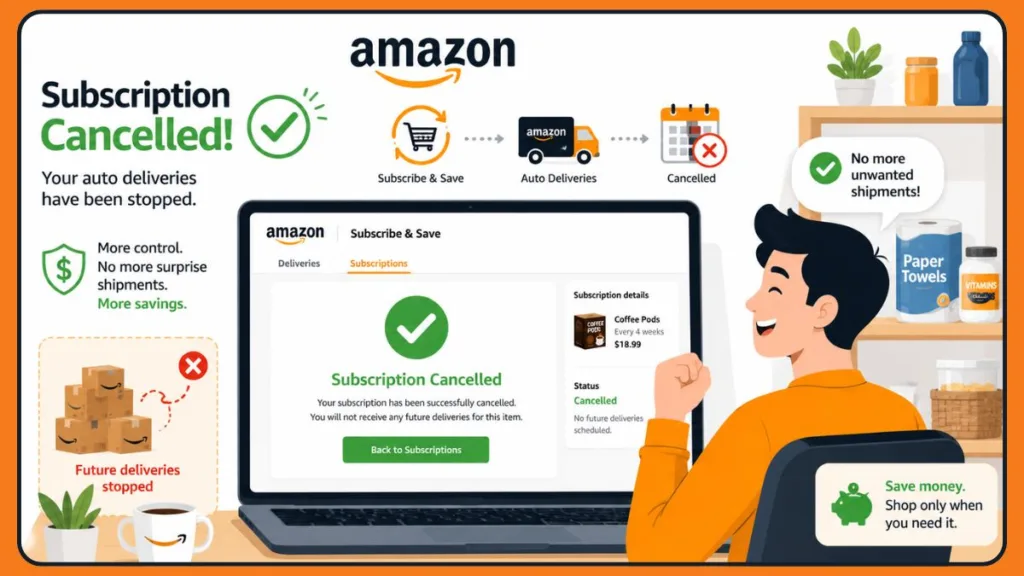
- Confirmation screen appears: The final step will always generate an on-screen message letting you know the cancellation was successful.
- Confirmation email arrives: Amazon will automatically send an email to your registered address confirming the subscription has been stopped.
- Subscription disappears from active subscriptions: Refresh your page and check your active subscriptions list. If the product is no longer there, you are completely in the clear.
Crucial Deadlines to Amazon Subscribe Save Cancel Immediately: Rules to Know
Before you go on a cancellation spree, you should keep these important rules in mind:
- The Deadline: Every item has a “Last day to update this order” date. If you want an Amazon subscribe save cancel immediately to take effect, you must beat this cutoff. If the item has already shipped, you will have to refuse the package at your door or process a standard return.
- The 5-Item Rule: Amazon gives you the biggest discount (up to 15%) when you have five or more items shipping to the same address. If you cancel an item and your total drops below five, the price of your remaining items will go up.
Skip a Delivery Instead of Canceling
If dropping below that five-item threshold worries you, or if you just need a temporary break from paper towels, you can easily skip a delivery instead.
- Go to Your Subscribe & Save Items.
- Stay on the Deliveries tab.
- Hover over the subscription you want to pause and click the Skip button.
- Confirm by clicking Yes, skip this item.
This keeps your discount safe while giving your pantry time to breathe.
How to Cancel a Subscription on Amazon (Digital Services)
You might be searching for how to cancel a subscription on Amazon but actually mean a digital service like Prime Video, Kindle Unlimited, or Audible. These are handled in a completely different area. To stop digital charges:
- Hover over Accounts & Lists and click on Memberships & Subscriptions.
- Locate the service (like Prime or Kindle Unlimited).
- Click Manage Subscription.
- Select Cancel Subscription under the Advanced Controls section.
Frequently Asked Questions
- Can I Cancel Amazon Subscribe and Save After the First Order?Yes. Subscribe & Save subscriptions can generally be canceled at any time before the next shipment is processed. Future deliveries stop after cancellation.
- Do I get a refund for past deliveries?Amazon does not automatically refund past shipments. However, if a box just arrived that you forgot to cancel, you can usually return it through the standard Online Returns Center.
- Can I restart a canceled subscription?Absolutely. If you change your mind next month, you can easily set up a new auto-delivery for the same product without any hassle.
Conclusion
Taking control of your recurring shipments puts real money back in your wallet and keeps your home clutter-free. Now that you know exactly where those hidden buttons are, the “Deliver to” address trick for hidden subscriptions, and the difference between skipping and canceling, you can confidently manage your account from any device.
Have you ever struggled to find the cancellation button on an app before? Let me know about your experience, ask any questions, or share your own money-saving tips in the comments below!
Visit Our Post Page: Blog Page
Discover more from Izoate
Subscribe to get the latest posts sent to your email.